
Hold down the power button for at least 15 seconds. Keep holding it until you feel the phone vibrate and see the Xiaomi logo appear. This force restart is the single most effective fix for a frozen or unresponsive touchscreen on the Xiaomi 15.
If touches seem to go missing, run an online touch screen tester first. The grid fills in wherever the screen registers contact, so gaps stand out immediately.
I'd start with this one every time. It clears the phone's temporary memory and can resolve minor software glitches in HyperOS 2 that cause the touch input to stop working. The phone should power back on normally once you release the button.
Clean the Screen and Remove Any Protector
Power the phone off and give the screen a thorough clean with a soft, lint-free cloth. Make sure there's no moisture, grease, or debris interfering with the capacitive touch layer. Pay special attention to the edges of the screen.
If you're using a tempered glass or plastic screen protector, try removing it completely. A poorly applied or low-quality protector, especially one that's cracked or has air bubbles, can severely disrupt touch sensitivity. Test the phone's bare screen to see if the problem goes away.
Check for Software Updates
Connect your Xiaomi 15 to Wi-Fi and go to Settings > About phone > System update. Tap "Check for updates." Xiaomi frequently releases patches for HyperOS, and a pending update might contain a fix specifically for touchscreen stability.
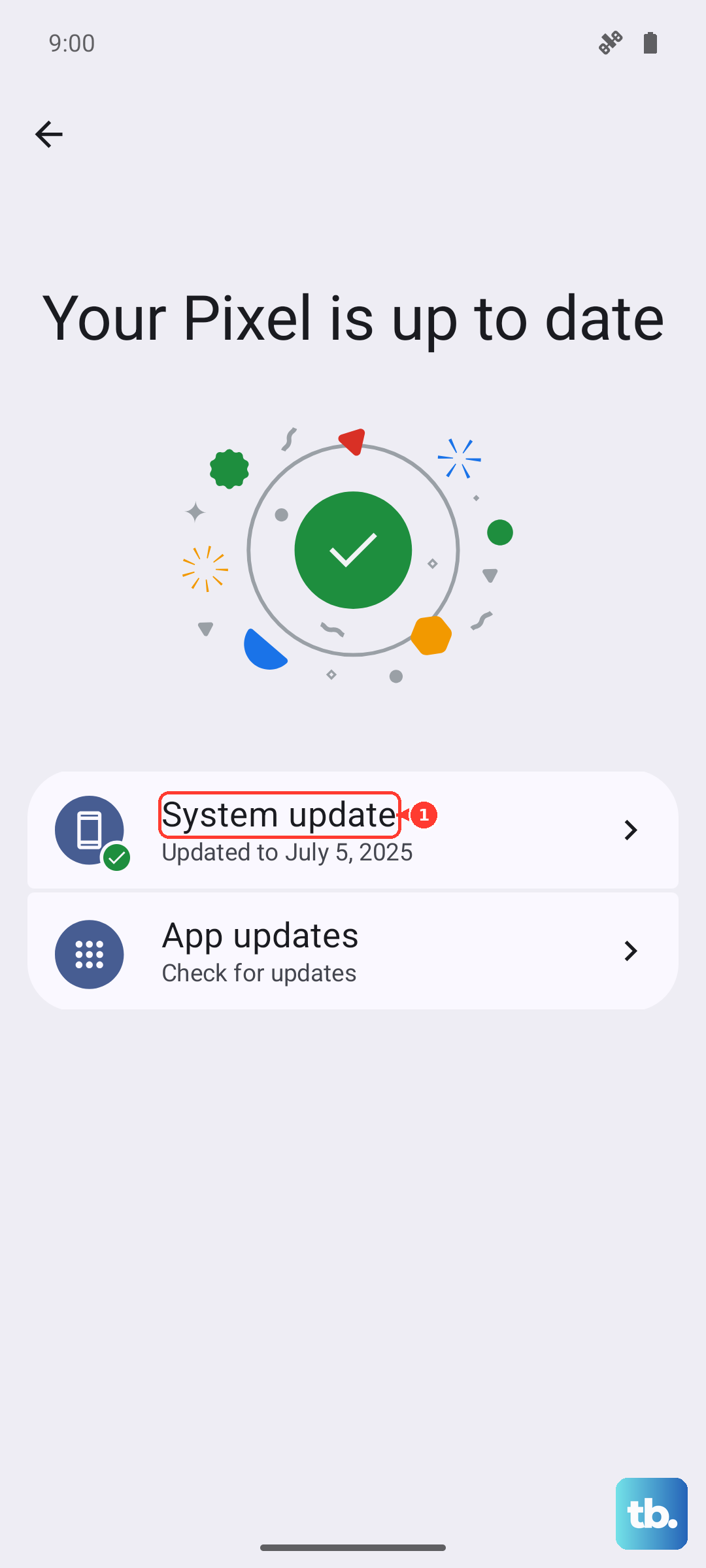
If an update is available, install it. Make sure your phone is charged above 50% or plugged into your 90W HyperCharge adapter during the process. A software update is a common fix for UI glitches that can affect the touchscreen.
Boot into Safe Mode
Turn off your phone completely. Press and hold the power button until the Xiaomi logo appears, then immediately press and hold the volume down button. Keep holding the volume down button until you see "Safe Mode" in the bottom corner of the screen.
Safe Mode disables all third-party apps. If your touchscreen works perfectly here, a recently downloaded app is likely the culprit. You can then restart normally and uninstall apps one by one to find the offender.
Calibrate the Touchscreen
Xiaomi includes a hidden touchscreen diagnostic tool. Open the Phone dialer and enter *#*#6484#*#* to access the MIUI Test menu. Scroll to and select "Touchscreen Test."
Follow the on-screen instructions to draw patterns or tap specific areas. This tests the hardware. If it passes, you can try a calibration option if present. If it fails consistently, the issue is likely physical.
Check for Overheating
The Snapdragon 8 Elite chip is powerful but can run hot during sustained gaming or heavy use. Extreme heat can cause the screen or digitizer to malfunction temporarily. If your phone feels very warm to the touch, stop using it and let it cool down completely.
For gaming, enable Game Turbo mode from the quick settings panel. It optimizes performance and can help manage thermals better. Avoid using the phone while it's charging, especially with the 90W wired or 50W wireless charging, as this generates additional heat.
Perform a Factory Reset
This erases all data, so it's a last resort. First, ensure your data is backed up. Go to Settings > About phone > Factory reset.
Tap "Erase all data (factory reset)" and follow the prompts. This will wipe the phone back to its original HyperOS 2 state. If a deep-seated software corruption was causing the touch issue, this will almost certainly resolve it.
Consider a Hardware Fault
If the touchscreen is completely dead even after a force restart and factory reset, or if there are visible cracks or spots on the display, the hardware is likely damaged. The issue could be a faulty digitizer, a loose internal connector, or a damaged screen.
In this case, the fix requires professional repair. Contact Xiaomi support or a reputable repair shop that has experience with the Xiaomi 15's internal layout. Attempting a DIY repair on this model is complex and could cause further damage.