You tap your inbox on the Xiaomi 15 and nothing new arrives, or a message sits stuck refusing to send, or every sync attempt ends in a sign-in error. Email problems on an otherwise healthy phone almost always trace back to a connection hiccup, a sync setting, or HyperOS quietly limiting the app while it runs in the background.
The good news is that nearly all of these clear up in a few minutes, and you rarely need anything drastic. Work through the fixes below in order, starting with the quickest and safest, and stop as soon as your mail starts flowing again.
Rule out a dead connection before anything else
Email cannot send or receive without a working internet link, so confirm the connection first.
Open your browser and load any website to test it; if nothing loads, the problem is your connection, not your mailbox.
- 1.In Settings, turn Airplane mode off, then toggle it on and off again to refresh the radios.
- 2.Switch between Wi-Fi and mobile data to see which one actually carries traffic.
- 3.Restart the Xiaomi 15 and toggle the mobile data switch off and on, which resets the network connection.
Once a web page loads normally, reopen your email app and try again.
Force a sync, restart, and check the clock
A mailbox that looks frozen often just needs a manual nudge.
Open the Gmail or email app and, from the top of the inbox, swipe down until the refresh icon appears, then wait. The official Gmail guidance notes it can take up to 15 minutes to finish syncing messages, so give it a moment before assuming it failed.
If a refresh does not help, restart the phone.
Powering the Xiaomi 15 off and on again clears temporary glitches that block syncing, and a restart is a standard fix for short-term sync problems.
While you are here, check the date and time.
A wrong clock breaks the secure connection to the mail server and can trigger sign-in and connection errors, so make sure the Xiaomi 15 uses the network-provided automatic date and time. An incorrect date or time is explicitly listed as a cause of Gmail app errors.
Confirm your account is actually set to sync
If sync is switched off, new mail never lands, no matter how many times you refresh.
Check it in two places.
In Gmail, tap Menu > Settings > select your account, then under 'Data usage' confirm that 'Sync Gmail' is checked.
Then open Settings > About phone > Google Account > Account sync > tap the account > More > Sync now.
Forcing a sync from the account screen pushes the phone to pull down anything waiting on the server.
Re-enter your password, and use an app password if needed
A 'password incorrect' error stops all send and receive at once.
Carefully re-enter your account password, watching for autocorrect or a stray space.
If your Google Account has 2-Step Verification turned on, generate and use a 16-digit App password instead of your normal password, and keep the app and operating system up to date.
If you still cannot sign in, Google's account help can walk you through account-specific sign-in causes.
Update the mail app and HyperOS
Many send and receive bugs are already fixed in a newer release.
Open the Play Store and update Gmail (or whichever mail app you use) to the latest version, then try again; updating the app is a primary fix for both sync errors and sign-in errors.
An outdated system can cause the same faults at a deeper level.
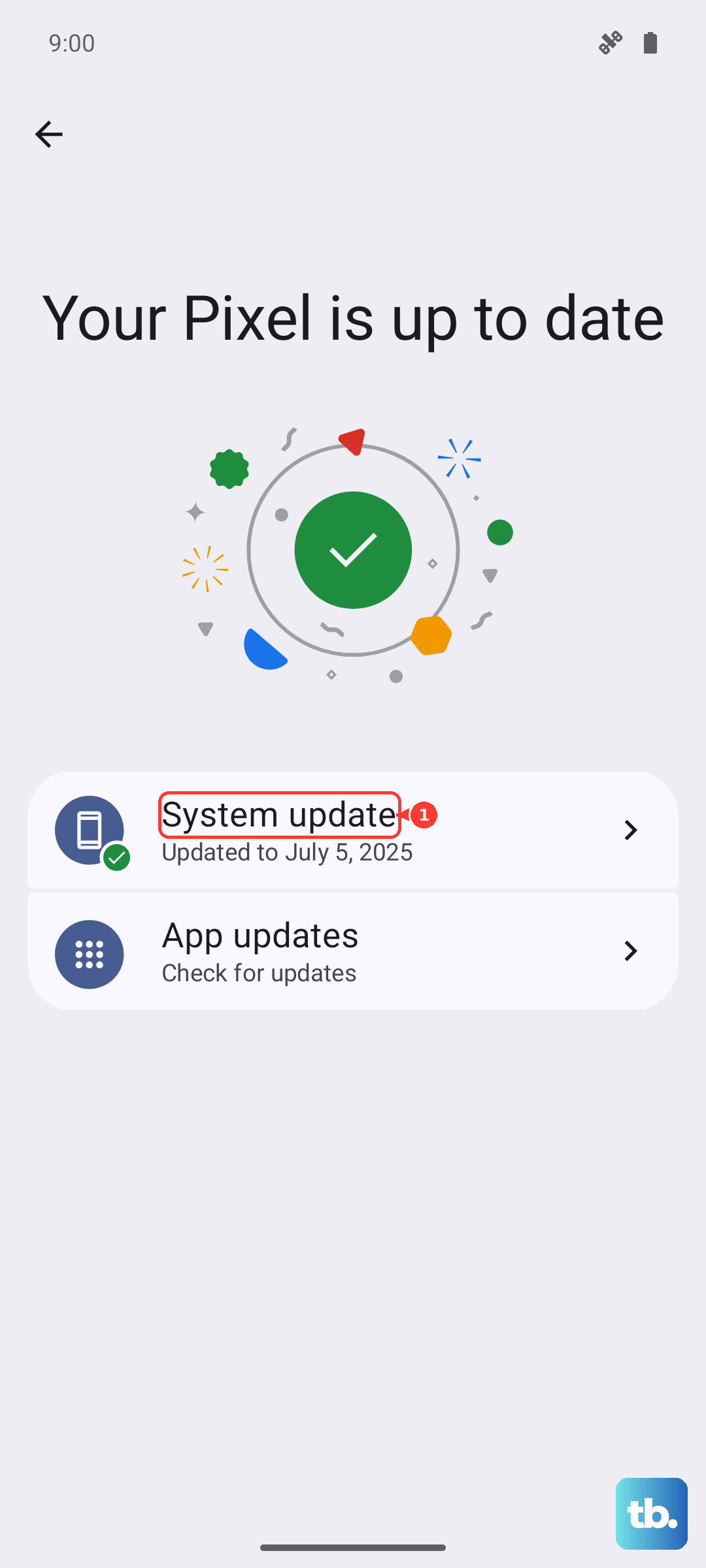
On the Xiaomi 15, go to Settings > About phone > Xiaomi HyperOS > Check for updates while on stable Wi-Fi with the phone well charged, and install anything offered.
The Xiaomi 15 ships on HyperOS 2 (Android 15), and keeping it current keeps the email and connectivity components healthy.
Stop HyperOS from limiting the app in the background
HyperOS battery management can quietly stop a mail app from syncing or pushing notifications while it is closed, which looks exactly like email being broken.
Give the app permission to keep running.
Open Settings > Apps > Permissions > Background autostart.
Switch Background autostart on for your email app.
Xiaomi's own note warns against disabling autostart for apps you rely on for notifications, so leaving this on is the intended setup for mail.
Force stop the app, then clear its cache
A corrupted local cache can freeze sending or receiving even when everything else is correct.
Start with the gentler step and only escalate if needed.
Force stop the app: open Settings > Apps (or Application Manager) > Gmail > Force Stop, then reopen it.
If the problem continues, clear storage: Settings > Apps > See all apps > Gmail > Storage & cache > Clear storage, then restart the phone.
Clearing Gmail's data removes saved drafts, your signature, and app settings, but your actual mail stays safe on the server and reappears once the app re-syncs.
Free up space on the phone and in your account
Gmail will not sync when the device is low on storage, and a full Google account is just as disruptive; once your account storage is full you cannot send or receive, and messages bounce back to senders.
Clear room on both sides.
On the phone, delete unused apps and large files to free local storage.
In your account, delete emails with large attachments and empty both Trash and Spam so the mailbox has room to receive again.
Reset the wireless settings
If Wi-Fi and data connect but email still will not move, a clean reset of the wireless configuration often clears the blockage.
Note your Wi-Fi passwords first, because this step forgets them.
Go to Settings > More connectivity options > Reset Wi-Fi, mobile networks, and Bluetooth > Reset settings > OK.
This erases saved Wi-Fi networks and Bluetooth pairings, but it does not delete personal data such as your photos or apps.
What to do if the screen freezes mid-fix
If the Xiaomi 15 becomes unresponsive while you are working through these steps, force a restart.
Press and hold the power button for more than 10 seconds until the phone restarts.
If it still will not power on, hold Volume Up and the power button together while the phone is off to reach Recovery mode; in that mode, pressing the power button for more than 10 seconds restarts the phone.
The last-resort reset and reaching Xiaomi
If nothing above restores email, a factory reset returns the phone to its original settings and can clear deep software faults.
This erases everything, so treat it as the final option and back up first.
Go to Settings > About phone > Factory reset > Erase all data > choose Back up (or not) > Factory reset.
Xiaomi warns that a factory reset erases all data on the phone, so make sure important data is backed up before you proceed, and be ready to sign back in with the Google and Xiaomi accounts that were on the device, which the phone may ask for afterward.
If email still fails after a reset, contact Xiaomi after-sales or an authorized service center through Xiaomi's official support site at mi.com.
Frequently Asked Questions
Will clearing Gmail's storage delete my emails?
No. Clearing Gmail's storage removes saved drafts, your signature, and the app's settings, but your messages live on the server and reappear once the app syncs again.
Why does my password work on the website but not on the phone?
If your Google Account has 2-Step Verification turned on, you may need a 16-digit App password instead of your normal password. Generate one, use it in place of your regular password, and keep the app and operating system updated.
How long should I wait for new mail to arrive?
After a manual refresh, give it time; the official Gmail guidance notes that syncing messages can take up to 15 minutes, so a short delay does not mean the fix failed.
Does resetting network settings erase my photos?
No. Resetting Wi-Fi, mobile networks, and Bluetooth erases saved Wi-Fi and Bluetooth pairings only; it does not delete personal data such as photos or apps. Note your Wi-Fi passwords before you do it.
Will a factory reset fix email, and what should I know first?
A factory reset can clear deep software faults, but it erases all data on the phone, so back up first. You may also be asked to sign back in with the Google and Xiaomi accounts that were on the device afterward, and if email still fails you can reach Xiaomi after-sales through Xiaomi's official support site at mi.com.