
When your Xiaomi 15 gets stuck downloading apps, it can bring your day to a halt. You're trying to grab a new game or an essential tool, and the progress bar just sits there. Since the phone runs on Android 15 with HyperOS 2, there are a few specific things to check that can get things moving again.
Let's go through the fixes, starting with the quickest ones you can try right now.
Check Your Connection and Restart
First, look at your network. Pull down the notification shade and make sure your Wi-Fi or mobile data icon is active and has a strong signal. If you're on Wi-Fi, try switching to your 5G data for a moment to see if the download starts.
A simple restart can clear out temporary glitches in HyperOS. Just press and hold the power button, tap restart, and give it a minute to boot back up. I'd start with this one, as it often resolves the issue without any deeper digging.
Verify Date, Time, and Storage
Google's servers are picky about time. If your phone's clock is off, downloads can fail. Head to Settings > Additional settings > Date & time and make sure "Automatic date & time" is switched on.
Also, quickly check if you're out of space. Go to Settings > About phone > Storage. If you're running low, you might need to clear some cache or old files before new apps can install.
Clear the Google Play Store Cache
Corrupted temporary data in the Play Store app itself is a very common culprit. This fix only takes a moment and doesn't delete any of your personal info or installed apps.
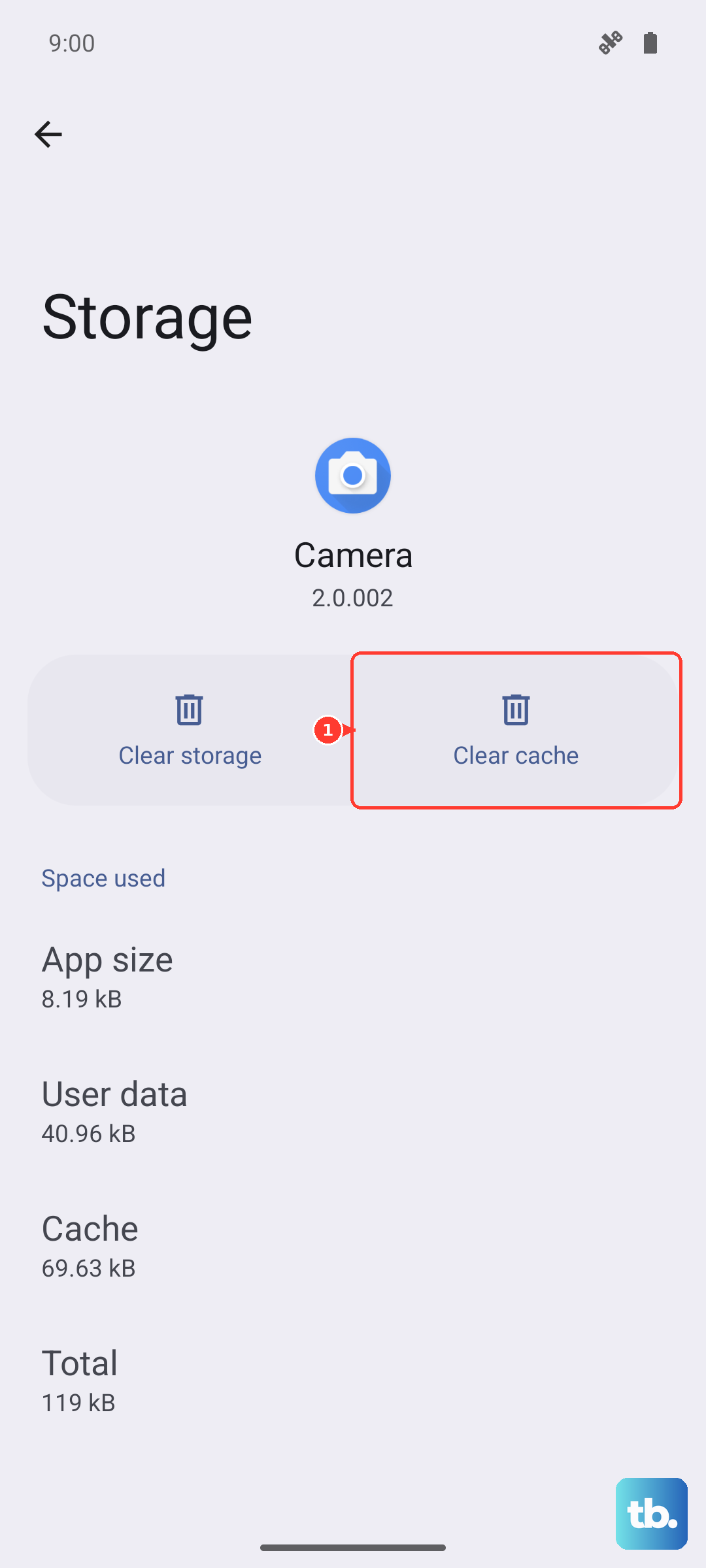
Open Settings > Apps > Manage apps. Find "Google Play Store" in the list and tap on it. Then, tap Storage usage at the bottom. Here, tap "Clear cache." After that, force close the Play Store app and open it again to see if downloads work.
Clear Data for Google Play Services
If the Play Store cache clear didn't help, the next step is Google Play Services. This background app handles communication for downloads and updates. Go back to Settings > Apps > Manage apps.
Tap the three-dot menu in the top right and select "Show system apps." Now find "Google Play Services" in the list. Tap it, go to Storage usage, and this time tap "Clear data" or "Manage space," then "Clear all data." You'll need to confirm this action. Don't worry, this resets the service but won't harm your device.
Check and Reset Your Download Manager
Your phone has a system app called Download Manager that handles all downloads. It can sometimes get stuck. In Settings > Apps > Manage apps, use the "Show system apps" option again and search for "Download Manager."
Tap on it and first make sure it's enabled. Then, go into its Storage usage and hit "Clear data." This will clear its queue and can often kickstart a stalled download process.
Review Your Google Account Sync
Sometimes refreshing the connection to your Google account does the trick. Go to Settings > Accounts & sync. Tap on your primary Google account.
You'll see a list of items like Gmail, Contacts, and Drive. Tap "Sync now" at the bottom. If sync seems stuck, you can toggle the account off and back on. Tap "Remove account," then immediately add it back through the "Add account" option on the same screen.
Disable MIUI Optimization (Temporarily)
This is a more specific step for Xiaomi's HyperOS. The MIUI optimization feature can sometimes interfere with app processes. To turn it off, go to Settings > About phone.
Tap on "MIUI version" seven times quickly to unlock Developer options. Then, go back to Settings > Additional settings > Developer options. Scroll down to find "Turn on MIUI optimization" and toggle it OFF. Try your download again. Remember to go back and turn this on later, as it's part of the system's power management.
Check for System Updates
Xiaomi frequently releases updates for HyperOS that fix bugs and improve stability. An outdated system can have conflicts with the Play Store. Go to Settings > About phone > System update and tap "Check for updates."
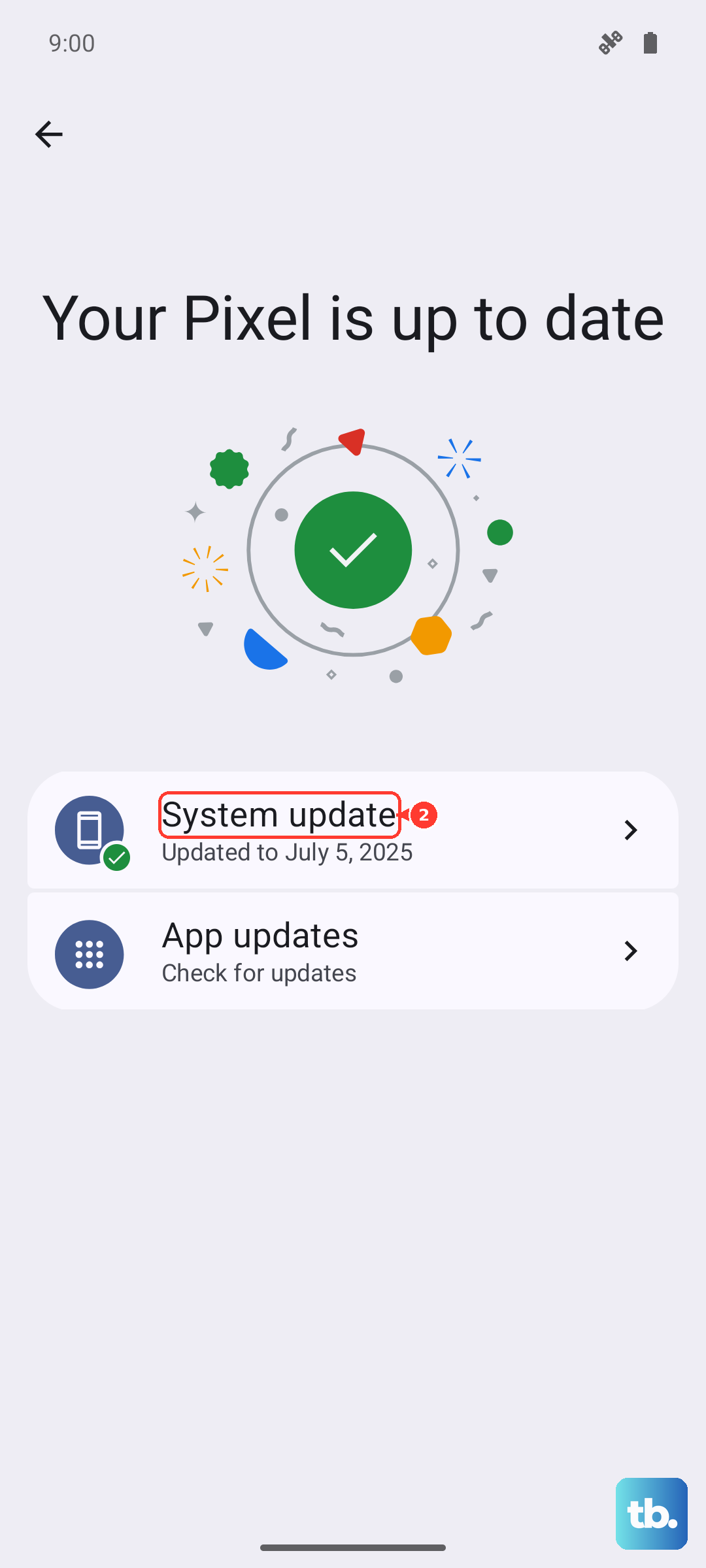
If an update is available, install it. Your phone will reboot. It's a good idea to plug it into a charger during this process, especially if you have a 90W HyperCharge adapter for the fastest update.
Try a Different Network or VPN
Some Wi-Fi networks, like public hotspots in cafes or offices, have firewalls that block the ports the Play Store uses. If you're on Wi-Fi, try switching to your mobile data completely to test.
Conversely, if you're using a VPN or ad-blocker, try disabling it temporarily. These services can sometimes reroute or block the connection to Google's servers, causing downloads to hang indefinitely.
Reset App Preferences
This is a safe, broader reset that won't delete your app data. It resets permissions, background restrictions, and default app assignments that might have been misconfigured. Go to Settings > Apps > Manage apps.
Tap the three-dot menu and select "Reset app preferences." Confirm the action. This will mean you might have to re-grant permissions for some apps, but it can clear up underlying conflicts preventing downloads.
If You See a Specific Error Code
Sometimes the Play Store gives you a numeric error. For error DF-BPA-09, you need to clear data for Google Services Framework. Find it in your system apps list under Manage apps and clear its storage.
If you see Error 491 or 495, it's usually a payment or account issue. Try removing and re-adding your Google account as described earlier. For a persistent "Insufficient storage" error, even when you have space, clearing the cache and data for the Play Store and Play Services usually resolves it.