
Slow internet on your Xiaomi 14T Pro can really put a damper on streaming, gaming, or just browsing. The good news is that HyperOS and Android 14 give you plenty of tools to diagnose and fix the problem. I'd start with the quick fixes at the top of this list, as they solve the majority of issues.
Toggle Airplane Mode and Restart
This is the quickest way to refresh your connection to both mobile data and WiFi. Swipe down from the top of your screen to open the Quick Settings panel and tap the airplane icon. Wait about 10 seconds, then tap it again to turn it off. If that doesn't do the trick, a full restart can clear temporary software glitches. Just hold the power button and select 'Restart'.
Check Your Network Mode
Your phone might be stuck on a slower network type. Go to Settings > Mobile network > SIM card settings. Tap on your active SIM and look for 'Preferred network type'. Make sure it's set to '5G/4G/3G/2G (Auto)' to allow the fastest available connection. If you're in an area with weak 5G, forcing 4G can sometimes be more stable and faster.
Clear the Cache for Google Play Services and Chrome
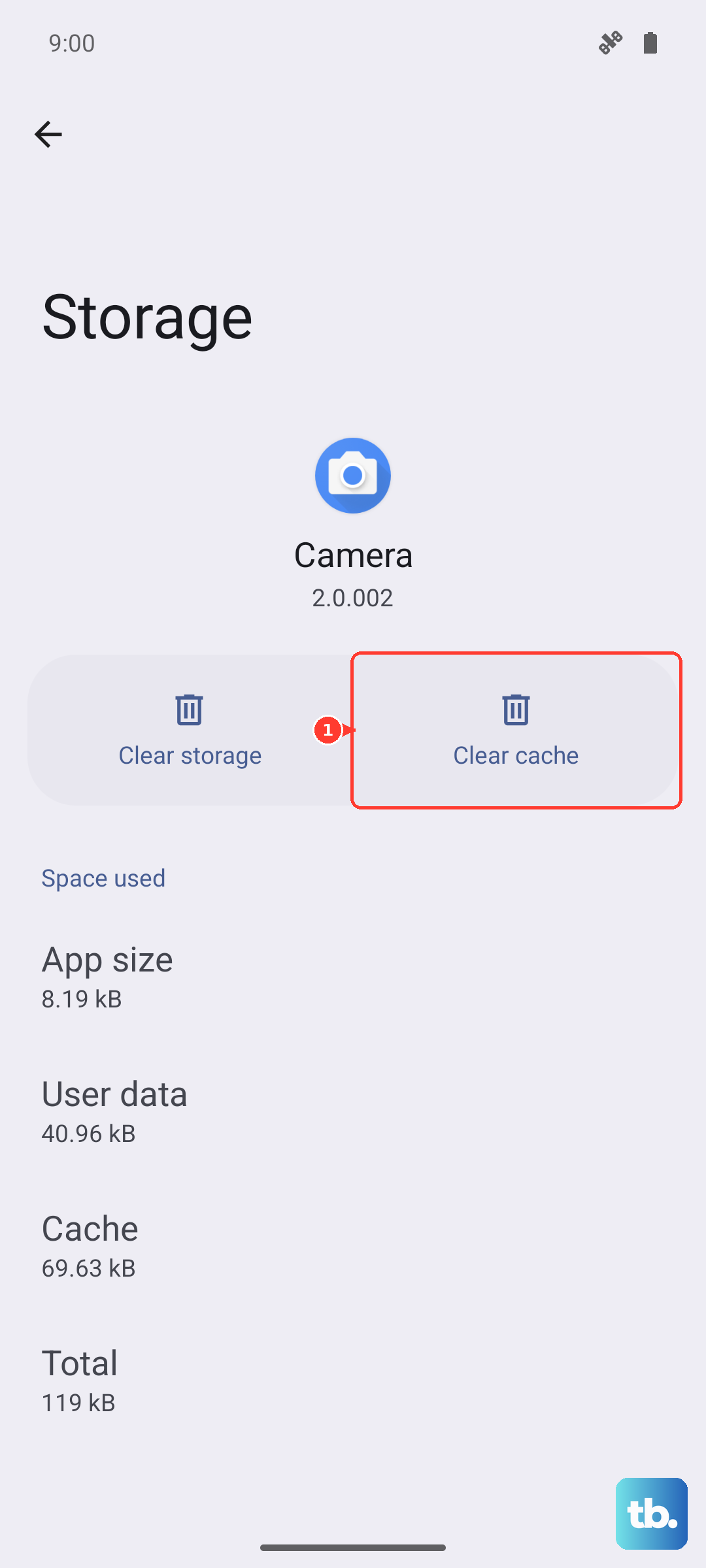
Corrupted cache data in system apps can cause all sorts of weird behavior, including slow browsing. Head to Settings > Apps > Manage apps. Tap the search icon and find 'Google Play Services'. Tap on it, then go to 'Storage usage' and hit 'Clear cache'. Do the same for 'Chrome' or whatever browser you use most often. This doesn't delete any personal data like passwords.
Disable Battery Saver and Manage Background Data
Battery Saver mode on the Xiaomi 14T Pro aggressively limits background network activity to save power, which can make the internet feel sluggish. Swipe down your notification shade and make sure the battery saver icon isn't active. For more control, go to Settings > Battery > Battery saver and review the settings. You can also restrict background data for specific apps by going to Settings > Apps > [App Name] > Mobile data & roaming and toggling off 'Background data'.
Forget and Reconnect to Your WiFi Network
If the slowdown is only on WiFi, this old trick still works wonders. Go to Settings > Wi-Fi and tap on the network you're connected to. Select 'Forget network'. Then, search for it again and re-enter the password to establish a fresh connection. This can resolve IP address conflicts and authentication hiccups.
Review and Remove Problematic Apps
Some pre-installed apps on certain Xiaomi 14T Pro variants can run background processes that interfere with network performance. Take a moment to look through your installed apps in Settings > Apps > Manage apps. If you see anything you don't recognize or use, you can uninstall or disable it. Also, check which apps are using the most data under Settings > Mobile network > Data usage to spot any bandwidth hogs.
Update Your Carrier Settings and PRL
While your phone updates its software automatically, carrier settings sometimes need a manual refresh. This helps your phone better communicate with your provider's towers. You can usually force an update by going to Settings > About phone > SIM status and looking for a carrier settings update option. Alternatively, dialing *#*#4636#*#* opens a testing menu where you can find phone information and update options, but be careful in there.
Perform a Network Settings Reset
This is a more thorough step that will wipe all your saved WiFi networks, Bluetooth pairings, and mobile data preferences. It's very effective for stubborn issues. Before you do this, make sure you know your WiFi passwords. Navigate to Settings > About phone > Factory reset. Here, tap 'Reset phone' and then select Reset Wi-Fi, mobile & Bluetooth. Confirm and your phone will reboot.
Check for System and Security Updates
Xiaomi frequently releases updates for HyperOS that include performance optimizations and modem firmware improvements. Go to Settings > About phone > HyperOS version and tap the 'Check for updates' button. Install any available updates. Also, check the Security app on your phone for any additional updates or optimization scans it might recommend.
Test in Safe Mode
If the internet is still slow, a third-party app might be the culprit. Booting into Safe Mode disables all apps you've installed. To enter Safe Mode, press and hold the power button until the power menu appears. Then, long-press the 'Restart' option on your screen. Your phone will reboot and show 'Safe Mode' in the bottom corner. Test your browsing speed. If it's fixed, an app you installed is causing the problem. Restart normally to exit Safe Mode and start uninstalling recent apps one by one to find the offender.