
Getting a "SIM Not Provisioned" message on your Xiaomi 14T Pro is a real roadblock. It cuts you off from calls and mobile data, and on a powerful phone like this, it feels especially limiting. This error means your SIM card isn't properly registered or connected to your carrier's network system.
On the 14T Pro, this can sometimes be related to how HyperOS manages network connections, or it could be a simple account issue with your provider. The good news is you can usually fix it yourself without a trip to a store.
Restart Your Xiaomi 14T Pro
This is always the best place to start. A simple restart can clear out temporary software glitches in HyperOS that might be preventing a proper network handshake. Just press and hold the power button, then tap "Restart" on the screen.
If the phone is completely unresponsive, you can force a restart. Press and hold the power button for about 15 seconds until you feel the device vibrate and see the Xiaomi logo appear.
Check SIM Card Activation and Account Status
If this is a brand new SIM card, it might not be activated yet. Even if you transferred a number, the activation process can sometimes take a few hours or require a manual step from your carrier.
For prepaid plans, a lack of credit or an expired plan is a very common cause. Log into your carrier's app or website to check your balance and plan status. For postpaid accounts, there could be a billing issue suspending the line.
Reinsert the SIM Card
The SIM tray on the 14T Pro is on the bottom edge. Use the included ejector tool to pop it out. Carefully remove the SIM card and inspect the gold contacts for any dust, lint, or visible scratches.
Give the contacts a gentle wipe with a soft, dry cloth and blow any dust out of the tray slot. Reinsert the SIM, making sure it's seated firmly and oriented correctly, then push the tray back in until it clicks. Power the phone back on.
Toggle Airplane Mode
This forces your phone to disconnect from and then reconnect to all radio networks. Swipe down from the top of the screen to open the Quick Settings panel and tap the airplane icon to turn it on.
Wait for about 30 seconds, then tap the icon again to turn airplane mode off. Watch the status bar to see if your network signal icons return. I've found this refreshes the connection more thoroughly than just a restart sometimes.
Update Your Phone's Software
Xiaomi frequently releases updates for HyperOS that include fixes for network and connectivity issues. An outdated system could be the culprit. Go to Settings > About phone > System update and tap "Check for updates."
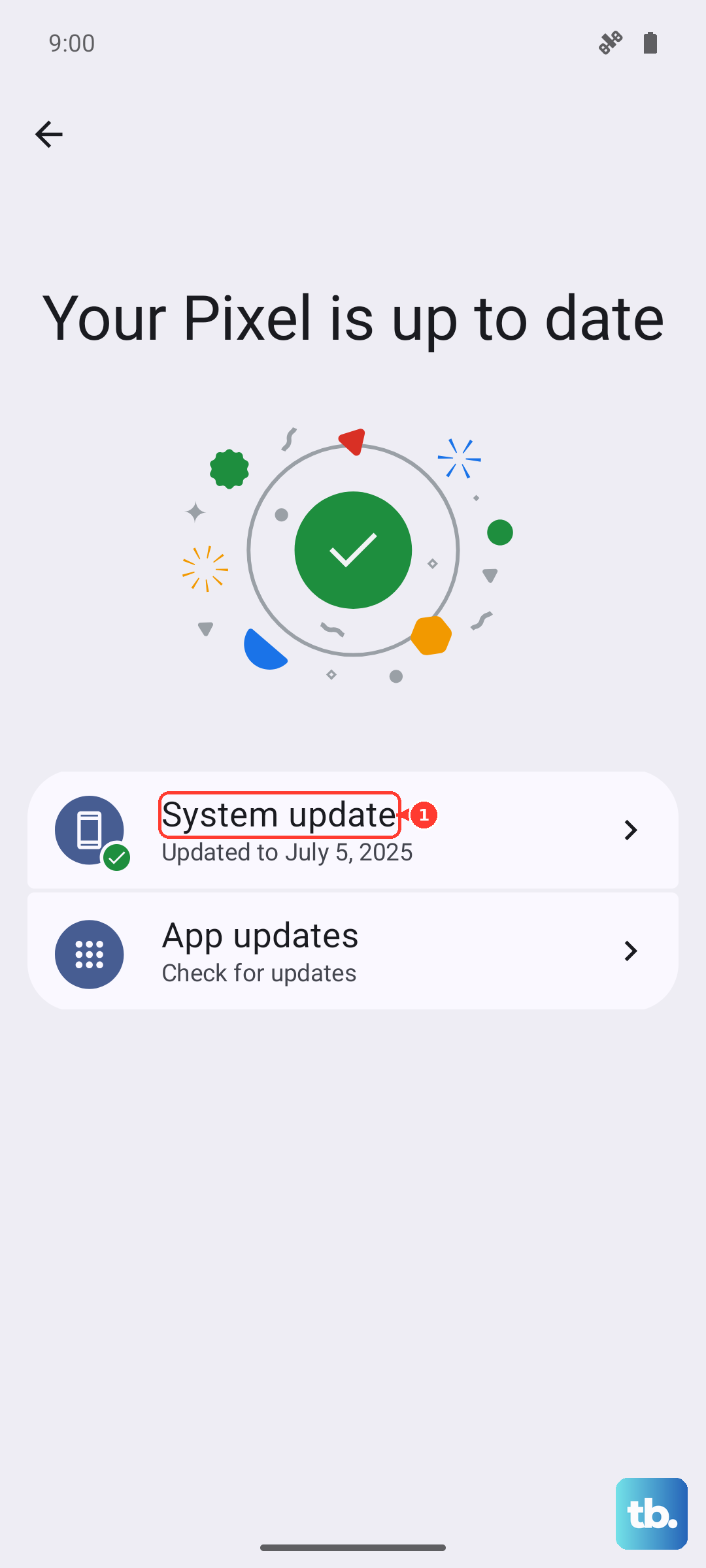
If an update is available, make sure your phone is connected to Wi-Fi and has a good charge, preferably using the included 120W charger, before installing it. These updates can also improve the performance of the Dimensity 9300+ chipset.
Manually Select Your Network Operator
Sometimes the automatic network selection gets stuck. You can manually tell your phone which carrier to use. Go to Settings > Connections & sharing > Mobile network.
Tap on your SIM slot (SIM 1 or SIM 2), then tap "Network operators." The phone will search. When the list appears, select your specific carrier's name instead of leaving it on "Choose automatically."
Reset Your Network Settings
This will erase all your saved Wi-Fi networks, Bluetooth pairings, and cellular settings back to default. It's a strong fix for persistent network problems. First, go to Settings > About phone > Back up & restore to ensure your data is safe.
Then, go to Settings > Additional settings > Back up & reset > Reset phone. Choose "Reset network settings" and enter your lock screen password to confirm. Your phone will reboot and you'll need to reconnect to Wi-Fi.
Check for Carrier Services Updates
Android uses a separate app called Carrier Services to help manage communication between your phone and your mobile network. An outdated version can cause provisioning errors. Open the Google Play Store, tap your profile icon, and go to "Manage apps & device."
Under "Updates available," see if Carrier Services is listed. If it is, tap "Update." If you don't see it, search for "Carrier Services" in the Play Store to check its page directly.
Contact Your Mobile Carrier
If you've tried everything here, the next step is to call your provider's customer service. They can check on their end to see if there's an outage in your area, if your SIM card is properly provisioned in their system, or if the SIM itself has been flagged as defective.
They can often re-provision your line remotely while you're on the phone. If the SIM is faulty, they'll instruct you on how to get a replacement, which is usually a quick process at a retail store.
Test the SIM in Another Phone
This is the definitive test to see where the problem lies. Power down another unlocked Android phone, insert your 14T Pro's SIM card, and turn it on. If the other phone also shows "SIM Not Provisioned," then the issue is definitely with the SIM or your carrier account.
If the SIM works perfectly in the other phone, then the issue is likely with your Xiaomi 14T Pro's hardware or a deeper software problem that may require a factory reset or service.