A missing WPS button on a Spectrum router means WPS is not the path for current residential Advanced WiFi. Spectrum’s residential setup uses the Wi-Fi name and password, the My Spectrum App, 2.4 GHz setup mode, Ethernet, Spectrum extenders, or a customer-owned router when WPS is required.
Use the printed Wi-Fi password first
This fixes setup for any phone, tablet, computer, or smart device that accepts a normal Wi-Fi password. Find the default Wi-Fi network name and password printed on the label of your Spectrum router. Open the device’s Wi-Fi settings.
Select the Spectrum Wi-Fi network name shown on the router label. Enter the password printed on the label. Finish the connection on that device.
Find the current Spectrum Wi-Fi details
Sign in to Spectrum.net or the My Spectrum App with your Spectrum username and password. Select Services, then select Internet. Open the arrow next to your Wi-Fi network. View the current Wi-Fi name and password.
Edit the Wi-Fi name or password from that screen when you want a new set of credentials, then select Save. Use the current Spectrum.net or app password instead of the router label after the network name or password changes.
Switch smart devices to 2.4 GHz setup mode
Use this method for 2.4 GHz-only smart-home devices that reject Spectrum’s band-steering Wi-Fi name or ask for WPS during setup. Spectrum’s supported replacement is its 2.4 GHz smart-device setup mode.
If the My Spectrum App is not installed, go to Spectrum’s My Spectrum App page. Select Download now. Install the app from the Apple App Store or Google Play on an iOS or Android phone or tablet. Sign in with your Spectrum username and password.
In the app, open the Services tab. On Spectrum.net, go to Your Services and select Internet. Select Set up Smart Device on 2.4 GHz in the app, or Setup Smart Device (2.4 GHz) on Spectrum.net.
Select Switch to 2.4 GHz, or follow the on-screen instructions if the app shows a different prompt. Work quickly: Spectrum’s 2.4 GHz setup mode turns itself off after a limited time, and devices you add after it ends stay on the normal network. Return to the third-party smart-device app and finish setup with the Spectrum Wi-Fi information.
Connect manually on each device
Use these paths when the device accepts a standard Wi-Fi password instead of WPS.
- 1.iPhone or iPad: Open Settings, tap Wi-Fi, turn on Wi-Fi, tap the Spectrum network, enter the password, and confirm the blue checkmark next to the network name.
- 2.Android: On Android 12 and later, open Settings, tap Network & internet, tap Internet, choose the Spectrum network, and enter the password. On older versions or other manufacturer menus, open the device’s Wi-Fi settings instead.
- 3.Windows: On Windows 11, select the Network, Sound, or Battery icons on the taskbar, select Manage Wi-Fi connections on the Wi-Fi quick setting, choose the Spectrum network, select Connect, type the password, and select Next. On Windows 10, select the Network icon on the taskbar, choose the Spectrum network, select Connect, type the password, and select Next.
- 4.Mac: Open the Wi-Fi menu in the menu bar, choose the Spectrum network, and enter the Wi-Fi password.
Clear stale saved network details
Saved Wi-Fi details block reconnection after the Spectrum network name or password changes. Remove the old Spectrum network, then join it again with the current password.
On iPhone or iPad, go to Settings > Wi-Fi, tap Edit, tap the More Info button next to the Spectrum network, tap Forget This Network, then tap Forget.
On Mac, go to Apple menu > System Settings > Wi-Fi > Advanced, open the More Options button next to the network, select Remove From List, then select Forget.
On Windows, go to Start > Settings > Network & internet > Wi-Fi > Manage known networks, select the Spectrum network, then select Forget. Reconnect by selecting the network and entering the current Spectrum password.
On Android 12 and later, open Settings > Network & internet > Internet (other versions and manufacturers use the device’s Wi-Fi settings), touch and hold the saved Spectrum network, then tap Forget. Reconnect by selecting the Spectrum network and entering the current password.
Stop searching for a WPS toggle in the app
The reason the WPS switch is missing is simple: Spectrum’s residential Advanced Settings controls do not include WPS.
Open the My Spectrum App and select the Services tab. Under Your WiFi Network, select Advanced Settings.
Use that screen for supported controls such as DNS, UPnP, Port Forwarding, IP reservation, and Factory Reset. For device pairing, use the current Wi-Fi name and password or the 2.4 GHz smart-device setup mode.
Plug in with Ethernet or use your own router
Use this path when the device has Ethernet, or when you specifically need WPS and want Wi-Fi handled by a customer-owned router. Spectrum allows customer-owned routers in many cases, while Advanced WiFi features stay with Spectrum-issued routers.
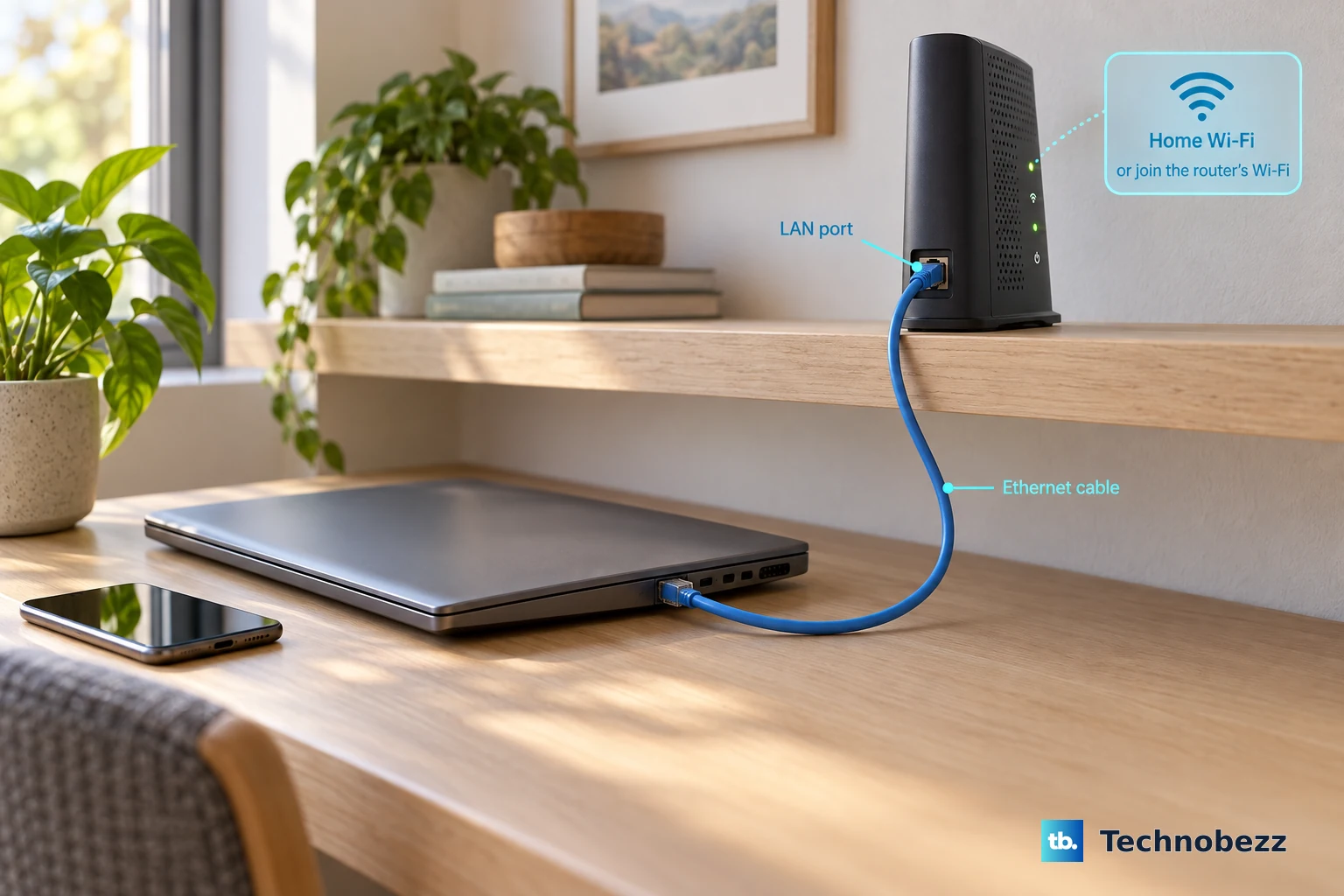
For wired access, connect an Ethernet cable from the device’s Ethernet port to a LAN Ethernet port on the Spectrum router. If the device uses USB-C or Thunderbolt, attach a compatible Ethernet adapter. Connect the Ethernet cable to the adapter.
For WPS, ask Spectrum support to confirm that the customer-owned router meets your Internet plan speed requirements. Connect the customer-owned router’s WAN or Internet port to the Spectrum modem. Set up Wi-Fi and WPS in that router’s manufacturer app or web interface. Connect WPS devices to the customer-owned router only.
If you remove Spectrum WiFi from your account, return the Spectrum router and its power supply at a Spectrum Store or The UPS Store, or request a return kit from Spectrum, and keep the receipt. Unreturned rented equipment is charged to your account.
Add Spectrum extenders for wider coverage
Open the My Spectrum App and select Set Up Equipment. Select Continue, then select Add Location.
Enter a location name. Continue through the in-app placement setup flow. Use Spectrum WiFi Extenders with Advanced WiFi when the real problem is coverage, not WPS pairing.
Frequently Asked Questions
Does a Spectrum Advanced WiFi router have a hidden WPS button?
No. Current residential Spectrum Advanced WiFi does not provide a supported hardware WPS button or app-based WPS toggle.
Can I use the older Windows WPS setup instructions?
Not for a current residential Spectrum Advanced WiFi router. That Windows setup path only applies when the router supports WPS.
What if I have Spectrum Business equipment?
Spectrum Business documentation describes a side-panel WPS button flow for supported business routers. That does not apply to current residential Spectrum Advanced WiFi.
What if this is a work or school device?
Ask your organization’s IT admin to add or update the Spectrum Wi-Fi name and password profile for the managed device.