Seeing SOS or SOS only on your iPhone means it is not connected to your carrier's cellular network. In the United States, Canada, and Australia, emergency calls may still connect through other carriers. Start with the quick cellular refresh, then move through updates, SIM or eSIM checks, carrier status, roaming, and network settings.
Refresh the cellular connection first
This fixes a temporary drop between your iPhone and your carrier network. Open Settings, then turn on Airplane Mode.
Wait at least 15 seconds, then turn Airplane Mode off. Open Control Center and check for your carrier name or cellular plan label.
Restart your iPhone if SOS comes back
Use this when your iPhone is responsive but drops back to SOS after the Airplane Mode reset. A normal restart refreshes iOS and the cellular modem without changing your settings.
On iPhone X, iPhone 11, iPhone 12, iPhone 13, or later, press and hold either volume button and the side button until the power-off slider appears. Drag the slider, wait 30 seconds, then press and hold the side button until the Apple logo appears.
On iPhone 6, iPhone 7, iPhone 8, or iPhone SE 2nd or 3rd generation, use the side button for the same power-off and restart flow. On iPhone SE 1st generation, iPhone 5, or earlier, use the top button instead.
Check for an iOS or carrier update
Connect to Wi-Fi before checking, since SOS means your carrier data connection is not working normally.
Open Settings, tap General, then tap Software Update. If an update appears, tap Download and Install and follow the onscreen instructions.
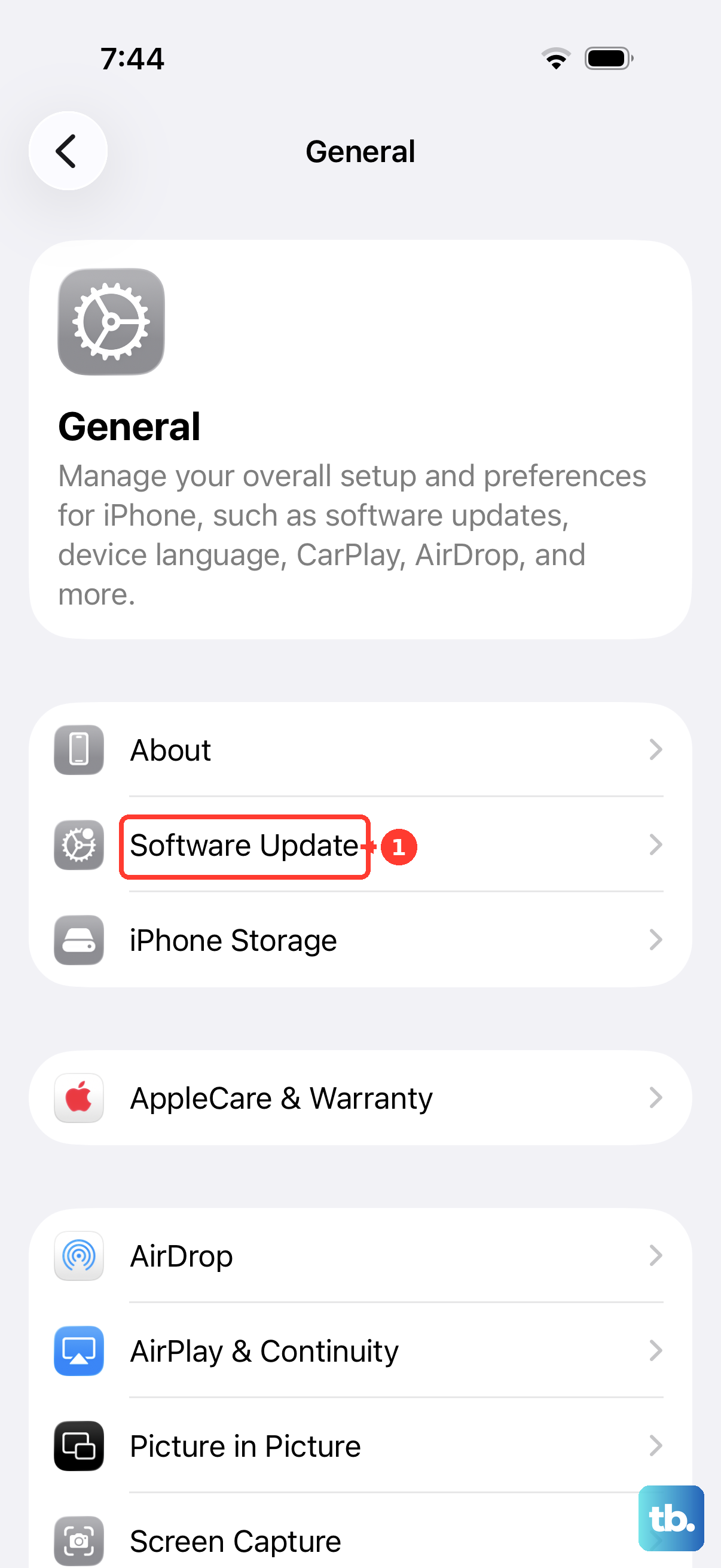
Next, open Settings, tap General, then tap About. If a carrier settings update appears, install it from the prompt.
If this fails and your iPhone shows Cellular Issue Detected, reinstall the current iOS version from a computer or run diagnostics in the Apple Support app on iOS 18 or later.
Make sure your line is turned on
Dual SIM and eSIM lines can be installed on the iPhone but switched off.
- 1.Open Settings.
- 2.Tap Cellular.
- 3.Tap the cellular line you want to check.
- 4.Turn on Turn On This Line.
- 5.Check the status bar or Control Center to see whether service returns.
Fix SIM or eSIM activation problems
The most common SIM-related cause is a missing, inactive, damaged, or unfinished cellular line. If your iPhone uses a physical SIM tray, insert a SIM-eject tool or paper clip into the tray hole.
Remove the tray without forcing it, place the SIM correctly in the tray, then insert the tray back into the iPhone. If reseating the SIM does not help, try another SIM card or visit your carrier's retail store and ask them to test with another SIM.
For eSIM, tap Carrier Cellular Plan Ready to Be Installed if it appears, then tap Continue. If your carrier gave you a QR code, scan it with Camera, tap Cellular Plan Detected, tap Continue, then tap Add Cellular Plan.
Do not delete an eSIM as routine SOS troubleshooting. Erase an eSIM only when your carrier tells you to do it, then contact the carrier to set up a new eSIM.
Adjust roaming settings while traveling
Open Settings and tap General. Tap Date & Time, then turn on Set Automatically.
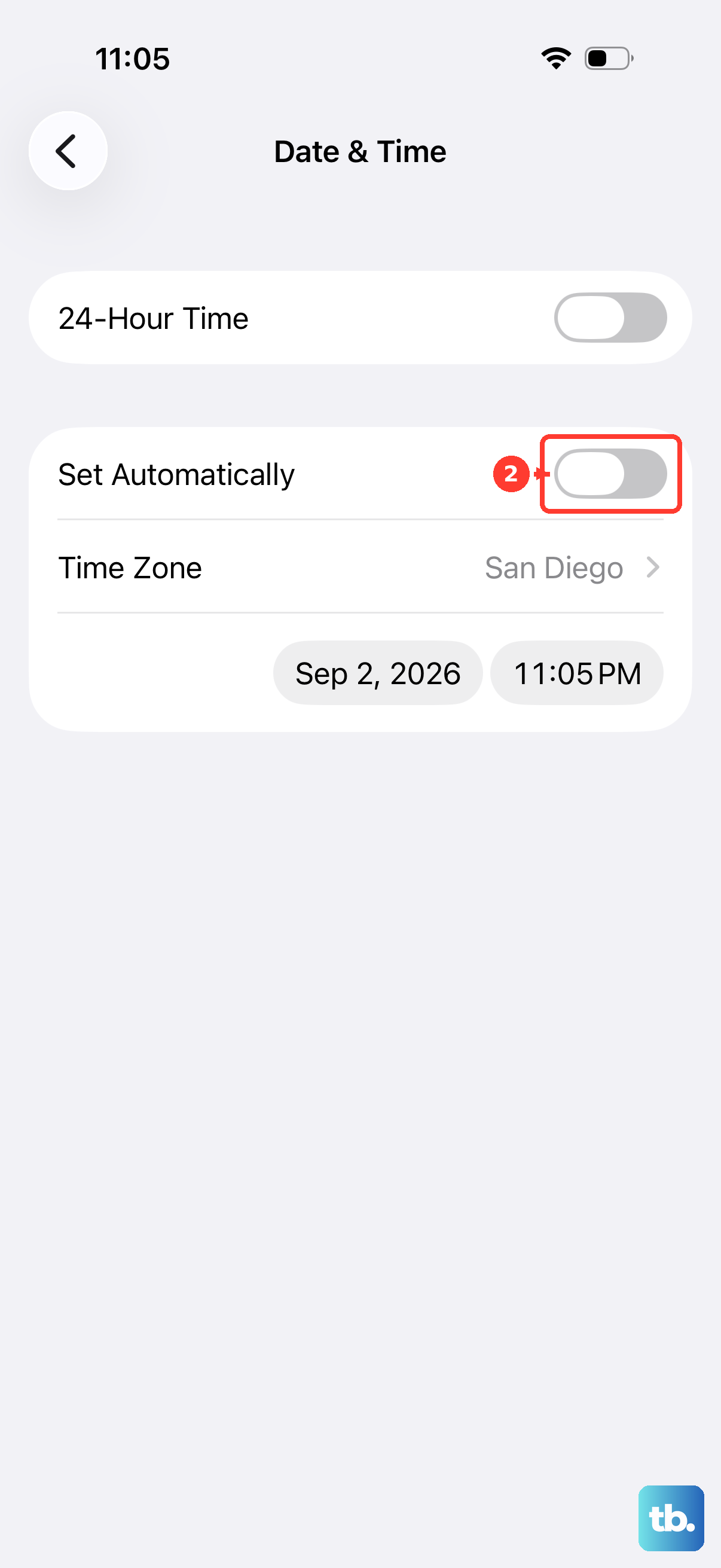
Go back to Settings, then tap Cellular or Cellular Data. Turn on Cellular Data, open Cellular Data Options, then turn on Data Roaming. Your carrier still needs to support roaming in that area for service to return.
Ask your carrier to check the account and network
Use this step when the quick fixes do not clear SOS, especially after changing plans, switching phones, moving a SIM, or arriving in a new area. Your carrier controls the account and network provisioning checks.
Ask the carrier to confirm that your account is active and in good standing, and ask whether your current area has coverage and no outage. Then ask whether the device is blocked or barred from cellular service and whether the line has the right data plan.
If you are using a different carrier's SIM or eSIM, open Settings, tap General, then tap About and check Carrier Lock. No SIM restrictions means the iPhone is unlocked; if it is locked, the carrier must unlock it.
Reset network settings when nothing else works
Use this reset after the carrier checks out and your SIM or eSIM is active.
- 1.Open Settings.
- 2.Tap General.
- 3.Tap Transfer or Reset iPhone.
- 4.Tap Reset.
- 5.Tap Reset Network Settings.
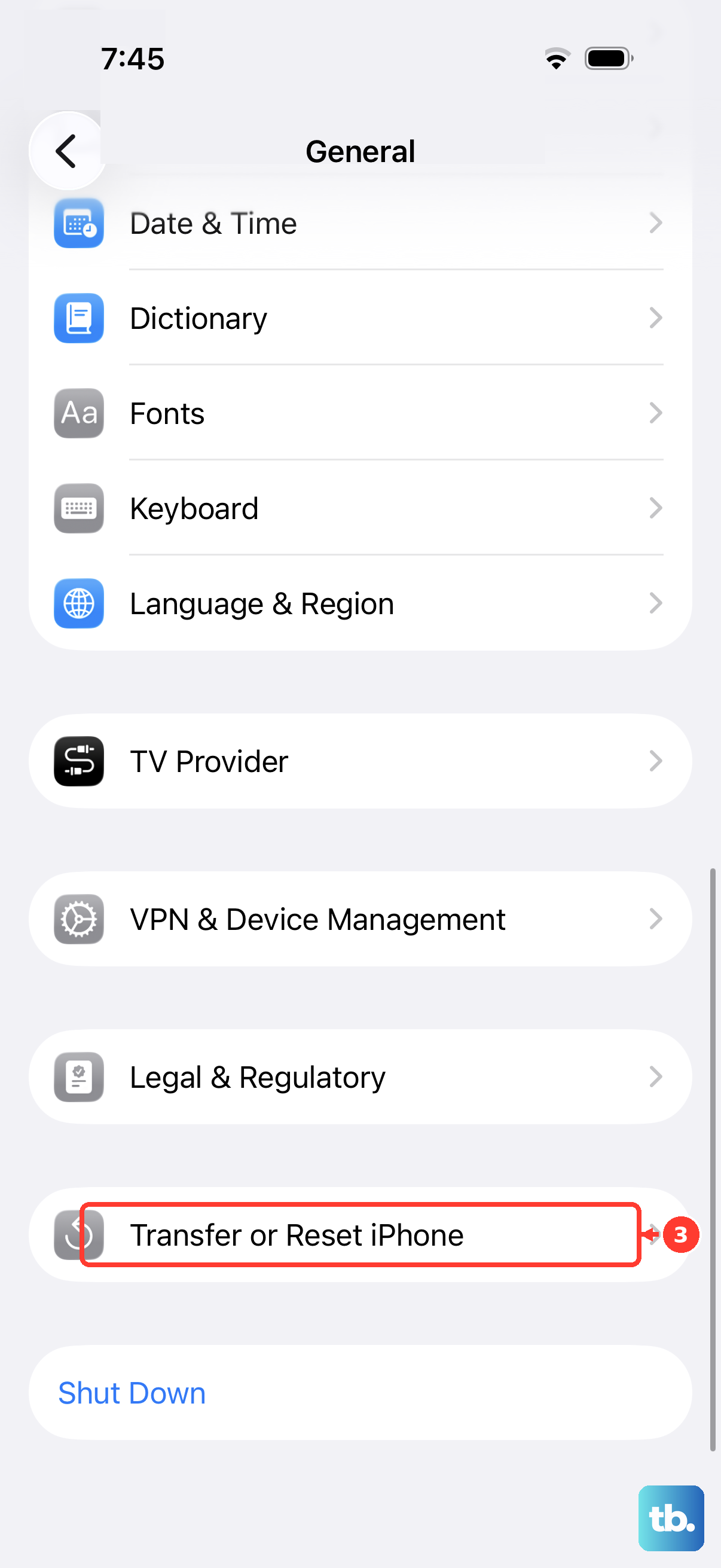
This removes network settings, resets the device name to iPhone, makes manually trusted website certificates untrusted, removes VPN settings that were not installed by a profile or device management, and may turn off cellular data roaming.
Work or school iPhones
If your iPhone is managed by an employer or school, cellular, APN, VPN, or profile settings can affect service. Open Settings > General > VPN & Device Management to see whether a profile or management entry is installed.
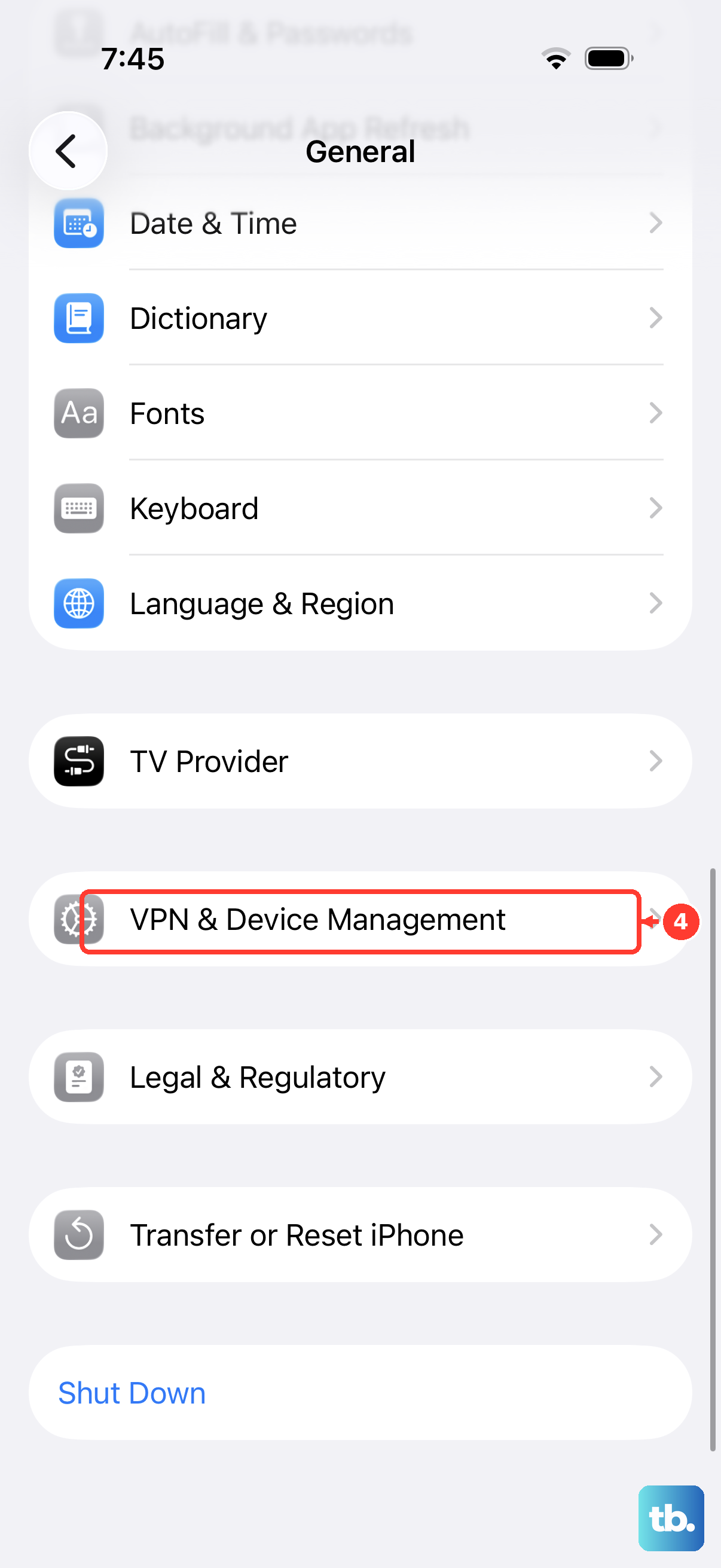
Only remove a Profile or Management entry if the phone is personally owned and removal is allowed. Removing management also removes other settings and certificates from that organization.
When a carrier, employer, school, or administrator gives you a needed profile, open Settings, tap Profile Downloaded or Enroll in [organization name], then tap Install and follow the onscreen instructions.
If SOS stays after these steps, run diagnostics in the Apple Support app on iOS 18 or later. When your carrier confirms there is no account or network issue and hardware is suspected, get service through Apple Support.
Frequently Asked Questions
Can I still call 911 when my iPhone says SOS?
In the United States, Canada, and Australia, SOS or SOS only means your iPhone is not on your carrier network, but emergency calls may still route through other carriers.
Is SOS the same as having Cellular Data turned off?
No. Turning off Cellular Data affects internet access over the carrier network. SOS means the iPhone is not connected to your carrier's cellular network.
Should I delete my eSIM to fix SOS on iPhone?
No. Erase an eSIM only when your carrier directs you to do it.
When should I contact Apple instead of my carrier?
Contact Apple if your carrier confirms there is no account or network issue, hardware is suspected, or the iPhone still shows Cellular Issue Detected after reinstalling iOS with a computer.