
When your Vivo X200 Pro's voice assistant stops responding, it can feel like you've lost a key feature of your phone. Whether you're trying to launch the camera, send a quick message, or just ask about the weather, a silent assistant is a problem. Here are the steps to get it working again.
Let's start with the quickest fix. Press and hold the power button for about 12 seconds until you see the Vivo logo appear. This force restart can clear out temporary software glitches that might be preventing the microphone or assistant service from working properly. It's the first thing I'd try.
Verify the Voice Assistant is Enabled
First, you need to confirm the assistant is actually turned on. On the Vivo X200 Pro, this is typically called Jovi Voice or Jovi Assistant, depending on your region and Funtouch OS version. Open your Settings app and look for "Jovi" in the menu. Tap on it, then find the "Voice" or "Voice Assistant" settings.
Inside, make sure the main toggle for the voice assistant is switched on. Also, check for a setting called "Voice Wake-up" or "Hey Jovi" and ensure that's enabled too. This is what allows you to activate it hands-free. Some users accidentally disable this after an update.
Check Your Microphone Permissions
If the assistant can't hear you, it won't respond. The app needs explicit permission to use your microphone. Go to Settings > Apps > App Management. Find the Jovi or Voice Assistant app in the list (it might be named "Jovi Voice" or "Smart Assistant").
Tap on it and go to Permissions. Look for the Microphone permission and make sure it's set to "Allow" or "Allow only while using the app." If it's denied, that's your problem. Grant the permission and try again.
Retrain the Voice Wake-up Feature
Background noise, the way you're holding the phone, or even a slight change in your voice can confuse the wake-up detection. The good news is you can retrain it. Go back into the Jovi Voice settings where you found the "Voice Wake-up" option.
Look for a setting labeled "Voice Wake-up Training" or "Retrain Voice Model." The phone will guide you through saying the wake phrase ("Hey Jovi" or similar) a few times in a quiet environment. This helps the phone learn your specific voice pattern and can significantly improve reliability.
Look for Conflicting Accessibility Features
Certain accessibility services can sometimes interfere with microphone access or voice commands. On your X200 Pro, navigate to Settings > System Management > Accessibility. Take a quick look through the list of services that are turned on.
If you have any screen readers or other voice-based services enabled, try temporarily disabling them to test if your main voice assistant starts working again. You can always turn them back on later.
Inspect the Physical Microphones
The Vivo X200 Pro has multiple microphones for noise cancellation and clear audio. If the primary microphone is blocked, the "Hey Jovi" feature might fail. Check the small pinhole at the bottom of the phone next to the USB-C port and the one at the top.
Gently clean these openings with a dry, soft-bristled brush. Avoid using compressed air or sharp objects, as you could push debris further in or damage the sensitive mic. Also, check if your phone case is covering or muffling these areas.
Disconnect Bluetooth Audio Devices
When your phone is connected to a Bluetooth speaker, headset, or your car's audio system, it often routes all audio, including the microphone for voice commands, through that device. If that device's mic is off or of poor quality, your assistant won't hear you.
Go to Settings > Bluetooth and disconnect any currently connected audio devices. Then, try using the voice assistant directly from the phone's speaker and mic. If it works, you know the issue is with the Bluetooth link.
Update Funtouch OS
Software bugs can affect core features like the voice assistant. Vivo periodically releases updates that fix these kinds of issues. To check, go to Settings > System Management > Software Update.
Tap on "Download and Install" if an update is available. It's a good idea to be on Wi-Fi and have your phone charged above 50% before starting. After the update completes, restart your phone and test the voice assistant again.
Clear the Assistant App's Cache and Data
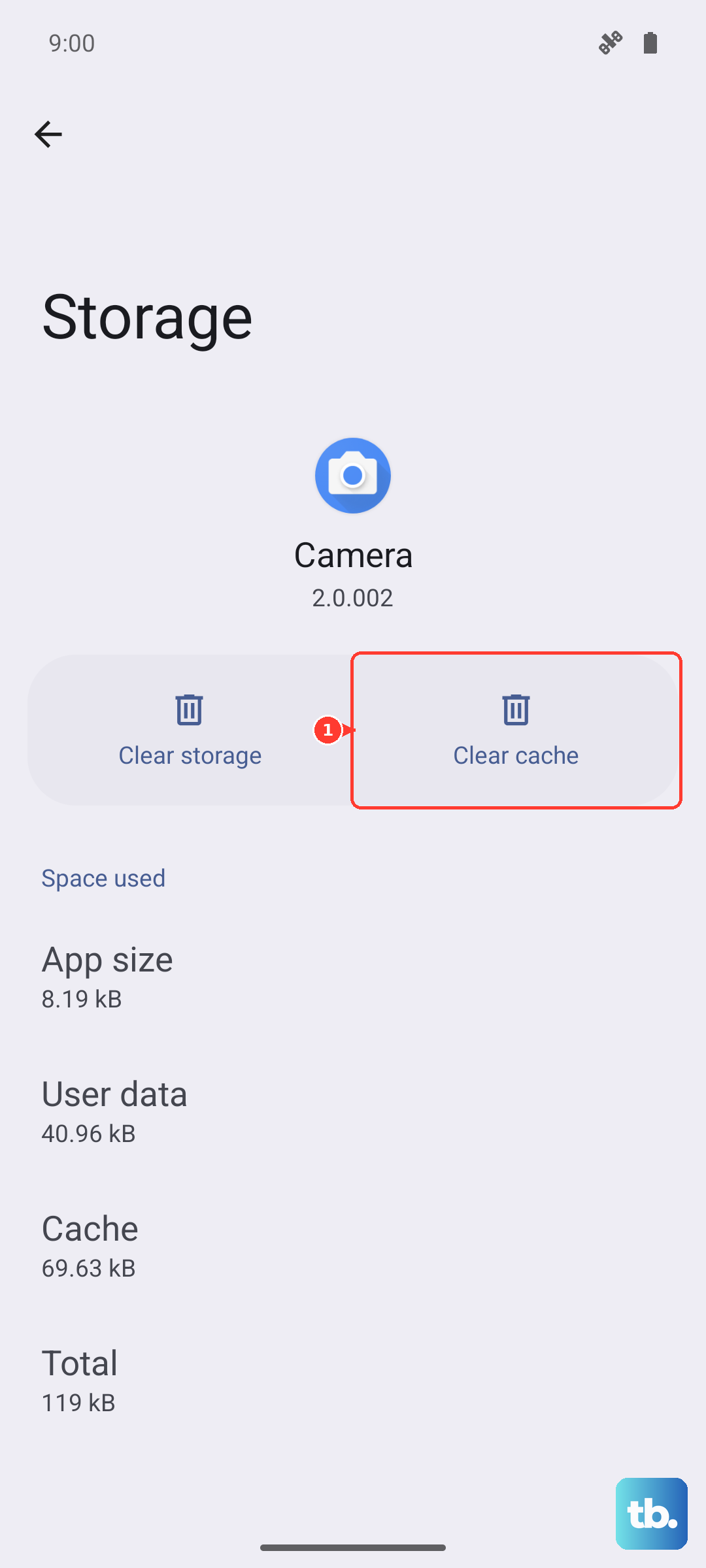
Corrupted temporary files can cause the app to malfunction. This step resets the app to its default state without deleting your personal data from the phone. Head back to Settings > Apps > App Management and find the Jovi/Voice Assistant app.
Tap on Storage Usage. You'll see two options: "Clear Cache" and "Clear Data." Tap "Clear Cache" first and test the assistant. If that doesn't work, go back and tap "Clear Data." Note that clearing data will erase your voice model and preferences, so you'll need to set it up again.
Check for Power-Saving Restrictions
Funtouch OS has aggressive battery optimization that can sometimes put background services to sleep, including the always-listening function for your voice assistant. Open Settings > Battery.
Look for a setting called "Background Power Management," "Power Saving Modes," or "App Power Saving." Find the Jovi or Voice Assistant app in the list and make sure it's set to "No Restrictions" or "Allow Background Activity." This ensures it can run in the background to listen for the wake word.
Reset All Settings
If you've tried everything else, this can resolve deeper configuration conflicts. It will reset your network settings, Bluetooth pairings, and system preferences back to default, but it won't delete your photos, apps, or personal files. Go to Settings > System Management > Backup and Reset.
Tap on "Reset Phone" and then select "Reset All Settings." Enter your lock screen password if prompted. The phone will reboot. After it starts, you'll need to reconfigure things like Wi-Fi and wallpaper, but your voice assistant should be back to its factory state and ready for setup.