
Slow internet on your Vivo X200 Pro can really put a damper on streaming, browsing, or using that fantastic Zeiss camera system. The good news is, a few tweaks in Funtouch OS 15 can often get things moving again. I'd start with the simplest fix first.
Restart Your Phone and Router
It sounds too simple, but a quick restart can clear out temporary software glitches that are slowing down your connection. Press and hold the power button for about 12 seconds until you see the Vivo logo reappear. This force restarts the phone.
While you're at it, unplug your WiFi router for 30 seconds and plug it back in. Give both devices a minute to fully reboot and reconnect. This solves a surprising number of speed issues right off the bat.
Check Your Network Mode and Signal
First, make sure you're actually connected to the fastest available network. Swipe down from the top of your screen to open the Quick Settings panel and look at the network icon. If you see "5G" or "4G+," you're on a fast lane.
If it only shows "4G" or "H+," your speeds might be limited. You can manually select a preferred network type by going to Settings > Network & internet > SIM cards & mobile networks. Tap on your SIM, then Preferred network type, and select "5G/4G/3G/2G (auto connect)."
Clear Your Browser's Cache and Data
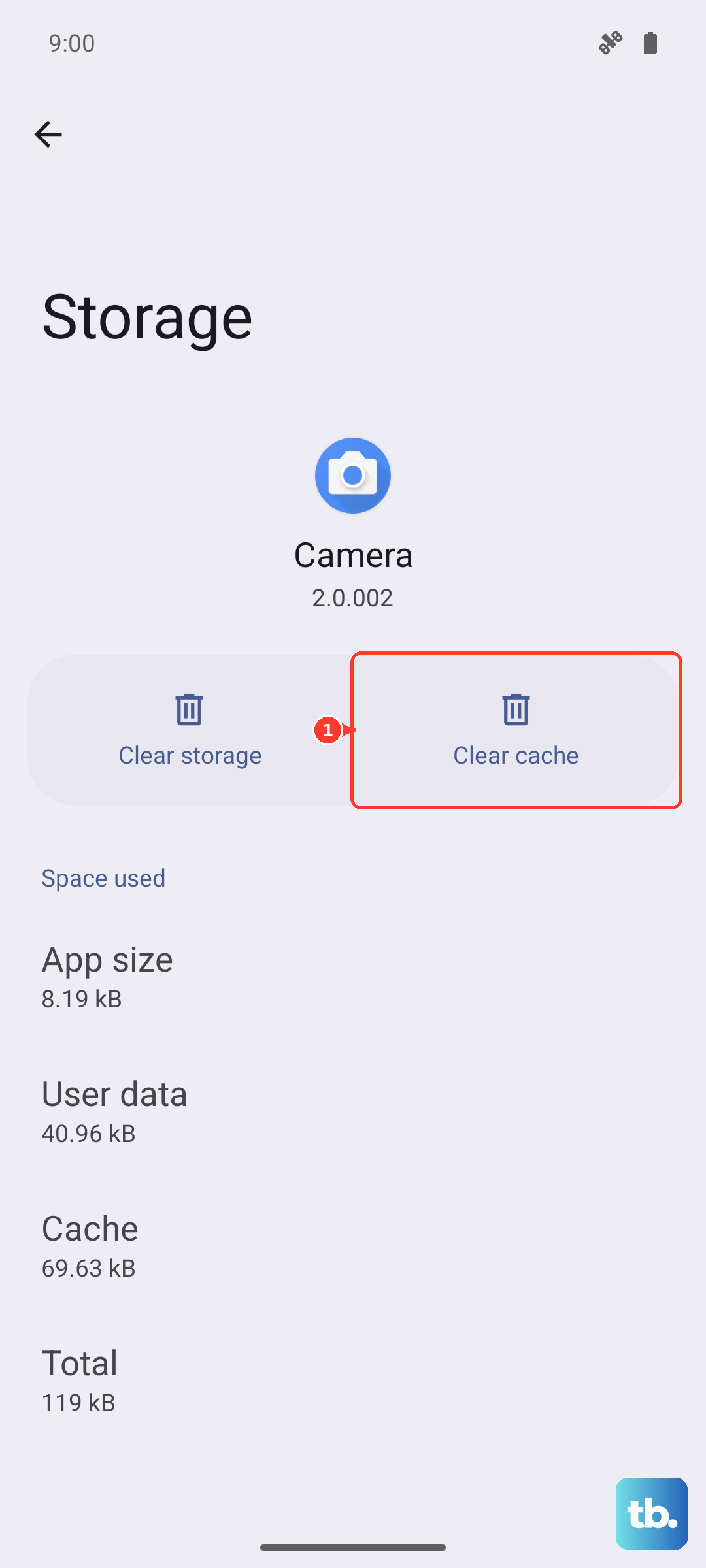
Over months of use, your browser stores tons of temporary files that can get corrupted and bog things down. Clearing this cache is like giving your browser a fresh start. If you use Chrome, open the app and tap the three dots in the top right.
Go to History > Clear browsing data. For the best clean-up, select "All time" as the time range, and check the boxes for Cached images and files and Cookies and site data. Tap "Clear data." For other browsers like Firefox or Vivo's own browser, look for a similar "Clear cache" option in their settings menus.
Enable Data Saver and Restrict Background Data
Funtouch OS has a great built-in tool to stop apps from chewing through data in the background, which can free up bandwidth for what you're actually doing. Head to Settings > Network & internet > Data Saver and toggle it on.
For more control, go to Settings > Apps > App management. Find an app that's always updating in the background (like a social media app), tap on it, and select Data usage. Here, you can toggle off "Allow background data usage" for that specific app.
Forget and Reconnect to Your WiFi Network
Sometimes your phone holds onto an old, weak connection to a WiFi router instead of grabbing a fresh one. Fix this by making it forget the network and log in again. Go to Settings > Network & internet > WiFi.
Tap on the network you're connected to, then select "Forget." Confirm, and then tap on the network name again from the list to re-enter your password and reconnect. This often resolves persistent slow WiFi speeds.
Update Your Apps and System Software
Outdated apps can have bugs that hurt performance, including network performance. Open the Google Play Store, tap your profile icon, and go to Manage apps & device. Under "Updates available," tap "Update all."
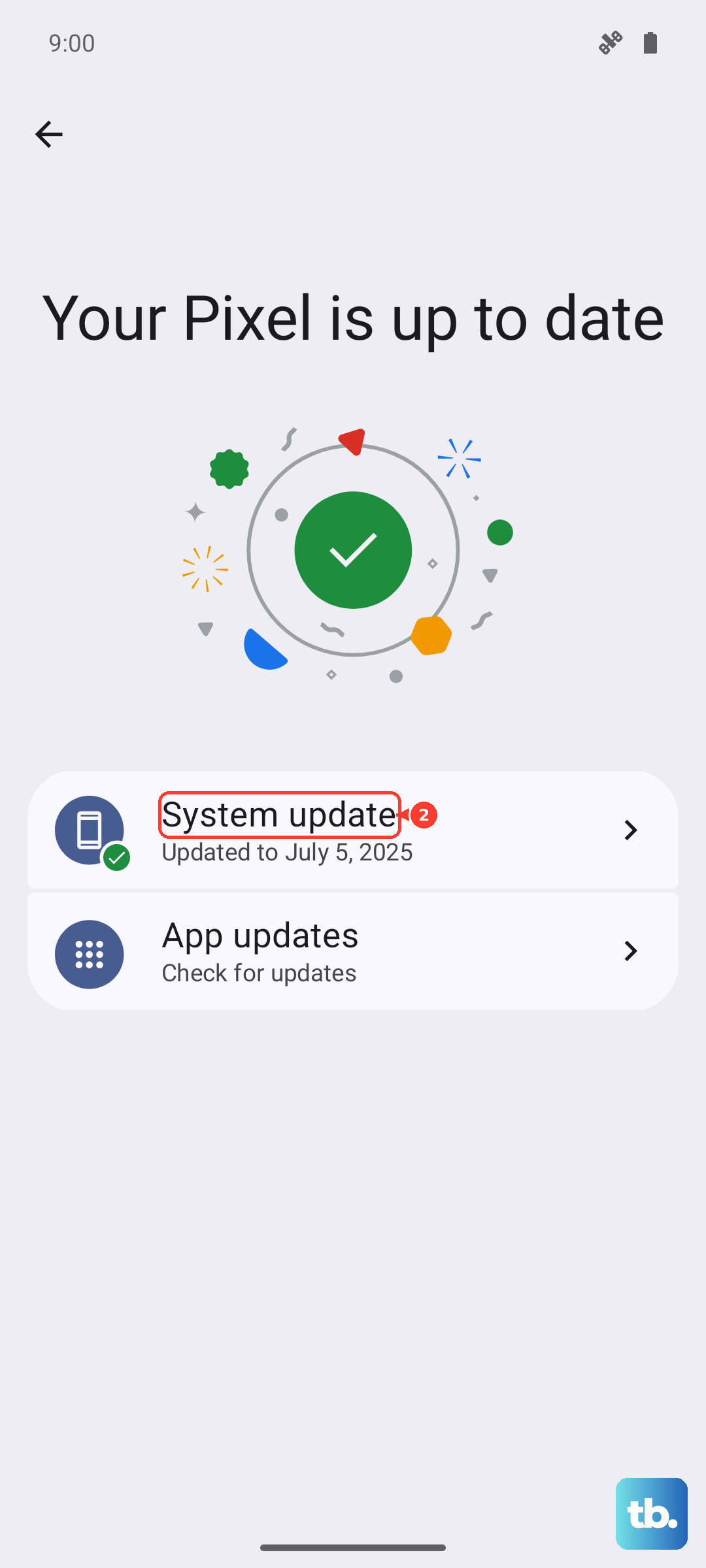
More importantly, check for a system update. Vivo releases updates that can include connectivity improvements. Go to Settings > System management > System update and tap "Check for updates." If an update is available, install it.
Disable Any VPN or Proxy Service
While VPNs are great for privacy, they route all your traffic through a distant server, which almost always slows things down. If you have a VPN app running, open it and disconnect. For proxy settings, go to Settings > Network & internet > Private DNS and make sure it's set to "Off."
Also check Settings > Network & internet > WiFi, tap the gear icon next to your network, and scroll down to "Proxy." Ensure this is set to "None." After disabling these, test your speed again.
Reset Your Network Settings
This is a more thorough step that will reset all WiFi, mobile data, and Bluetooth connections back to factory defaults. You'll need to re-enter WiFi passwords afterward. It won't delete your personal files or apps.
To do this, go to Settings > System management > Backup and reset. Tap on "Reset phone," then select "Reset network settings." Confirm your PIN or password, and the phone will restart. This clears out any deep-seated network configuration errors.
Check for Problematic Apps
A single misbehaving app can sometimes monopolize your network connection. Boot your phone into Safe Mode to test. Press and hold the power button until the power menu appears, then long-press the "Power off" option on your screen until you see a prompt to reboot to Safe Mode.
In Safe Mode, all third-party apps are disabled. Test your internet speed. If it's suddenly fast, you know a downloaded app is the culprit. Restart normally to exit Safe Mode, and try uninstalling recently downloaded apps one by one to find the offender.
Contact Your Mobile Carrier
If you've tried everything and mobile data is still slow, the issue might be on your carrier's end. There could be network maintenance, congestion in your area, or a problem with your account. Give them a call or check their service status page online.
You can also ask them about your Access Point Name (APN) settings. Occasionally, these get misconfigured. You can view them on your X200 Pro at Settings > Network & internet > SIM cards & mobile networks > Access Point Names. Your carrier can tell you if the settings listed there are correct.