
Seeing "No Service" or a missing signal icon on your Vivo X200 Pro is a real headache. It cuts you off from calls, texts, and mobile data right when you need them most. The good news is that most of the time, this is a temporary glitch you can fix yourself without much fuss.
I'd start with the simplest fix first, as it works more often than you'd think. Just give your phone a quick restart. Press and hold the power button, then tap 'Restart' on the screen. This clears out any minor software bugs in Funtouch OS 15 that might be blocking the cellular radio from turning on properly.
While you're waiting for it to reboot, it's worth a quick check for any widespread service issues. If you're at home or work, ask someone on the same carrier if they have service. You can also quickly check your carrier's official website or social media accounts on a Wi-Fi connection; they often post updates about network outages there.
Check Your Basic Connection Settings
First, swipe down from the top of your screen twice to open the full Quick Settings panel. Look for the airplane icon and make sure Airplane Mode is turned off. It's easy to toggle it by accident, and it completely disables all wireless radios.
Next, tap the mobile data icon to make sure it's enabled. It should be highlighted. If you're trying to make a call and see "No Service," also try turning on Wi-Fi Calling if your carrier supports it. You can find this in Settings > Mobile network > Wi-Fi Calling.
Don't forget about your SIM card. The X200 Pro uses a nano-SIM. Power the phone off completely, then use the SIM eject tool that came in the box to pop out the tray. Give the gold contacts on the SIM card a gentle wipe with a soft, dry cloth and reseat it firmly. A loose or dirty contact is a common culprit.
Reset Your Network Configuration
If the basics don't work, the next step is to reset your network settings. This will wipe all your saved Wi-Fi passwords, Bluetooth pairings, and cellular network preferences, but it won't touch your personal photos, messages, or apps.
To do this, go to Settings > System management > Reset > Reset network settings. Tap to confirm. After the phone resets, you'll need to reconnect to your Wi-Fi and re-pair Bluetooth devices, but this often clears up persistent network bugs.
Verify Your APN and Network Mode
Your Access Point Name (APN) is like the address your phone uses to connect to your carrier's internet. If these settings are wrong or got corrupted, you'll have data issues or no service at all.
Open Settings > Mobile network > Access Point Names (APN). You should see a list with at least one entry for your carrier. If the list is empty or looks wrong, you need to input the correct settings. The easiest way is to contact your carrier's customer service, they can SMS you the correct APN configuration or guide you through it.
Also, check your preferred network type in Settings > Mobile network > Preferred network type. For the best balance of coverage and speed, "5G/LTE/WCDMA/GSM (Auto)" is usually the right choice. If you're in an area with spotty 5G, try selecting "LTE/WCDMA/GSM (Auto)" to see if your connection stabilizes.
Use the Hidden Phone Information Menu
Android has a built-in diagnostics menu that lets you see the raw status of your cellular radio. To open it, open your phone's dialer and type *#*#4636#*#*. This should launch the "Testing" menu.
Tap on "Phone information." Here, you can see detailed data about your signal strength and network. Look for a "Run Ping Test" button to check connectivity. You can also try toggling the "Mobile Radio Power" off and then back on. If the radio is already off, that's a sign of a deeper software issue.
Check for Software Updates and App Conflicts
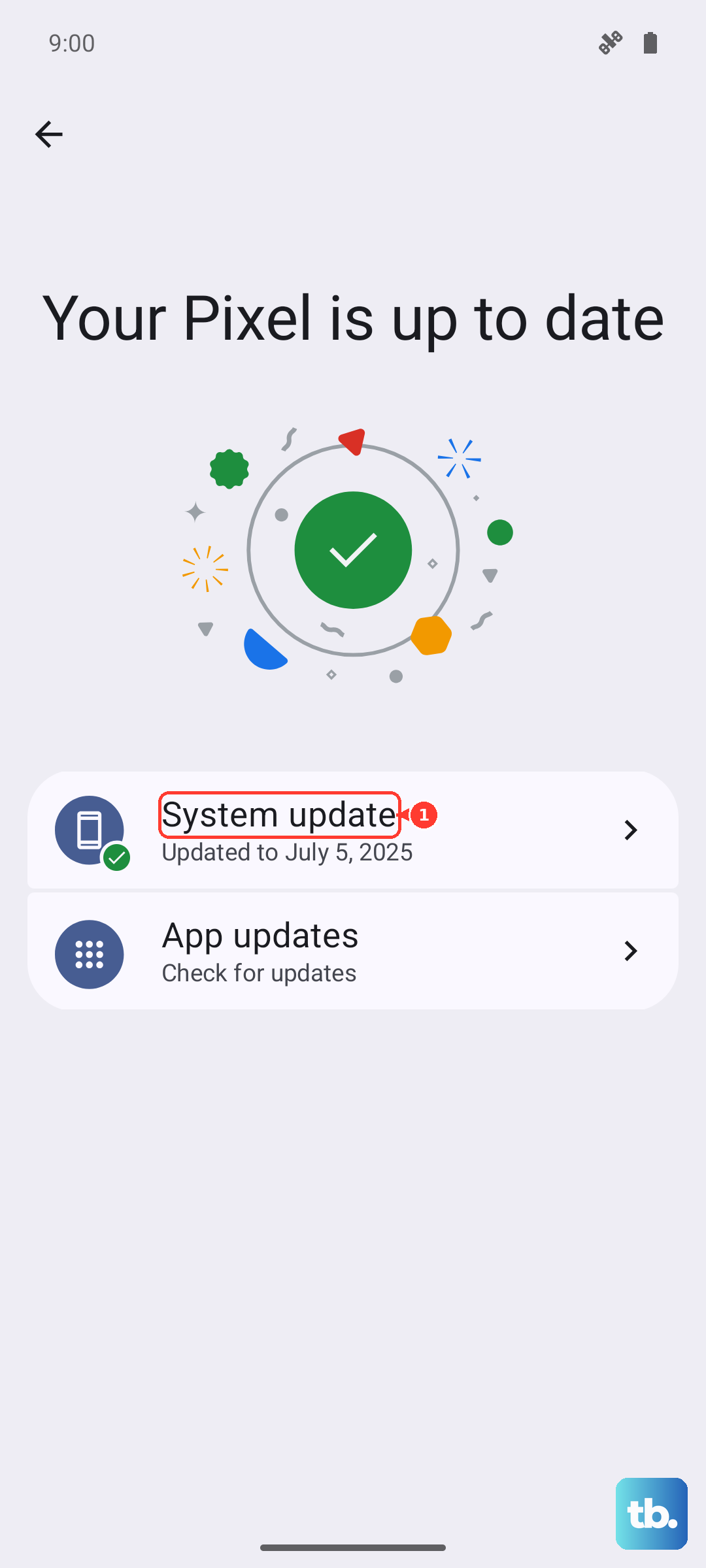
Vivo periodically releases updates for Funtouch OS that include bug fixes for connectivity. Go to Settings > System update and tap "Check for updates." If one is available, install it. Make sure your phone is connected to Wi-Fi and has at least a 50% charge first.
Third-party apps, especially VPNs, firewalls, or aggressive battery savers, can sometimes block network access. Try booting your X200 Pro into Safe Mode. Press and hold the power button, then tap and hold the "Power off" icon on your screen until you see the Safe Mode prompt.
If your service returns in Safe Mode, a recently downloaded app is likely the problem. Start uninstalling apps one by one, beginning with the most recent, until the issue goes away.
Manually Select Your Network Operator
Sometimes your phone gets stuck trying to connect to a weak or incompatible tower from a different carrier. You can force it to search for your specific provider. Go to Settings > Mobile network > Network operators.
Tap "Search networks." After a moment, a list of available carriers will appear. Select your own carrier's name from the list. Don't choose "Choose automatically" right away, forcing a manual connection can re-establish a handshake with your home network.
Consider the SIM Card and Carrier Account
At this point, if your X200 Pro still shows no signal, the problem might be with the SIM card itself or your account. The simplest test is to put your SIM card into another unlocked phone. If that phone also gets no service, you know the issue is with the SIM or your carrier.
Contact your carrier's support. They can check if your account is active, if the SIM is properly provisioned on their network, and if there are any regional outages. They can also issue a replacement SIM card, which often solves mysterious "No Service" problems, especially with older SIMs.
As a Last Resort: Factory Reset
If you've tested the SIM in another phone and it works fine, then the issue is isolated to your Vivo X200 Pro. Before a reset, ensure you have a complete backup. Use Google's backup service and also sync your photos to Google Photos or a computer.
To perform the reset, go to Settings > System management > Reset > Erase all data (factory reset). Follow the prompts. This will wipe the phone back to its out-of-box state. After setup, test the cellular connection before restoring your apps and data, just to be sure.