
When your Vivo X200 Pro starts rebooting on its own, it can be incredibly disruptive. You might be in the middle of capturing a portrait with that excellent Zeiss camera, or just browsing, and suddenly the screen goes black. This is usually a software hiccup, often related to Funtouch OS or a misbehaving app, and there are several things you can try to get it settled down.
Before you start, it's a good idea to make sure your photos and data are backed up. You can use Google Drive or Vivo's own cloud service. This way, if you need to take more serious steps later, your memories are safe.
Perform a Force Restart
This is almost always the first thing I'd try. A force restart clears the phone's temporary memory and can knock out any minor glitch causing the restarts. For the Vivo X200 Pro, it's straightforward. Just press and hold the Power button for about 12 seconds or longer.
Keep holding it until you see the Vivo logo appear on the screen. This forces a clean boot and doesn't delete any of your personal data or settings.
Check for App Updates and Conflicts
Outdated or buggy apps are a very common cause of random restarts on Android. Head over to the Google Play Store, tap your profile icon, and hit "Manage apps & device." Look for any pending updates and install them all.
Think about any apps you installed just before the problem started. You can boot into Safe Mode to test if a third-party app is the culprit. Hold the power button, then tap and hold the "Power off" option on your screen until you see a prompt to reboot to Safe Mode.
If the phone is stable in Safe Mode, a downloaded app is likely the problem. Start by uninstalling the most recent apps you added, or apps known to be heavy on system resources.
Update Funtouch OS
Vivo periodically releases system updates that fix bugs and improve stability. An outdated OS version could have a known issue that's causing your restarts. Go to Settings > System > System update.
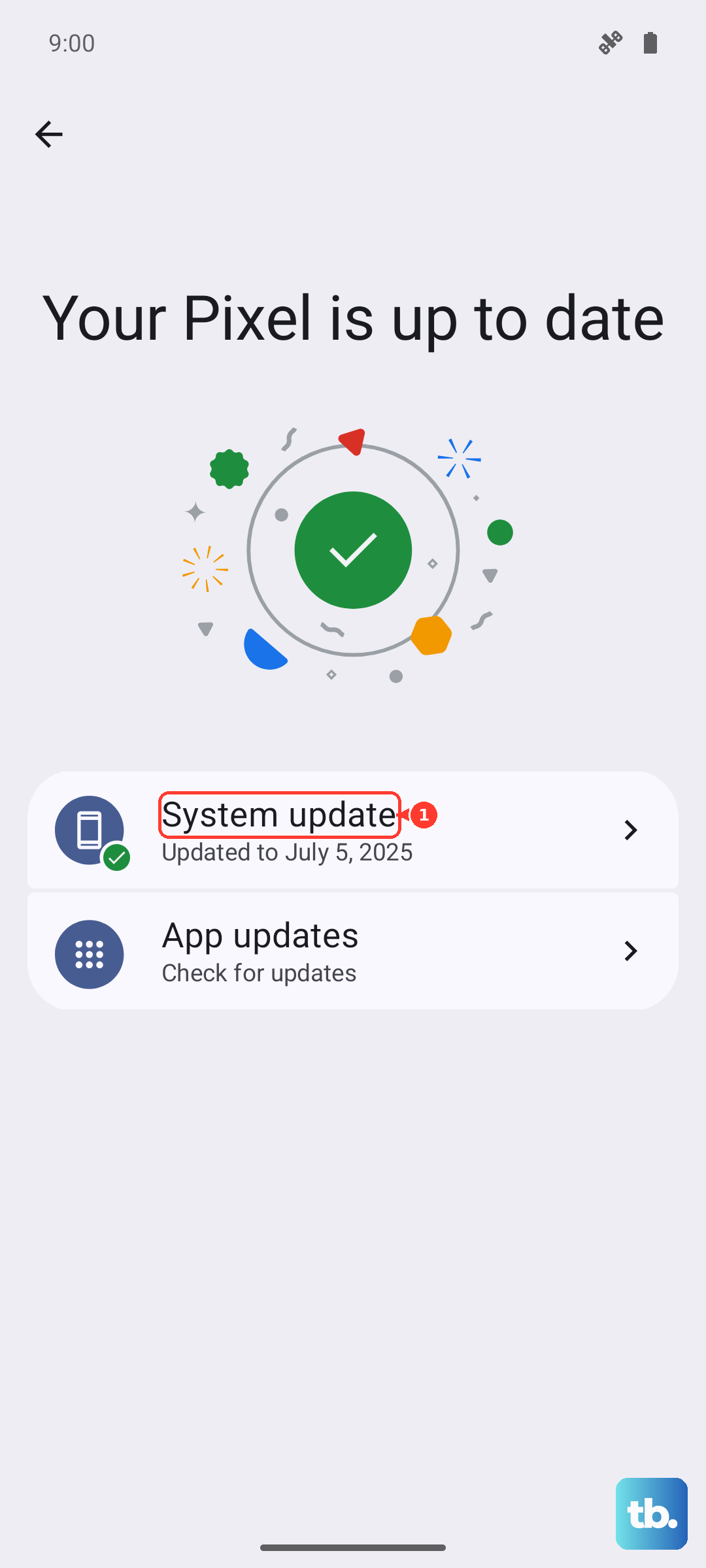
Tap "Check for updates" and install anything that's available. Since the X200 Pro runs Android 15 with Funtouch OS 15, make sure you're on the latest build Vivo has provided for your region.
Free Up Storage Space on Your Device
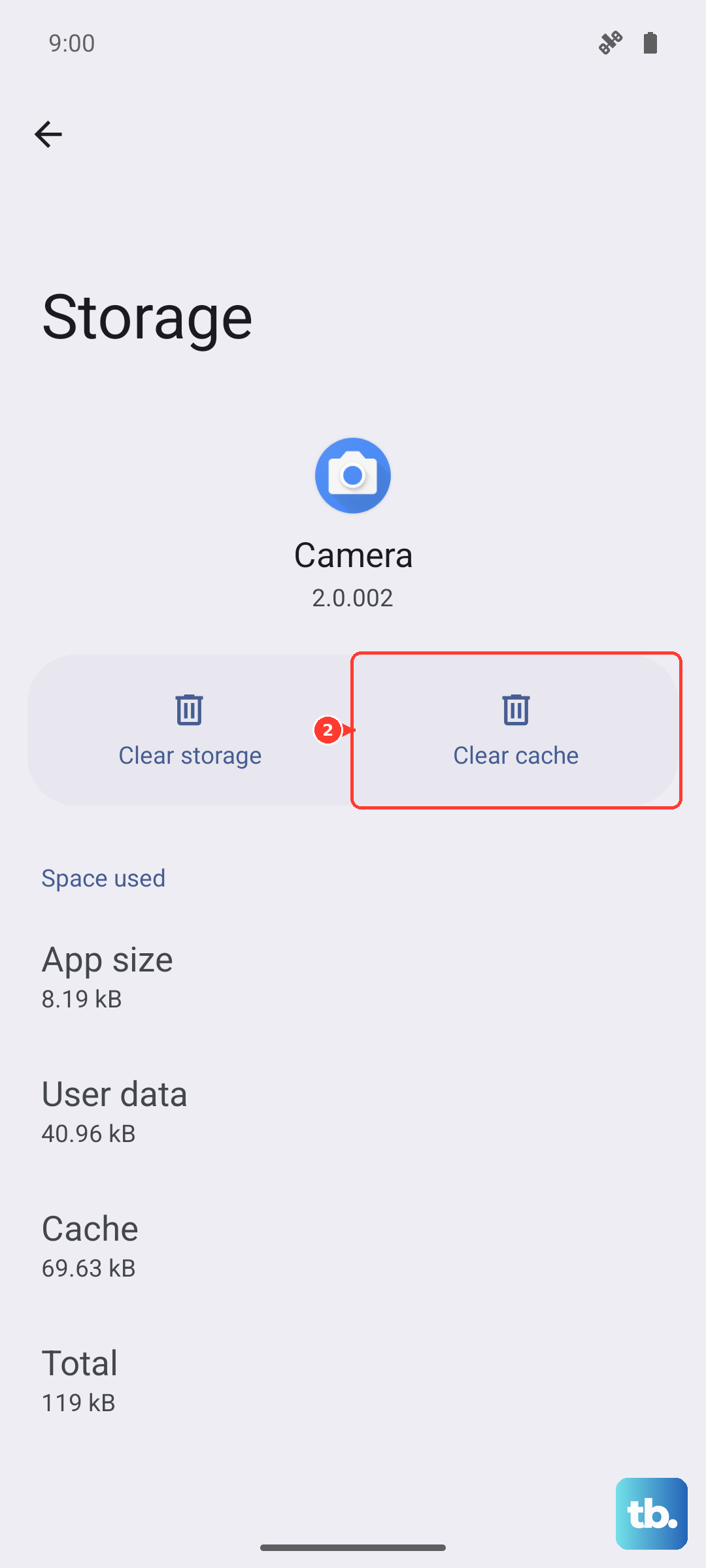
While the X200 Pro has a massive 6000mAh battery, it's the storage you need to check here. If your internal storage is completely full, the system can become unstable. Go to Settings > Storage to see how much space you have left.
If you're running low, clear cached data from apps. You can also move photos and videos to the cloud or a microSD card if you have one. Aim to keep at least 10% of your storage free for the system to operate smoothly.
Review Battery and Charging Habits
Although less common, charging issues can sometimes cause instability. The X200 Pro supports 90W wired and 30W wireless charging. First, try using the official 90W charger that came in the box.
Avoid using cheap, uncertified chargers or cables, as they can deliver inconsistent power. Also, check the USB-C port for any lint or debris. A small piece of fluff can prevent a proper connection and cause weird behavior.
Reset All Settings
If the problem persists, you can reset all your system settings to their defaults without touching your personal data. This will revert network settings, display preferences, and privacy options. Go to Settings > System > Backup & reset.
Tap on "Reset phone" and then select "Reset all settings." You'll need to enter your lock screen password to confirm. Afterward, you'll have to reconnect to Wi-Fi and redo some customizations, but your apps and photos will remain.
Clear the System Cache
Over time, cached system files can become corrupted. Clearing this cache can resolve unexplained issues like random reboots. You'll need to boot into the recovery menu. First, power off your phone completely.
Then, press and hold the Power button and the Volume Up button together until the Vivo logo appears, then release. Use the volume buttons to navigate to "Wipe cache partition" and select it with the power button. Confirm the action, then select "Reboot system now."
Check for Overheating
The X200 Pro's powerful chipset can get warm during intensive tasks. If the phone overheats, it may shut down or restart to protect its components. Feel the back of the phone, especially near the camera module, after it restarts.
If it's very hot, avoid using it while charging, especially with the 90W fast charger. Close demanding apps like games or the camera if you've been using them for a long time. Also, take it out of any thick case temporarily to see if that improves heat dissipation.
Perform a Factory Reset
This is the most comprehensive software fix. A factory reset will erase everything on your phone and return it to its original out-of-the-box state. This will delete all your apps, accounts, photos, and files, so ensure your backup is complete first.
You can do this through the settings. Go to Settings > System > Backup & reset > Erase all data (factory reset). Follow the prompts, and the phone will restart and take several minutes to complete the process. After setup, monitor it closely before restoring your data to see if the restarts stop.