You hit play on the Vivo X200 Pro and the music keeps coming out of the loudspeaker, or your Bluetooth earbuds connect but stay silent, or only one side makes sound. Because this phone has no 3.5mm headphone jack, "headphones" here means either wireless Bluetooth headphones (the X200 Pro runs Bluetooth 5.4) or wired headphones plugged into the USB-C port, whether straight into USB-C or through a USB-C-to-3.5mm adapter. That single detail rules out a lot of guesswork, since the fault almost always sits in the Bluetooth connection or the USB-C audio path rather than a worn-out socket. The fixes below follow Vivo's official support guidance and run from the quick, safe checks to the official reset and service-center steps, so work through them in order and stop as soon as your audio returns.
Start with a free left and right audio test that checks left and right channels, stereo order, bass, and treble. Two minutes there tells you whether the hardware needs attention at all.
Power Everything Off and On Before Anything Else
A stale connection is one of the most common reasons headphones drop out, and a simple restart is the first thing to try. Rebooting the phone clears the temporary glitches that can leave audio routed to the wrong output, so power the X200 Pro off and back on, then connect your headphones again.
Do the same on the headphones themselves. Power your Bluetooth or USB-C headphones off and back on, then reconnect them to the phone and test playback again. If sound comes back after this, you are done; if not, move on.
Rule Out the Headphones and Reseat a Wired Pair
Before you touch any settings, find out whether the problem is the phone or the headphones. The official Earphone FAQ advises you to "Plug your earphone into another handset to check if there is the same issue." If the same headphones fail on a second phone, the headphones are the likely culprit.
For a wired pair on the X200 Pro, the connector goes into the USB-C port, so a loose fit is easy to miss. Vivo's guidance is to "Plug in the earphone again and make sure it is plugged in fully," and to confirm the connector is seated all the way down. The FAQ also notes, "If the earphone you are using is not original, please use the original one," which helps rule out a cheap cable or an incompatible adapter.
Turn On Both Audio Switches for Your Bluetooth Headset
If a Bluetooth headset connects but plays no sound, or sends sound to only one side, the per-device audio switches are the place to look. The official Earphone FAQ points you to the switches kept under each paired device in Bluetooth settings.
- 1.Go to Settings > Bluetooth and find the paired Bluetooth device.
- 2.Open that device's settings.
- 3."Make sure the two audio switches are turned on."
To narrow it down further, try connecting the headset to another phone, or pair a different headset to your X200 Pro. Whichever combination works tells you where the real fault lies.
Forget the Pairing and Connect Fresh
When a previously working headset refuses to behave, a corrupted pairing record is often to blame. The official Bluetooth FAQ is direct about the fix: "Delete the paired records, then connect to it again."
- 1.Open Settings > Bluetooth.
- 2.Tap the paired headset and choose Unpair (Forget).
- 3.Put the headset back into pairing mode.
- 4.Let the X200 Pro rediscover it and pair from scratch.
Pairing fresh rebuilds the link with clean settings, which clears the kind of one-sided or no-sound behavior a damaged record can cause.
Clear the Bluetooth App's Stored Data
If forgetting and re-pairing did not stick, the Bluetooth service's own stored data may be the problem. Vivo's official Bluetooth FAQ gives the exact path: "Access Settings>More settings>Application>All>Bluetooth(>Storage), Clear data."
Clearing this wipes the Bluetooth service's saved data so the phone can rebuild its connections from a clean state. After it finishes, restart the phone and pair your headset again, since all previous pairings will be gone.
Install the Latest Funtouch OS Update
Audio and Bluetooth glitches are sometimes fixed in firmware, and in global markets the X200 Pro runs Funtouch OS 15 based on Android 15. The official guidance is to "Go to Settings>System update to update your phone to the latest version."
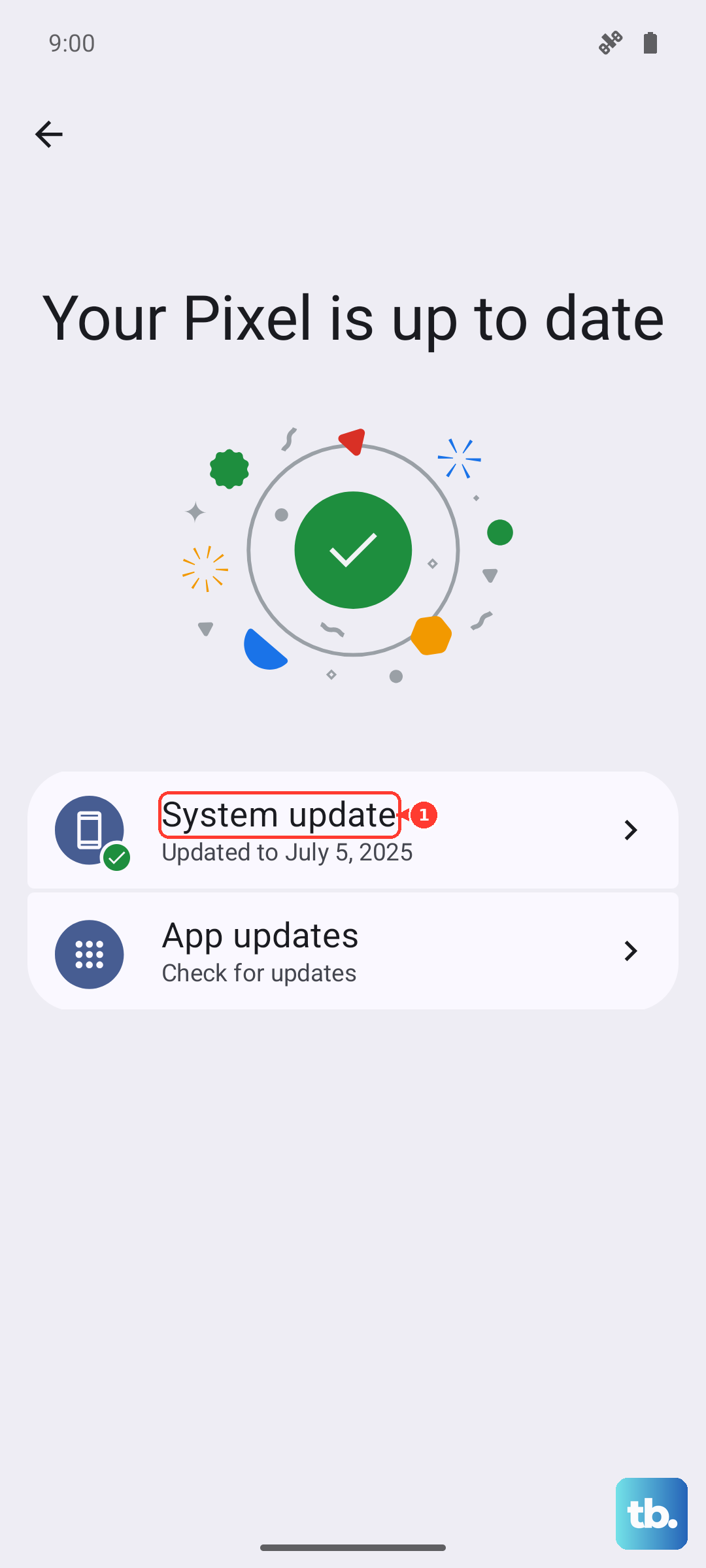
Open Settings > System update, let the phone check for a new build, and install anything it finds. Keep the phone charged and on Wi-Fi during the update, then test your headphones once it reboots.
Force a Restart When the Phone Locks Up
Occasionally the audio problem is part of a wider freeze, where the screen stops responding and a normal reboot is not possible. For this case the official FAQ specifies a precise key combination: "pressing the power button and the volume down button at the same time for more than 10 seconds will trigger a forced restart of the device."
Hold the Power button and the Volume Down button together for more than 10 seconds until the phone restarts. This is the verified sequence for current Vivo and Funtouch OS phones; do not use a power-only hold, which is not the correct method for this device.
Reset All Settings Without Losing Files
If your headphones still misbehave, you can roll the phone's settings back to their defaults without touching your photos, apps, or other files. The official Backup & Reset guidance reads: "Access Settings>More settings>Backup & Reset>Restore(Reset) all settings. Don`t worry, no data or media will be deleted."
This returns network, Bluetooth, and other system settings to factory defaults, which often clears a stubborn routing or connection problem that survived the earlier steps. Once it completes, pair your headset again and check both wired and wireless playback.
Back Up and Erase All Data as a Last Software Step
When nothing softer works, a full factory reset is the final on-device option, and it must be treated carefully because it wipes everything. Go to Settings > More settings > Backup & Reset and choose Erase all data. The official warning is explicit: "Erase all data (factory reset) will delete all data from the phone (except data in the SD card), including installed apps and contacts. Please back up important data in your phone before this operation."
Back up your important data first, then run the reset and set the phone up again before testing your headphones. If you ever need the alternative recovery-mode wipe, the official steps are to "Touch Wipe data>Wipe data>Wipe data. Then select Reboot system to reboot your phone."
Book a Free Port Cleaning or Service Center Visit
If wired headphones still cut out or refuse to play after all of the above, the USB-C port may have collected dust or lint that blocks a solid connection. The official Earphone FAQ says you can "Take your phone to our service center," and notes that "The cleaning service is free."
For anything the software steps could not solve, take the phone to an authorized Vivo service center, which you can locate through Vivo's official support channels.
Frequently Asked Questions
Does the Vivo X200 Pro have a headphone jack?
No. The Vivo X200 Pro does not have a 3.5mm headphone jack, so wired headphones must connect through the USB-C port, either directly or with a USB-C-to-3.5mm adapter. For wireless listening it supports Bluetooth 5.4.
Why does sound come out of only one earbud?
For a Bluetooth headset, go to Settings > Bluetooth, open the paired device, and make sure the two audio switches are turned on. Trying the headset on another phone, or a different headset on yours, helps confirm whether the headset or the phone is at fault.
Will resetting settings delete my photos and apps?
Resetting all settings does not erase your data. The official path is Settings > More settings > Backup & Reset > Restore(Reset) all settings, and Vivo states that no data or media will be deleted. A full factory reset (Erase all data) is different and does delete your files, so back up first.
How do I get the USB-C port cleaned if it has dust in it?
Take the phone to a Vivo service center, where the cleaning service is free. You can find your nearest location through Vivo's official support channels.
How do I force restart a frozen Vivo X200 Pro?
Press the power button and the volume down button at the same time for more than 10 seconds to trigger a forced restart. Use this only when the phone is unresponsive and a normal restart is not possible.