
When your Tecno Spark 30 Pro won't send messages, it cuts off a core way you stay in touch. Texts might get stuck on "Sending," fail with an error, or just disappear into the void. The fixes are usually straightforward, and I'd start with the quick ones at the top of this list.
Restart Your Phone
This is the simplest fix and often works. A quick restart clears out any temporary software glitch that's hanging up the messaging app. Just press and hold the Power button until the power menu appears, then tap "Restart." If the screen is unresponsive, you can force restart by holding the Power button and Volume Down button together for about 10 seconds until you see the Tecno logo.
Check Your Mobile Data and Signal
Your messages need a cellular signal to send as SMS, and an internet connection for apps like WhatsApp or to send picture messages (MMS). Look at the signal bars in the top corner of your screen. If they're low or missing, try moving to a different location. You can also toggle Airplane Mode on and off from the Quick Settings panel to reset the connection instantly.
For MMS and messaging apps, mobile data must be enabled. Swipe down twice from the top of your screen to open the full Quick Settings, and make sure the mobile data icon is turned on. If you're on Wi-Fi, try switching it off to force the phone to use cellular data, as some Wi-Fi networks can block messaging ports.
Clear the Messaging App's Cache
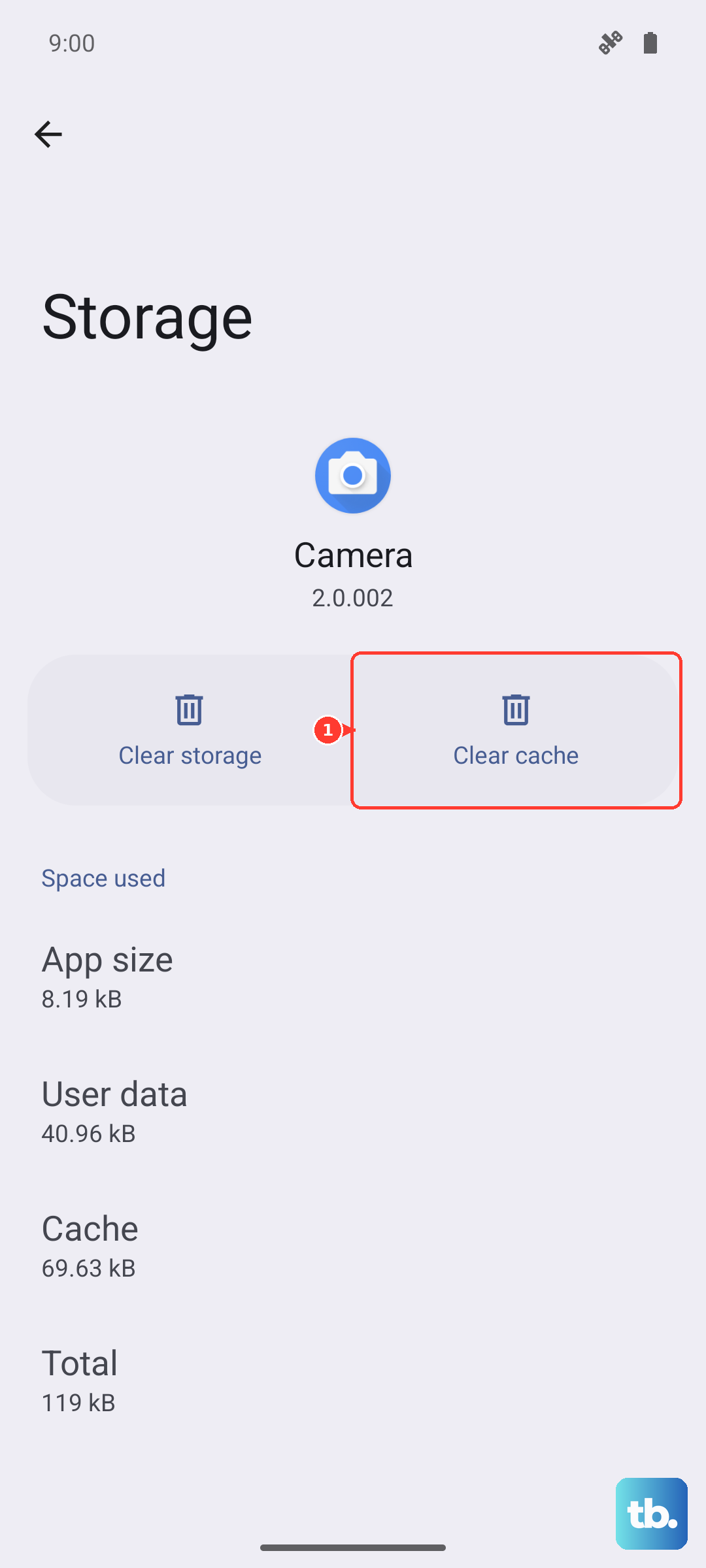
Over time, the cached data for your messaging app can become corrupted. Clearing it won't delete your messages, but it can fix sending problems. Go to Settings > Apps > Messages (or your default SMS app). Tap on Storage & cache and then hit Clear cache. Open your messages app again and try sending a text.
Check for App and System Updates
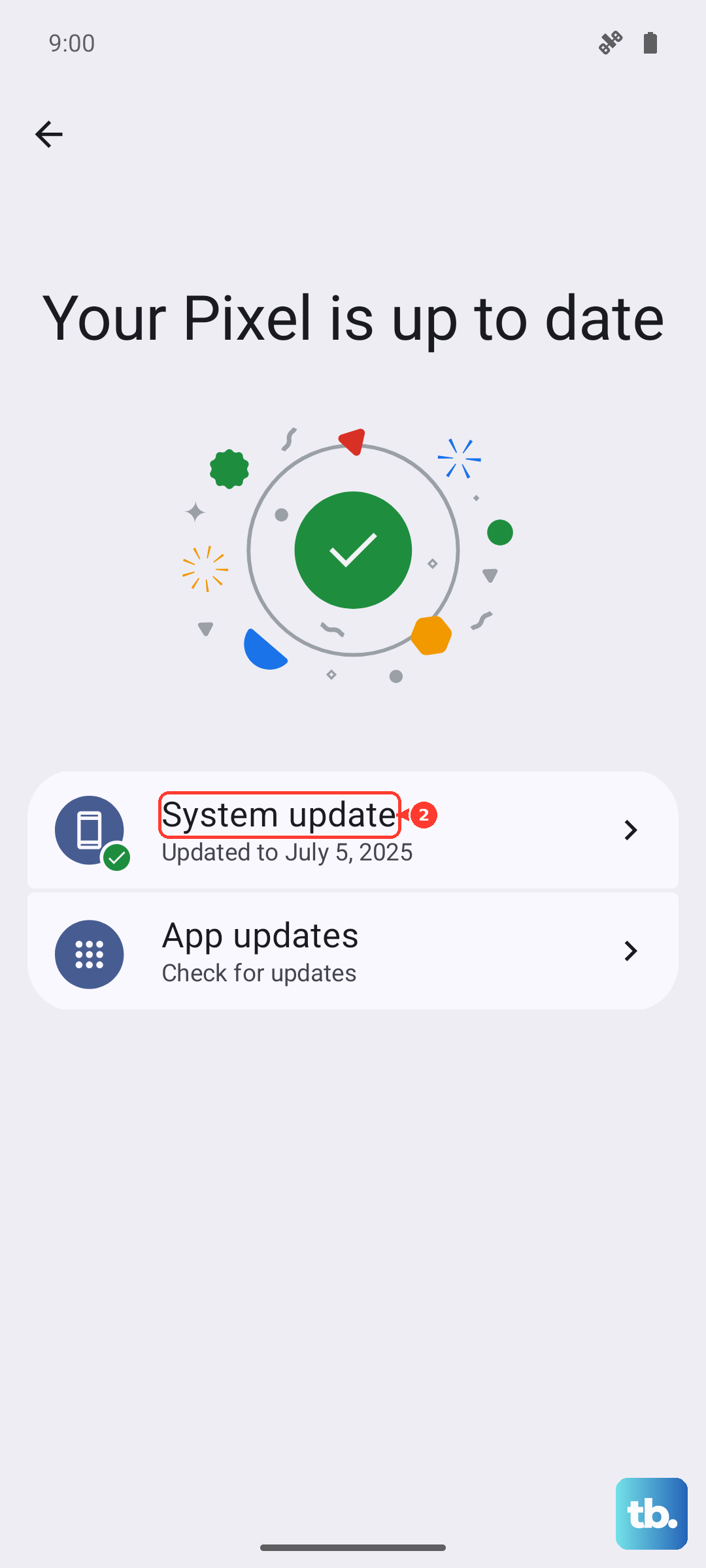
An outdated messaging app or an old version of HiOS can have bugs that break sending. First, open the Google Play Store, tap your profile icon, and go to Manage apps & device > Updates available. See if your messaging app is listed. For system updates, go to Settings > System > System updates and check for any new software. Installing updates can resolve known issues.
Verify Your APN Settings
Incorrect Access Point Name (APN) settings are a common culprit for MMS failures. These settings tell your phone how to connect to your carrier's multimedia network. Go to Settings > Network & internet > SIMs > Access Point Names.
You should see a list of APNs. Select the one that's currently active (it will have a filled-in circle). The exact values here are unique to your carrier. If the settings look wrong or blank, you'll need to get the correct APN details from your mobile provider's website or customer service and enter them manually.
Set the Correct Default SMS App
If you've installed other messaging apps, your phone might be confused about which one should handle texts. Go to Settings > Apps > Default apps. Tap on SMS app and make sure your preferred app is selected. Sometimes simply re-selecting the default app can kick things back into gear.
Remove Problematic Bloatware
The Tecno Spark 30 Pro comes with some pre-installed apps that can sometimes run in the background and interfere with system processes. While you can't uninstall all of them, you can often disable them. Go to Settings > Apps, find any suspicious or unused apps from Tecno or third parties, and tap Disable. This frees up RAM and can stop conflicting background activity.
Reset Your Network Settings
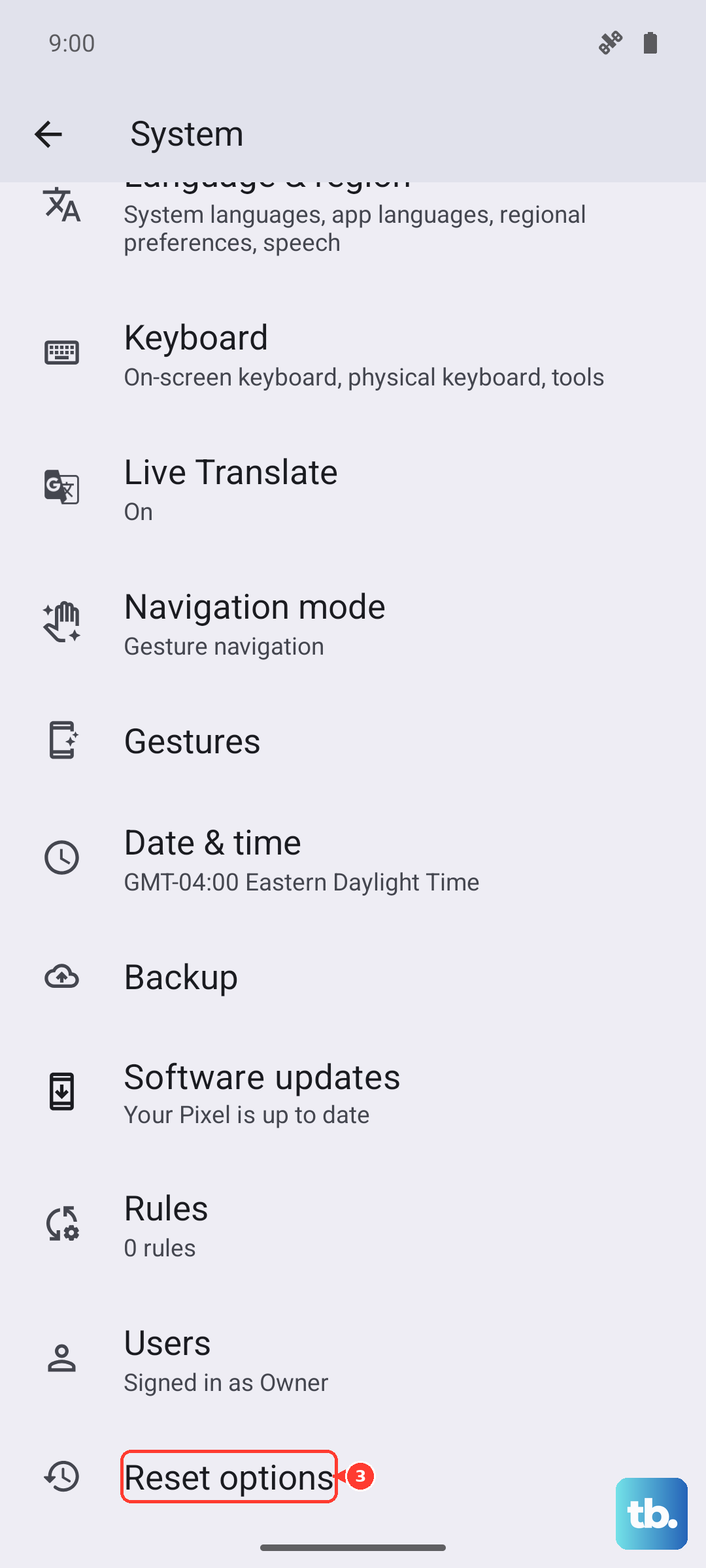
This is a more thorough step if you suspect a deeper network configuration error. It will erase all your saved Wi-Fi networks, Bluetooth pairings, and mobile data settings. Go to Settings > System > Reset options > Reset Wi-Fi, mobile & Bluetooth. Confirm the reset. After your phone reboots, you'll need to reconnect to Wi-Fi and re-pair Bluetooth devices, but it often clears up persistent messaging issues.
Check Your SIM Card
A loose or faulty SIM card can disrupt your connection to your carrier's network. Power off your phone first. Then, use the SIM eject tool that came in the box (or a small paperclip) to open the SIM tray on the side. Remove the SIM card, gently wipe the gold contacts with a soft cloth, and reinsert it firmly. Power your phone back on and see if messages send.
Contact Your Mobile Carrier
If you've tried everything here, the problem might be on your carrier's end. There could be a temporary network outage in your area, a provisioning issue with your account, or SMS/MMS services might be blocked on your plan. A quick call or online chat with your carrier's support can confirm if everything is active on their side and if there are any known issues.