
Seeing no bars or service on your Tecno Spark 30 Pro can be a real headache, especially when you need to make a call or use mobile data. This usually means your phone can't connect to your carrier's network, but the good news is it's rarely a permanent problem.
I'd start with the simplest fix first. Grab your phone and press and hold the Power button and Volume Down button together for about ten seconds. Keep holding until you see the Tecno logo appear, then let go. This force restart can clear out temporary software glitches that might be blocking the signal.
Check Your Basic Connection Settings
It sounds obvious, but it's worth a quick look. Swipe down from the top of your screen twice to open the full Quick Settings panel. Make sure the Airplane Mode icon isn't highlighted. If it is, tap it to turn it off.
While you're there, also tap the mobile data icon to turn it off, wait a few seconds, and then tap it again to turn it back on. Sometimes the connection just needs a nudge to re-establish itself properly on the Helio G100 processor.
Reinsert Your SIM Card
A loose or dirty SIM card is a very common culprit. You'll need the SIM ejector tool that came in the box with your phone. Find the small pinhole on the side of the Spark 30 Pro, insert the tool, and gently push to pop out the SIM tray.
Take out the SIM card and give the gold contacts a quick wipe with a soft, dry cloth. Blow any dust out of the SIM tray slot as well. Carefully reinsert the SIM, making sure it's seated correctly in the tray, and slide the whole tray back into the phone until it clicks.
Verify Your Network Operator
Your phone might have lost its automatic connection to your carrier. To check this, go into your Settings app. Tap on Mobile Network or SIM Card & Mobile Network.
Look for an option called Network Operators or Choose Network. Tap it, and your phone will search for available networks. Once the list appears, select your own carrier's name from the list. If you see an option for Select Automatically, choose that instead.
Review Your APN Settings
The Access Point Name (APN) is like the address your phone uses to find your carrier's data network. If these settings are wrong, you won't get service. In your Settings, go to Mobile Network > Access Point Names.
You should see a list of APNs. Tap the one that's currently selected (it will have a filled-in circle next to it). Check all the details against the settings provided by your mobile network provider. If anything is off, you can edit it here. If you're unsure, the safest bet is to tap the three-dot menu and select Reset to default.
Reset Your Network Settings
This is a more thorough step that clears all your network-related configurations. It will forget your Wi-Fi passwords and unpair Bluetooth devices, but it won't touch your personal photos or apps. To do this, open Settings and scroll down to System or Additional Settings.
Tap on Reset or Backup & Reset. Look for and select Reset Network Settings. You'll need to confirm your choice, and the phone will reboot. After it comes back on, you'll need to reconnect to Wi-Fi and Bluetooth devices, but it often fixes persistent cellular issues.
Check for a Software Update
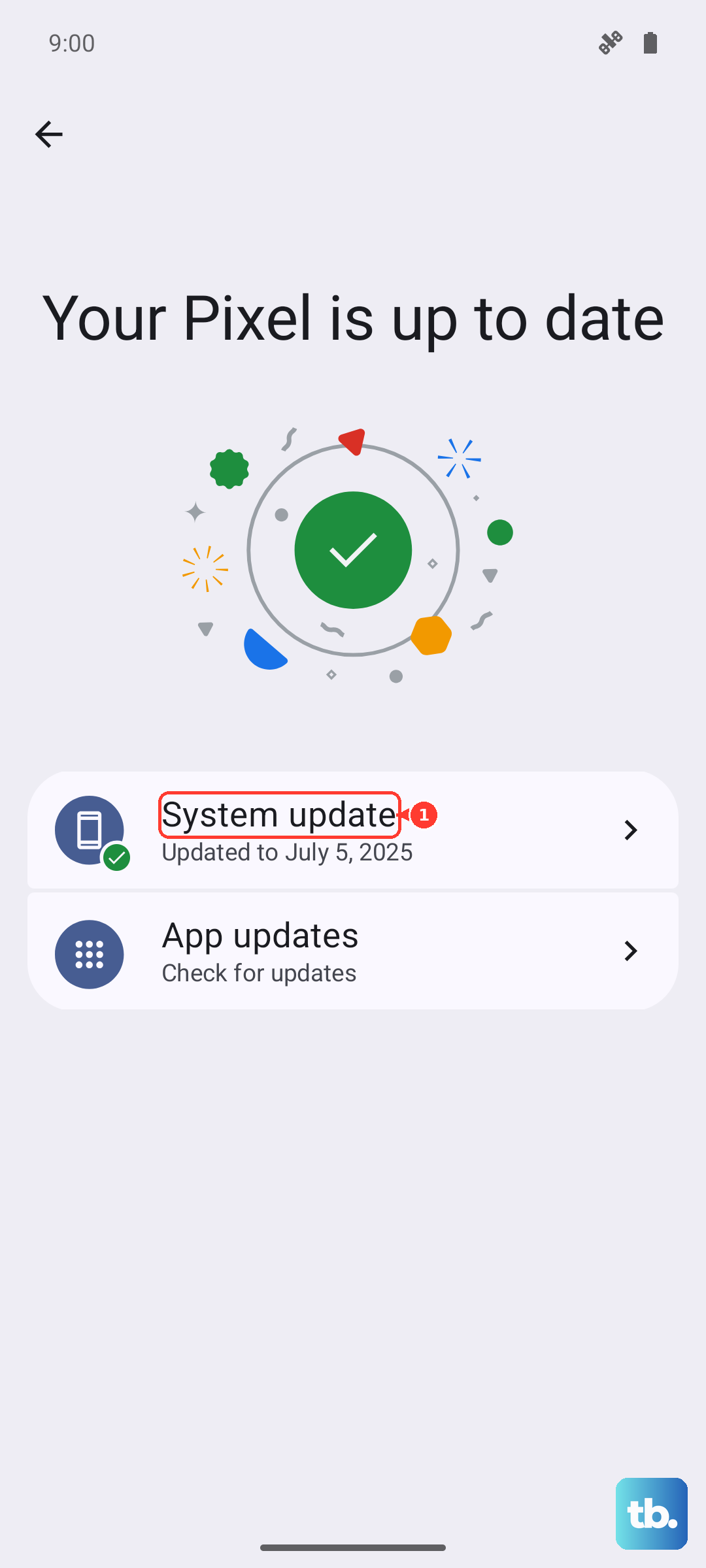
Since the Spark 30 Pro runs Android 14 with HiOS 14 on top, bugs can sometimes creep in. Tecno releases updates to fix these kinds of problems. Connect to a Wi-Fi network, then go to Settings > About Phone.
Tap on System Update or a similar option. Your phone will check for any available updates. If one is there, download and install it. The update process will restart your phone, which itself can help clear up the no-service problem.
Use the Phone Information Menu
Android has a hidden testing menu that lets you tinker with the radio directly. Open your Phone app and dial *#*#4636#*#*. This should open a testing screen. Tap on Phone Information.
You'll see a lot of technical details here. Look for a dropdown menu that says Set preferred network type. Try changing it to a different option, like LTE only, wait a moment, then set it back to LTE/WCDMA/GSM auto or whatever the default was. You can also try tapping the Turn Off Radio button, then the Turn On Radio button a few seconds later.
Consider Your SIM Card's Health
If you've tried everything on the phone itself, the issue might be with the SIM. The easiest way to check is to put your SIM card into another phone. If the other phone also shows no service, then you know the problem is with the SIM or your carrier account.
Contact your mobile provider at this point. They can check for any outages in your area and see if there's an issue with your account. They can also provide you with a new SIM card, as old or physically damaged cards can fail over time.
Look at Installed Apps and VPNs
Sometimes, third-party apps can interfere with network connectivity. This is especially true for VPN apps or aggressive battery savers. Try booting your phone into Safe Mode, which disables all downloaded apps.
To do this, press and hold the power button until the power menu appears. Then, press and hold the Power off option on your screen. You should get a prompt to reboot into Safe Mode. If you have full service in Safe Mode, a recently installed app is likely the culprit. You'll need to uninstall apps one by one to find the offender.