
If your Tecno Spark 30 Pro won't send picture messages or group chats, it's usually a quick fix. The most common culprit is a setting that got switched off, so I'd start there.
First, make sure your mobile data is turned on. MMS messages, which include photos and group texts, can't send over just a Wi-Fi connection. Swipe down from the top of your screen to open the Quick Settings panel and tap the mobile data icon to enable it. You need a decent signal, so if you're in a low-reception area, that could be the issue.
Verify Your MMS Settings in the Messages App
Open your default Messages app and tap the three-dot menu in the top right corner. Go to Settings and look for an option labeled Multimedia messages or Advanced.
Inside that menu, ensure Auto-retrieve MMS is enabled. This allows your phone to automatically download media. Also, check that there isn't a size limit set too low, which could block larger photos from sending.
Check Your APN Settings
Incorrect Access Point Name (APN) settings are a frequent cause of MMS problems on Android phones like the Spark 30 Pro. These settings tell your phone how to connect to your carrier's data and messaging services.
Go to Settings > Mobile Network > Access Point Names. You should see a list of APNs, with one selected (usually indicated by a dot). If the settings look wrong or are missing, you'll need to get the correct ones from your mobile network provider.
You can often find these on your carrier's website, or you can contact their customer support. They'll give you the exact details to enter for the MMS proxy and port fields, which are critical for picture messages.
Clear the Cache for Your Messaging App
Temporary files can sometimes get corrupted and interfere with sending messages. Clearing the app's cache is a safe first step that won't delete your conversations.
Head to Settings > Apps > Manage apps. Find and tap on your messaging app (it might be called "Messages" or "Hi Messages"). Select Storage usage and then tap Clear cache.
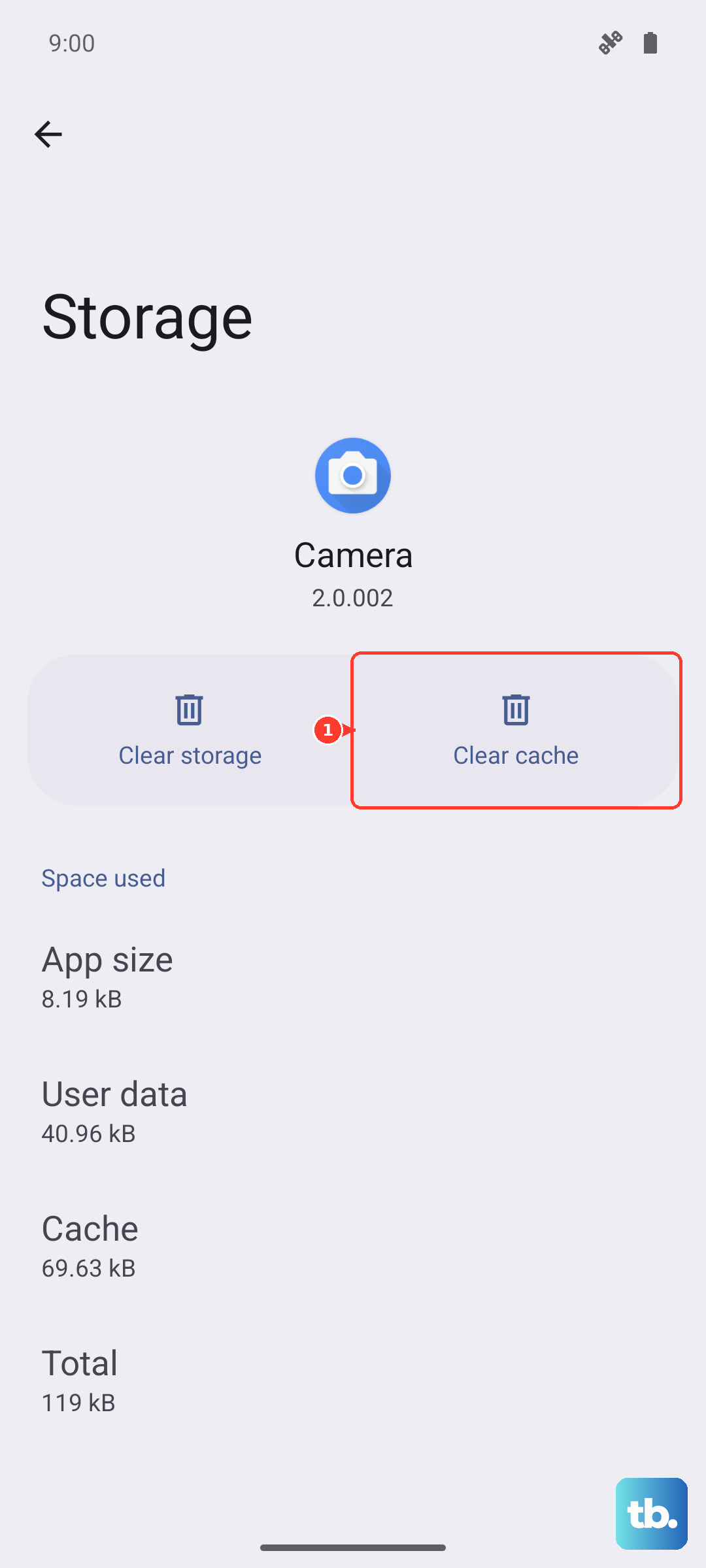
If the problem persists, you can try Clear data, but be warned: this will erase all your text messages and restore the app to its default settings. It's a more thorough reset, but you should back up any important conversations first if you can.
Perform a Force Restart
A simple reboot can clear out minor software glitches. For the Tecno Spark 30 Pro, press and hold the Power button and the Volume Down button together for about 10 seconds. Release when you see the Tecno logo, and let the phone restart completely.
Once it's back on, try sending an MMS again. This often resolves temporary hiccups with the network connection or the messaging service.
Update Your Phone's Software
Running an outdated version of HiOS or Android can lead to compatibility issues. Manufacturers release updates that often include fixes for connectivity bugs.
Check for updates by going to Settings > System > Software update. Tap Check for updates and install any that are available. After the update finishes, your phone will restart. This is a good step to do periodically anyway, especially since the Spark 30 Pro may only get a couple of major OS updates.
Reset Your Network Settings
If you're still stuck, resetting your network settings can be very effective. This will wipe all your saved Wi-Fi networks, Bluetooth pairings, and mobile data settings back to factory defaults, but it won't touch your personal files or apps.
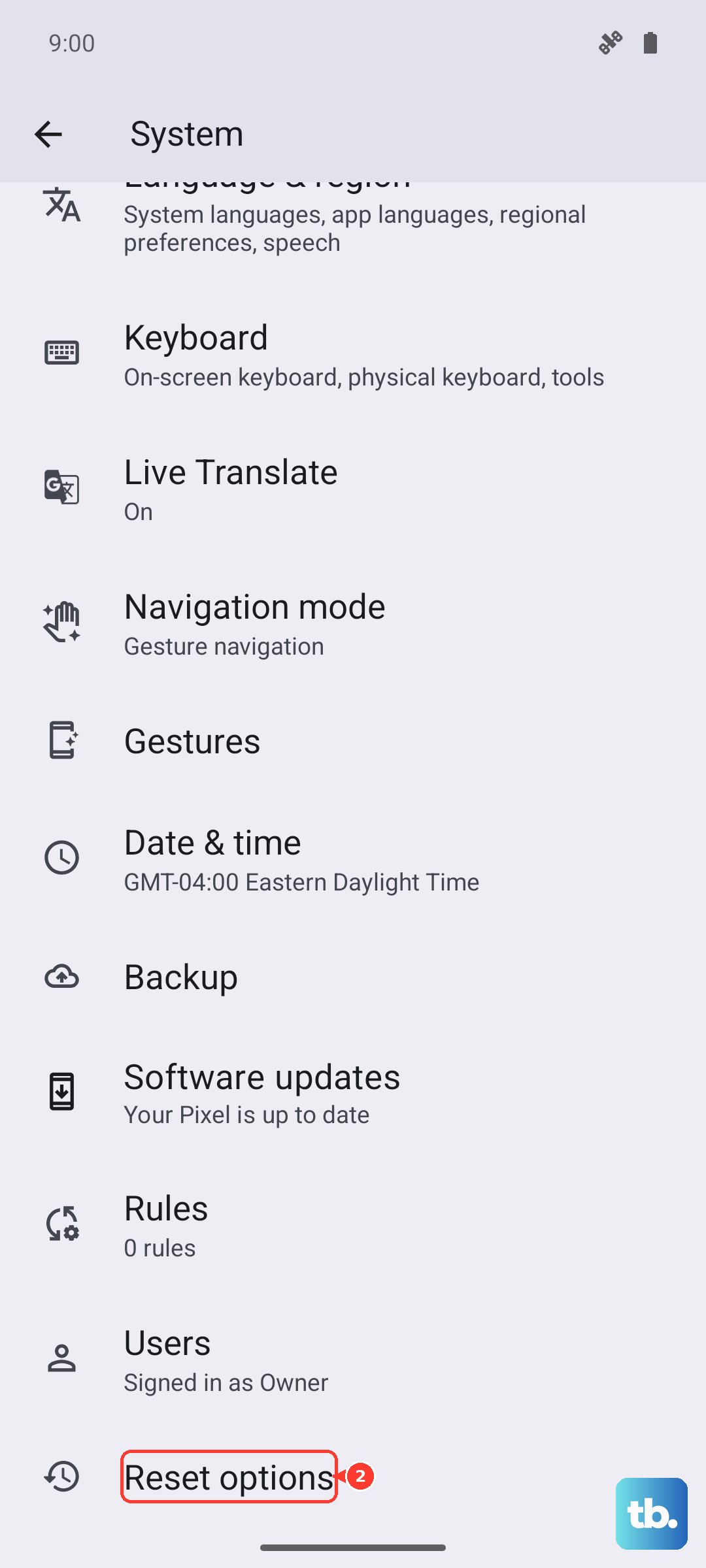
On your Spark 30 Pro, navigate to Settings > System > Reset options. Tap on Reset Wi-Fi, mobile & Bluetooth and confirm. After the phone resets, you'll need to reconnect to your Wi-Fi and re-pair any Bluetooth devices, but it often clears up persistent MMS issues.
Try a Different Messaging App
Sometimes the issue is with the pre-installed messaging app. Tecno's HiOS can include some bloatware, and trying a leaner, more universal app like Google Messages can bypass the problem.
Download Google Messages from the Play Store. Once installed, open it and it will usually prompt you to set it as the default messaging app. Go to Settings > Apps > Default apps > SMS app to select Google Messages. Test if you can send an MMS from within this new app.
Ensure You Have Enough Storage Space
The Tecno Spark 30 Pro can sometimes struggle if storage is nearly full, as it needs space to process and temporarily store media files before sending. Open your Files app or go to Settings > Storage to see how much free space you have.
If you're running low, consider clearing cached data from other apps or removing some unused pre-installed apps to free up room. Having a few gigabytes free is a good target for smooth operation.