Force Restart the Z Fold 7 First
If the update screen is frozen or the download bar hasn't budged in twenty minutes, the system is probably in a temporary software stall. The safest thing to try is a forced restart. Press and hold the Volume down and Side buttons simultaneously for about 10 seconds until the phone vibrates and restarts.
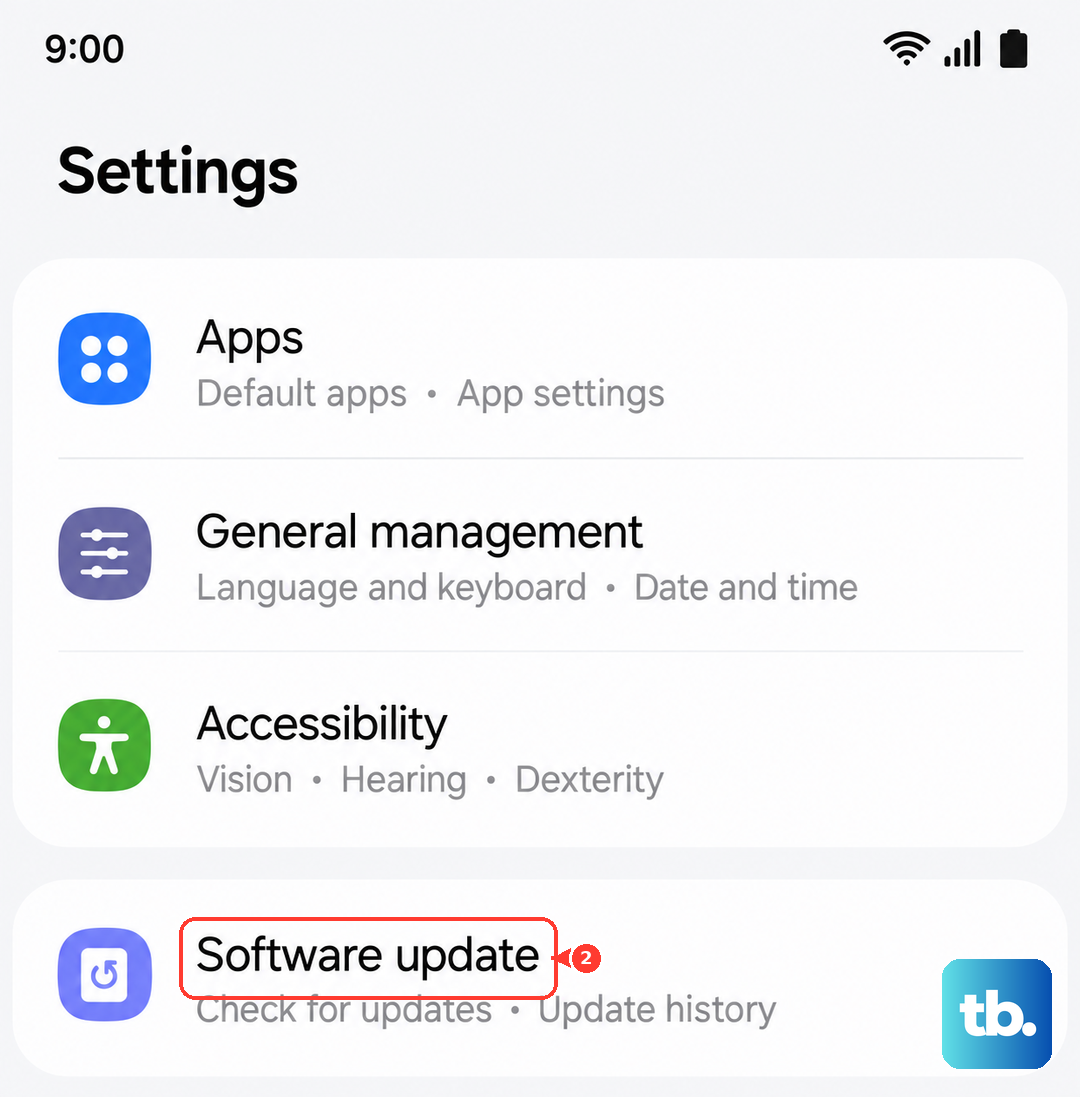
This isn't a factory reset or a data wipe. It just clears the system's short-term memory and kills any background processes that might be conflicting with the update. Once the phone boots back up, head to Settings > Software Update and try again.
Check Your Wi-Fi Connection
Android updates are large files, sometimes pushing 2-3 GB. Your Z Fold 7 needs a stable Wi-Fi connection to handle that without errors. Make sure you are on a router that isn't struggling and test the connection by loading a video on YouTube.
If the video buffers, restart your router by unplugging it for thirty seconds. Public Wi-Fi networks or hotel connections often block large file downloads entirely, so try a different network if you can. You can also turn off Wi-Fi and use a mobile hotspot if your data plan supports it.
Free Up Storage Space
Updates need room to download, extract, and install system files. Go to Settings > Device care > Storage and check your available space. A major Android 15 or One UI update can easily need 5-8 GB of free space.
If you are running low, tap Clean now or go through your photo gallery and delete duplicate or blurry shots. Offloading large games and unused apps is another quick way to clear several gigabytes without losing anything important. Your progress is usually saved to the cloud.
Delete the System Cache Partition
If the initial download got corrupted, your phone might keep trying to install a broken file. You can clear this out by wiping the cache partition, which does not delete your apps or data.
Turn the phone off completely. Once it is off, press and hold the Volume up and Side buttons together until the Recovery Mode menu appears. Use the Volume keys to highlight Wipe cache partition and press the Side button to select it. Reboot the system and try the software update again from scratch.
Reset Network Settings
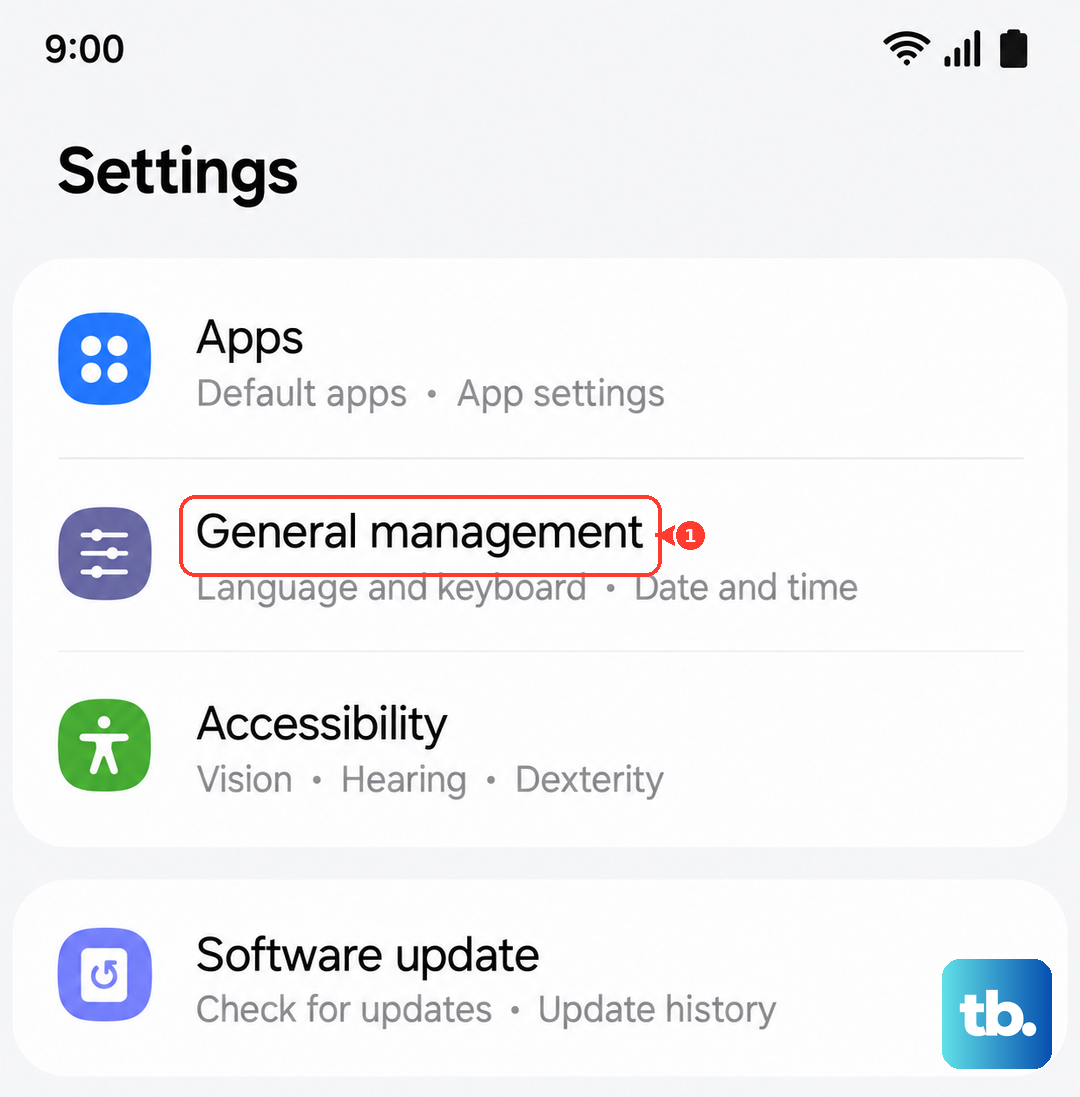
Sometimes the issue isn't your Wi-Fi signal but how your phone is negotiating the connection to Samsung's update servers. This is a common cause of "Update timed out" or "Network error" messages. Go to Settings > General management > Reset > Reset network settings.
You will lose saved Wi-Fi passwords and Bluetooth pairings, so have those handy. This resets the phone's IP configuration and clears any DNS conflicts that might be blocking the download process. Reconnect to your Wi-Fi and check for the update again.
Use Smart Switch on a Computer
If the over-the-air method keeps failing, bypass your phone's download system entirely. Install Samsung Smart Switch on your Mac or PC, then connect your Fold 7 using its USB-C cable. Open Smart Switch and wait for it to recognize the device.
The software will automatically check for available firmware updates. If one is found, it will download the file to your computer and stream it directly to the phone. This avoids Wi-Fi chip issues and storage conflicts on the device itself.
Charge the Battery Past 50%
The Galaxy Z Fold 7 has a known issue where charging can behave oddly near the 45% mark, and deep discharges can throw off the battery calibration. The system will often refuse to install a major update if it detects the battery is too low to survive the process.
Plug your phone into a certified Samsung or USB PD PPS charger for at least an hour before attempting the update. Even if the icon shows a decent percentage, letting it top off ensures calibration hiccups aren't the thing blocking the installation.
Check Samsung's Server Status
When Samsung pushes a new security patch or a major One UI release, millions of people start downloading at the exact same time. This traffic spike can overwhelm the servers and cause your download to stall at 0% or fail with an unexpected error.
You can quickly check forums like Reddit or the Samsung Members app to see if other Fold 7 users are stuck too. If it is a server-side issue, the only real fix is to try again during off-peak hours, like late at night or early in the morning.
Pause VPN and Private DNS
If you run a VPN app or have set up a custom Private DNS (like AdGuard or Cloudflare), it can interfere with how your phone verifies and downloads update files. These services sometimes block or reroute traffic going to Samsung's servers.
Open your VPN app and disconnect it completely. Also check Settings > Connections > More connection settings > Private DNS. Set it to "Off" temporarily. Once these are disabled, go back to Settings > Software Update and try the download without them running in the background.