
You're watching a video on your Galaxy Z Fold 7's gorgeous inner display and suddenly it starts stuttering, skipping frames, or freezing entirely. It's annoying, especially on a device that costs this much. Let me walk you through what usually causes this and how to fix it.
Start with a free refresh rate test to confirm what the screen actually outputs. If the measured value is lower than expected, the fixes below show where to change it.
Video stuttering on the Fold 7 can come from several places. Sometimes it's a software glitch, sometimes it's storage being too full, and occasionally it's something specific to how Android 15 handles video playback. Most of these fixes take just a couple minutes.
Force Restart the Fold 7 First
Before you dig into settings, do a forced restart. This clears out temporary system glitches without losing any of your data.
Press and hold the Volume down and Side buttons simultaneously for about 10 seconds. Keep holding until the device restarts. You'll feel a vibration, and the Samsung logo will appear.
This is different from a normal power cycle. A forced restart cuts through unresponsive processes that a regular shutdown can't touch. I'd make this the first thing you try every time video stutter shows up.
Free Up Storage Space
When your Fold 7 runs low on internal storage, video playback often takes the hit first. Videos need continuous read access, and a nearly full drive causes frame drops.
Open Settings > Device care > Storage and take a look. If you're below 2GB of free space, that's likely your culprit. The system needs breathing room for cache and temporary files during playback.
Clear out old downloads, unused apps, and videos you've already watched. You can also use the Storage Booster feature in Device care to automatically clear junk files. I've seen this fix resolve stutter instantly on more than a few Fold 7 units.
Is Your Internet Connection the Problem?
Streaming video over a weak Wi-Fi signal is a common cause of stutter and buffering. Even local videos can appear choppy if they're streaming from cloud storage or a network drive.
Try toggling between Wi-Fi and mobile data to see which one gives smoother playback. If Wi-Fi is the issue, reboot your router by unplugging it for 30 seconds. You can also forget the network in Settings > Connections > Wi-Fi and reconnect fresh.
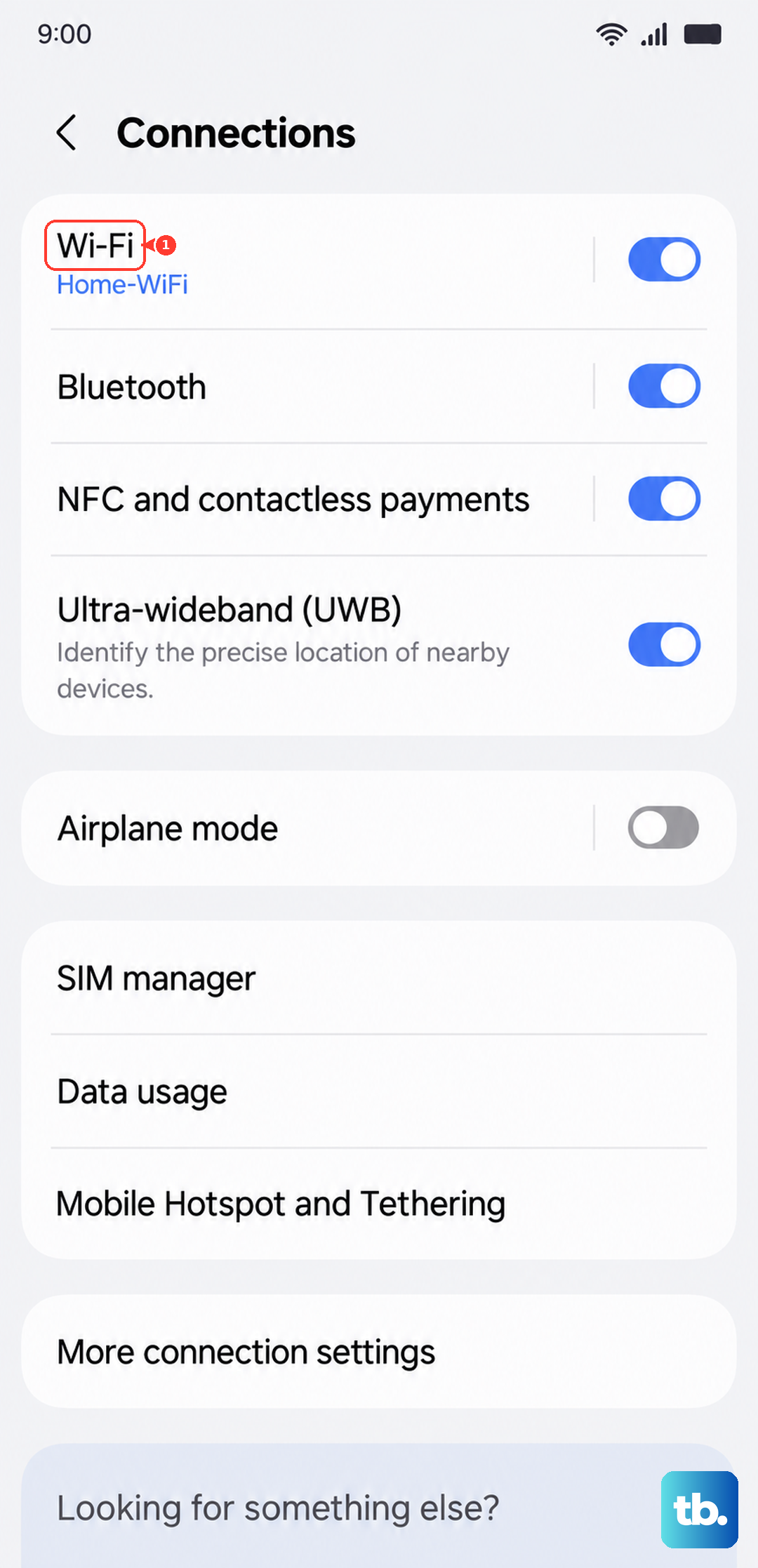
On cellular data, make sure you're on a 5G or strong LTE signal. Weak signals force the phone to throttle bandwidth, which directly causes video lag.
Update the Software and Apps
Android 15 is still relatively new on the Fold 7, and Samsung has been pushing updates to fix video-related bugs. Check Settings > Software update > Download and install to see if anything is pending.
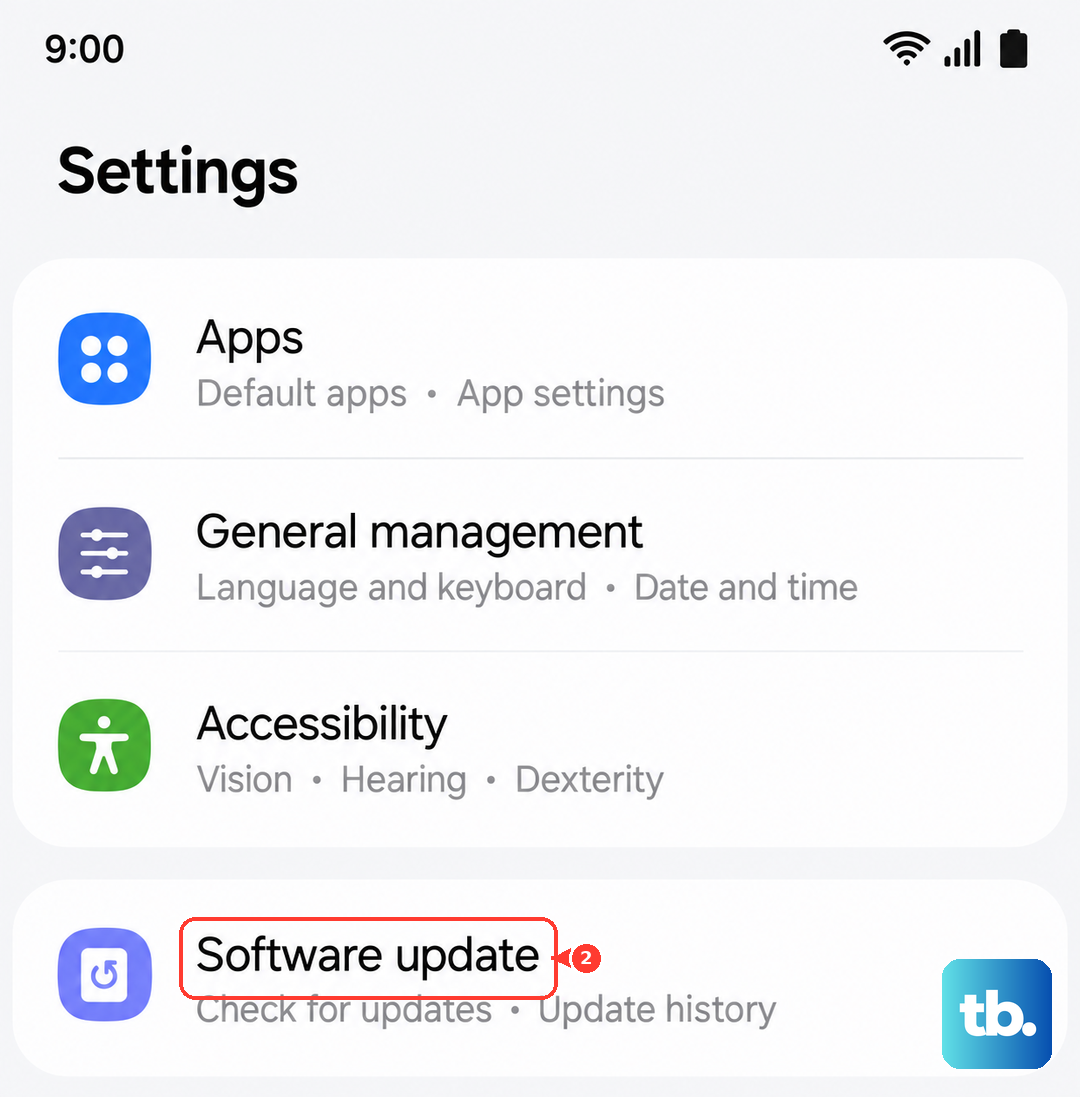
The same goes for your video apps. Open the Galaxy Store or Google Play Store, go to My apps, and update anything related to video playback. Apps like YouTube, Netflix, and your gallery app all get regular fixes for playback issues.
Background Processes Are Hogging Resources
The Fold 7 is powerful, but too many apps running in the background can choke video performance. Android 15's resource management is good, not perfect.
Open Device care and tap Memory. You'll see how much RAM is being used. Tap Clean now to free up memory for your video app. You can also go into Battery settings and enable Performance mode if you're watching high-bitrate content.
I'd also check which apps are running in the background. Go to Settings > Apps and look for apps with high background usage. You can restrict background activity for apps you don't need running while watching videos.
The Refresh Rate Might Be Mismatched
The Fold 7's 120Hz display is buttery smooth, but sometimes apps don't play nice with the adaptive refresh rate. This can cause stutter that looks like a video problem but is actually a display setting issue.
Go to Settings > Display > Motion smoothness. If it's set to Adaptive, try switching to Standard and see if the stutter stops. If it does, the app you're using has a compatibility issue with the variable refresh rate. You can switch back to Adaptive after watching.
Some users have reported that disabling Video brightness and Extra brightness in display settings also helps with smoother playback on certain apps.
Clear the App Cache and Data
Corrupted cache files in your video app can cause playback issues over time. This is especially common with the Gallery app and streaming services.
Go to Settings > Apps, find the app you're using, tap Storage, and select Clear cache. Don't tap Clear data unless you're okay with losing app preferences and login info.
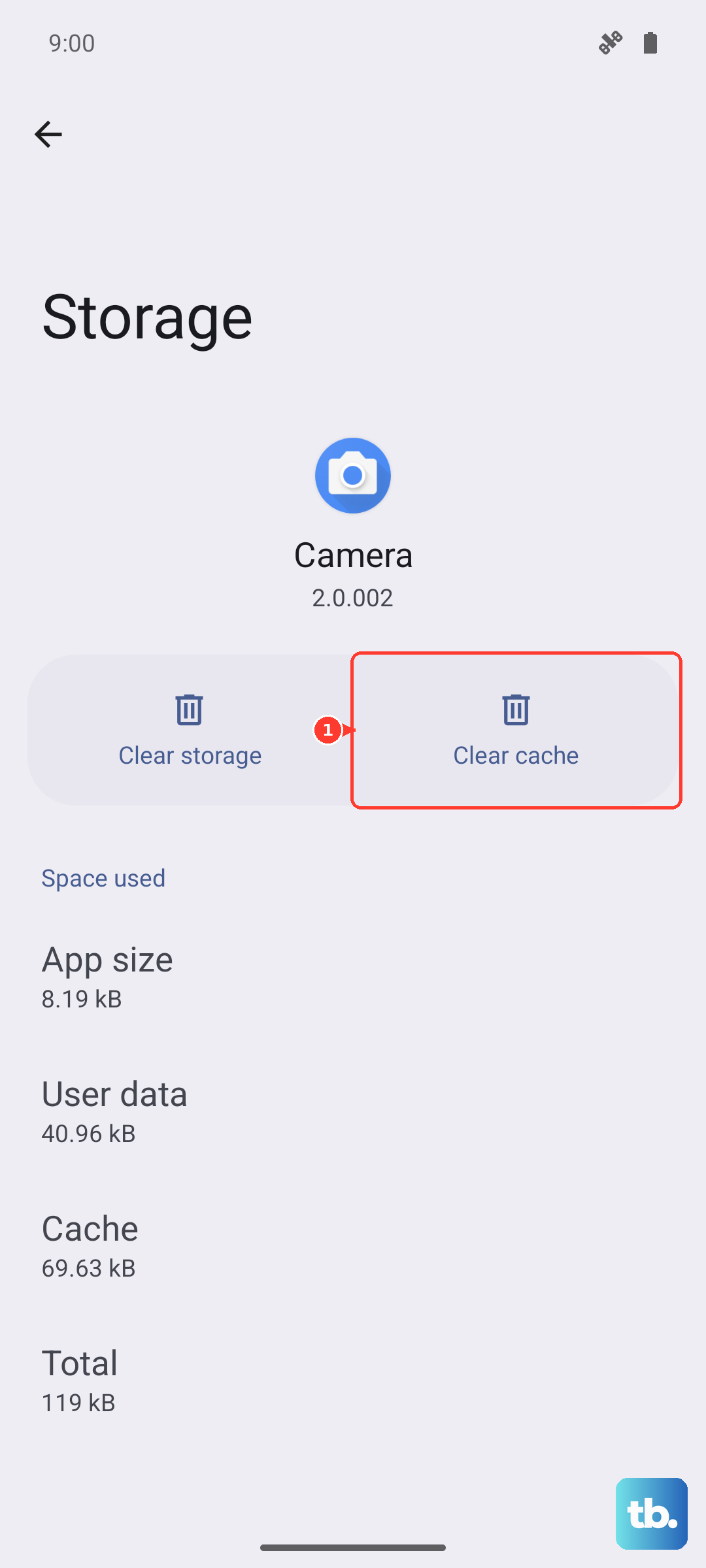
For the Gallery app specifically, clearing the cache often fixes stutter with locally stored videos. I've seen this resolve issues that persisted through multiple restarts.
Battery Optimization May Be Throttling Performance
The Fold 7's battery management can be aggressive, especially when the battery is below 20% or when power saving mode kicks in. Battery-saving features reduce CPU and GPU performance, which directly causes video stutter.
Check Settings > Battery and make sure Power saving is turned off while you're watching videos. You can also tap Battery > More battery settings and disable Adaptive battery temporarily to see if it helps.
If your Fold 7 is below about 45% battery and you're noticing stutter alongside slow charging, that's a known issue with this model. Charging progression stalls around that level, which can trigger performance throttling. Try charging to 80% or higher before watching long videos.
Reset App Preferences
If you've changed default apps or permissions at some point, resetting app preferences can clear up conflicts without deleting anything important.
Go to Settings > Apps, tap the three dots in the upper right, and select Reset app preferences. This won't delete your data but will reset disabled apps, default apps, and notification settings.
Factory Reset as a Last Resort
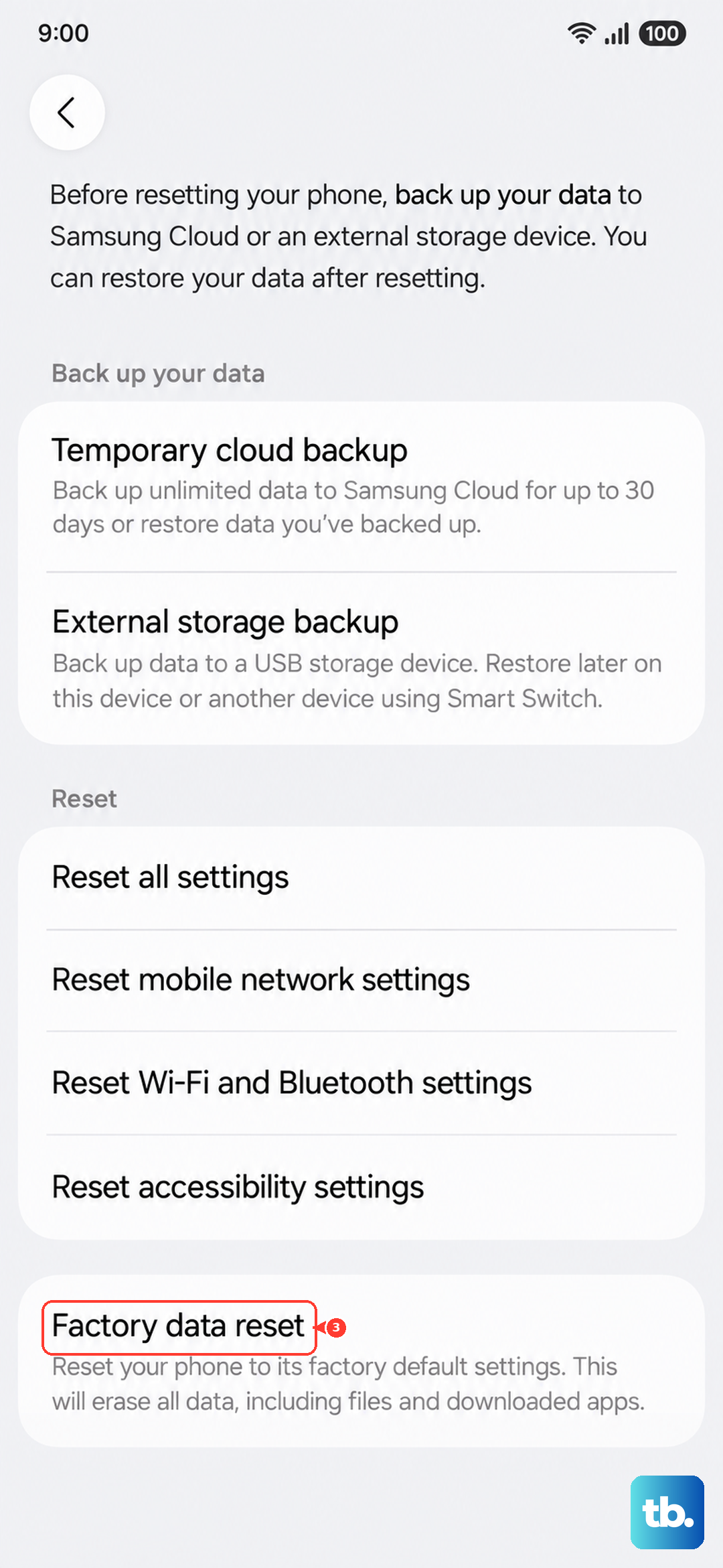
If you've tried everything and video stutter still happens across multiple apps and both Wi-Fi and mobile data, a factory reset may be necessary. This wipes everything and restores the phone to its out-of-box state, so back up your photos, contacts, and files first.
Go to Settings > General management > Reset > Factory data reset. You'll need to sign back into your Google and Samsung accounts afterward, but it can eliminate deep software problems that nothing else touches.
Before you go that route, make sure you've tried cleaning the USB-C port with compressed air. A dirty port can cause charging issues that trick the system into throttling performance. It's a long shot, but I've seen it work.