
Your Samsung Galaxy Z Fold 7 stopped vibrating and you're missing calls and notifications. This is a frustrating issue but usually fixable with some settings checks or a quick reboot. Let me walk through what's worked for most people.
Force Restart the Phone
Before diving into menus, try a forced restart. This clears out any temporary glitches that might have disabled the vibration motor.
Press and hold the Volume down and Side buttons simultaneously for 10 seconds until the device restarts. That's the Z Fold 7's specific force restart combo. It won't erase any of your data, so it's safe to try right away.
In my experience, this simple step fixes the issue about half the time. The phone's haptic motor can get stuck in a weird state after a crash or app conflict, and a full power cycle resets the hardware driver.
Check Vibration Settings
Android 15 on the Z Fold 7 has a few places where vibration can get toggled off without you realizing it. Start with the main sound settings.
Open Settings > Sounds and vibration and make sure Vibrate while ringing is turned on. If it's already on, toggle it off and back on to refresh the setting.
Also check your Sound mode right below that. If it's set to Mute or Vibrate, tap it and switch to Sound. The Z Fold 7's silent mode sometimes behaves differently than people expect, muting haptics entirely.
Adjust Vibration Intensity
Maybe the phone is vibrating but you just can't feel it. The Z Fold 7's vibration motor isn't as strong as some other phones, and the intensity setting might be set too low.
Go to Settings > Sounds and vibration > Vibration intensity. You'll see separate sliders for calls, notifications, and touch interactions. Crank them all the way up and test each one.
If you've been carrying the phone in a thick case or wearing heavy clothing, the lower vibration strength on foldables can be especially easy to miss. Maxing out the intensity helps a lot.
Change the Vibration Pattern
Sometimes the pattern itself gets corrupted or stuck. Switching to a different pattern forces the haptic engine to recalibrate.
Head to Settings > Sounds and vibration > Vibration pattern and pick one you don't normally use. Test it by calling your phone from another line or sending yourself a text.
If the new pattern works, switch back to your original one. That reset is often enough to get things running normally again.
Enable System and Touch Vibrations
Your keyboard and touch interactions have their own vibration settings separate from ringtone vibration. If those are off, you might think the whole phone has lost haptics.
Go to Settings > Sounds and vibration > System sounds and vibration. Turn on Keyboard vibration and Touch vibration if they're disabled.
Once enabled, try typing in any text field or tapping the navigation bar. If you feel feedback, the vibration motor itself is fine and the issue is with specific notification settings.
Check App Notification Permissions
If the phone vibrates for some apps but not others, the problem is per-app permission, not a hardware failure. This is common after Android updates or app reinstalls.
Open Settings > Apps and tap the app that isn't vibrating. Select Notifications and make sure Show notifications is enabled. Look for a Vibrate toggle under each notification category and turn it on.
For the default Samsung Messages app, check both General Notifications and New messages separately. The Z Fold 7's notification channels can get their settings reset after system updates.
Run the Hardware Diagnostic Test
You can test the vibration motor directly using Samsung's built-in diagnostic menu. No apps needed.
Open the Phone dialer and enter #0#. This opens the service menu. Tap the Vibration button and the phone should start buzzing immediately.
If it vibrates during this test, the hardware is working. The problem is somewhere in the software settings. If it doesn't vibrate at all, the motor might need servicing.
Boot Into Safe Mode
Third-party apps can sometimes override or block the vibration function. Safe mode disables all downloaded apps so you can isolate the cause.
Turn the phone off first. Then press and hold the Power button until the Samsung logo appears, then release it and immediately press and hold the Volume down button. Keep holding until you see Safe mode in the bottom-left corner.
Test vibration in safe mode by adjusting the ringtone volume slider. If it works, a recently installed app is the culprit. Exit safe mode by pressing and holding the Side button for 6 seconds and tapping Restart.
Remove Custom Themes and Good Lock Modules
The Z Fold 7's One UI interface supports themes and Samsung's Good Lock customization app. Both can interfere with system haptics.
Long-press on the home screen and tap Themes. Go to My Stuff and apply the Default theme. If you're using Good Lock modules like NavStar or Sound Assistant, try disabling them temporarily.
Custom vibration patterns from third-party apps sometimes don't play nice with Android 15's haptic framework. Going back to stock often clears things up.
Software Update
Samsung has released several patches for the Z Fold 7 since its 2025 launch, some addressing haptic feedback glitches specifically.
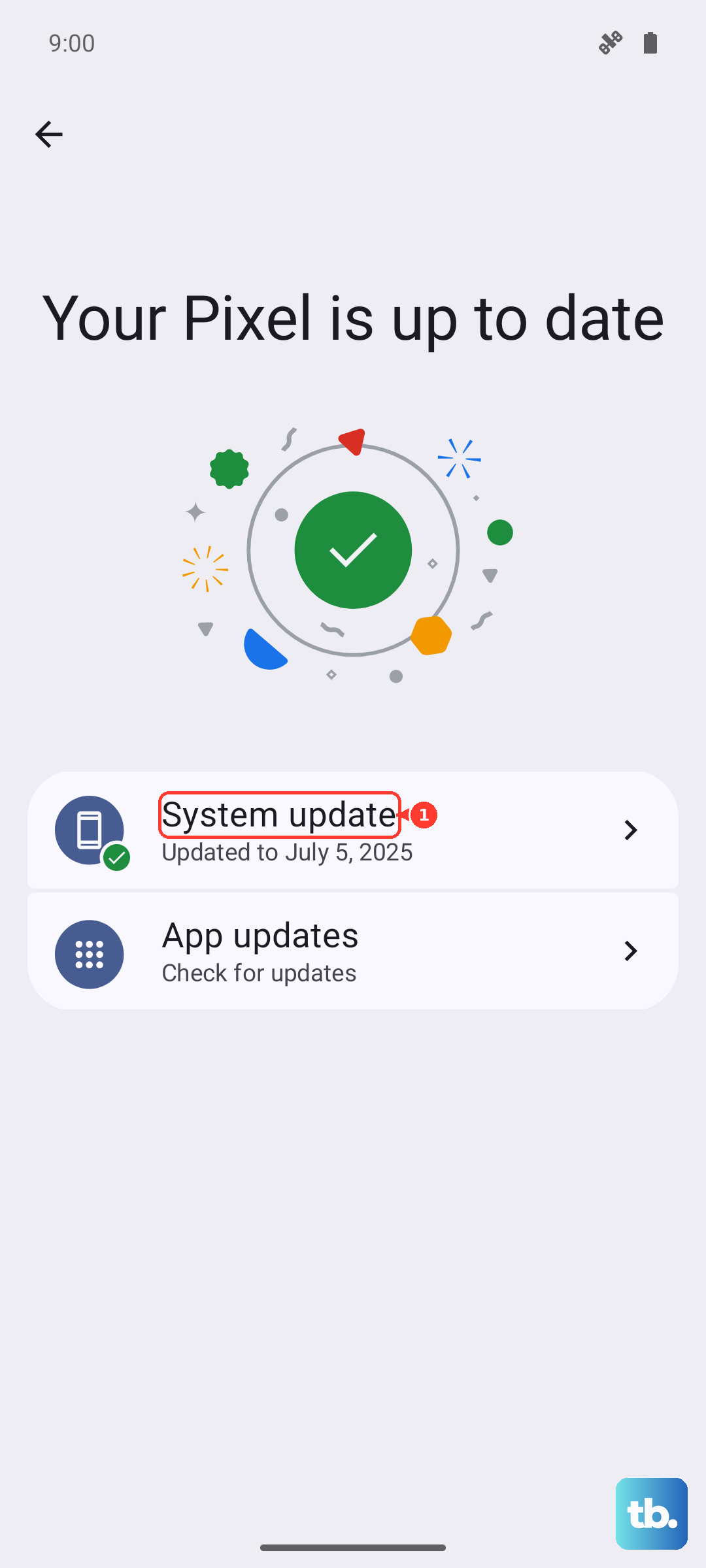
Open Settings > Software update and tap Download and install. If there's an update waiting, install it and restart the phone.
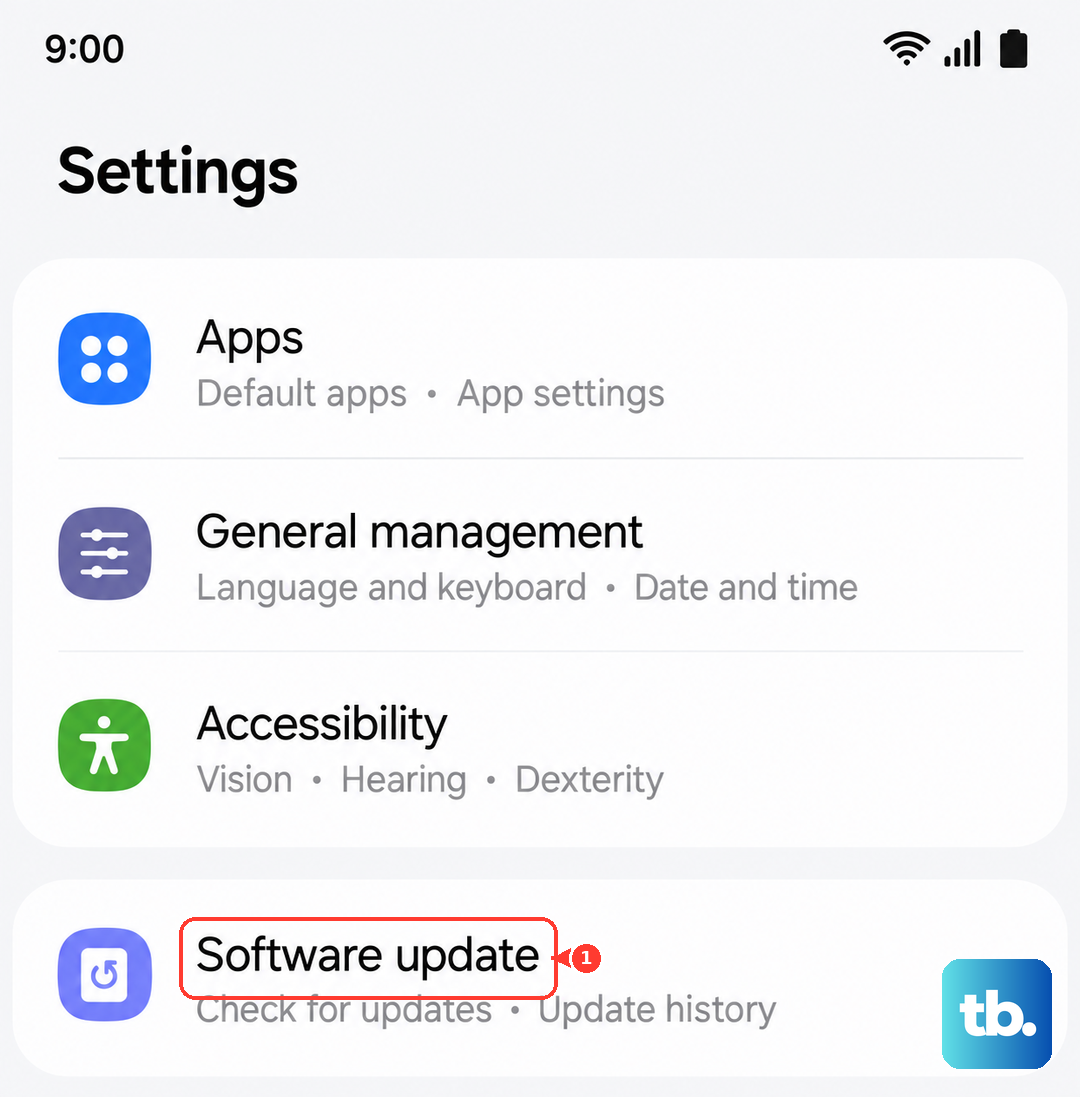
The Android 15 updates sometimes introduce vibration-related bugs that get fixed in subsequent patches. Checking for updates takes less than a minute and might save you a lot of troubleshooting.
Reset All Settings
This is the nuclear option before a full factory reset, but it won't delete your photos, apps, or accounts. It resets system settings like Wi-Fi passwords and notification preferences back to default.
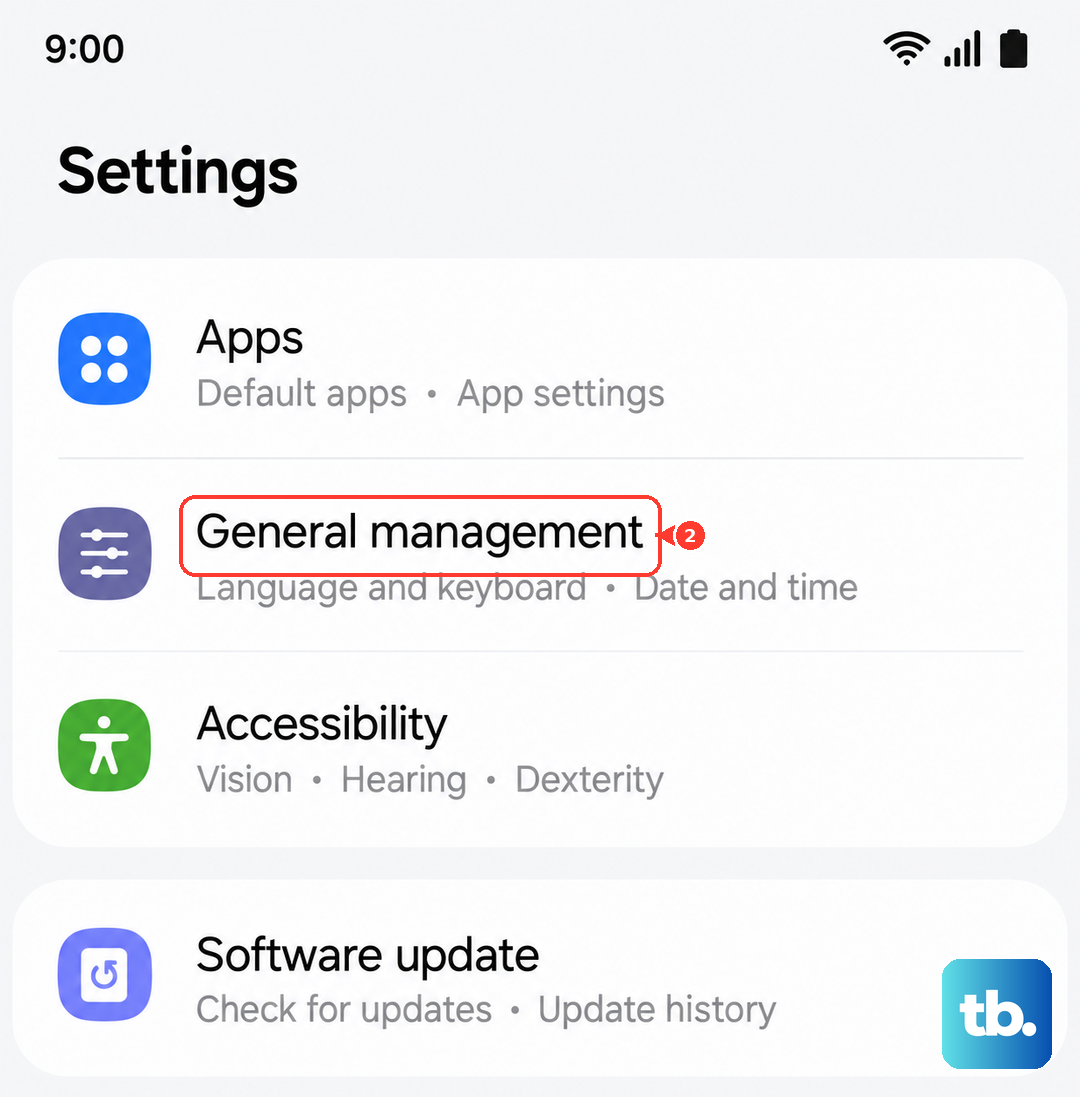
Go to Settings > General management > Reset and tap Reset settings. Confirm the action and let the phone reboot.
You'll need to re-enter Wi-Fi passwords and re-enable some accessibility settings after this, but it fixes stubborn software conflicts that individual settings checks might miss. I've seen this work when nothing else did on the Fold 6 and Fold 7 alike.