
Start With the Storage Overview
Open Settings and tap Device care, then select Storage. This gives you a clean breakdown of what's using space on your Galaxy Z Fold 7. You'll see categories like Apps, Images, Audio, Video, Documents, and System. Tap any category to dig deeper and see exactly what's eating up the most storage.
Use Device Care to Clean Junk Files
Still in Device care, tap the Storage section and review the cleanup suggestions there, such as Trash and Unused apps, to delete anything you no longer need. This keeps the advice aligned with Samsung's current Device care storage screen instead of promising a one-size-fits-all Clean button.
Clear App Caches Individually
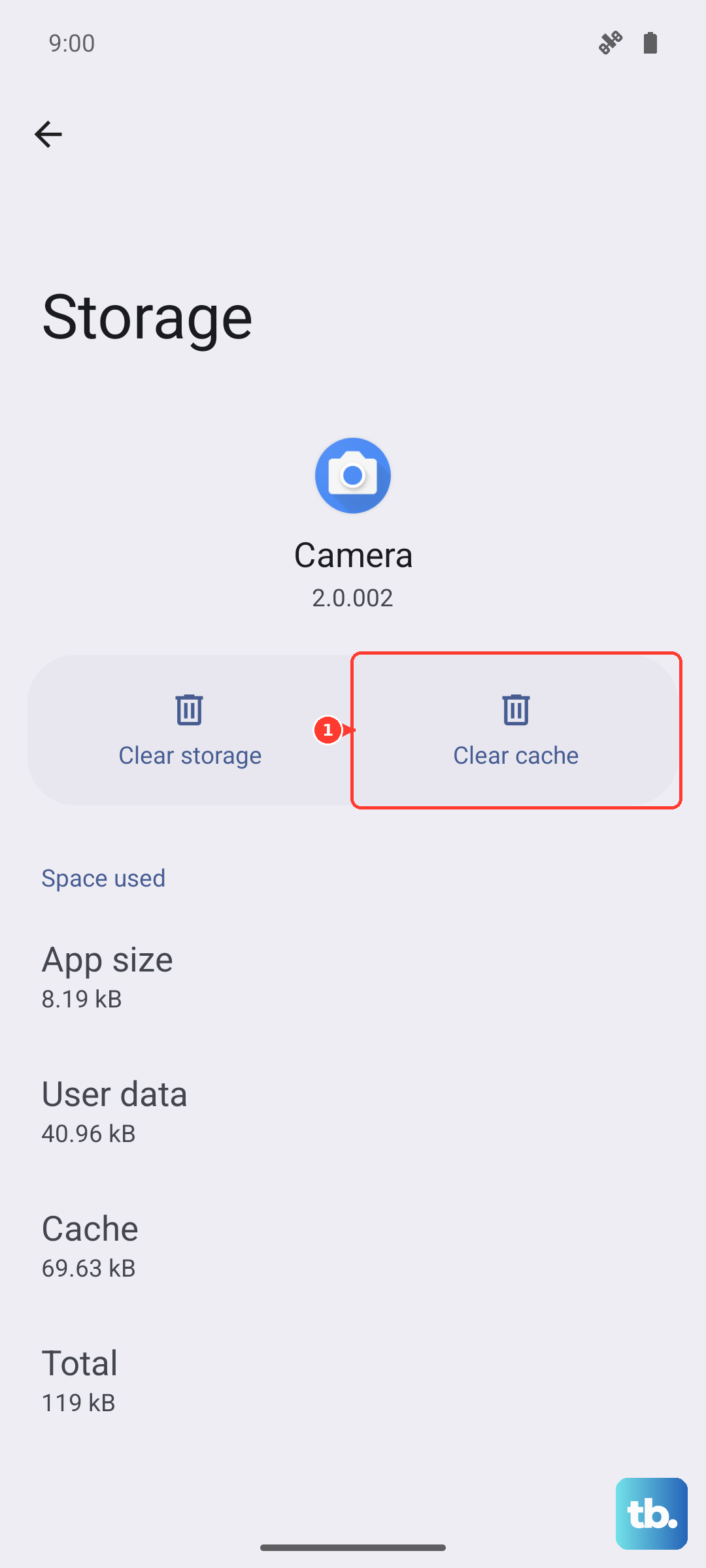
App caches are the silent storage hogs on any Android phone. Go to Settings > Apps and pick the apps you use most, Chrome, Instagram, TikTok, YouTube, Spotify, and any games. Tap Storage, then tap Clear cache. Don't tap Clear data unless you want to reset the app entirely (that logs you out). Clearing cache is safe and won't affect your account or settings. Social media and browser apps can build up 500MB to 1GB of cache each over a few months.
Optimize Your Photos and Videos
Open the Gallery app and check how much space your photos and videos are using. Go to Settings > Accounts and backup and make sure Google Photos backup is turned on. Once your photos are backed up, you can free up local space by tapping Free up space inside the Google Photos app. This keeps high-quality versions in the cloud and removes them from your phone's internal storage. You can also go through your Gallery and delete old screenshots, blurry shots, and duplicate videos manually, don't forget to empty the Trash folder afterward.
Review Downloaded Media in Streaming Apps
Music streaming apps and podcast players often store downloaded episodes and playlists locally. Open Spotify and go to Settings > Storage > Remove all downloads. In Netflix, tap My Downloads and swipe to delete finished shows. The same goes for YouTube Music, Audible, and any other app that lets you save content offline. These downloads can quietly eat up 5-10GB if you're not paying attention.
Delete Old Messages and Attachments
Text messages with photos and videos add up fast. Open Samsung Messages or Google Messages (whichever you use), and delete old conversations with heavy attachments. In Samsung Messages, tap the three-dot menu and select Settings > Delete old messages to auto-remove messages older than 30 or 90 days. If you use Google Messages, you'll need to manually clean up conversations with lots of media.
Check for Large Files and Duplicates
Samsung's My Files app has a built-in tool for this. Open My Files, tap the three-dot menu, and select Analyze storage. It scans your phone and shows large files, duplicate files, and unused APKs. You can delete them directly from there. This is particularly useful if you download PDFs, ZIP files, or install APKs from outside the Play Store and forget to delete them afterward.
Clear Chrome Browser Storage
If you use Chrome, it can accumulate a surprising amount of cached pages and site data. Open Chrome, tap the three-dot menu, go to Settings > Privacy and security > Clear browsing data. Check Cached images and files and Cookies and site data, then tap Clear data. This frees up space without signing you out of every site if you leave cookies checked, but clearing cookies will log you out of most sites. Choose what works for you.
Uninstall Unused Apps and Games
Go to Settings > Apps and sort by size to see which apps consume the most space. If there's an app you haven't opened in months, tap it and select Uninstall. For apps you don't use but might need later, consider uninstalling them and reinstalling only when you need them. Games like Genshin Impact or Call of Duty Mobile can take up 10-20GB each, so those are worth scrutinizing. If your Z Fold 7 is still under warranty, you can also check Samsung's Device Care for a recommendation to remove unused apps.
Run a Force Restart if You Notice System Data Bloat
Sometimes system storage balloons after an update or app installation. If your storage usage feels off and you can't pinpoint the cause, try a forced restart. Press and hold the Volume down and Side buttons simultaneously for 10 seconds until the device restarts. This clears temporary system files and can reduce system data bloat without deleting any of your personal information. It's a quick step to try before considering more drastic measures.
Final Option: Factory Reset
If your Z Fold 7 is still running out of space after all these steps, a factory reset is the nuclear option. Back up everything first, photos, contacts, messages, and app data, through your Samsung account or Google Drive. Then go to Settings > General management > Reset > Factory data reset. This wipes your phone clean and gives you a fresh start. Only do this if you've exhausted everything else, but it reliably clears up every bit of storage bloat.