
The Samsung Galaxy Z Fold 7 has an incredible display for streaming and browsing, but a slow internet connection can make that gorgeous inner screen feel useless. Before you blame your network provider, there are several settings specific to your Fold 7 that can get things moving again.
If your internet suddenly slowed down or stopped working, start with a forced restart. This clears out temporary system glitches without deleting any data. Just press and hold the Volume Down and Side buttons together for about 10 seconds until the Samsung logo appears.
Refresh the Connection with Airplane Mode
Sometimes the quickest fix is refreshing the connection to the nearest cell tower. Swipe down twice from the top of the screen to open the quick settings panel and tap the Airplane mode icon. Wait about 15 seconds, then tap it again to turn it off. This forces your Z Fold 7 to reconnect to the strongest available signal.
Turn On Smart Network Switch
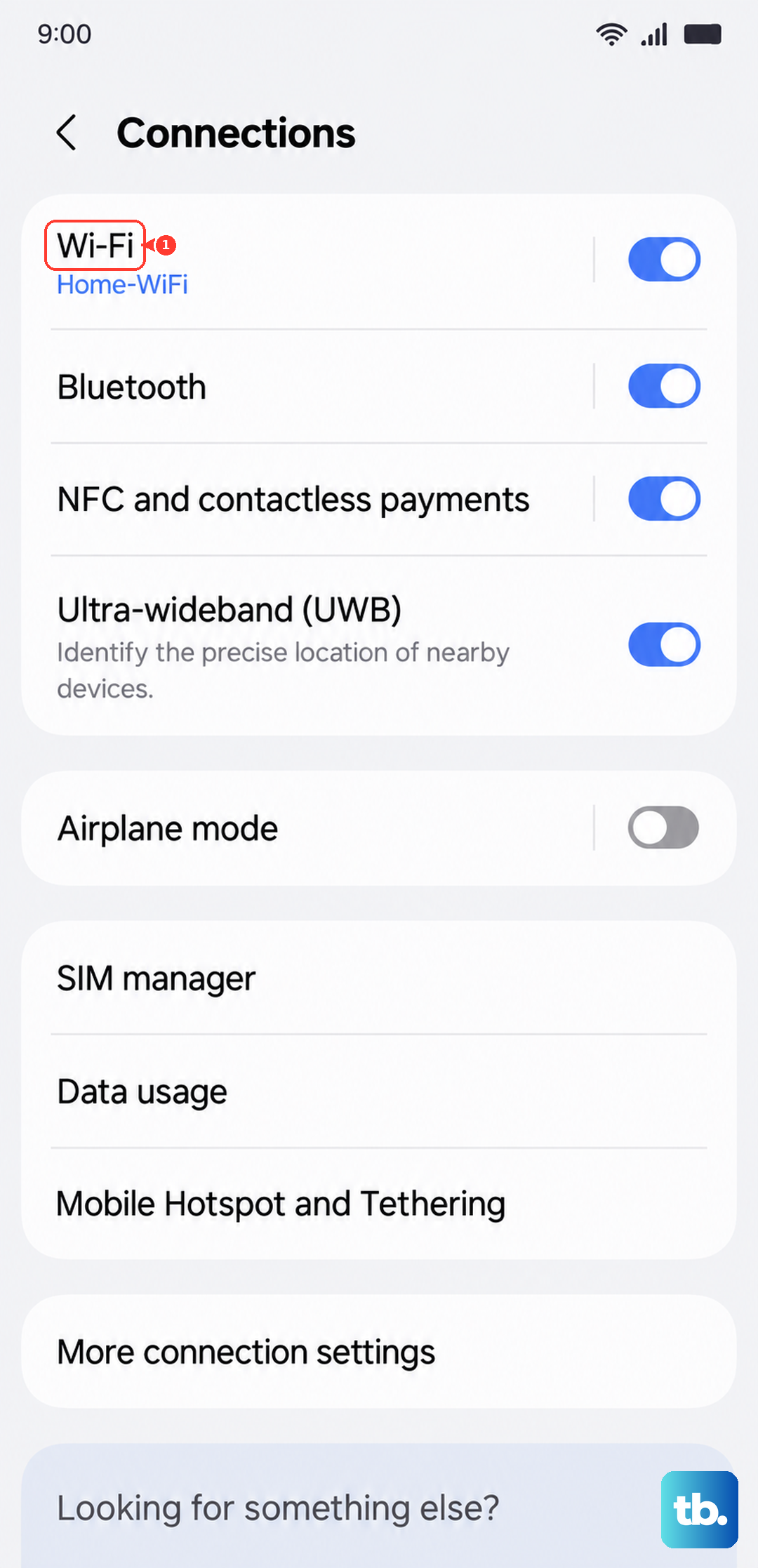
The Z Fold 7 has a feature called Smart Network Switch that automatically shifts you from a weak Wi-Fi signal to mobile data without dropping your connection. To make sure it's on, go to Settings > Connections > Wi-Fi, tap the three-dot menu, and select Intelligent Wi-Fi. Toggle Switch to mobile data on. This is a lifesaver when you're moving around the house or office and the Wi-Fi signal dips.
Enable Data Saver Mode
If apps are struggling to load content, Data Saver might be restricting their background activity. Go to Settings > Connections > Data Usage > Data Saver and turn it on. You can pick which essential apps are allowed to use data freely in the background so that your favorite streaming and messaging apps still work perfectly while others are held back.
Clear the Browser Cache
If only your browser is slow, the issue is probably cached data piling up over time. Open Chrome or Samsung Internet, go to Settings > Privacy and Security > Delete Browsing Data. Make sure Cached images and files is selected and hit Delete data. Pages will load noticeably faster afterward.
Clear System App Cache
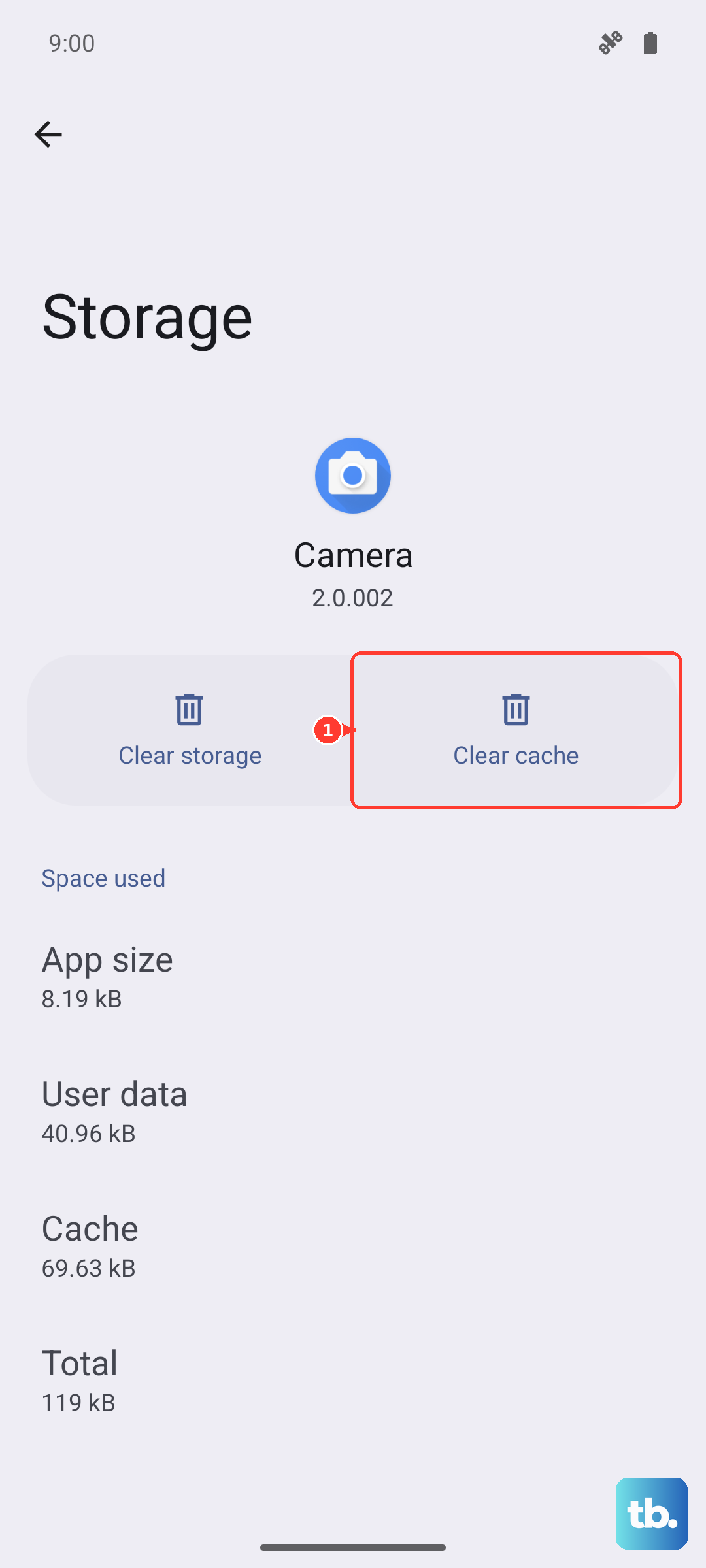
Sometimes Google Play Services or the Samsung Push Service can get bogged down with corrupted cache files, which delays network requests. Go to Settings > Apps, tap Google Play Services, then tap Storage > Clear cache. Do the same for any app you notice is hanging on a loading screen. It clears up the clutter without affecting your logins or data.
Disable VPN and Check Date & Time
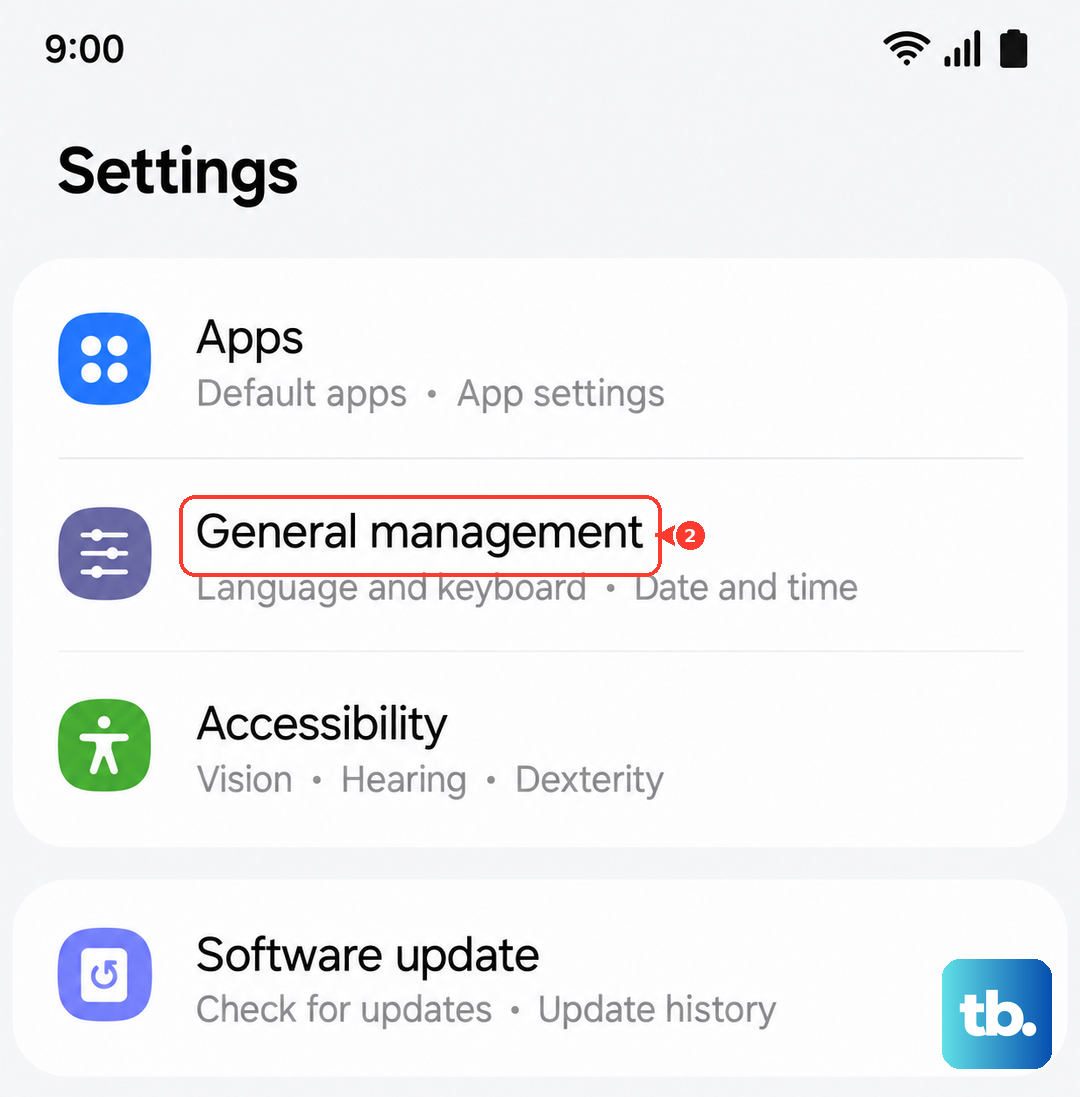
A VPN is a common culprit for sluggish internet. If you have one running, try switching it off completely to see if your speed comes back. Incorrect date and time settings can also cause connectivity errors. Make sure Settings > General Management > Date and Time > Automatic date and time is turned on. Both fixes take less than a minute and can resolve confusing slowdowns.
Reset Network Settings
If you're still having trouble, a network settings reset will wipe all saved Wi-Fi networks, Bluetooth pairings, and cellular settings. This often fixes deeper software conflicts that other steps miss. Go to Settings > General Management > Reset > Reset network settings. You'll have to re-enter your Wi-Fi passwords afterward, but it clears out any configuration bugs that were slowing you down.
Keep Software Updated
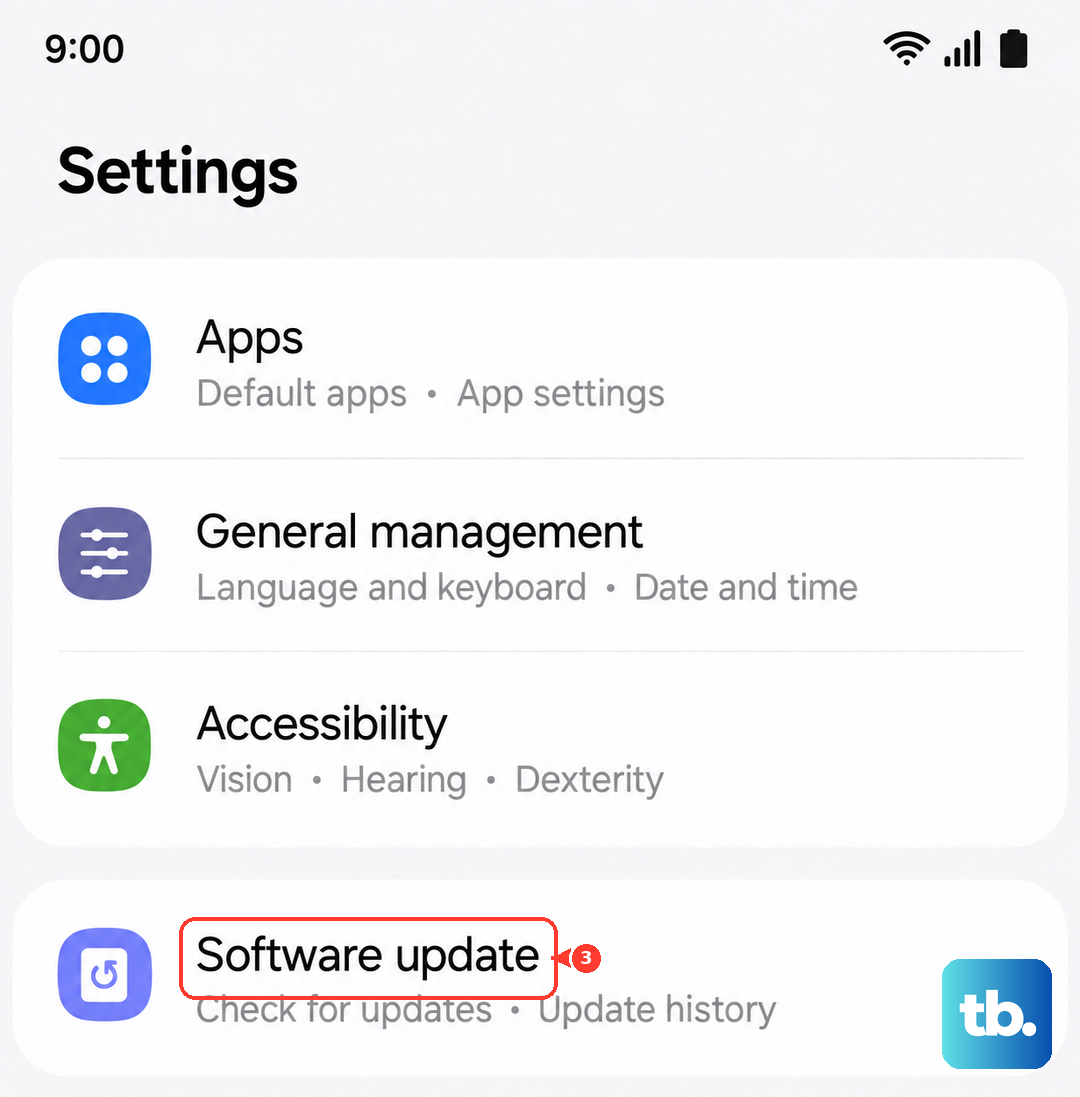
Samsung frequently rolls out software updates that include modem and Wi-Fi driver fixes specifically for the Z Fold 7. Open Settings > Software Update > Download and install to make sure your Fold 7 is running the latest available version of Android. These updates often include direct improvements to network stability and speed.
Start with the force restart and work through these settings one by one. You'll likely find the fix long before you reach the network reset, and your Z Fold 7 will be back to its fast, responsive self.