
When your Samsung Galaxy Z Fold 7 can't send text messages, calls and apps might work fine while your chats just hang with a "Not sent" warning. It usually comes down to a quick setting, a network glitch, or something with your carrier. Let's fix it.
Start With a Quick Network Refresh
Open the quick settings panel (swipe down twice from the top) and tap Airplane Mode to turn it on. Wait about 10 seconds, then tap it again to turn it off. This forces your phone to reconnect to the nearest cell tower and often clears up temporary sending failures.
If that doesn't help, give the phone a proper restart. Hold the Volume down and Side button together for about 10 seconds until the screen goes black and the Samsung logo appears. That's a force restart, and it's your best bet for clearing out any stuck messaging processes.
Make Sure SMS/MMS and RCS Are Enabled
On the Galaxy Z Fold 7, text messages usually go through either Google Messages (default in most regions) or Samsung Messages. Open whichever app you use for texts. If you're on Google Messages, tap your profile picture in the top right, head to Messages settings > RCS chats, and make sure Turn on RCS chats is enabled. RCS is the modern replacement for SMS and gives you read receipts and typing indicators, but it can also cause delays if it's not set up right.
Still in settings, go to Advanced and confirm that Auto-download MMS and Group messaging are turned on. For Samsung Messages, open the app, tap the three dots, choose Settings, and verify Multimedia messages (MMS) is enabled. If these are off, MMS (pictures) will fail silently.
Check Your Network Mode
Sometimes your phone gets stuck on a network band that doesn't handle SMS well. Go to Settings > Connections > Mobile networks > Network mode. Choose 5G/LTE/3G/2G (auto connect) or whichever option includes LTE. If you're in an area with weak 5G, switching to LTE/3G/2G only can stabilize messaging.
After changing the mode, try sending a text. If it works, the network selection was the culprit.
Reset Your Network Settings
This is a nuclear option, but it fixes a ton of messaging issues tied to corrupted network settings. Go to Settings > General management > Reset > Reset network settings. Tap Reset settings and confirm. Your phone will forget all saved Wi-Fi networks and Bluetooth devices, so have your Wi-Fi passwords handy.
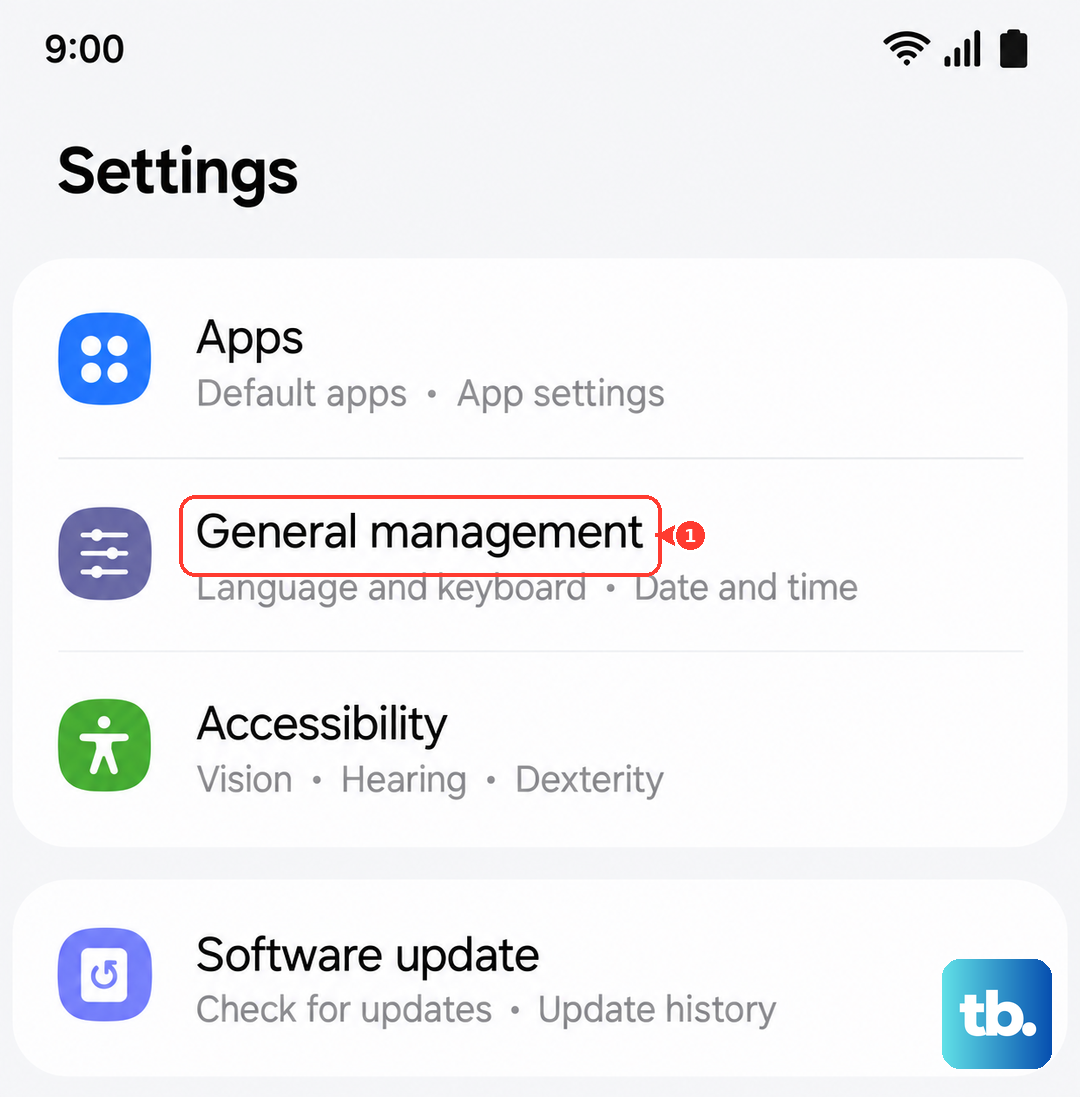
Once the reset completes, reconnect to your Wi-Fi and try sending a text. The fresh network stack often clears persistent SMS failures.
Update Your Carrier Settings
Carriers push small updates that improve how your phone talks to their towers. Go to Settings > Connections > Mobile networks and check if there's an option that says Carrier settings or Update carrier config. Tap it. You can also go to Software update > Download and install to make sure your phone is on the latest firmware.
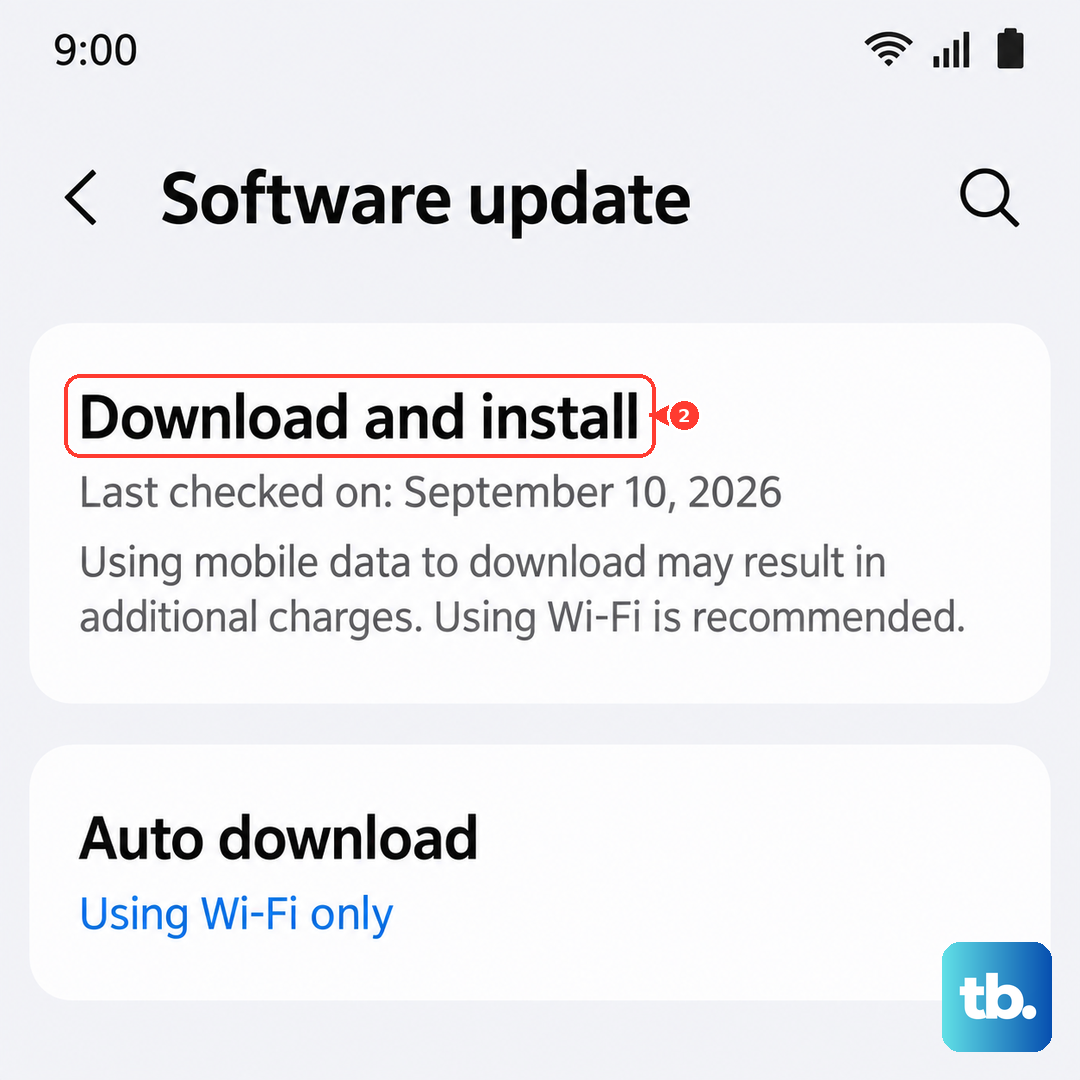
If an update is available, install it and restart. Then test your messaging again.
Check Your Blocked Numbers
If texts fail only to a specific person, you might have accidentally blocked them. Open the Phone app, tap the three dots, choose Settings > Blocked numbers. Look through the list and unblock anyone who should be receiving your messages. This is a common gotcha after pocket dials or accidental taps.
Remove and Reinsert Your SIM Card
Power off your Galaxy Z Fold 7 completely. Use the SIM eject tool (or a paperclip) to pop out the tray. Remove the SIM card, wait about 30 seconds, then reinsert it firmly. Power the phone back on. This forces your phone to re-register with the carrier's network, which can resolve provisioning issues for SMS and MMS.
Try a Different Messaging App
Sometimes the messaging app itself gets corrupted. If you're using Google Messages and texts aren't sending, download Samsung Messages from the Galaxy Store (or use the pre-installed version) and set it as your default. Open Settings > Apps > Choose default apps > SMS app and select the other app. Send a test message. If it works, the original app needs a data reset.
To reset the troubled app, go to Settings > Apps, find your messaging app, tap Storage > Clear data. Confirm the action. This wipes your message history (make sure you've backed up anything important), so try it only after other steps fail.
Contact Your Carrier
If you've tried everything and messages still won't send, call your carrier. Ask them to verify that SMS and MMS are provisioned correctly on your account. Sometimes a plan change or a billing issue can disable texting while leaving calls and data intact. They can also refresh your messaging registration on their end, which often resolves stubborn cases.