You pick up your Galaxy Z Fold 7 to take a call, but it goes straight to voicemail. The caller couldn’t get through, and you’re left wondering what went wrong. This is a frustrating problem, but it’s usually fixable without a trip to the repair shop. Let’s run through the most common causes and what you can do about them.
Start With a Force Restart
Before digging into settings, a good old force restart clears up a lot of transient glitches. On the Galaxy Z Fold 7, press and hold the Volume down and Side buttons together for about 10 seconds. The phone will restart, and that alone can bring back normal call behavior.
If you have a case on, make sure you’re pressing the right button. The Side button is the one on the right edge, below the volume rocker. Hold both until the Samsung logo appears, then let go.
Check Airplane Mode and Signal Strength
Airplane mode blocks all wireless signals, including calls. Swipe down from the top of the screen to open Quick Settings and make sure the airplane icon is not highlighted. If it is, tap it to turn it off.
Also check your signal bars. If you’re in a weak coverage area, calls may go straight to voicemail because the network can’t reach you. Try moving to a different spot or stepping outside to see if the signal improves.
Turn Off Do Not Disturb
Do Not Disturb mode can silently send incoming calls to voicemail, even if you don’t realize it’s on. Go to Settings > Notifications > Do Not Disturb and toggle it off. You can also tap the Do Not Disturb icon in Quick Settings to disable it quickly.
If you need to keep DND for certain times, check the “Exceptions” section and make sure calls from your contacts or everyone are allowed through.
Review Call Forwarding and Blocking
Call forwarding might be actively sending your calls elsewhere. Open the Phone app, tap the three-dot menu, and go to Settings > Supplementary Services (or Call Settings depending on your carrier). Look for Call Forwarding and make sure no numbers are listed for forwarding when unanswered, busy, or unreachable.
Also check your blocked numbers list. In the Phone app, tap the three-dot menu, choose Settings > Block numbers. If you accidentally blocked the person trying to reach you, remove them from the list.
Inspect the SIM Card
A loose or damaged SIM can cause calls to fail. Power down your Galaxy Z Fold 7, then locate the SIM tray (on the left edge of the phone). Use the ejector tool to pop it out. Remove the SIM, check for any visible damage or dirt, then reinsert it firmly. Make sure it clicks into place.
If you have another phone handy, test the SIM in that device to confirm it’s working. If it still sends calls to voicemail, the issue may be with your carrier or account.
Reset Network Settings
Network settings can get corrupted over time, especially after software updates. Resetting them won’t erase your personal data, but it will delete saved Wi‑Fi networks and paired Bluetooth devices.
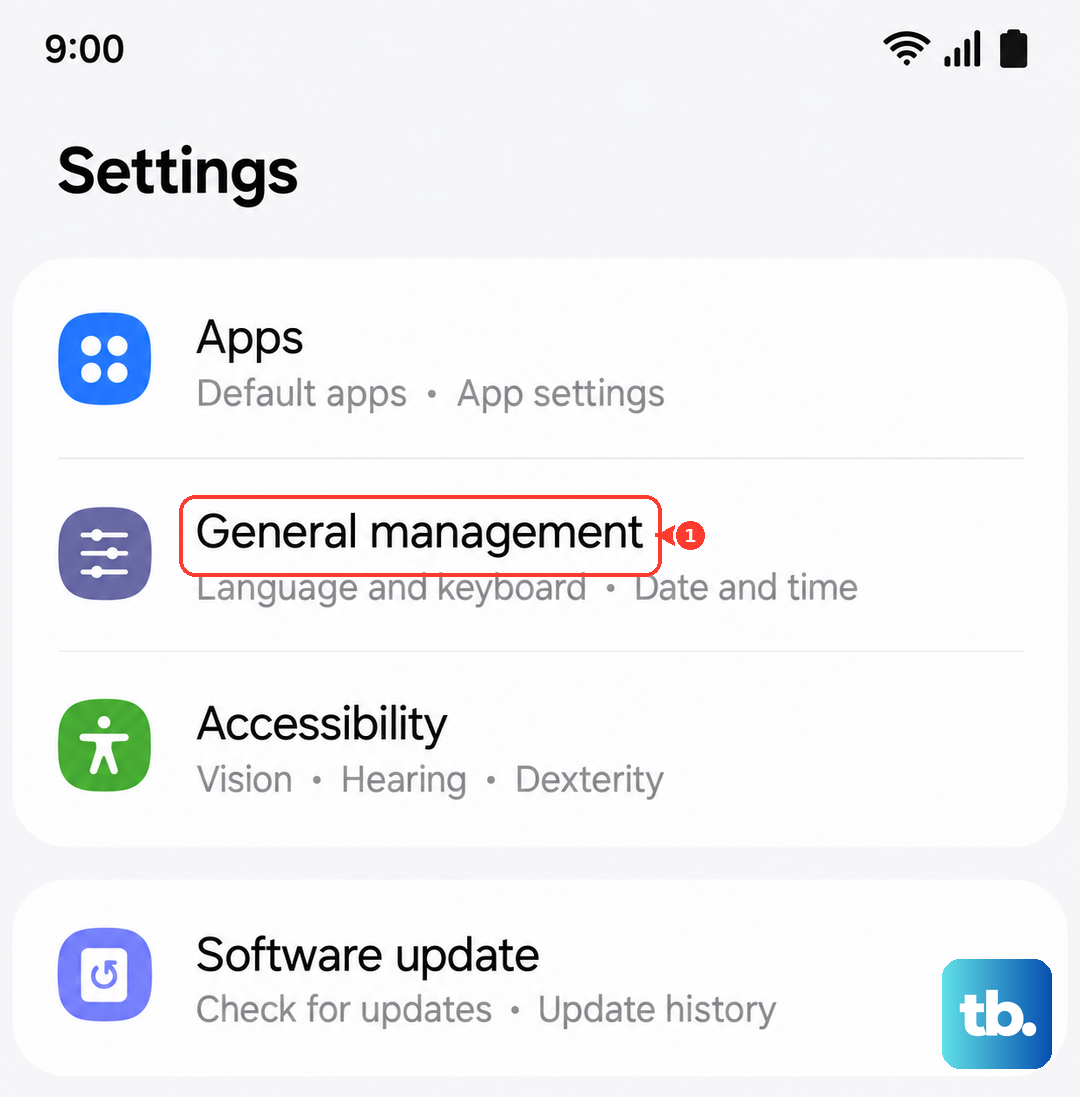
Go to Settings > General Management > Reset > Reset Network Settings. Confirm the action, then let the phone restart. Afterward, re‑connect to your Wi‑Fi and re‑pair any Bluetooth accessories.
Clear the Phone App’s Cache and Data
Sometimes the Phone app’s cached data causes odd behavior. Head to Settings > Apps > Phone > Storage. Tap Clear Cache first, then Clear Data. Don’t worry clearing data won’t delete your contacts; it only resets the app’s settings and your call history.
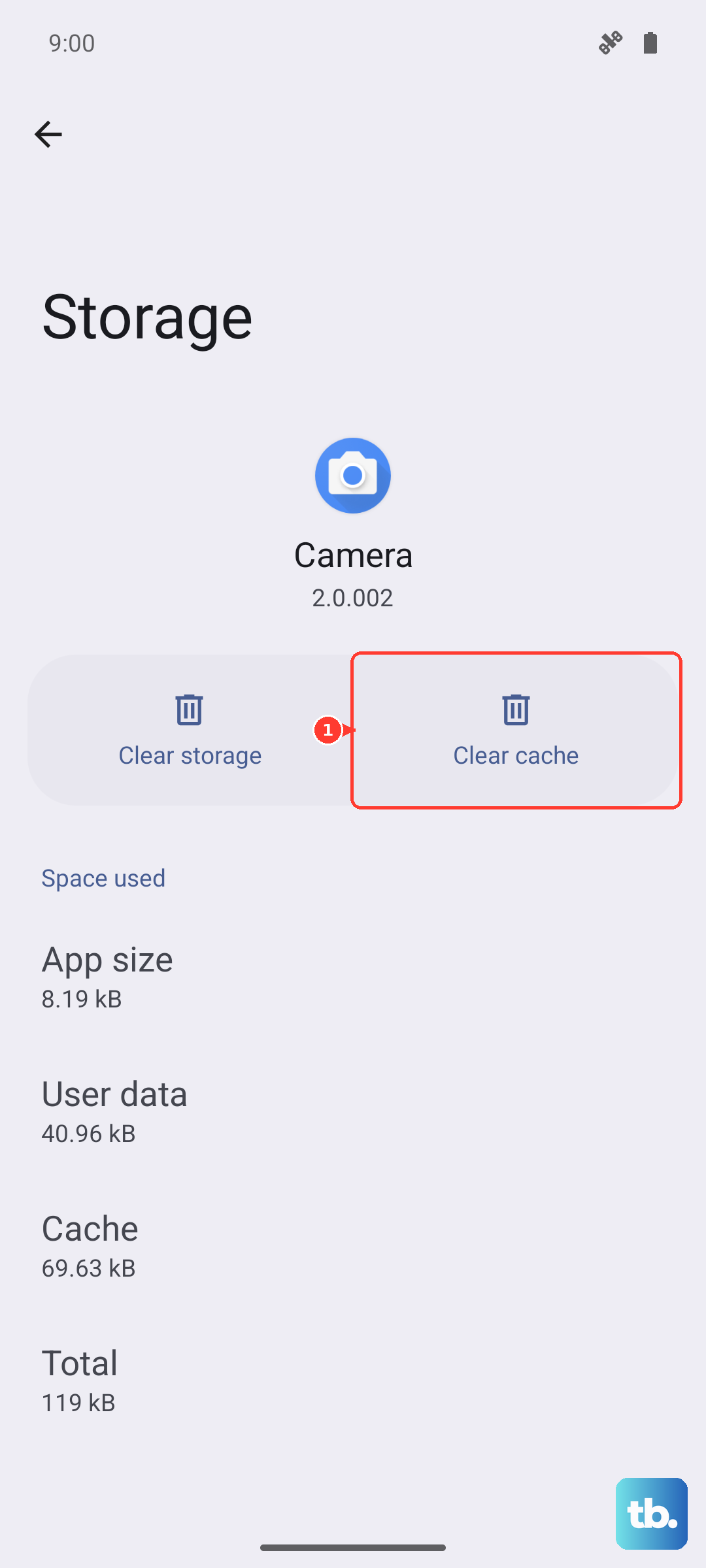
After clearing, restart the phone and test a call.
Update Your Galaxy Z Fold 7’s Software
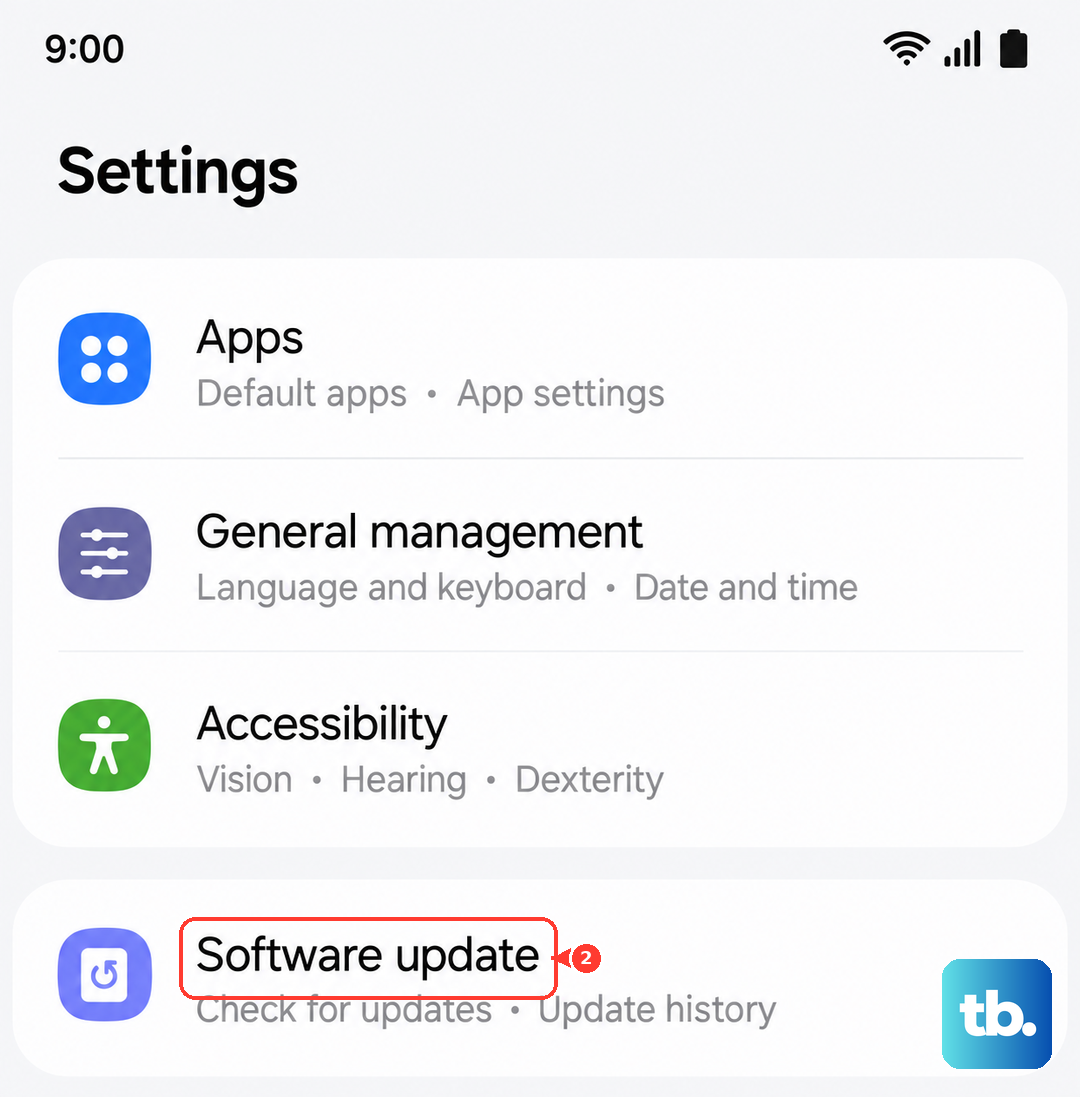
Samsung regularly pushes updates that fix call‑related bugs. To check, go to Settings > Software Update > Download and Install. If an update is available, install it and see if the problem goes away.
I’ve seen cases where a single update resolved calls going to voicemail that had been plaguing users for weeks. It’s worth the few minutes it takes.
Disable Third‑Party Call Blocking Apps
Apps like Truecaller, Should I Answer, or even some carrier‑provided dialers can intercept calls before they reach you. Try temporarily uninstalling or disabling any recent call‑related apps. If the calls come through afterward, you’ve found the culprit.
You can also check if your phone has built‑in spam protection that’s too aggressive. In the Phone app, go to Settings > Caller ID and spam protection and toggle it off to test.
Perform a Factory Reset if Needed
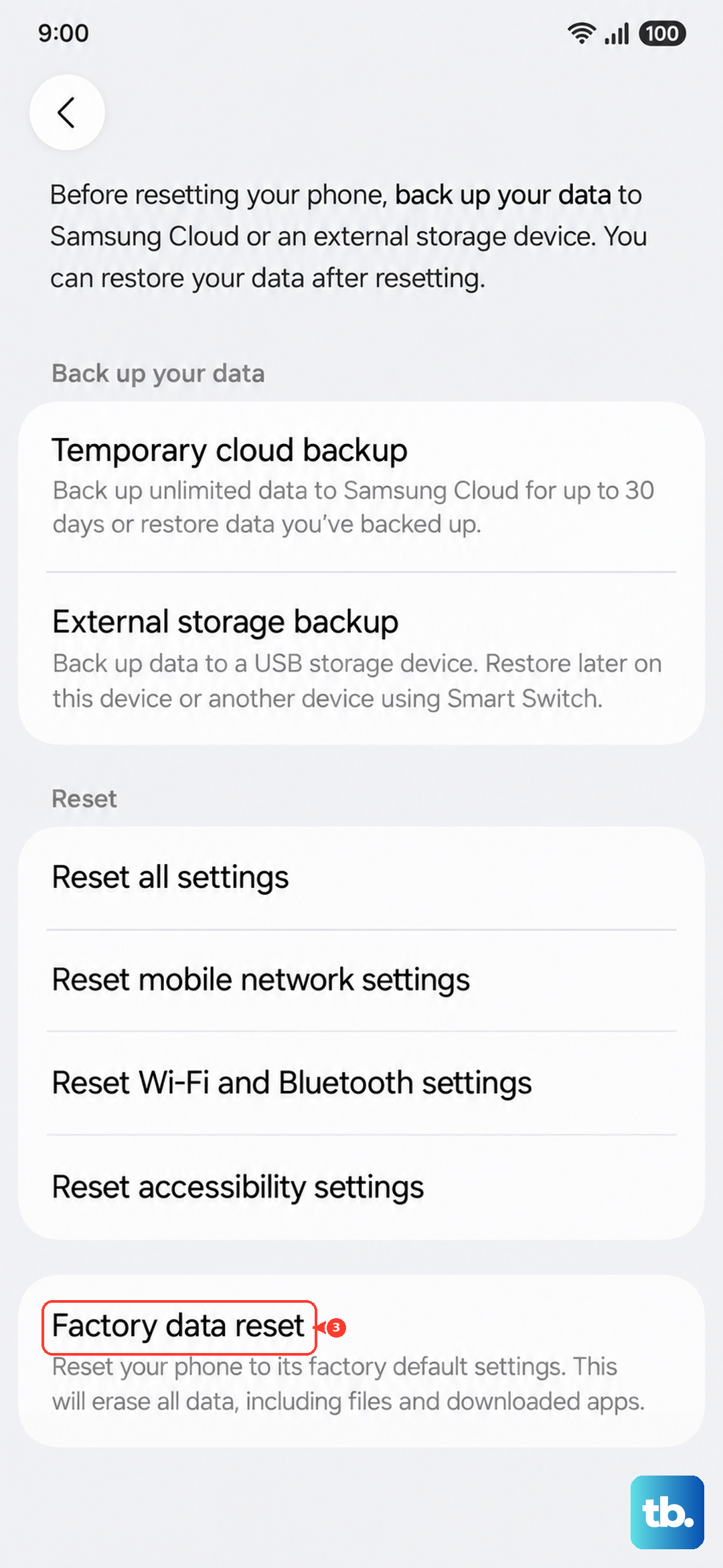
If you’ve tried everything and calls are still going straight to voicemail, a factory reset can wipe out persistent software issues. Back up your data first this will erase everything on the phone.
Then go to Settings > General Management > Reset > Factory Data Reset. Follow the prompts. After the reset, set up your phone as new (don’t restore from a backup immediately, in case the backup carried the problem). Test a call before restoring anything.