
You're mid-scroll on the inner screen of your Galaxy Z Fold 7 and suddenly an app freezes or kicks you back to the home screen. It's frustrating, especially on a premium foldable where you expect everything to work smoothly. Most app crashes on the Z Fold 7 are fixable without a trip to the service center.
Start with a force restart
Before you dig into settings or uninstall anything, try a forced restart. This clears out temporary software glitches without deleting any of your data.
Press and hold the Volume down and Side buttons simultaneously for 10 seconds until the device restarts. The Z Fold 7 will reboot fully and most minor app hiccups will be gone.
Check for foldable-specific app issues
The Z Fold 7 ships with Android 16 and One UI 8, and some apps still don't play nice with the foldable form factor. If an app crashes when you unfold to the inner display or when switching between screens, the problem is often the app itself, not your phone.
Open the app and see if it behaves differently on the cover screen versus the main display. If it only crashes on the large inner screen, the app likely needs an update for foldable support. Check the Google Play Store for updates for that specific app.
Clear the app's cache and data
Corrupted cache files are a common cause of crashes on any phone, and the Z Fold 7 is no exception. You can clear them without losing your account or personal files.
Go to Settings > Apps and find the troublesome app. Tap Storage, then tap Clear Cache. If the app is still crashing after that, tap Clear Data. Note that clearing data will sign you out and reset the app to its fresh-install state, so you'll need to log back in.
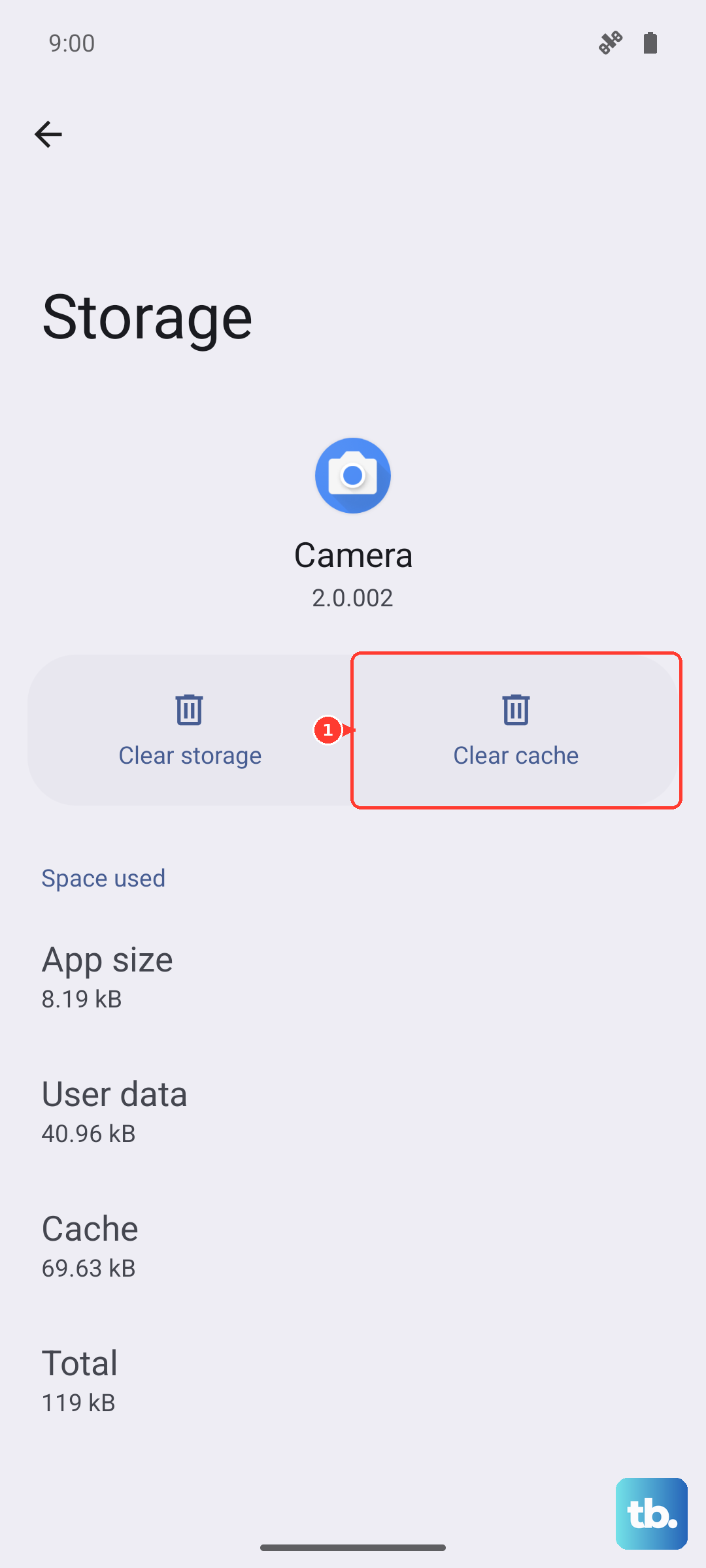
I've seen this fix work for apps like banking apps and streaming services that load a lot of temporary content.
Force stop and relaunch
Sometimes an app needs a hard reset without clearing anything. Go to Settings > Apps, select the app, and tap Force Stop. Wait a few seconds, then open it again. This kills any background processes that may be stuck.
Update your apps and One UI
Developers often release fixes for crashes, especially for foldable devices. Open the Google Play Store, tap your profile icon, and select Manage apps & devices. Tap Update all to get the latest versions.
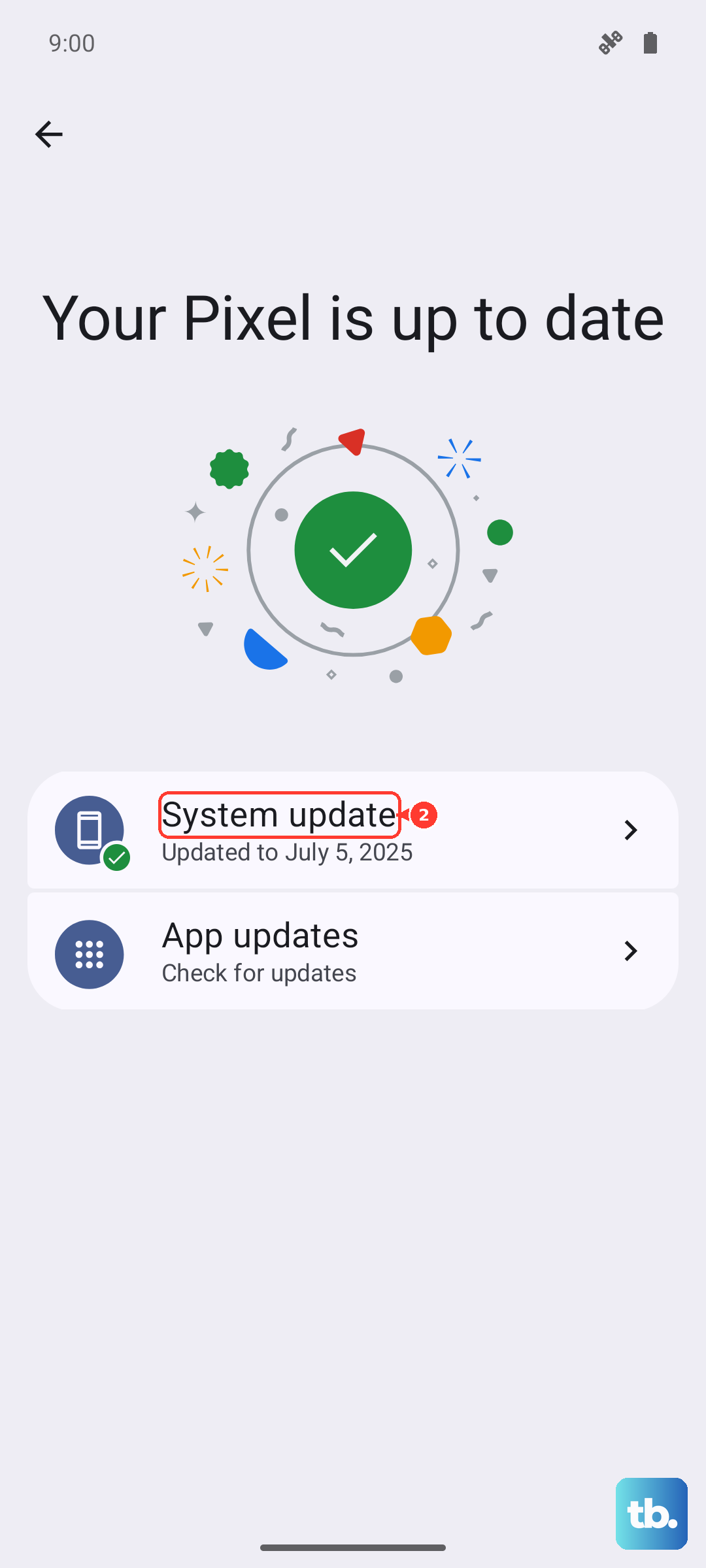
Also check for a system update. Go to Settings > Software update > Download and install. Samsung regularly pushes updates that address app compatibility with the Z Fold 7's unique display.
Free up storage space
When your storage is nearly full, apps can crash because they don't have room to write temporary files. Check your storage by going to Settings > Device care > Storage. If you're above 90%, it's time to clear some space.
Delete old downloads, move photos to the cloud, or uninstall apps you haven't used in months. You can also use the built-in Storage Booster on the Z Fold 7 to automatically remove temporary junk files.
Reinstall the crashing app
If a specific app crashes repeatedly despite trying everything above, uninstall it completely. Long-press the app icon on the home screen or app drawer, then tap Uninstall. Reinstall it fresh from the Google Play Store.
This is especially worth trying for apps that you updated recently and started crashing right after.
Check for battery or charging related crashes
This one is less common, but some Z Fold 7 users have reported apps acting up when the battery is low or while charging. The device can stop charging at around 45% for battery calibration reasons, and that can cause system instability.
If apps crash mostly when your battery is below 20% or while plugged in, try letting the phone charge to 100% uninterrupted, then restart it. For persistent issues, inspect the USB-C port for lint or dust and clean it gently with compressed air. A bad charging connection can sometimes trigger app instability on Android.
Reset app preferences (a lighter reset)
If multiple apps are crashing and you don't want to factory reset, you can reset app preferences instead. This won't delete any data but will restore default settings for disabled apps, notification permissions, and background data restrictions.
Go to Settings > Apps, tap the three-dot menu in the top right, and select Reset app preferences. Confirm the action and see if the crashes stop.
Consider a factory reset only as a last step
If you've tried everything and apps still crash constantly, a factory reset can solve deeper software issues. This will wipe everything on your Z Fold 7, so back up your photos, contacts, and files to your Samsung account or Google Drive first.
Go to Settings > General management > Reset > Factory data reset. After the phone restarts, set it up as new and install apps one by one to see if the problem returns.