
If your Galaxy Z Fold 6 has gone silent when it should be buzzing, you're missing more than just notifications. That lack of haptic feedback on a device this advanced can be really disorienting. The good news is, it's usually a quick software setting or a minor glitch that's easy to fix.
Start With a Force Restart
Before diving into menus, give your phone a fresh start. Press and hold the Volume Down button and the Side key (power button) together for about 10 seconds. Keep holding until you see the Samsung logo appear, then let go.
This force restart clears out any temporary software bugs that might have disabled the vibration motor. It's the equivalent of a quick nap for your phone's system, and it often solves the problem right away.
Check Your Sound and Vibration Mode
On a foldable, it's easy to accidentally change modes. Swipe down from the top of your screen to open the Quick Settings panel. Look for the sound mode icon, it might say "Sound," "Vibrate," or "Mute."
If it's set to "Mute," vibration is completely off. Tap it to cycle to "Vibrate" or "Sound." For full vibration with sound, "Sound" mode is what you want, as it allows ringtones and vibrations together.
Verify the Main Vibration Switch
Open your Settings and go to Sounds and vibration. Right at the top, you'll see the "Vibrate while ringing" toggle. Make sure this is switched on.
If it's already on, try turning it off, waiting a second, and turning it back on. This can refresh the connection to the vibration motor. I'd start with this one, as it's the master control for call vibrations.
Adjust the Vibration Intensity
The Z Fold 6 lets you fine-tune how strong the buzz feels. Still in Sounds and vibration, tap on "Vibration intensity." You'll see separate sliders for calls, notifications, and touch feedback.
If the vibration seems weak or nonexistent, drag all these sliders to the maximum setting. Test it immediately by tapping the "Vibration test" button at the bottom of that screen. You should feel a distinct pulse.
Look at App-Specific Notification Settings
Sometimes the problem isn't with the phone, but with a single app. If your Messages or WhatsApp aren't vibrating but other apps are, you need to check their individual settings.
Go to Settings > Apps, select the problematic app, and tap "Notifications." Ensure notifications are turned on for that app. Then, tap into each notification category (like "General" or "New messages") and make sure the "Vibrate" option is enabled within that menu.
Test for a Third-Party App Conflict
A recently installed app could be interfering with system functions. To check, boot your Z Fold 6 into Safe Mode. First, turn off your phone completely.
Now, press and hold the Side key to turn it back on. The moment you see the Samsung logo on the screen, immediately press and hold the Volume Down button. Keep holding it until you see "Safe mode" in the bottom-left corner of your screen.
In Safe Mode, test your vibration. If it works perfectly here, a downloaded app is the culprit. Restart normally to exit Safe Mode and try uninstalling apps you installed around the time the problem started.
Run a Hardware Diagnostic Test
Samsung includes a hidden diagnostic menu. Open your Phone dialer app and type *#0*#. This will launch a service menu with a grid of colored buttons.
Tap the button labeled "Vibration." Your phone should immediately produce a strong, continuous buzz. If it does, your vibration motor hardware is physically working and the issue is purely software-based.
If there's no vibration at all in this test, it could point to a loose connection or hardware fault, especially given the complex hinge mechanism on the Fold. Debris in the hinge area has been known to cause issues with internal components over time.
Update Your Software
Outdated software can have bugs that affect hardware performance. Go to Settings > Software update and tap "Download and install."
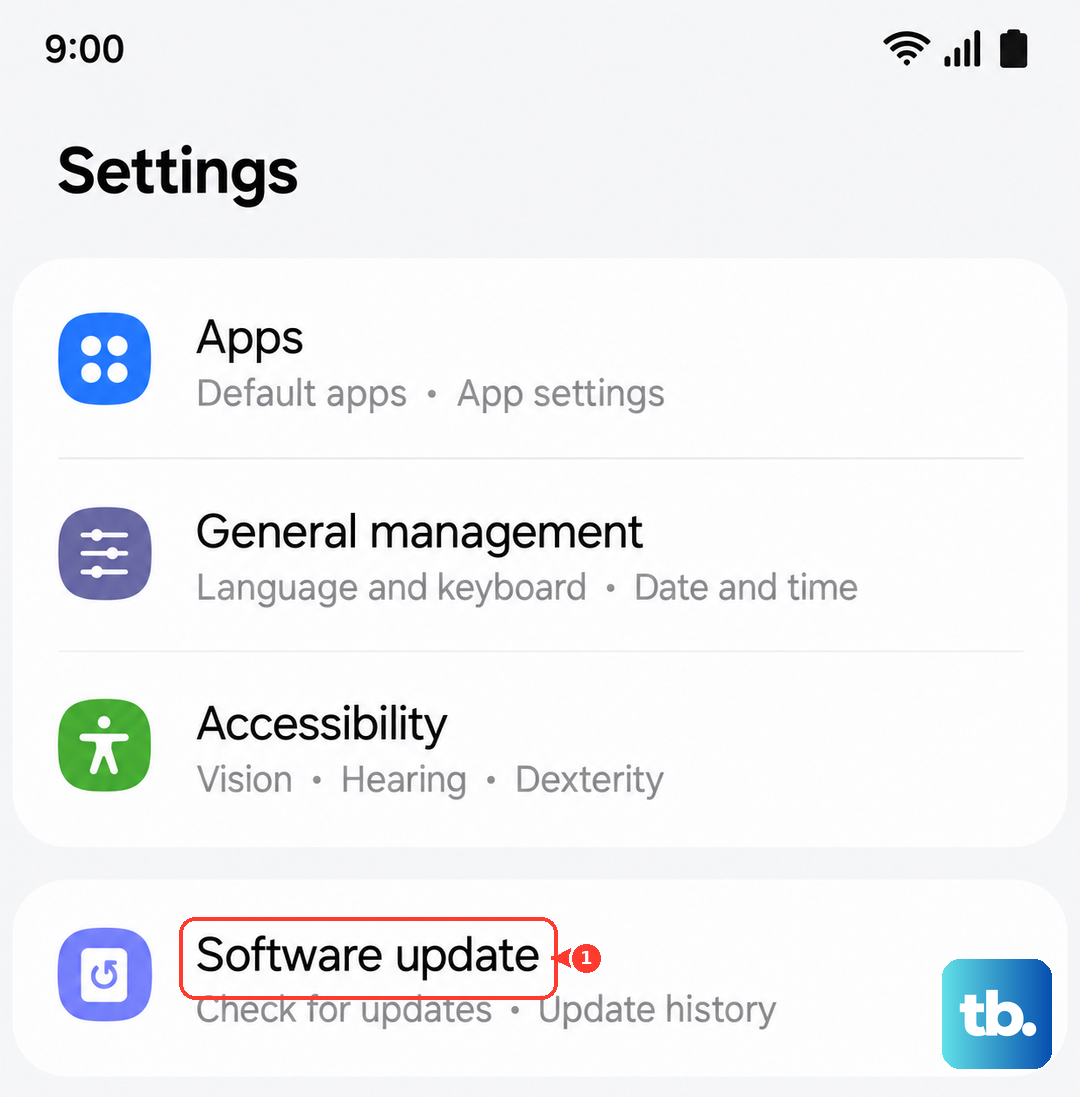
Install any available updates. Samsung frequently releases patches that fix minor issues like this, so making sure you're on the latest version of One UI is a crucial step.
Reset All Settings
If you've customized a lot of themes or deep settings, something might have gotten misconfigured. You can reset these without touching your personal data.
Navigate to Settings > General management > Reset. Tap on "Reset settings." This will revert all your sound, display, and connectivity settings back to factory defaults but will keep your apps, photos, and files intact.
After the phone reboots, go back into your Sound settings and re-enable vibration. This clean slate often resolves persistent, confusing glitches.
Check for Interfering Themes
Custom themes from the Galaxy Store can sometimes override system behaviors incorrectly. Long-press on an empty spot on your home screen and select "Themes."
Tap on "Menu" (the three lines) and go to "My themes." Find the "Default" theme and apply it. This removes any potential theme-related bugs and is a simple thing to try before more drastic measures.