You went to capture a quick video on your Galaxy Z Fold6, and instead of recording you got hit with a "Storage full" warning. Suddenly apps are sluggish, updates stall, and the camera refuses to save anything new. The good news is that this is one of the most fixable problems on the phone, because Samsung builds storage tools directly into One UI and there is no mysterious culprit you cannot reach.
The catch with this particular foldable is that the Z Fold6 has no microSD card slot, so you cannot simply pop in a bigger card. Every Galaxy Z Fold and Z Flip foldable works the same way. That means freeing space comes down to seeing what is using it, deleting what you do not need, and offloading the rest to the cloud or a computer. The fixes below are ordered from the safest and easiest to the most thorough, so start at the top and stop once you have the headroom you need.
See exactly where your storage went first
Before deleting anything, find out what is actually filling the phone. Samsung's official starting point is Device care, which gives you a clear breakdown by file type so you are not guessing. This step alone often reveals that a few large video files or a forgotten download folder are the real problem.
- 1.Open Settings.
- 2.Tap Device care.
- 3.Tap Storage to see the breakdown by category (Images, Videos, Audio files, Documents, and more).
- 4.Tap any category to review and quickly delete items you no longer need.
Working from this screen keeps you efficient because you are targeting the biggest space hogs instead of clearing things at random. Once you know whether photos, downloads, or a single bloated app is to blame, the rest of these fixes become much faster.
Free up memory with a single tap
If the phone feels slow while storage is tight, you can close background apps and reclaim active memory in seconds. This is separate from clearing storage, but it helps the device run smoothly while you do the rest of the cleanup. Your data is untouched here; you are simply closing apps that are idling in the background.
Go to Settings > Device care > Memory.
Tap Clean now to close background apps and free up memory.
To keep certain apps running, tap Excluded apps, then Add to add them to the list.
Clear app cache without losing your data
Cache files are temporary leftovers that apps create as they run, and they can quietly swell over time. Clearing the cache is one of the safest moves you can make because, as Samsung describes it, this only removes residual temporary files. It does not delete your personal app data and it will not sign you out.
Go to Settings > Apps.
Select the app you want to clean.
Tap Storage.
Tap Clear cache.
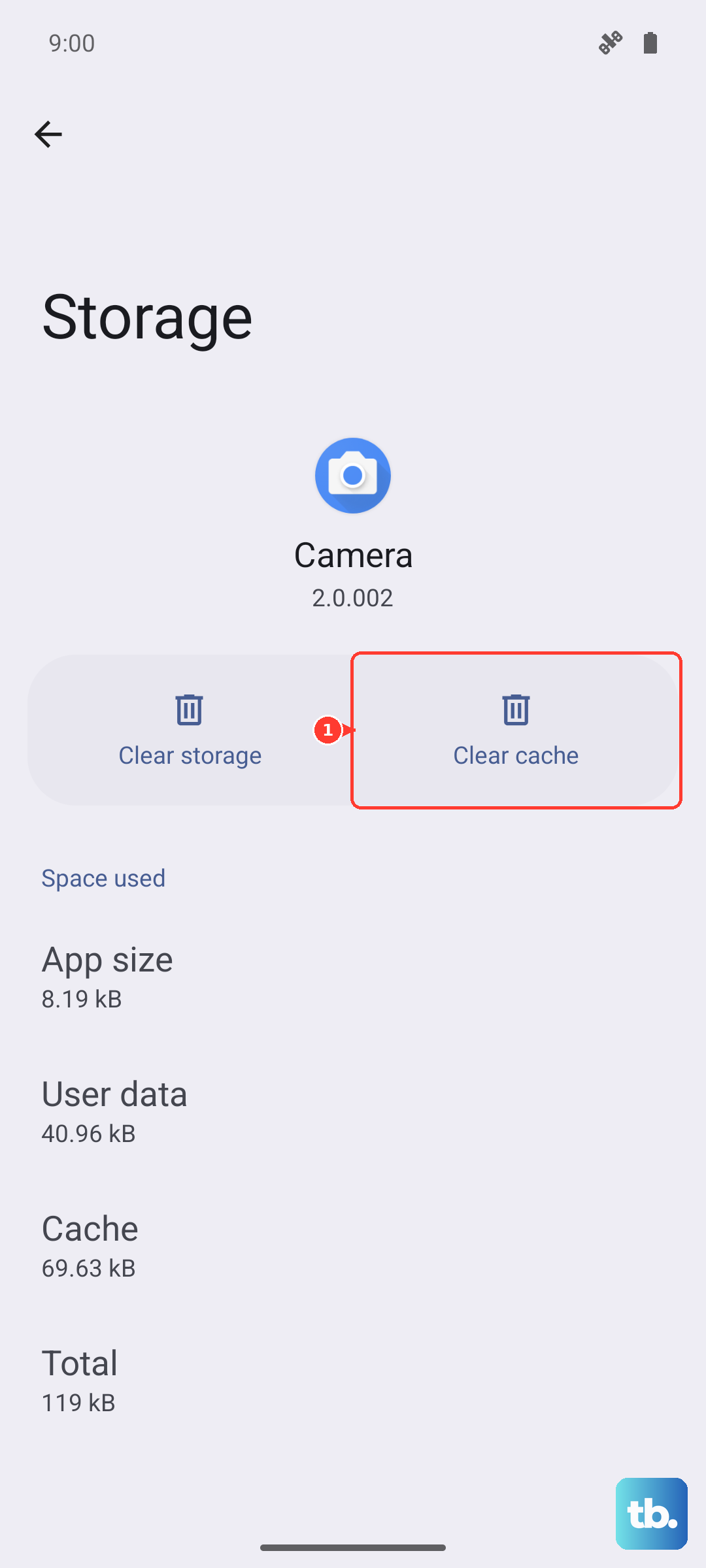
Repeat this for the apps that show the largest sizes in your storage breakdown, such as a browser, a social app, or a streaming app. These tend to accumulate the most cache, so they give you the biggest return for the least risk.
Delete photos and videos you no longer need
On the Z Fold6, photos and videos usually take up the most room, especially with that large inner display tempting you to shoot more. Clearing them is straightforward, but remember that simply deleting items moves them to the Trash first. To actually reclaim the space, you have to empty the Trash as well.
Open the Gallery app.
Go to Albums.
Touch and hold to select the items you want to remove.
Tap Delete, then Move to Trash.
To permanently reclaim the space, open Menu > Trash > Empty > Delete.
If there are photos you want to keep but rarely look at, hold off on permanently deleting them until you have set up cloud offloading further down this guide. That way you can clear the phone without actually losing the memories.
Clear out downloads and large stray files
Downloads are easy to forget about, yet they pile up fast with PDFs, installers, attachments, and media you opened once and never touched again. The My Files app gives you direct access to that folder so you can sweep it out in one go.
Open the My Files app.
Go to Downloads.
Touch and hold to select the files you no longer need.
Tap Delete all, then Move to Trash.
Offload to the cloud since there is no microSD slot
This is the most important point for Z Fold6 owners. Because the phone has no microSD or expandable memory slot, the only way to gain real headroom without permanently deleting anything is to move files off the device. There is no SD card to insert, so cloud storage and computer transfers do the job a memory card would on other phones.
Use Samsung Cloud to back up and sync your data, which you reach through Settings > [Samsung account name] > Samsung Cloud. From there you can also delete unnecessary Samsung Cloud backups to keep your cloud space tidy. For photos specifically, OneDrive is the integrated option for syncing your images off the phone.
For larger transfers, the official tool is Samsung Smart Switch, the free desktop software for Windows and Mac available from Samsung's official website. It lets you back up your data to a computer and free up phone space, and it can also update your software through the computer. Once files are safely backed up to the cloud or your computer, you can go back and permanently delete them from the phone with confidence.
Reset a single problem app as a targeted fix
Sometimes one app balloons in size and clearing its cache simply is not enough. In that case you can clear its data, but treat this as a stronger step than clearing cache. Samsung warns that clearing the data will reset the app to factory default settings, and any personal settings or data saved on the app will be removed.
Go to Settings > Apps.
Select the app that is taking up too much space.
Tap Storage.
Tap Clear data, then Delete.
Because this can sign you out and wipe in-app settings, use it only when clearing the cache did not solve the problem. Make sure you know your login details for that app before you proceed.
Install the latest software update
Keeping One UI current can improve how the phone handles storage and resolve bugs that cause space to be used inefficiently. The Z Fold6 launched on One UI 6.1.1 (Android 14) and is eligible for later One UI versions, so the right move is to check in Settings rather than assume you are already on the newest build.
Go to Settings > Software update.
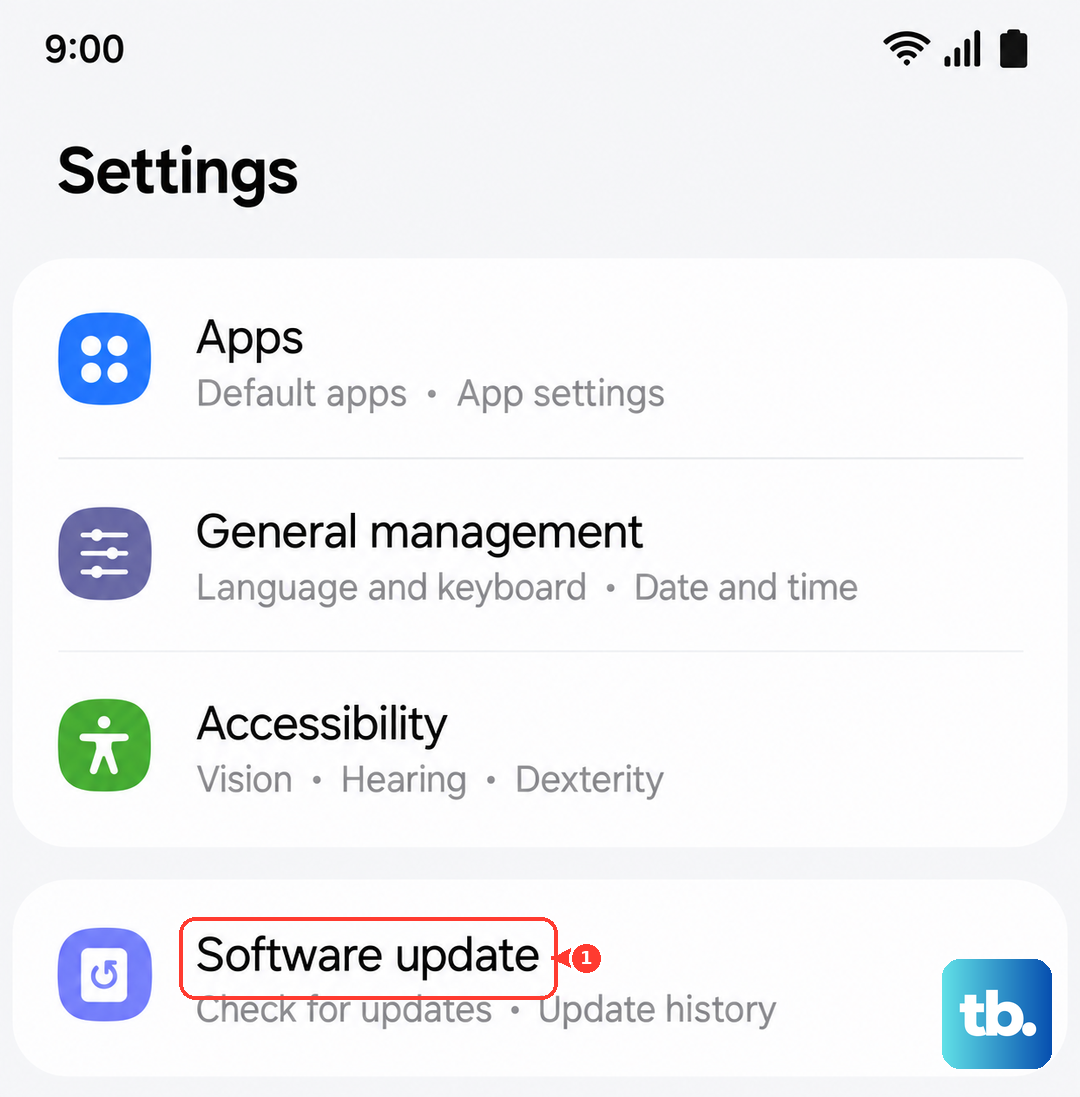
Tap Download and install and follow the prompts.
Depending on your carrier, the button may read "Download and install", "Check for software updates", or require "Download now". You can also enable the optional Auto download over Wi-Fi toggle so future updates arrive without you having to check manually.
Force restart if the phone freezes mid-cleanup
If the device locks up or stops responding while you are managing storage, you can force it to restart without losing any data. This is the official sequence Samsung provides for a frozen device, so follow the timing exactly.
Press and hold the Side (Power) button and the Volume down button at the same time for more than 7 seconds, until the phone restarts. You will feel it vibrate when it resets. This does not erase any of your data; it simply forces the phone to reboot so you can pick up where you left off.
Factory reset only when nothing else works
If storage problems still will not clear after every cleanup above, a full reset is the last resort. This erases everything on the phone, so it should only be used once you have exhausted the safer options. Back up to Samsung Cloud or your account first, because Samsung warns to save any information you need beforehand, as your personal information may not be recovered.
Go to Settings > General management.
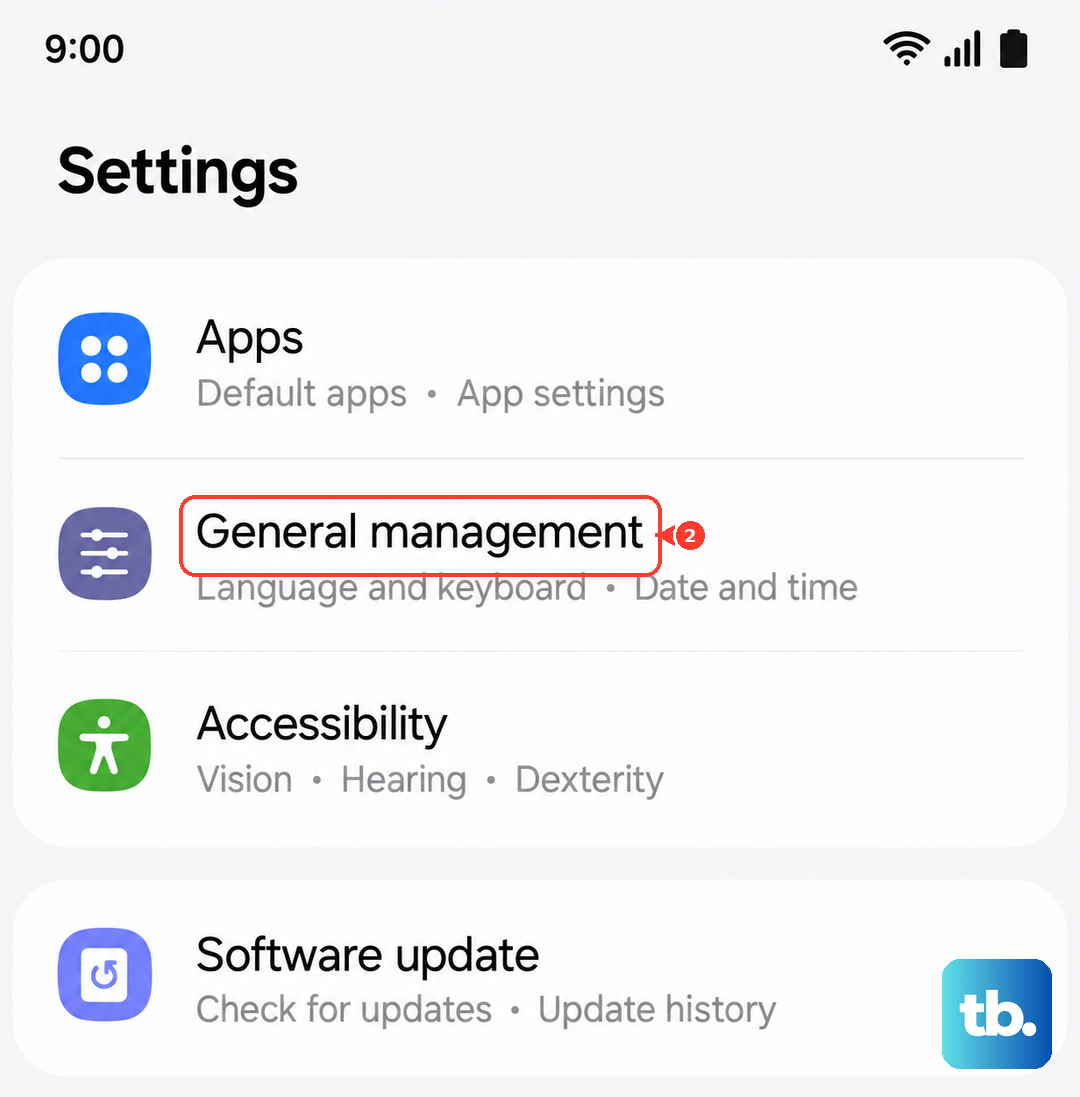
Tap Reset.
Tap Factory data reset.
Tap Reset, then Delete all.
If the problem turns out to be hardware-related or remains unresolved even after a reset, contact Samsung Support for further help. At that point the issue is beyond ordinary storage management and may need an official diagnosis.
Frequently Asked Questions
Can I add a microSD card to the Galaxy Z Fold6 to expand storage?
No. The Galaxy Z Fold6 has no microSD or expandable memory card slot, which is consistent across all Galaxy Z Fold and Z Flip foldables. To gain space without deleting files, move them to Samsung Cloud, OneDrive, or a computer using Smart Switch.
Does clearing the cache delete my personal data?
No. Clearing the cache only removes residual temporary files and will not delete your personal app data or sign you out. Clearing an app's data is different; that one resets the app to factory default settings and removes any personal settings saved in it.
What is the safest first step when my storage is full?
Start by opening Settings > Device care > Storage to see a breakdown by category such as Images, Videos, Audio files, and Documents. This shows where your space actually went so you can delete the biggest items first instead of guessing.
Will a force restart erase my files?
No. Pressing and holding the Side (Power) button and the Volume down button for more than 7 seconds restarts a frozen phone without erasing any data. The phone vibrates when it resets, and you can continue your cleanup once it is back on.
How do I permanently reclaim space after deleting photos?
Deleting photos in Gallery moves them to the Trash first, so the space is not freed right away. To reclaim it, open Menu > Trash > Empty > Delete in the Gallery app to remove the items permanently.