
Seeing a "SIM Not Provisioned" message on your Samsung Galaxy Z Fold 6 is a real roadblock. It cuts you off from calls, texts, and mobile data, which is especially frustrating on a device designed for productivity. This error means your phone can't register your SIM card with your carrier's network.
The good news is it's usually a simple fix. I'd start with the basics before diving deeper.
Restart Your Galaxy Z Fold 6
A simple restart clears out temporary software glitches that can interfere with the modem. Press and hold the Side button, then tap "Restart" on the screen. If the phone is unresponsive, you can force restart it by pressing and holding the Volume Down button and the Side button together for about 10 seconds until you see the Samsung logo.
Check Your SIM Card Activation and Status
This is the most common culprit. If you just got a new SIM card or switched plans, it might not be fully activated on your carrier's end. Even with an existing SIM, your service could be suspended due to a billing issue or an expired plan.
Your first move should be to contact your carrier's customer support. They can check your account status in real-time and tell you if the SIM is active. For prepaid users, double-check your balance through the carrier's app.
Reinsert the SIM Card
The SIM tray on the Z Fold 6 is along the bottom edge. Over time, or if the phone has been dropped, the card can shift slightly and lose connection. Power the phone off completely first.
Use the ejector tool that came in the box to pop out the tray. Carefully remove the SIM card and inspect the gold contacts for any dust, lint, or scratches. Give it a gentle wipe with a soft, dry cloth and reseat it firmly in the tray before sliding it back into the phone.
Toggle Airplane Mode
This quickly resets all the phone's radio connections, including cellular. Swipe down twice from the top of your screen to open the full Quick Settings panel. Tap the Airplane Mode icon to turn it on, wait for about 15 seconds, then tap it again to turn it off.
You should see the network bars disappear and then reappear. Sometimes that's all it takes to kickstart a proper connection.
Update Your Phone Software
Outdated system software can have bugs that affect network connectivity. Samsung regularly releases updates that include modem and stability improvements. Go to Settings > Software update and tap "Download and install."
Make sure you're connected to Wi-Fi and have at least a 50% battery before starting the update. It's also worth checking the Google Play Store for updates to the "Carrier Services" app, which handles communication between your phone and your network.
Manually Select Your Network Operator
Your phone usually picks the best network automatically, but sometimes this process gets stuck. You can manually force it to connect to your carrier. Open Settings > Connections > Mobile networks > Network operators.
Tap "Search networks" and wait for the list to populate. Then, select your specific carrier's name from the results. Don't choose one that says "Forbidden," as that means your SIM isn't allowed on that network.
Reset the Network Settings
If you're still seeing the error, resetting network settings can clear any corrupted configuration data. This will erase all saved Wi-Fi networks, Bluetooth pairings, and mobile network preferences, so you'll have to reconnect to Wi-Fi afterward.
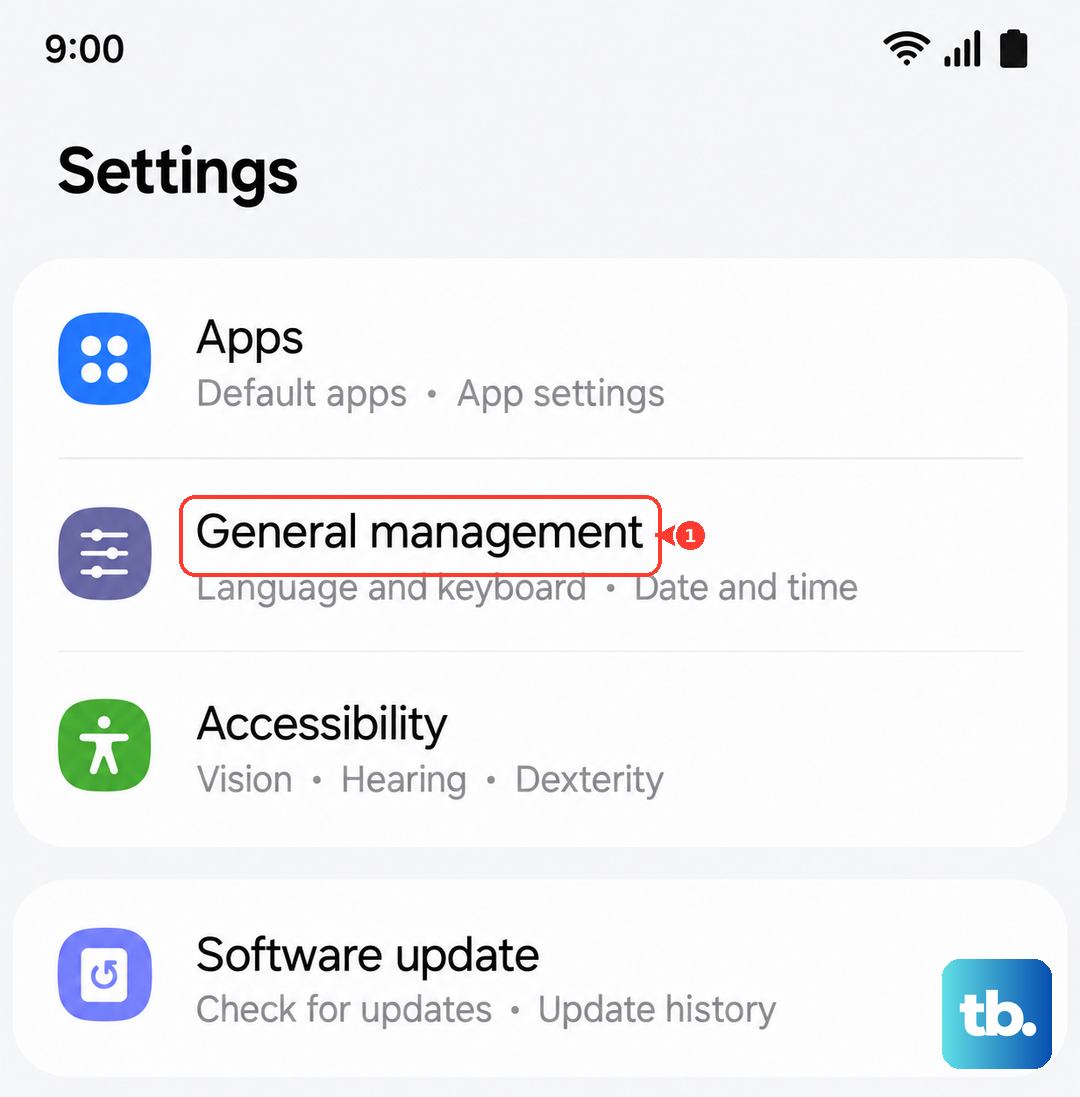
To do this, go to Settings > General management > Reset > Reset network settings. Tap "Reset settings" and enter your PIN if prompted. Your phone will reboot, and you can then try setting up your mobile connection again.
Test the SIM in Another Phone
This test tells you where the problem lies. If you have access to another unlocked phone, power it off and insert your Z Fold 6's SIM card. Turn that phone on and see if it gets service.
If the SIM works in the other phone, the issue is likely with your Z Fold 6's hardware or software. If it also shows "Not Provisioned" in the other device, then the problem is definitely with the SIM card or your carrier account.
Get a SIM Card Replacement
SIM cards can wear out or become damaged. If you've confirmed the account is active and the SIM doesn't work in another phone, it's time for a replacement. Most carriers can issue a new SIM for free or a small fee.
You can often visit a store for an immediate swap or have one mailed to you. Once you have the new SIM, you'll need to contact your carrier to activate it and transfer your number over.