
Missing calls on your Galaxy Z Fold 6 is a real problem, especially when you're relying on that big inner screen to see who's calling. You might see the notification pop up but hear nothing, which defeats the purpose of having a phone. The good news is that it's usually a simple setting or a quick software fix.
Check Your Sound Mode and Volume
Start with the basics. Swipe down from the top of your screen to open the Quick Settings panel. Look for the sound mode icon, it might say "Sound," "Vibrate," or "Mute." Make sure it's set to "Sound." If it's on Mute or Vibrate, tap it to switch back.
While you're there, press the volume up button on the side of the phone. A volume slider will appear on screen. Make sure the "Ringtone" volume is turned up, not just the "Media" volume. You can also adjust this more precisely by going into Settings > Sounds and vibration > Volume.
Disable Do Not Disturb and Modes
One UI's Modes and Routines (which includes Do Not Disturb) are powerful but can silence your ringer if they're active. Pull down the notification shade twice to see the full Quick Settings panel and look for the "Do Not Disturb" or "Modes" tile. If it's highlighted, tap it to turn it off.
For a deeper check, go to Settings > Modes and routines. See if any mode like "Sleep," "Work," or "Driving" is currently active. Tap on it and make sure the rules aren't set to silence calls. I've seen the Driving mode automatically turn on and mute everything, which is easy to miss.
Review Your Call Sound Settings
Samsung packs a lot of audio features into One UI, and sometimes they interfere. Open your Phone app, tap the three-dot menu in the top right, and go to Settings > Call alerts and ringtone.
Here, verify that "Ringtone" is set to an actual sound file and not "None." You can tap it to test a different tone. Also, look for any options like "Vibration pattern" or "Call screen style" that might be overriding the standard ring.
Disconnect Bluetooth Accessories
If your Fold 6 is connected to a Galaxy Watch, wireless earbuds like Galaxy Buds, or a car stereo, incoming call audio might be routing there instead of the phone's speaker. The quickest fix is to turn Bluetooth off temporarily.
Swipe down and tap the Bluetooth icon to disable it, then have someone call you. If the ringtone plays normally, you know a connected device was the culprit. You can then go to Settings > Connections > Bluetooth, tap the gear icon next to problematic devices, and review their call audio settings.
Check for Blocked or Hidden Numbers
It's worth verifying you haven't accidentally blocked the person trying to reach you. In the Phone app, tap the three-dot menu and go to Settings > Block numbers. Review the list to make sure no important contacts are there.
Also, check the "Hide alerts" feature. In your call log or contact list, if you see a bell icon with a line through it next to a contact, it means alerts are hidden for them. Tap the contact and look for the "Hide alerts" option to disable it.
Disable Call Forwarding
Call forwarding sends your calls to another number before your Z Fold 6 even has a chance to ring. To check this, open the Phone app, tap the three-dot menu, and go to Settings > Supplementary services > Call forwarding.
Make sure all the options, like "Always forward" or "When busy," are set to "Disable." If any are active, your carrier might be redirecting calls. This setting can sometimes get enabled accidentally through carrier codes.
Turn Off Silence Unknown Callers
This helpful spam filter can also silence legitimate calls from numbers not in your contacts. In the Phone app, go to Settings > Block numbers and look for "Block unknown/private numbers" or "Silence unknown callers." Toggle it off to test.
Remember, with a foldable, you have more screen real estate to see who's calling, so you might feel comfortable leaving this off and just screening calls visually on the large display.
Force Restart Your Phone
A soft reset can clear out temporary glitches in the system that might be affecting the ringer. Press and hold the Volume Down button and the Side key (power button) simultaneously for about 10 seconds.
You'll see the Samsung logo appear as the phone restarts. This is different from just turning the screen off and on, and it often resolves minor audio service hiccups.
Update Your Software
Samsung regularly releases updates for the Z Fold 6 that fix bugs, including audio issues. Connect to Wi-Fi and go to Settings > Software update > Download and install.
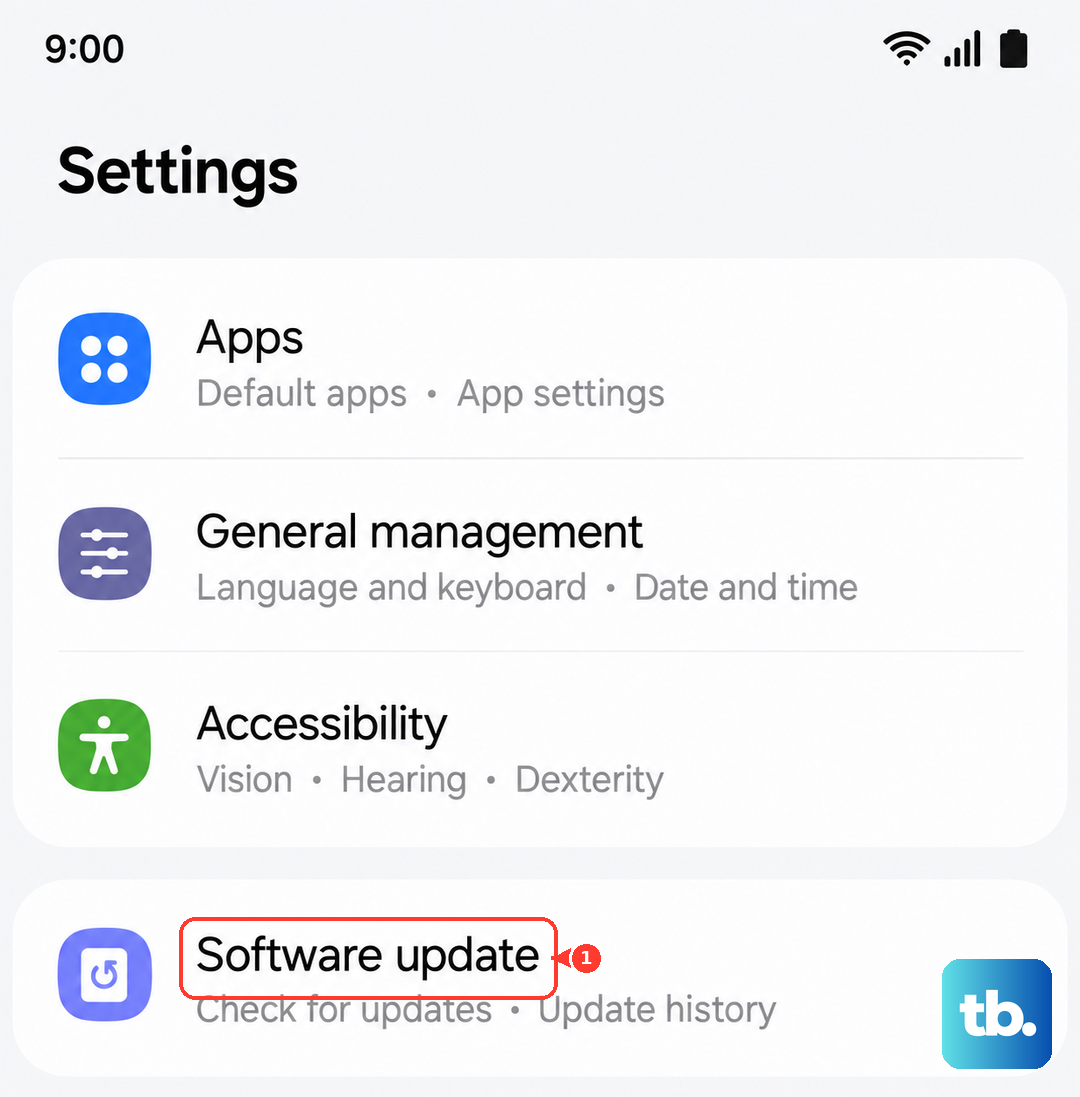
Make sure your phone is on the latest version of One UI and the Android security patch. An update from late 2024, for example, specifically addressed some notification sound problems reported by early users.
Reset App Preferences
This is a lighter step than a full reset. It resets permissions, notifications, and default app settings without deleting any personal data. Go to Settings > Apps > Menu (three dots) > Reset app preferences.
This will ensure your Phone and Contacts apps have the correct permissions to play sounds. You'll just need to re-grant permissions to other apps when you use them next.
Check for App-Specific Issues
If you're only missing calls from apps like WhatsApp, Facebook Messenger, or Skype, the problem is with that app, not your system ringer. First, open the Galaxy Store or Google Play Store and make sure the app is updated.
Then, go to Settings > Apps, select the problematic app, and tap Notifications. Ensure notifications are enabled and set to "Sound." Some apps have their own internal "silent" settings you need to check as well.
Reset All Settings
If you've customized a lot of settings, one might be conflicting. This will revert all system settings (network, sound, display) back to factory defaults but won't touch your photos, messages, or apps. Go to Settings > General management > Reset > Reset all settings.
You'll need to re-enter your Wi-Fi passwords and reconfigure things like your ringtone and display brightness, but it's a very effective way to rule out a misconfiguration.
Boot in Safe Mode
Safe mode temporarily disables all third-party apps. If your ringer works in Safe Mode, a recently downloaded app is likely causing the conflict. To boot into Safe Mode, press and hold the Side key until the power menu appears.
Then, tap and hold the "Power off" option on your screen until you see a prompt to reboot to Safe Mode. Tap it. If the problem is gone, start uninstalling recently added apps one by one until you find the culprit.
Consider a Factory Reset
This is your last resort. A factory reset will erase everything on your phone, so you must back up your data first using Samsung Cloud or a computer. Once backed up, go to Settings > General management > Reset > Factory data reset.
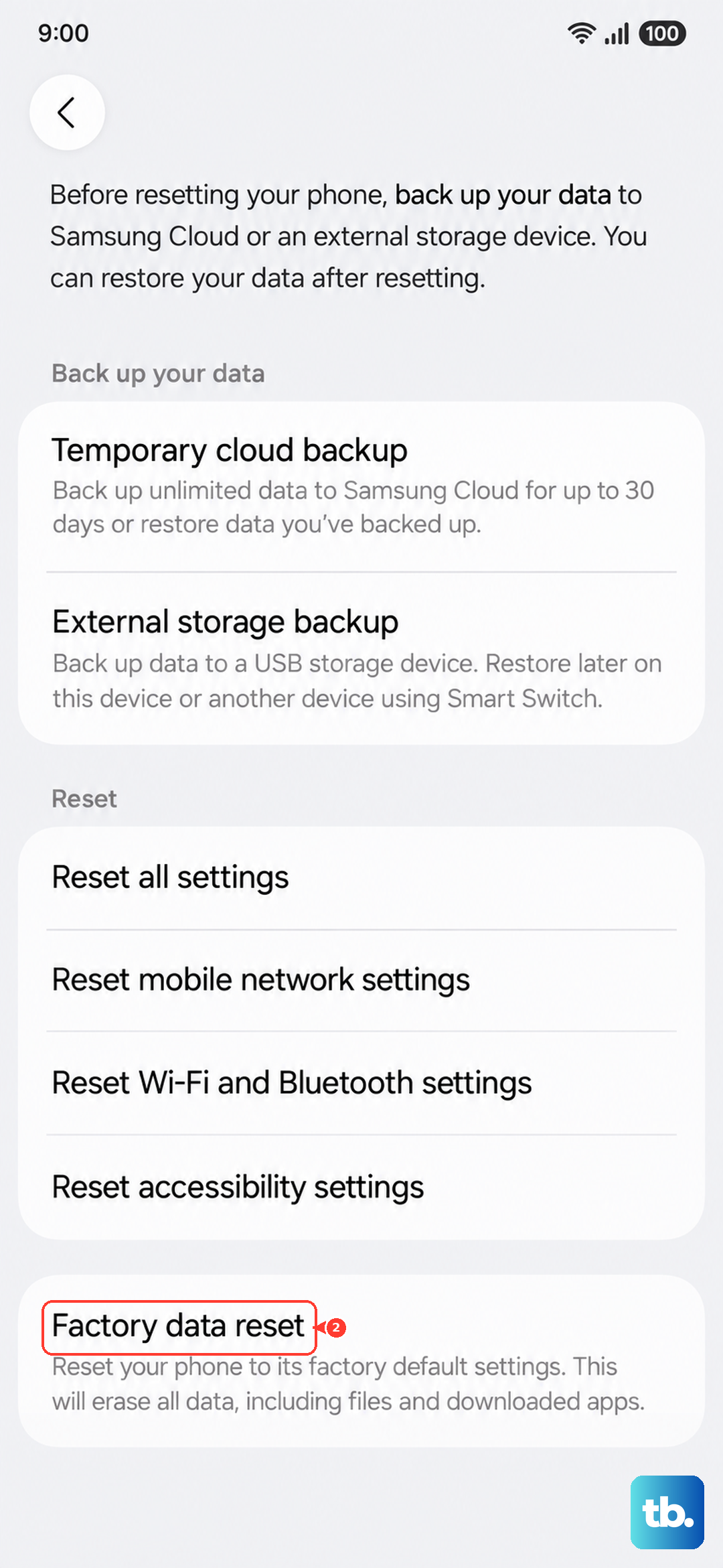
After the reset, set up the phone as new without restoring a backup immediately. Test the ringer with a call right away. If it works, the issue was with your previous software environment. You can then try restoring your backup, but if the problem returns, you may need to set up without it.