
When your Samsung Galaxy Z Fold 6 stops ringing for incoming calls, it can leave you feeling completely disconnected. This problem can pop up for a bunch of reasons, from a simple toggle in your settings to a deeper network hiccup. I'd start with the quick fixes below, as they resolve the majority of these silent call issues.
Check Do Not Disturb and Focus Modes First
One UI's Focus modes are incredibly useful, but they can also silence calls without you realizing it. Swipe down from the top of your screen twice to open the full Quick Settings panel. Look for the Do Not Disturb or any Focus icon (like Sleep or Work) and make sure they're turned off.
You can also go into Settings > Notifications > Do Not Disturb to check your schedules and see if specific contacts are being allowed through. Sometimes a rule you set for nighttime is still active during the day.
Toggle Airplane Mode and Restart
A quick network refresh often does the trick. Pull down the notification shade and tap the Airplane Mode icon to turn it on, wait about ten seconds, then tap it again to turn it off. This forces your phone to re-establish a fresh connection with your carrier's towers.
If that doesn't work, give your Z Fold 6 a full restart. Press and hold the Side key and Volume Down button together for about ten seconds until you see the Samsung logo. This clears out any minor software glitches that might be interfering with the phone app.
Verify Your Call Barring and Blocking Settings
Samsung's Phone app has built-in tools to block spam, but they can sometimes be overzealous. Open your Phone app, tap the three-dot menu in the top right, and go to Settings > Block numbers. Review the list to make sure no important numbers are accidentally blocked.
Also, check for call barring. In the same Phone app settings menu, look for Call barring under "More settings." Ensure that options like "All incoming calls" are not activated, as this would block everything.
Inspect Your SIM Card
The SIM tray on the Z Fold 6 is along the bottom edge. Grab the ejector tool from the box and gently pop the tray out. Remove the SIM card, give the gold contacts a quick look for any dirt or damage, and then firmly re-seat it back in the tray.
If you have access to another phone, try your SIM card in it to see if calls come through. This will tell you if the issue is with your Z Fold 6 or potentially with the SIM card itself. Make sure the tray clicks perfectly back into place, as a slightly misaligned tray can cause connection problems.
Reset Your Network Settings
This is a more thorough step that resets all your cellular, Wi-Fi, and Bluetooth connections back to factory defaults. Go to Settings > General management > Reset > Reset network settings. Tap to confirm.
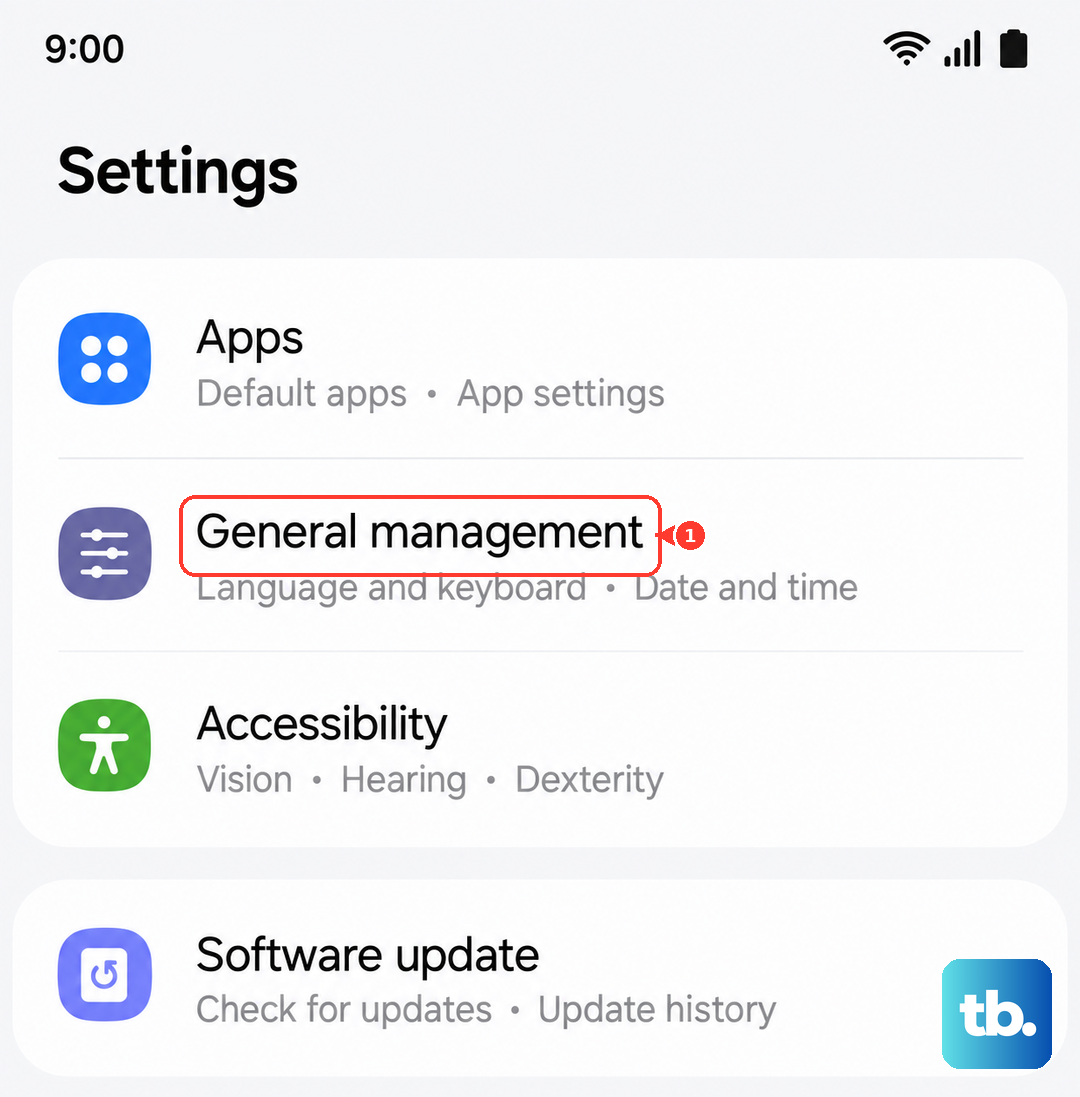
Just remember, this will erase all your saved Wi-Fi passwords and paired Bluetooth devices, so you'll need to reconnect to them afterward. It's a very effective way to clear out any corrupted network configuration data.
Update Your Software
Outdated software can have bugs that affect calling. Samsung regularly releases updates that fix these kinds of issues. Open Settings > Software update > Download and install.
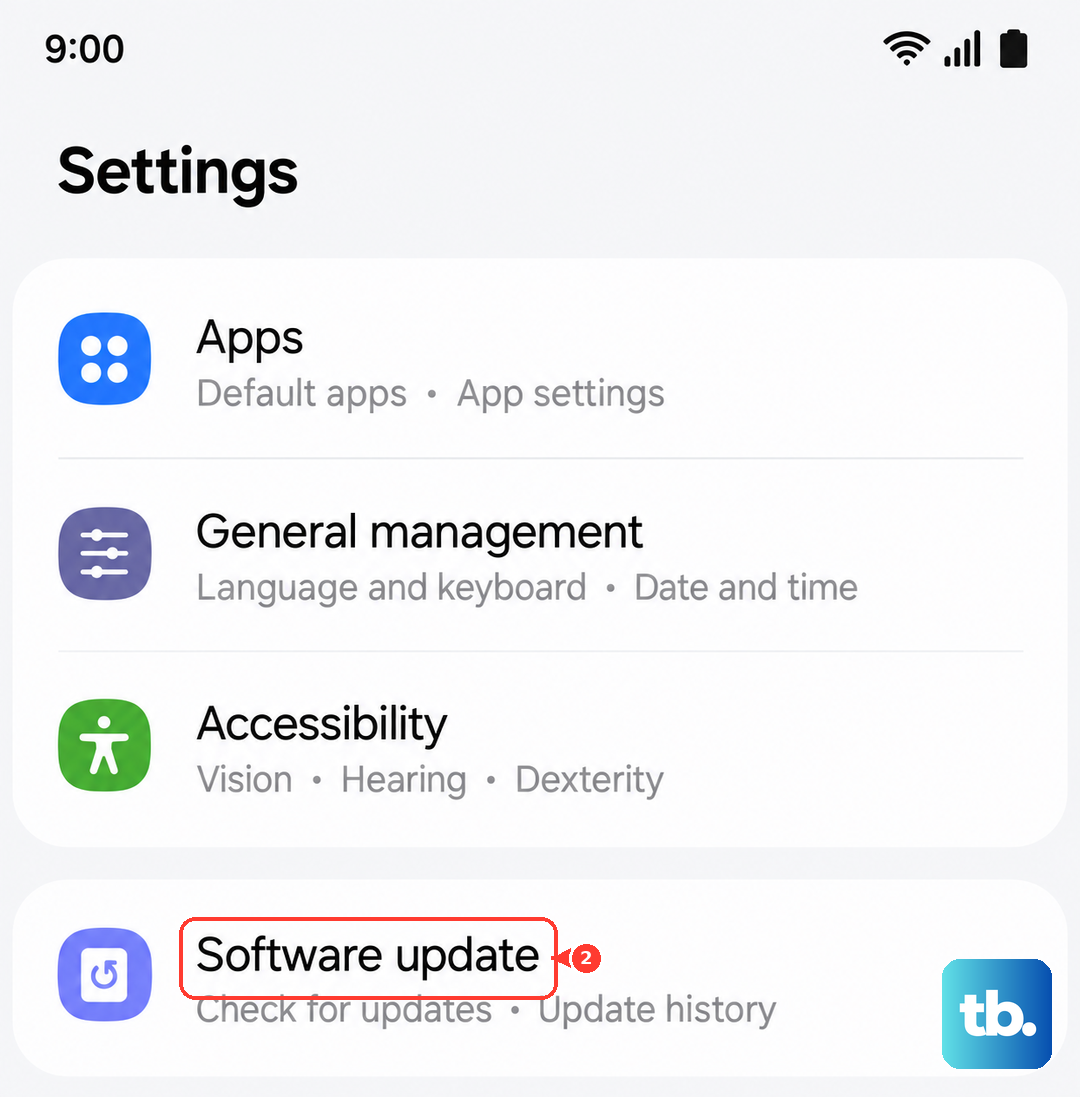
Let the phone check for updates. If one is available, connect to Wi-Fi and install it. Keeping your Z Fold 6 updated with the latest One UI and security patches is one of the best ways to ensure stability, especially for core functions like calling.
Clear the Phone App's Cache and Data
Sometimes the Phone app itself gets bogged down with old, glitchy data. Go to Settings > Apps, then find and tap on Phone. Select Storage and then tap Clear cache first.
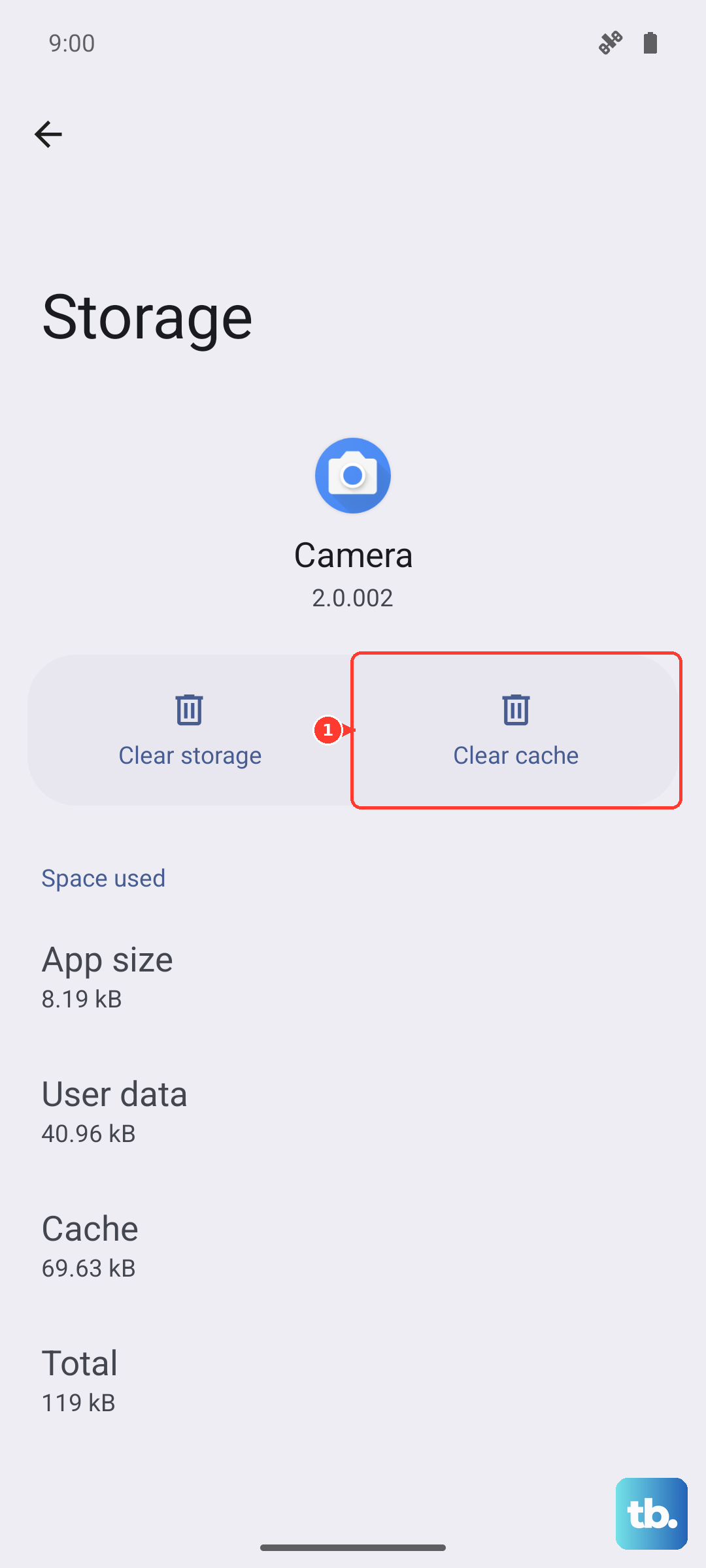
If the problem persists, you can go back and tap Clear data. Don't worry, this won't delete your contacts or call history from your Samsung account, but it will reset the app's preferences. You might need to re-grant permissions when you open it next.
Check for Call Forwarding
It's possible your calls are being silently forwarded to another number without your knowledge. Open the Phone app, tap the three-dot menu, and go to Settings > Supplementary services > Call forwarding.
Look at each option (like "Always forward" or "When busy") and make sure they are all set to "Disable" or to your own number. If you see an unknown number listed here, that's where your calls are going.
Review Third-Party App Permissions
An app you recently installed could be interfering with call functions. Think about any new caller ID, dialer, or security apps. You can test this by restarting your phone in Safe Mode.
Press and hold the Side key, then on the power off prompt, tap and hold "Safe mode" until it asks for confirmation. In Safe Mode, only Samsung's default apps run. If you can receive calls normally here, a third-party app is the culprit. Uninstall recent apps one by one to find the offender.
Contact Your Mobile Carrier
If you've tried everything on the phone itself, the issue might be on your carrier's end. Use another phone to call their customer service. Ask them to check for any network outages in your area, ensure your line is fully active, and verify there are no account blocks or restrictions.
They can also reprovision your line, which is like refreshing your service from their side. It's also worth asking if they have any specific network settings (APN) you should check for the Galaxy Z Fold 6, though the phone usually configures these automatically.