If your Samsung Galaxy Z Fold 6 is starting to feel sluggish, you're not alone. Even a powerhouse phone with a folding screen can slow down after months of use. The good news is that most of the time, it's a simple software hiccup or a setting that needs tweaking.
Lag on the Z Fold 6 can come from a few places. Sometimes it's apps misbehaving on the large inner display, other times it's background processes or storage getting too full. Let's start with the quickest fix you can try right now.
Restart Your Phone
It sounds too simple, but a restart clears out temporary system glitches and stops any rogue background tasks. For the Galaxy Z Fold 6, press and hold the Volume Down button and the Side/Power button together for about ten seconds.
Keep holding until you see the Samsung logo appear on the screen. This force restart works whether your phone is open or closed, and it often solves minor performance stutters instantly.
Close Unused Apps
Having too many apps open, especially on both displays, can eat up your phone's memory. To close them, swipe up from the bottom of the screen and hold, or tap the recent apps button if you have navigation buttons enabled.
You'll see all your open apps. Swipe each one up or tap the 'Close All' button in the bottom corner. I'd start with this one, as it's the most common culprit for a phone feeling slow in daily use.
Check for Software Updates
Samsung regularly releases updates that include performance improvements and bug fixes. Go to Settings > Software update and tap Download and install.
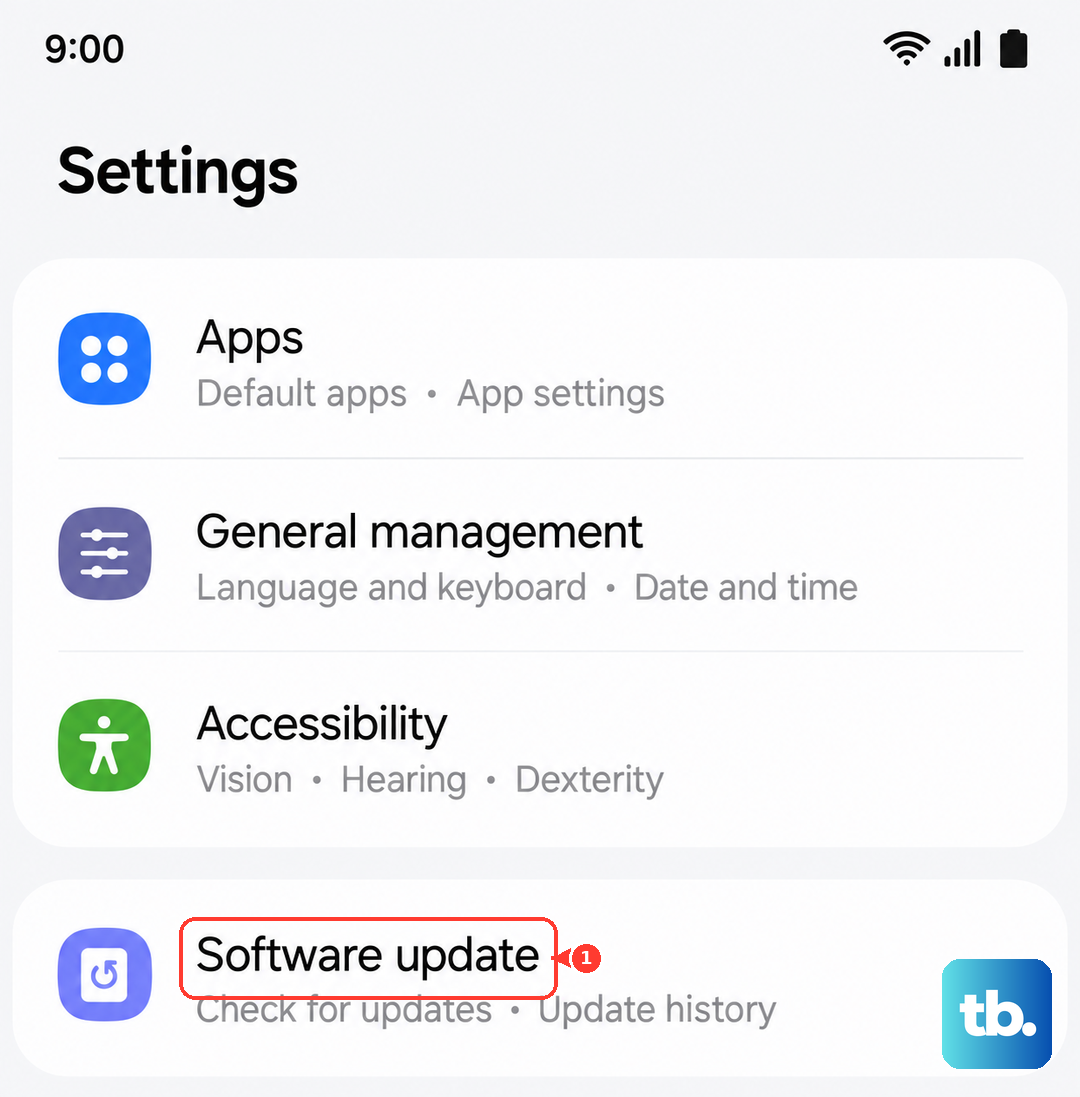
Make sure your phone is connected to Wi-Fi and has a decent charge before starting. Keeping your Z Fold 6 on the latest version of Android and One UI is one of the best ways to maintain its speed.
Free Up Storage Space
When your internal storage gets too full, your phone has less room to operate efficiently. Head to Settings > Device care > Storage.
This screen shows you what's taking up space. Look for large files, unused apps, or cached data. The "Clean now" button can safely remove temporary junk files. For a deeper clean, consider moving photos and videos to Samsung Cloud or Google Photos.
Manage Background App Activity
Some apps are relentless about running in the background. You can put them to sleep to save resources. Go to Settings > Apps, then select an app and tap Battery.
Here, you can set it to Restricted to prevent background activity. For a broader approach, go to Settings > Battery > Background usage limits. You can enable "Put unused apps to sleep" here automatically.
Clear App Caches
Over time, apps store temporary data that can become corrupted and slow things down. You can clear the cache for individual apps. Go to Settings > Apps, select the app, then tap Storage and Clear cache.
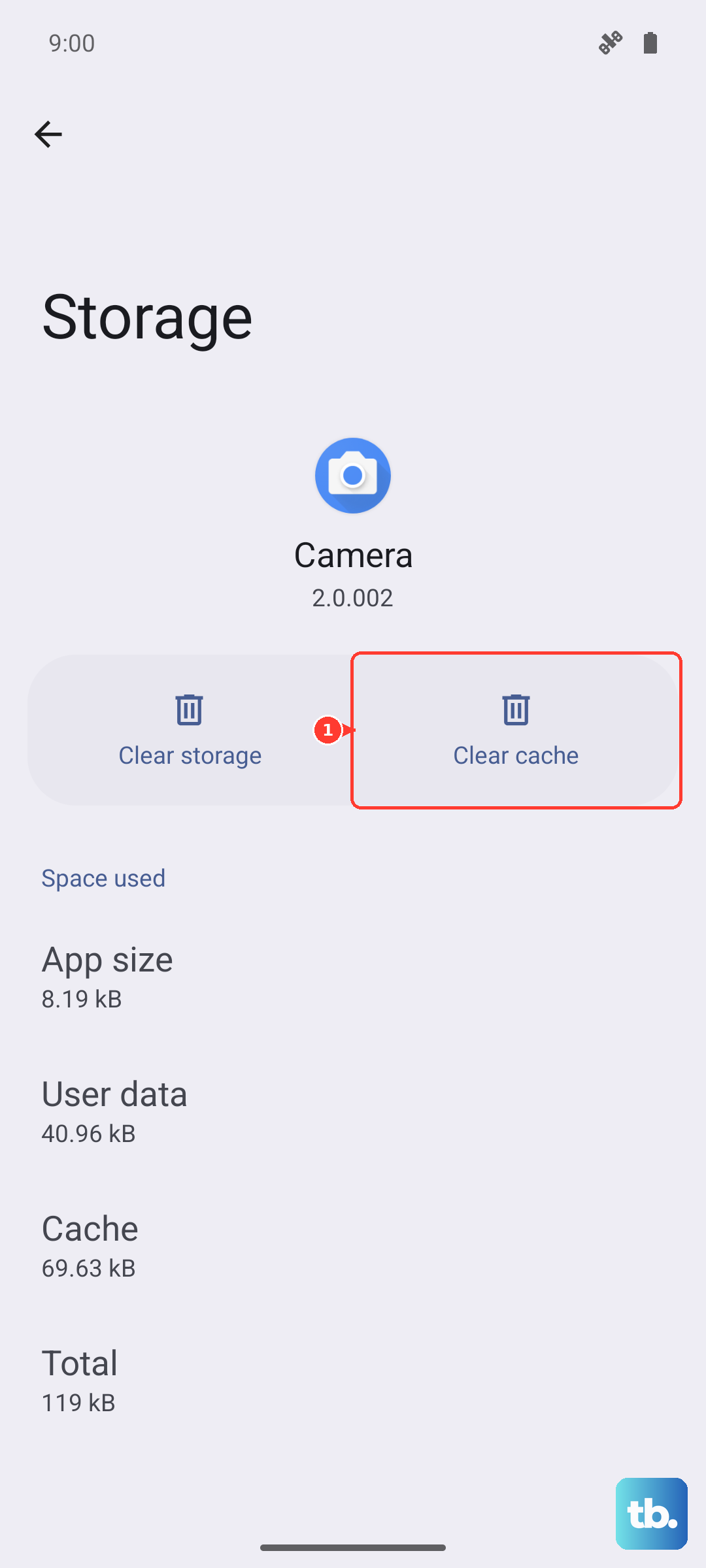
Be careful not to tap "Clear data" unless you're okay with resetting the app and losing any saved logins or preferences. Clearing the cache is safe and won't delete your personal information within the app.
Optimize Your Home Screens and Widgets
Live widgets and complex home screen setups, particularly when you have both the cover screen and main display customized, can use more processing power. Try simplifying your home screens.
Remove widgets that constantly update, like live weather or news feeds, and see if performance improves. Long-press on a widget and drag it to "Remove" at the top of the screen.
Check for Problematic Apps
A single misbehaving app can drag down the whole system. Go to Settings > Device care > Diagnostics. You can run tests on your phone's hardware here.
More usefully, tap the three-dot menu and go to Auto optimisation. Turn it on to let your phone automatically close apps that are causing problems. You can also review app power usage in the Battery section to spot any unusual drain.
Reduce Animations and Visual Effects
One UI has smooth animations, but reducing them can make the interface feel snappier. Enable Developer Options by going to Settings > About phone and tapping "Software information" seven times on "Build number".
Then, go back to Settings and find Developer options. Scroll to the "Drawing" section and look for "Window animation scale," "Transition animation scale," and "Animator duration scale." Try changing each one from 1x to 0.5x.
Perform a Soft Reset (Reset Settings)
If you're still having issues and you've tried everything else, a soft reset can help. This resets all your system settings (like Wi-Fi passwords and display preferences) to default but leaves your personal data, photos, and apps intact.
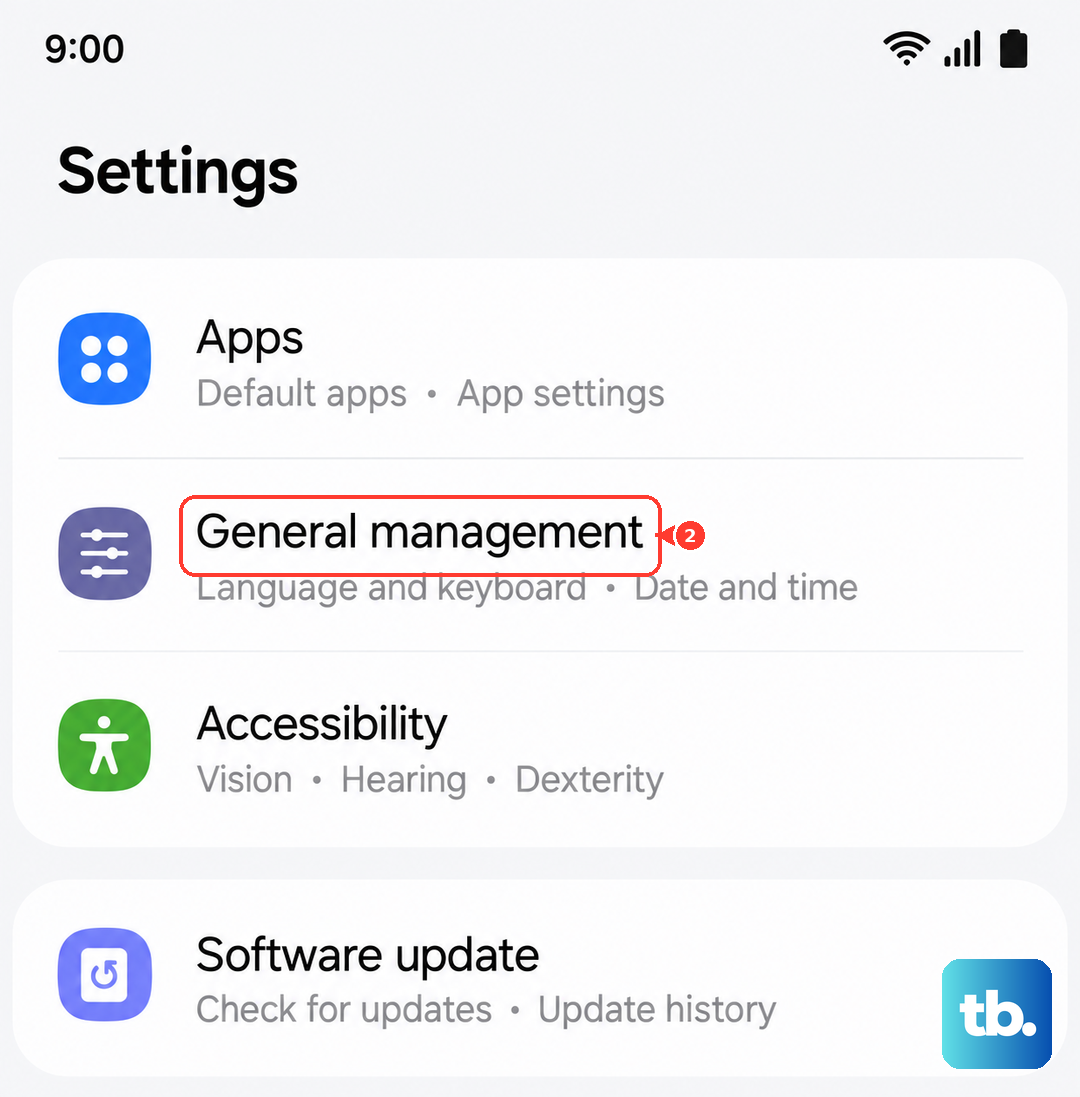
Go to Settings > General management > Reset > Reset all settings. Enter your PIN if prompted. After the phone reboots, you'll need to reconfigure things like ringtones and connections, but it can clear out deeper software conflicts.