
Video lag on a Samsung Galaxy Z Flip 7 can ruin your binge-watching session or make video calls frustrating. The good news is that most stutter, buffering, or freezing issues are fixable without a trip to the service center. Here's how to get smooth playback back.
Try a Force Restart First
Before digging into settings, give your phone a quick reset. A force restart clears temporary system glitches that can cause video lag.
Press and hold the Volume Down and Side key together for 10 15 seconds. Your Z Flip 7 will reboot and refresh everything. Test your video playback after the restart.
This works even if the screen is frozen or unresponsive. It won't delete any of your data.
Free Up Storage Space
Low storage is a common culprit for video lag. When your phone's internal memory gets full, video apps can't write or read files quickly enough, leading to dropped frames.
Open the Device Care app (or go to Settings > Device care > Storage). If you have less than 2GB free, it's time to clean house.
Delete old photos, unused apps, and downloaded videos you've already watched. You can also use the built-in storage cleaner under Device Care to dump cache files and temporary data.
Check Your Internet Connection
Streaming over a weak Wi-Fi or mobile data connection causes constant buffering and stutter. Even local playback can lag if you're using cloud-based gallery sync like Google Photos.
Turn off Wi-Fi and try playing a video over mobile data, or vice versa. If the lag disappears, the issue is your network. Restart your router or switch to a different Wi-Fi band (2.4GHz vs 5GHz).
Update Android and Apps
Outdated software can have compatibility bugs that affect video playback. Samsung and Google regularly push patches for media-related issues.
Go to Settings > Software update and install any pending system updates. Then open the Galaxy Store and Play Store to update all your video apps (YouTube, Netflix, your camera app, etc.).
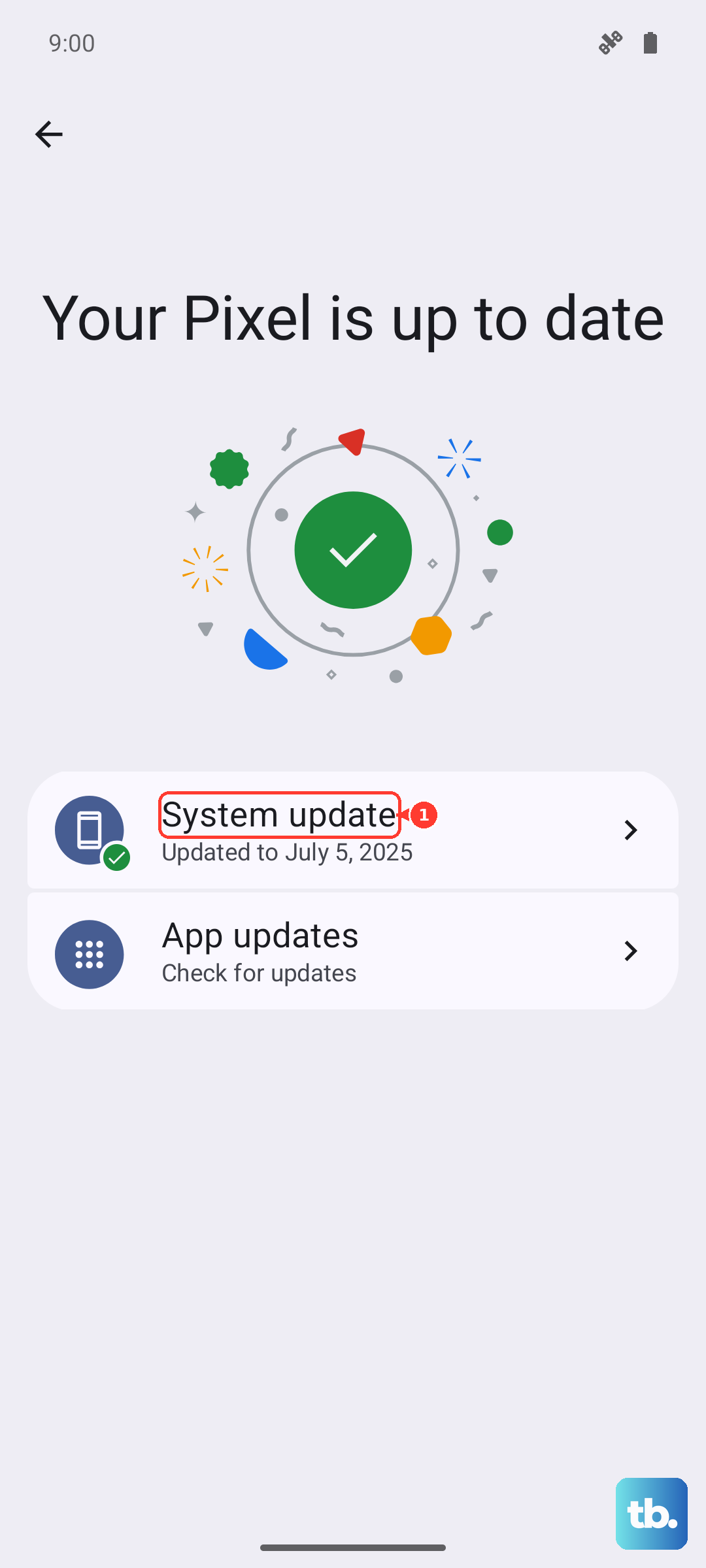
Many users report that a One UI update specifically fixes video stutter on the Z Flip 7.
Close Background Apps
Too many apps running in the background can hog RAM and processor power, causing video lag. The Z Flip 7's hardware handles multitasking well, but a few resource-heavy apps can still tip the scales.
Swipe up from the bottom and hold to open the recent apps screen. Swipe away anything you're not actively using. You can also use Device Care > Memory to clean up RAM.
If you're watching a video in a floating window or split-screen, try going full-screen instead.
Adjust Display and Video Settings
The Z Flip 7's 120Hz display can sometimes cause playback hiccups if an app isn't optimized for it. You can lower the refresh rate temporarily to see if it smooths things out.
Go to Settings > Display > Motion smoothness and switch from Adaptive to Standard (60Hz). Test your video. If the lag stops, the app you're using may need an update to work well with 120Hz.
Also check the video app's own settings. Apps like YouTube and Netflix let you reduce streaming quality, which can stop buffering on slower connections.
Clear App Cache for Video Players
A corrupted or bloated cache can make a specific video app behave strangely. This is especially common with the Samsung Video Player, YouTube, or streaming services.
Go to Settings > Apps, find the problematic video app, tap Storage, then Clear cache. Don't worry, this won't delete your downloads or account info.
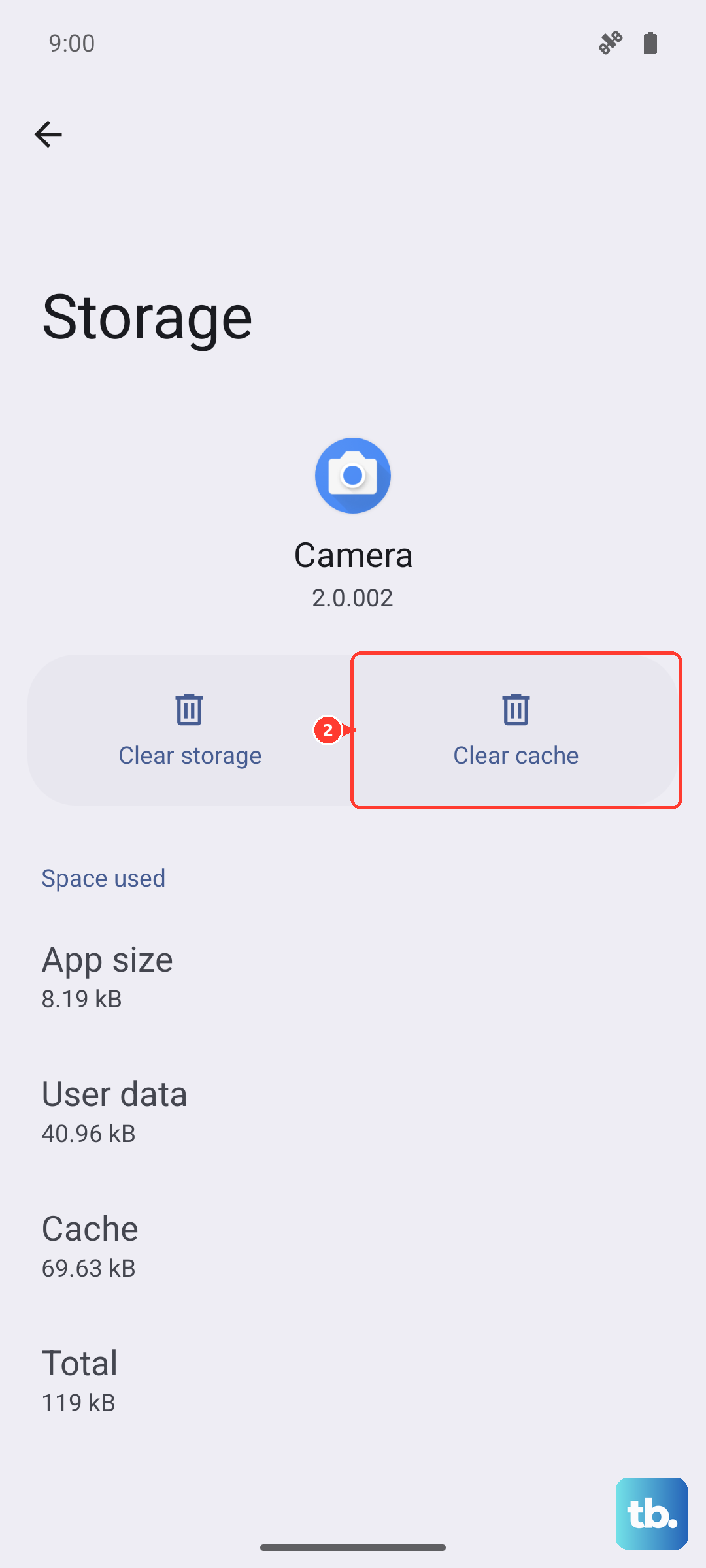
If the issue persists, try Clear data as well (this wipes app settings and login info, so you'll need to sign in again).
Remove and Reinsert the SIM (Unlikely, but Worth a Shot)
This sounds odd, but some users on the Z Flip 7 forums found that reseating the SIM tray fixed intermittent video stutter. It seems to reset the device's radio stack, which can help if network-related buffering is the real cause.
Power off the phone, pop out the SIM tray (the Z Flip 7 has a single nano-SIM slot), wait a few seconds, then reinsert and power on.
Factory Reset as a Last Step
If you've tried everything else and the lag is still there, a factory reset can wipe out any deep software issues. Back up your photos, contacts, and files first because this erases everything.
Go to Settings > General management > Reset > Factory data reset. Follow the prompts and let the phone restore to out-of-box state.
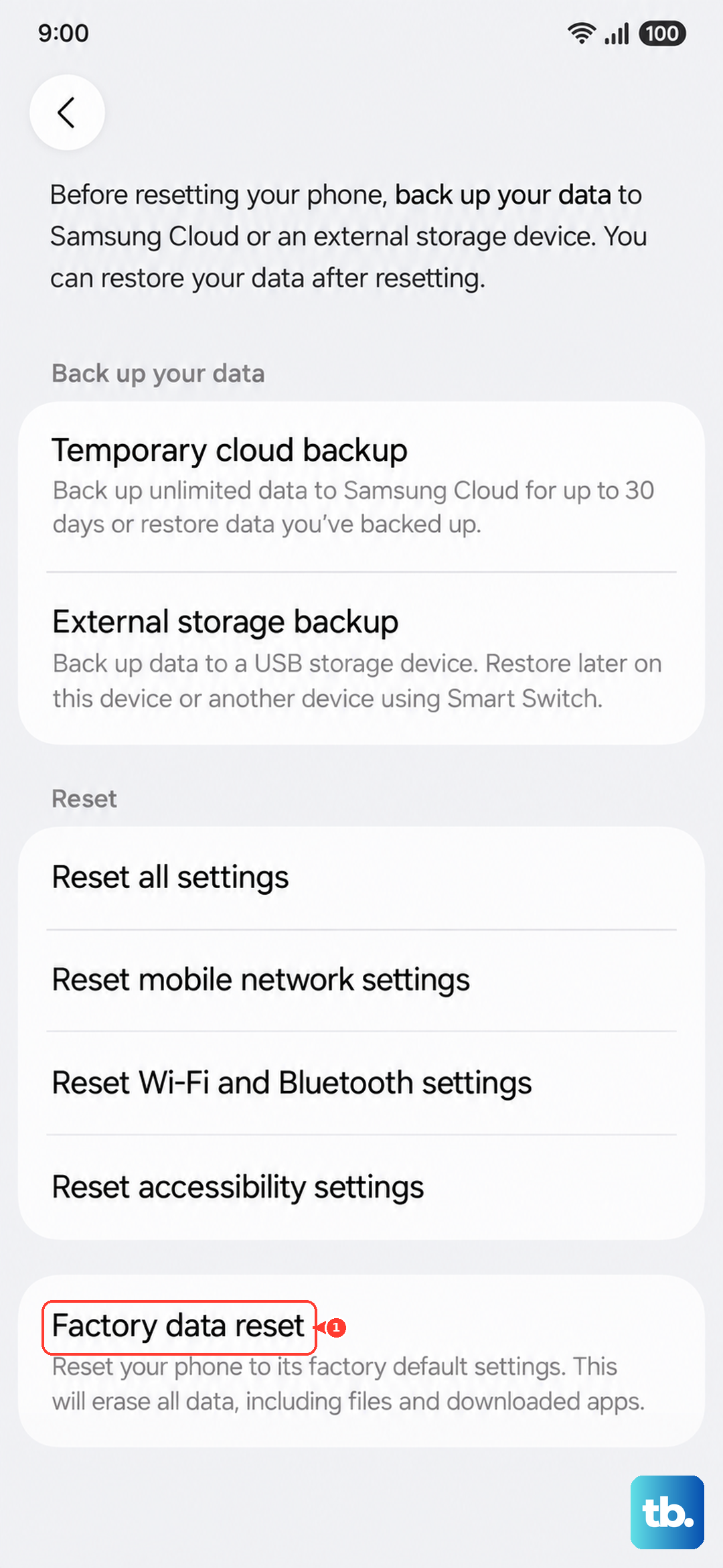
After the reset, test video playback before restoring any apps. If the lag is gone, you can slowly add your data back. If it returns after restoring a specific app, you've found the culprit.