
Your Galaxy Z Flip 7's speaker suddenly going quiet is the kind of annoyance that stops you mid-song or during an important call. But before you panic, know that most audio issues on this phone are fixable without a trip to the shop. Here are nine things to try, starting with the quickest.
It is worth confirming the basics with a quick left and right speaker test. If neither channel plays a tone, you are looking at a hardware or connection problem rather than a settings issue.
First, check the volume and sound mode
It sounds obvious, but it's easy to accidentally mute your phone or lower the volume without realizing it. Press the volume rocker on the side of the Z Flip 7 while playing audio and make sure the slider is at a good level.
Then, open the quick settings panel (swipe down twice) and check if the sound icon shows a mute or vibrate symbol. If it does, tap it to switch back to Sound mode.
For a deeper look, go to Settings > Sounds and vibration and tap Volume. Move all the sliders up, media, ringtone, notifications, and system. It's possible one of them got turned down independently.
Make sure audio isn't going to a Bluetooth device
The Z Flip 7 loves connecting to wireless earbuds and speakers, but sometimes it holds onto a connection even after you've disconnected them. Swipe down twice to open quick settings and tap the Bluetooth icon to turn it off entirely.
If you don't want to disable Bluetooth completely, go to Settings > Connections > Bluetooth and tap the gear icon next to any connected device, then select Unpair to force the phone to use its own speakers.
Clean the speaker grills carefully
The Z Flip 7 has two speakers, one in the earpiece and one on the bottom edge. Dust, pocket lint, and crumbs can build up over time and muffle the sound. Take a look with a flashlight.
Use a dry, soft-bristled toothbrush or a clean makeup brush to gently sweep across the grills. You can also try holding the phone speaker-side down and giving it a few light taps to dislodge debris. Avoid using compressed air or sticking anything sharp into the holes, that can damage the mesh permanently.
Turn off Do Not Disturb and hearing accessibility
Do Not Disturb mode can silence calls, notifications, and media depending on how you set it up. Go to Settings > Notifications > Do Not Disturb and make sure it's switched off, or at least not blocking the sounds you're missing.
Also check the accessibility settings. Head to Settings > Accessibility > Hearing enhancements and verify that Mute all sounds is turned off. This setting is easy to enable accidentally and will kill audio across the board.
Force restart the phone
Sometimes a temporary glitch just needs a proper reboot. A standard restart often works, but if the screen is frozen or the phone feels sluggish, do a force restart instead.
Press and hold the Volume Down button and the Side key together for 10 15 seconds. Keep holding until the screen goes black and the Samsung logo reappears. The phone will restart normally, and this usually clears up any audio hiccups caused by a stuck process.
Check for Separate App Sound
This is a One UI feature that lets you route audio from specific apps to a Bluetooth device while everything else plays through the phone's speakers. If you set it up and forgot about it, you might hear nothing from certain apps.
Go to Settings > Sounds and vibration > Advanced sound settings > Separate app sound. If it's enabled, tap it and turn it off. That way all audio comes through the phone's speakers again.
Clear the system cache
After a software update, leftover cache files can sometimes cause weird behavior including audio distortion or dropouts. Clearing the cache partition is safe and won't delete your data.
Turn off the Z Flip 7 completely. Then press and hold Volume Up and the Side key together. Release both buttons when the Samsung logo appears. Use the volume buttons to highlight Wipe cache partition, then press the Side key to select it. Confirm and then choose Reboot system now when it finishes.
Update the software
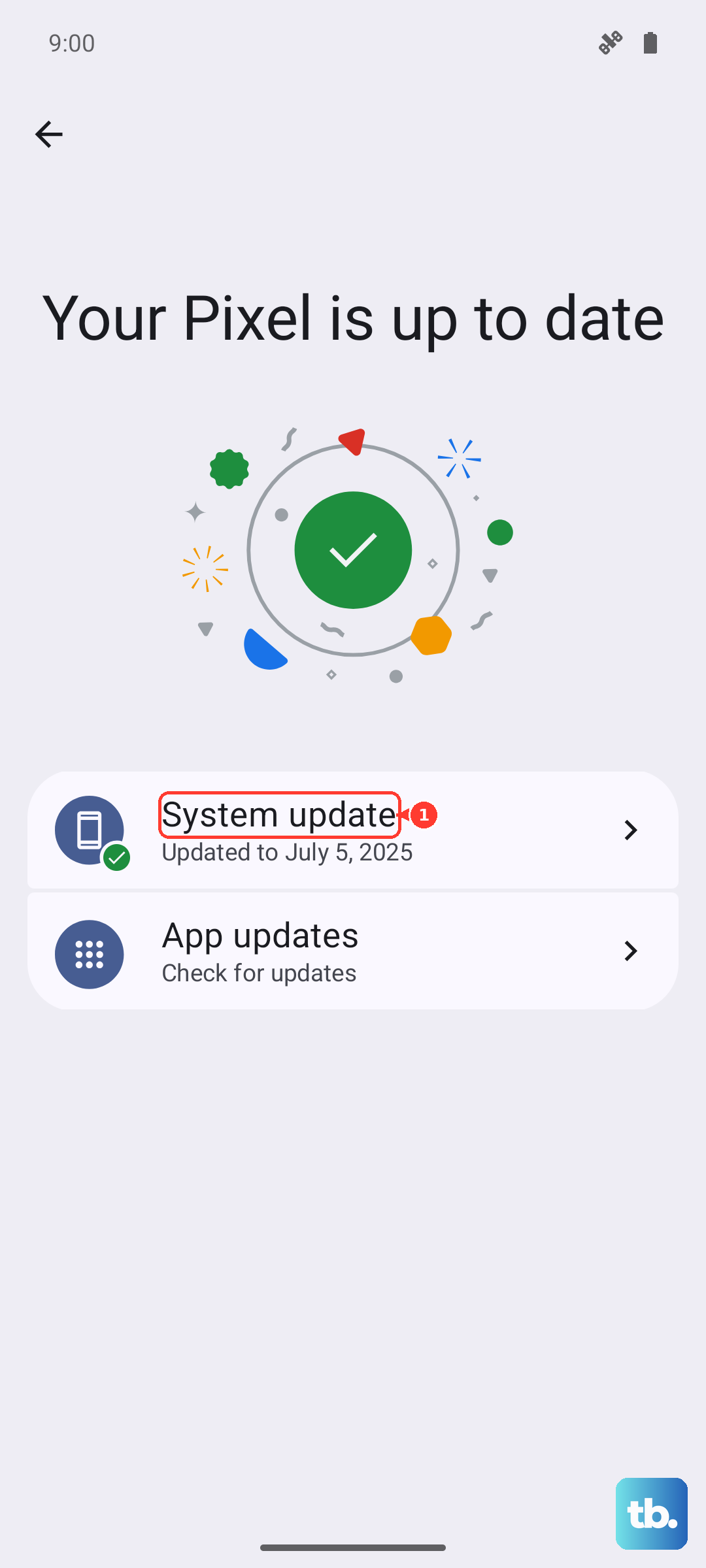
Samsung regularly pushes bug fixes for the Z Flip 7 through system updates, and audio improvements are often included. Go to Settings > Software update and tap Download and install. If there's an update available, install it and see if the audio problem goes away.
Boot into Safe Mode to test for app conflicts
Third-party apps can interfere with audio output occasionally. Safe mode temporarily disables all downloaded apps so you can test the speakers in a clean environment.
To enter Safe Mode, turn off the phone. Press and hold the Volume Down and Side key together until the Samsung logo appears, then release the Side key but keep holding Volume Down. When the phone finishes booting, you'll see "Safe mode" in the bottom-left corner.
Play some music or make a test call. If the sound works fine in Safe Mode, a recently installed app is the culprit. Uninstall apps one by one (start with the most recent) until the issue stops. To exit Safe Mode, just restart the phone normally.
If none of these steps restore the audio, the issue might be hardware-related. But in my experience, at least one of these fixes handles the vast majority of Galaxy Z Flip 7 speaker problems. Start with the simple stuff, you'll likely have sound back in a few minutes.