
Seeing the "SIM Not Provisioned" error on your Samsung Galaxy Z Flip 7 can kill your day, especially when you need to make calls or hop online. The message basically tells you your SIM card isn't fully linked to your mobile network yet, so the phone can't register for service. The good news is you can usually fix it in a few minutes without a trip to the store.
Start with a Force Restart
Sometimes the phone just needs a clean reboot to shake off a temporary network glitch. On the Galaxy Z Flip 7, press and hold Volume Down + Side key for 10 15 seconds until you feel it vibrate and the Samsung logo appears. Let go and let it boot back up.
If the error was caused by a transient software hiccup, this one often clears it immediately. You don't lose any data, so it's always worth trying first.
Toggle Airplane Mode to Refresh the Connection
Swipe down twice from the top of the screen to open the full Quick Settings panel and tap the Airplane mode icon. Wait about 30 seconds, then tap it again to turn cellular radios back on.
This forces the modem to re‑register with your carrier, which can resolve a provisioning mismatch. It's a quick second step if the restart didn't do the trick.
Remove and Reinsert the SIM Card
A SIM card that isn't fully seated in the tray can trigger the not‑provisioned error. Grab the ejector tool that came with your Z Flip 7, pop out the tray on the left edge, and take out the SIM.
Check the gold contacts for any dirt or scratches, a quick wipe with a dry cloth helps. Push the card back in until it clicks, then slide the tray in securely and turn the phone back on.
Check SIM Activation with Your Carrier
If you just switched to a new SIM or moved your number over, the card might not be fully activated yet. Contact your carrier's customer service or check their app to confirm the SIM is active on your account.
Some carriers activate a card only after you insert it and make a first call. A simple chat or call to them can verify things on their end.
Make Sure Your Account Is in Good Standing
Even on a postpaid plan, a missed payment can temporarily suspend your service and show a provisioning error. Log into your carrier's app or website to make sure there are no outstanding balances.
Prepaid users should check that their data or voice balance hasn't run out. Adding a new top‑up often resolves the error within a few minutes.
Update Carrier Services on Your Galaxy Z Flip 7
Android uses a system app called Carrier Services to handle network registration and texting. Outdated versions can cause weird provisioning failures. Open the Google Play Store, tap your profile icon, then Manage apps & device and look for "Carrier Services" under updates available.
If you see it, tap Update. Once it finishes, restart the phone and check if the error is gone.
Manually Select Your Network
Automatic network selection sometimes picks the wrong tower or fails to pick up the correct carrier. Head to Settings > Connections > Mobile Networks > Network Operators. Tap Search Networks, wait for the list, then tap your carrier's name.
If it connects immediately, you're set. On the Galaxy Z Flip 7, this overrides the automatic selection and forces a fresh registration.
Reset Network Settings
Clearing all your network preferences can fix deeper software conflicts without wiping personal data. Go to Settings > General Management > Reset > Reset Network Settings. You'll need to re‑enter Wi‑Fi passwords afterward, but SIM‑related settings get a clean slate.
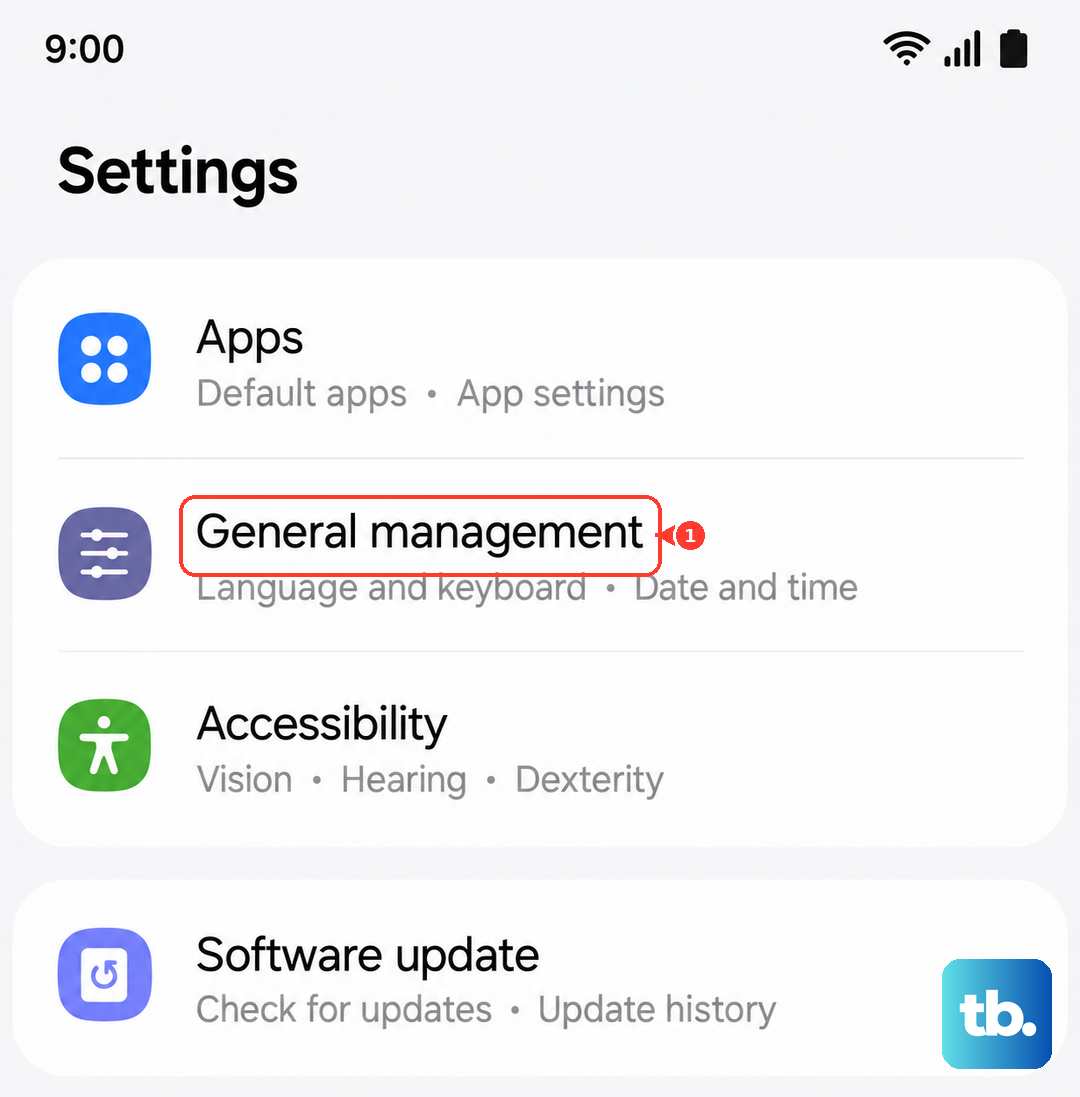
After the reset, the phone will scan for carriers again and attempt to register. This resolves provisioning errors that stubbornly stick around after simpler tries.
Try the SIM in Another Phone
If you have a spare compatible device, pop the SIM into it and see if the error follows. If the second phone works perfectly, the issue is most likely with your Galaxy Z Flip 7, possibly a hardware problem or a corrupt modem firmware.
If the error also shows up on the other phone, the SIM itself (or your account) is the culprit. That narrows down where to focus next.
Contact Your Carrier for a SIM Replacement
When nothing else works, the SIM card may be physically damaged or deactivated on the carrier's side. Call customer support and ask them to reprovision your line or send a new SIM. Most carriers will mail one for free or let you pick one up at a store.
Once you pop in the fresh SIM, the not‑provisioned error usually disappears right after the first restart. It's the last resort, but it works nearly every time.