
When your Samsung Galaxy Z Flip 7 keyboard starts guessing wrong or isn't suggesting anything at all, it makes typing a chore. The predictive text engine is usually the culprit, but it's almost always fixable with a few targeted settings tweaks. Here's how to get it working right again on Android 16.
Toggle Predictive Text Off and On
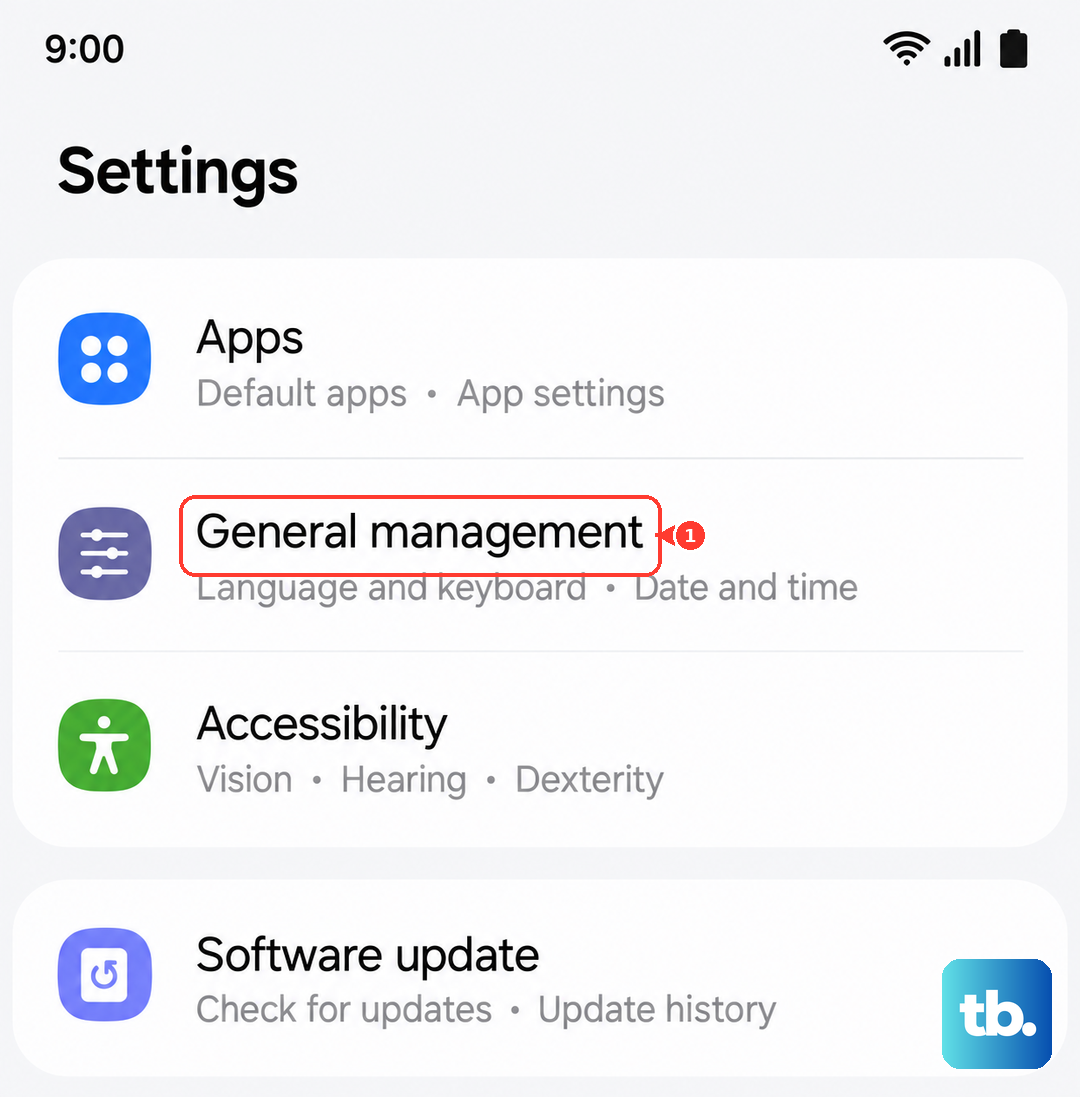
This is the quickest fix to try. Head to Settings > General Management > Language and Input > On-Screen Keyboard > Samsung Keyboard > Smart Typing. Just flip the Predictive text toggle off, wait a moment, and turn it back on. Sometimes the service just needs a kick to reload properly.
Clear the Keyboard Cache
If toggling didn't stick, corrupted cache files could be the problem. Go to Settings > Apps, tap the three dots in the upper right corner, and select Show system apps. Scroll down to Samsung Keyboard and tap it. Hit Storage, then tap Clear Cache.
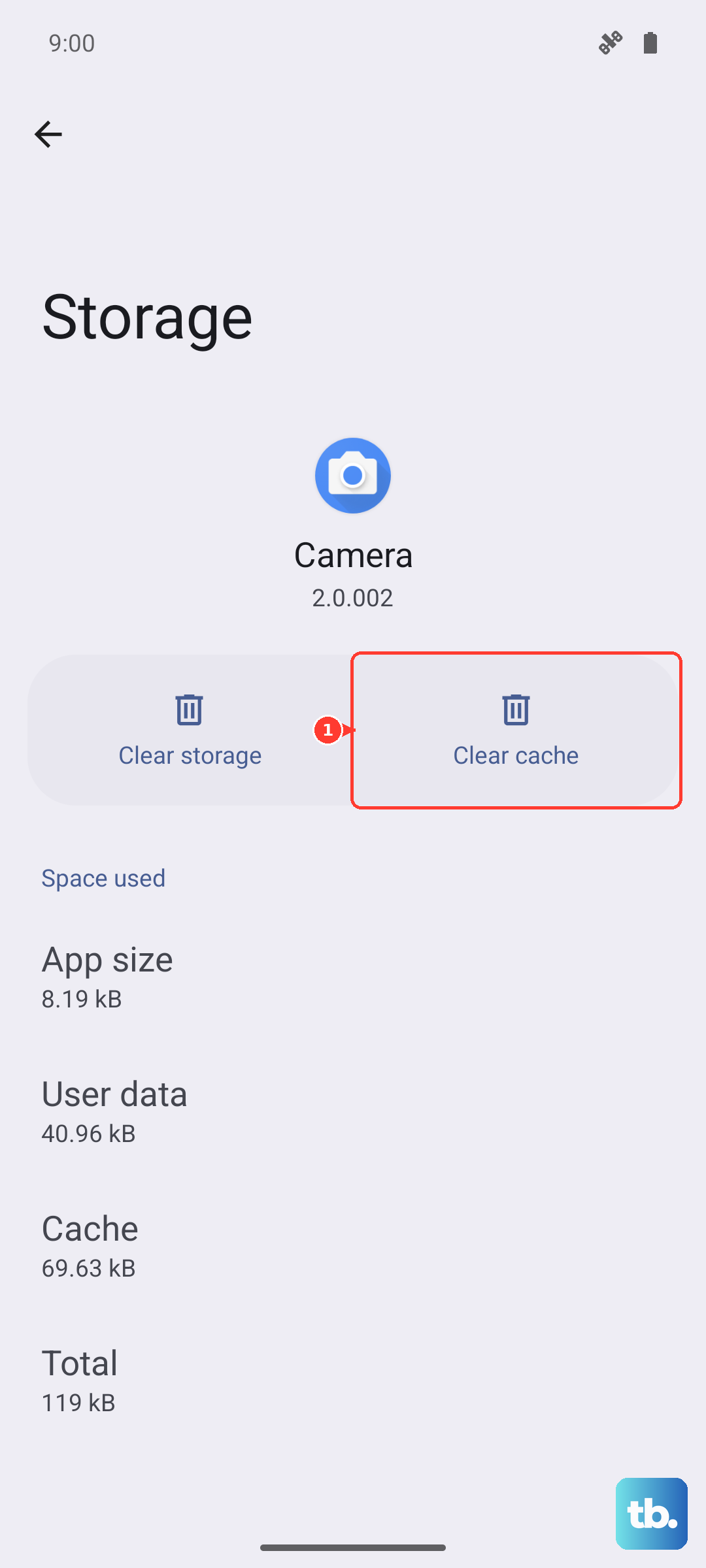
This clears out temporary data without affecting your personal settings or saved words. It takes maybe ten seconds and is one of the most reliable fixes for this exact issue.
Clear Keyboard Data as a Full Reset
When the cache isn't enough, you'll want to clear the data. Follow the exact same path (Settings > Apps > Show system apps > Samsung Keyboard > Storage), but this time tap Clear Data. This will reset your keyboard's learned vocabulary and any custom settings you've made.
You'll lose your personal dictionary, but it can be a lifesaver if the keyboard is stuck in a broken state. Think of it as a factory reset for just the keyboard app itself.
Update the Keyboard App and Language Pack
An outdated keyboard app can cause all sorts of weird behavior. Open the Play Store, tap your profile icon, and hit Manage apps & devices to run an update check. If there's a pending update for Samsung Keyboard, install it.
You should also update the language data. Head to Settings > General Management > Language and Input > On-Screen Keyboard > Samsung Keyboard > Languages and Types. Tap the three dots in the corner and select Check for an update. This ensures the predictive model for English (or whichever language you use) is current.
Force Restart Your Z Flip 7
If you haven't rebooted your phone in a while, a standard restart can resolve temporary software glitches. On the Galaxy Z Flip 7, press and hold Volume Down and the Side key simultaneously for about 10 to 15 seconds. The screen will go black and the Samsung logo will appear as it restarts.
This is a full hardware-level reset that clears out any lingering issues in the system memory that might be affecting the keyboard.
Reinstall Samsung Keyboard Updates
If updating didn't help, try uninstalling the recent updates to roll the keyboard back to its factory version. Go to Apps in Settings, find Samsung Keyboard, tap the three dots, and select Uninstall updates. It will revert to the original version that shipped with Android 16 on your Z Flip 7.
Once it's reverted, head back to the Play Store and update it again fresh. This re-install process can clear out stubborn bugs that a simple cache wipe can't touch.