
There's nothing quite as frustrating as opening your Galaxy Z Flip 7 for a call only to realize the other person can't hear you. The microphone issue on this phone can pop up in calls, voice recordings, Google Assistant commands, or video chats. Let's run through a quick test first to confirm what you're dealing with, then jump into the fixes.
Test the Microphone on Your Z Flip 7
Before diving into solutions, figure out exactly where the problem lives. Open the Voice Recorder app on your phone and tap the red record button. Speak for about 10 seconds, then play it back. If your voice sounds muffled or isn't there at all, you've got a mic issue.
Next, try a quick video recording. Open the Camera app, switch to Video mode, and record yourself talking. Play it back to check the audio quality.
Finally, test with Google Assistant. Say "Hey Google" or hold the Side button. Ask something simple like "What time is it?" If Assistant doesn't respond or keeps asking you to repeat yourself, your microphone is likely having trouble.
Start with a Force Restart
This might sound basic, but a force restart clears out temporary software glitches that can mess with your microphone. The Z Flip 7 has a quick way to do this without navigating any menus.
Press and hold the Volume Down button and the Side key together for about 10 to 15 seconds. Keep holding until you see the Samsung logo appear on the screen. Once it boots back up, test the microphone again.
I've seen this fix resolve mic issues more often than you'd expect. It's always worth trying before anything else.
Check for Physical Blockages
The Galaxy Z Flip 7 has multiple microphones spread around the phone. On a foldable, these are typically located at the bottom near the USB-C port, at the top of the inner display, and on the hinge area. Dirt, dust, or pocket lint can easily find their way into these tiny openings.
Take a close look at each microphone hole with a bright light. If you spot any debris, grab a soft, dry toothbrush or a clean paintbrush and gently sweep across the openings. Don't poke anything sharp into the holes. Compressed air in short bursts can also work well for stubborn particles.
While you're at it, remove any phone case or screen protector you're using. Some cases, especially thicker ones, can partially cover microphone openings. Test the mic without the case on.
Turn Off Bluetooth
If your Z Flip 7 is connected to wireless earbuds, a smartwatch, or even your car's entertainment system, the phone might be routing audio through those devices instead of its built-in microphones.
Open the quick settings panel by swiping down from the top of the screen. Tap the Bluetooth icon to turn it off completely. Make a test call or record a voice memo to see if the problem goes away. If it does, you'll want to check which specific device was causing the conflict.
You can also go to Settings > Connections > Bluetooth and tap the gear icon next to each paired device. Some devices have options like "Call audio" that you can toggle off individually while staying connected for other functions.
Check Microphone Permissions in Apps
Android 16 gives you fine control over which apps can access your microphone. If the issue only happens in one app like WhatsApp, Zoom, or Google Meet, the app might not have permission to use the mic.
Go to Settings > Privacy > Permission manager > Microphone. You'll see a list of apps with access toggles. Make sure the app you're using has the toggle switched on. You can also check individual app settings by long-pressing the app icon and tapping App info, then looking for Permissions.
This is a common issue after a software update when permissions sometimes get reset. Even if an app worked fine yesterday, it's worth double-checking today.
Force Close Problematic Apps
Sometimes an app just gets stuck. If your microphone stops working specifically inside a single app, force closing it can free up whatever's hung.
Swipe up from the bottom of the screen and hold to open the recent apps view. Find the troublesome app and swipe it away to close it completely. Wait a few seconds, then reopen the app and test the microphone again.
For apps that use the microphone in the background, like voice assistants or recording apps, a full app restart is often all it takes to get things working again.
Update Your Software
Samsung regularly pushes software updates to the Z Flip 7 through Android 16 that include bug fixes for known issues. If the microphone problem started after a recent update, there might be a patch waiting to fix it.
Open Settings > Software update > Download and install. If an update is available, download it and let the phone install it. Your phone will restart during the process. Test the microphone after it boots back up.
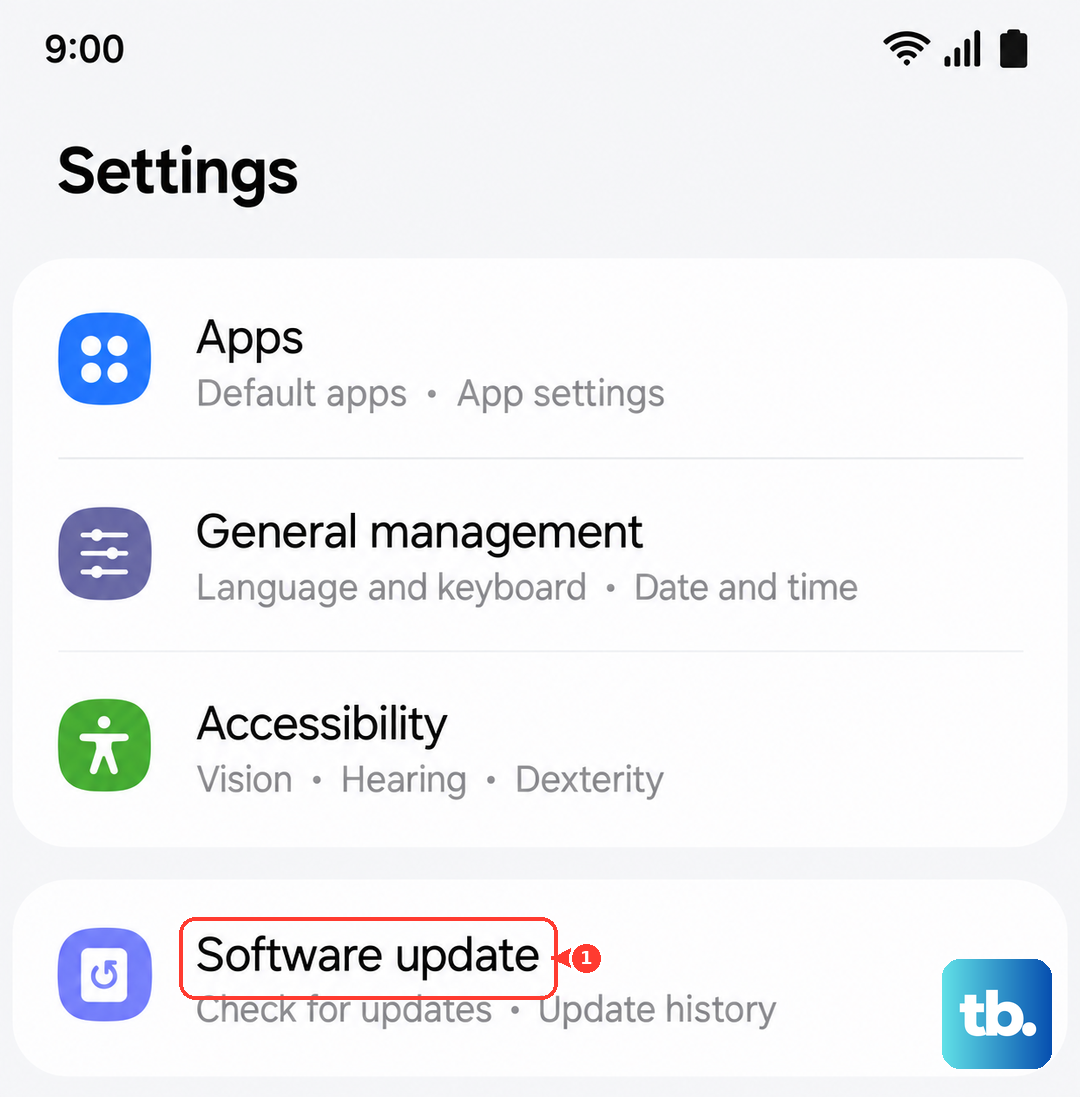
Even if you don't see an update available now, it's worth checking every few days. Samsung has been actively addressing charging and connectivity bugs on this model, and mic fixes often roll out alongside those updates.
Restart in Safe Mode
Safe Mode temporarily disables all third-party apps you've installed. If your microphone works fine in Safe Mode, you'll know a downloaded app is causing the issue.
Press and hold the Side key and Volume down key until the power menu appears. Tap and hold the Power off option on the screen until you see the Safe Mode prompt. Tap Safe mode to confirm. Your phone will restart with "Safe mode" shown in the bottom left corner.
Try recording a voice memo or making a call while in Safe Mode. If the mic works, the culprit is one of your installed apps. Restart your phone normally to exit Safe Mode, then start uninstalling apps one at a time, testing the mic after each removal.
Clean the Charging Port
This one sounds unrelated, but hear me out. The USB-C port on the Z Flip 7 sits right next to one of the bottom microphones. Moisture, dust, or debris in the charging port can sometimes affect nearby components.
Use a dry, non-conductive tool like a wooden toothpick or a plastic SIM eject tool to gently remove any lint from the USB-C port. Avoid metal tools that could damage the internal pins. Compressed air works well here too.
Check for the "Moisture detected" warning as well. If your phone thinks there's liquid in the port, it might disable some functions temporarily. Let it dry out fully if you see that message.
Reset App Preferences
Resetting app preferences won't delete your apps or data, but it will restore default settings for disabled apps, notification permissions, and background data restrictions. Sometimes a misconfigured app preference can interfere with microphone access.
Go to Settings > Apps. Tap the three dots in the upper right corner and select Reset app preferences. Confirm the action. This won't remove your app data or login information, so there's nothing to worry about there.
After the reset, you might need to go back and re-enable a few default app settings, but it's a small price to pay for a working microphone.
Wipe the Cache Partition
The system cache on your Z Flip 7 can become corrupted over time, especially after software updates. Clearing it won't affect your personal files but can fix odd system behavior like microphone problems.
Turn off your phone completely. Once it's off, press and hold the Volume Up button and the Side key simultaneously. Release both buttons when the Samsung logo appears. You'll enter the recovery menu.
Use the volume buttons to navigate to "Wipe cache partition" and press the Side key to select it. Confirm when prompted. Once it's done, select "Reboot system now." Your phone will restart with a fresh system cache.
Factory Reset as a Last Resort
If nothing else has worked, a factory reset will return your Z Flip 7 to its out-of-box state. This wipes everything, so back up your photos, contacts, and important files first. Samsung Cloud or Google Drive are both solid options for that.
Go to Settings > General management > Reset > Factory data reset. Read the warning carefully, then tap Reset. Your phone will restart and go through the initial setup process.
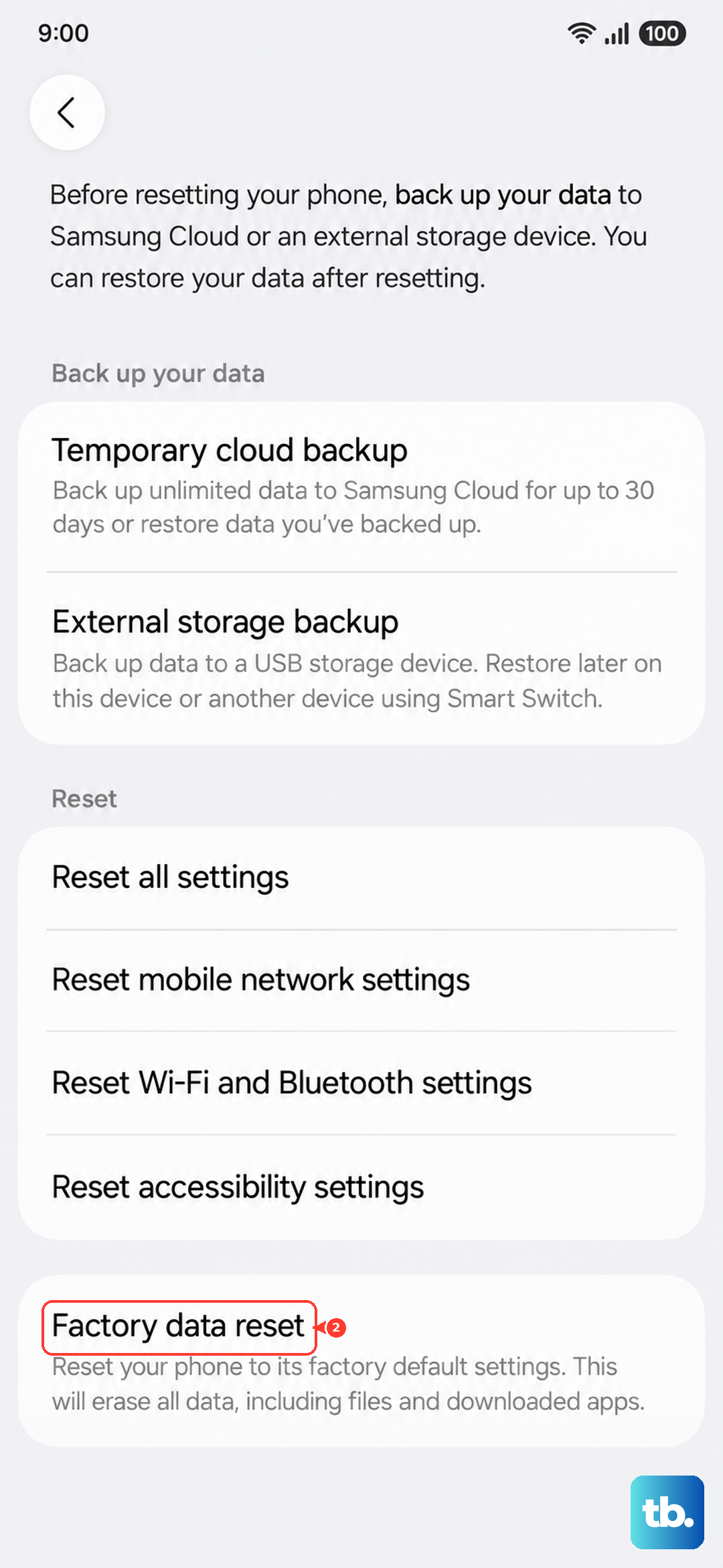
Test the microphone during setup before restoring your backup. If it works on a clean system, you'll know the issue was caused by something in your backed-up data or settings. You can then restore selectively rather than restoring everything at once.