
When your Samsung Galaxy Z Flip 7 hotspot stops working, you're stuck without internet on your other devices. The hotspot might not show up, refuse to connect, or keep dropping after a few minutes. Let's get it sorted.
Toggle Mobile Hotspot Off and On
Open Settings > Connections > Mobile Hotspot and Tethering and switch Mobile Hotspot off. Wait about 10 seconds, then turn it back on. This clears temporary glitches in the hotspot service and usually gets things moving again.
Make sure the hotspot is visible by tapping the three-dot menu and checking your settings. If you've renamed the network recently, that can sometimes cause a brief hiccup that a quick toggle fixes.
Force Restart the Z Flip 7
Press and hold Volume Down + Side key for 10 15 seconds until the device restarts. This is different from a normal restart, and it clears out deeper system-level issues that can mess with hotspot functionality. It won't delete any of your data.
Once the phone boots back up, try turning the hotspot on again. I've seen this fix stubborn connectivity problems that nothing else touches.
Check Your Mobile Data Connection
Mobile hotspot pulls data from your cellular connection, so if your data isn't working, neither will the hotspot. Swipe down from the top and check that mobile data is enabled in the quick settings panel.
Go to Settings > Connections > Data usage to confirm you have an active data connection. If you're in a weak signal area, the hotspot may struggle to maintain a stable connection. Try moving to a spot with better reception.
Reset Network Settings
This is a more thorough fix that wipes saved Wi-Fi networks, Bluetooth pairings, and cellular settings. Go to Settings > General Management > Reset > Reset network settings. Enter your PIN when prompted and confirm.
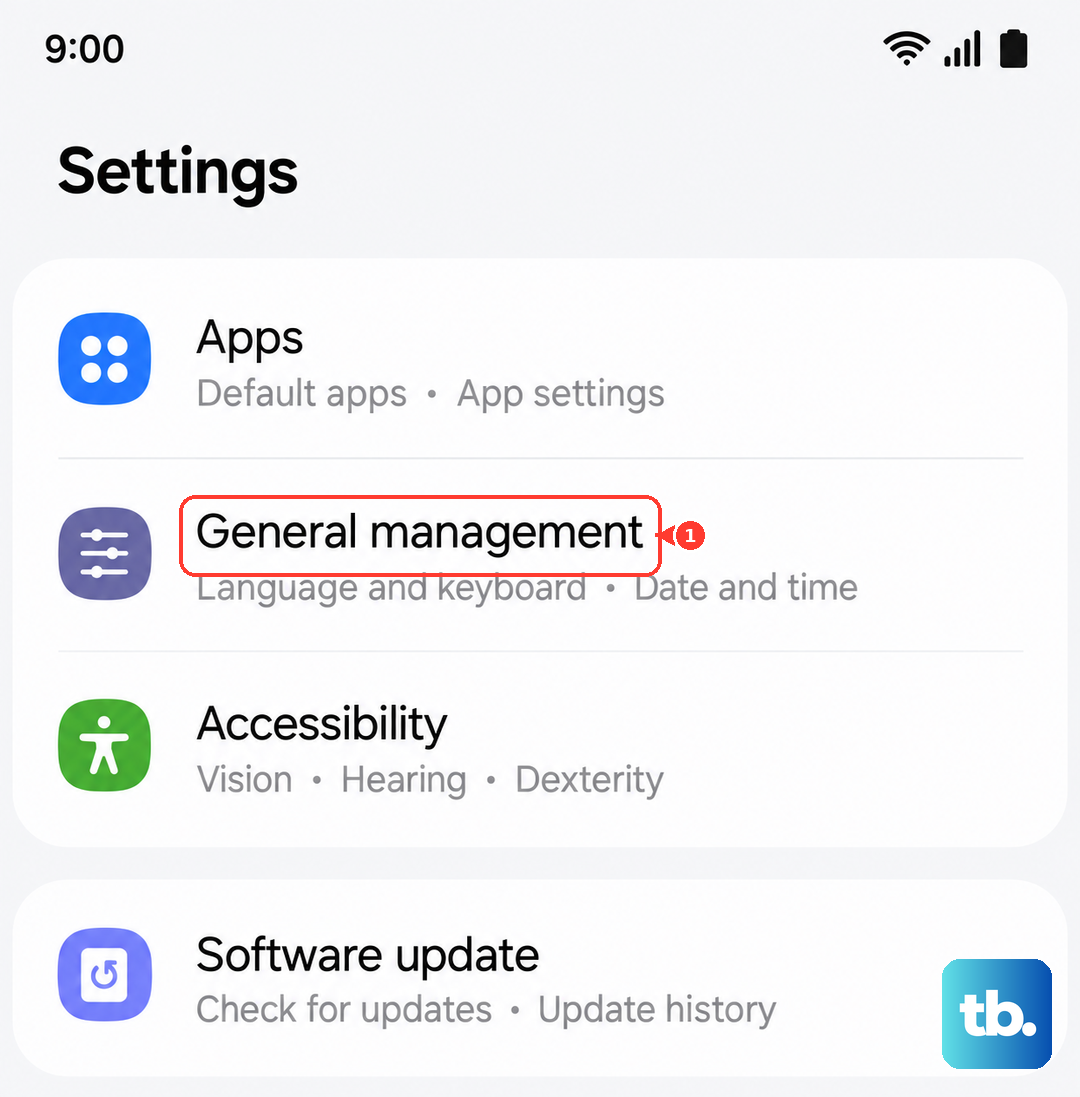
Your phone will restart and rebuild all network connections from scratch. You'll need to reconnect to Wi-Fi networks and re-pair Bluetooth devices afterward, but this clears corrupted network configurations that break hotspot functionality.
Change the Hotspot Password
Open Settings > Connections > Mobile Hotspot and Tethering > Mobile Hotspot and tap the password field. Enter a new password, tap Save, then turn the hotspot off and back on. Reconnect your other devices using the new password.
A corrupted connection profile on the client device can cause authentication failures. Changing the password forces a fresh handshake between devices.
Forget and Reconnect on the Other Device
On the laptop, tablet, or other device you're trying to connect, go into its Wi-Fi settings and forget the Z Flip 7's hotspot network. Then search for available networks and re-enter the password.
Sometimes the saved connection profile on the client device gets corrupted. Starting fresh often clears that up without any changes needed on the phone side.
Try USB Tethering Instead
If Wi-Fi hotspot isn't cooperating, connect your Z Flip 7 to your laptop with a USB-C cable. Go to Settings > Connections > Mobile Hotspot and Tethering and toggle on USB tethering.
Your computer should recognize the phone as a wired network connection almost immediately. This bypasses Wi-Fi radio issues entirely and can be more stable for long sessions.
Check for Android Updates
Samsung frequently patches hotspot bugs in software updates. Open Settings > Software update > Download and install to check if an update is available. If there is one, install it and restart your phone.
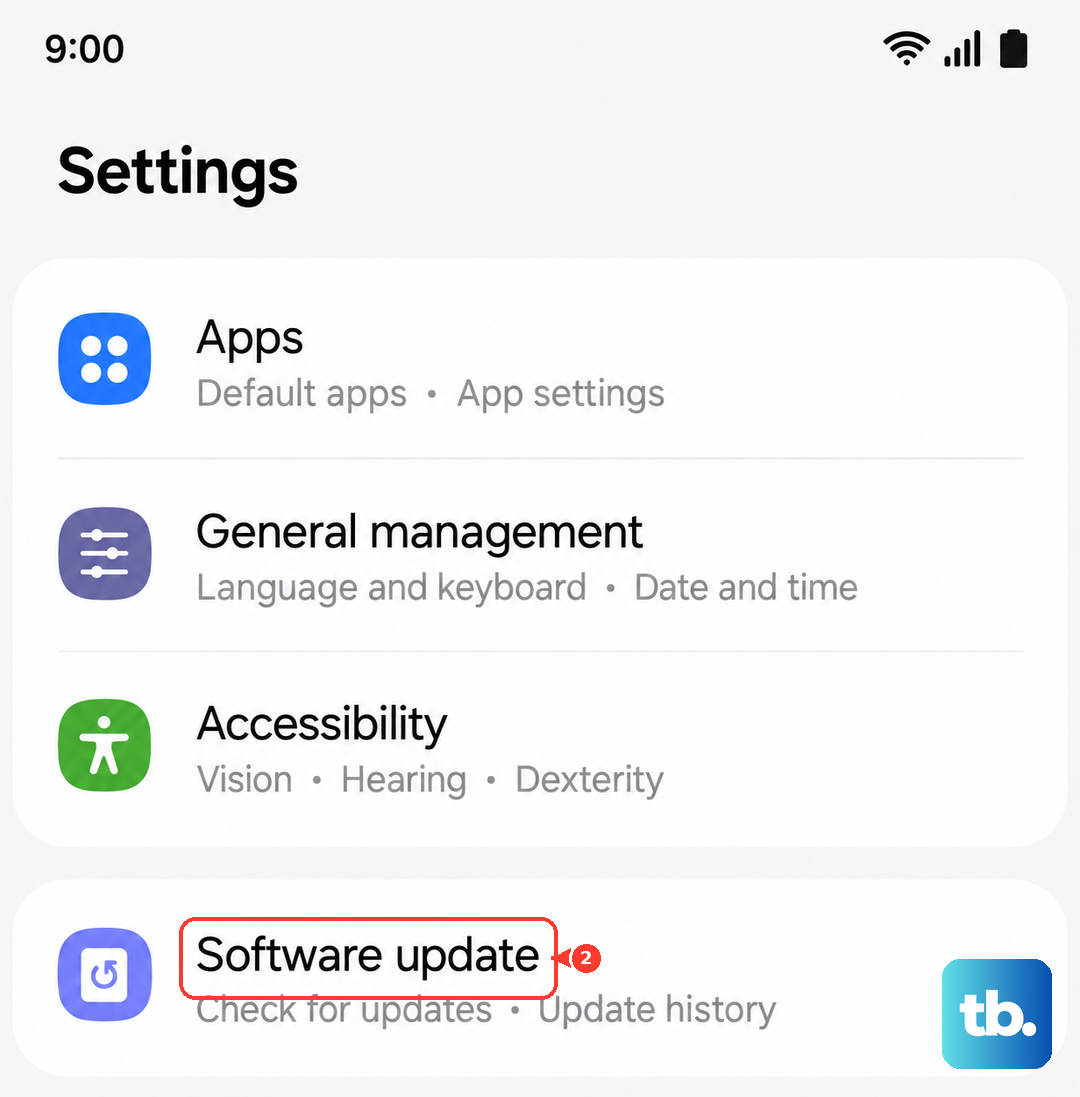
Known hotspot issues have been addressed in past One UI updates, so keeping your Z Flip 7 current is a good habit. Updates also include carrier-specific fixes that can improve tethering reliability.
Turn Off Power Saving Mode
Power saving mode can restrict background processes and network features, including hotspot stability. Swipe down from the top and check whether power saving is active. If the icon is highlighted, tap it to turn it off.
Alternatively, go to Settings > Battery > Power saving and make sure it's disabled. Some users report that hotspot cuts out intermittently when power saving is on, since the system aggressively manages radio power.
Disable Bluetooth at the Same Time
On the Galaxy Z Flip 7, having both Bluetooth and Wi-Fi hotspot active can cause interference on shared antenna bands. Open quick settings and toggle Bluetooth off while the hotspot is running.
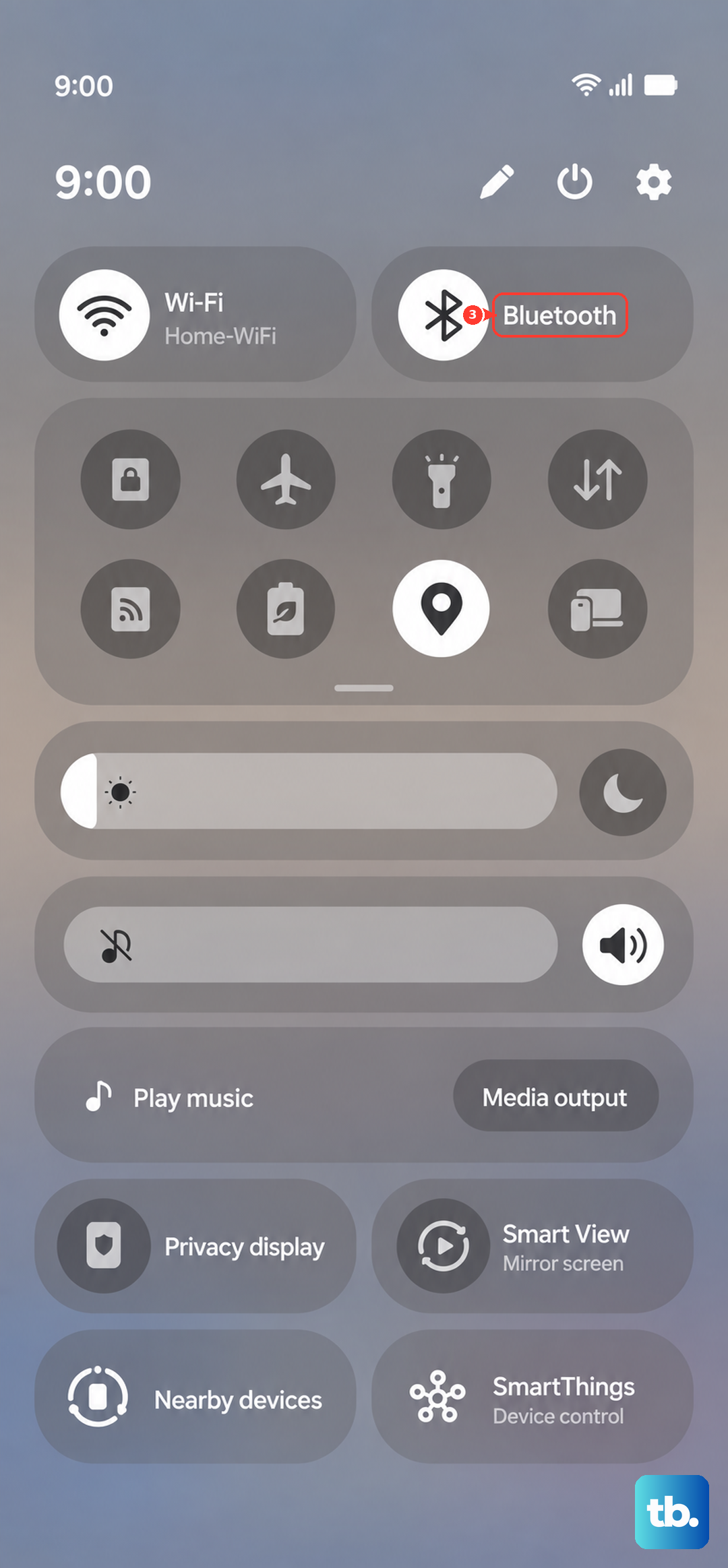
This is a quick test worth trying if hotspot drops when you're connected to Bluetooth headphones or a smartwatch. Turn Bluetooth back on when you're done using the hotspot.