
GPS acting up on your Samsung Galaxy Z Flip 7 is one of those things that happens at the worst possible time, right when you need navigation or when a location-based app refuses to work. The good news is that most GPS glitches on this phone are software-related and can be fixed in a few minutes. Let's run through the solutions that actually work.
Start With the Quick Fixes
Before digging into settings, try these two things. First, drag down the Quick Settings panel and tap the Location icon to turn it off, wait ten seconds, then tap it back on. Second, give your phone a proper restart, on the Z Flip 7, press and hold the Volume Down and Side key together for about ten seconds until you feel a vibration and the Samsung logo appears. That clears out temporary software hiccups that often mess with GPS.
Make Sure Location Settings Are Right
Go to Settings > Location and confirm Location is on. Then tap Location Services and select High Accuracy. This mode uses GPS, Wi-Fi, and mobile networks together, which gives you the most precise positioning. If it's set to Battery Saving or Device Only, switch to High Accuracy and test again.
Check App Permissions
Sometimes an app simply doesn't have permission to access your location. Head to Settings > Apps, find the app that's having trouble (Google Maps, for instance), tap Permissions, and make sure Location is set to Allow all the time or While using the app. After updating permissions, restart the app and see if GPS kicks in.
Turn Off Power Saving Mode
Battery saver modes are great for extending runtime but they love to cut GPS accuracy. Swipe down into Quick Settings and tap the Battery Saver icon to turn it off. If you don't see it, go to Settings > Battery and disable Power Saving. Once it's off, GPS should lock onto satellites much faster.
Toggle Airplane Mode
Airplane mode forces your phone to refresh all its wireless radios, including the GPS chip. Pull down Quick Settings, tap the Airplane icon to enable it, wait 15 seconds, then tap it again to turn it off. This often resolves conflicts between cellular data and GPS signals.
Update Everything
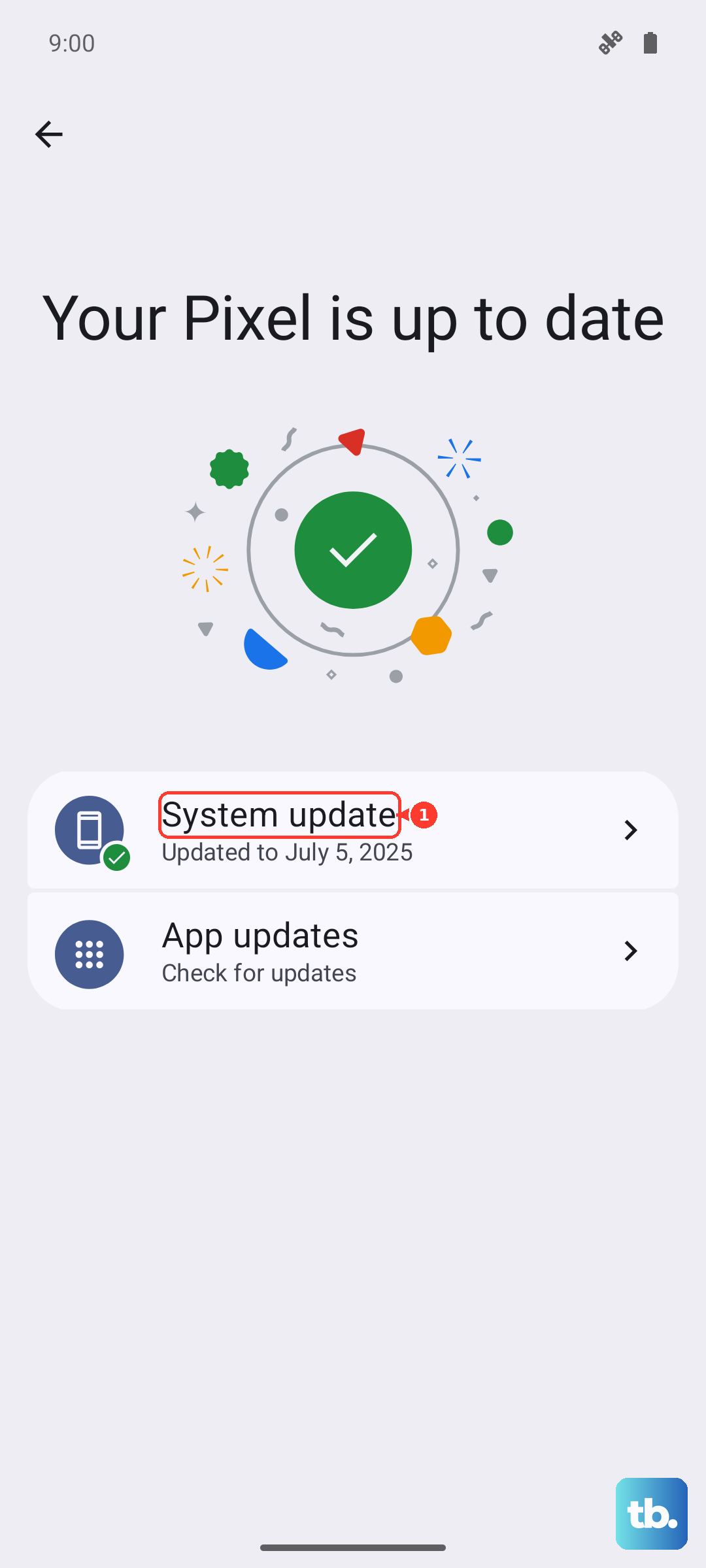
Outdated software can cause weird GPS behavior. Open the Google Play Store, tap your profile icon, then Manage apps & device to update all your apps, especially Google Maps and any navigation apps you rely on. Next, check for a system update in Settings > Software Update > Download and install. Samsung regularly pushes patches that improve GPS stability on the Z Flip 7.
Clear Cache and Data for Navigation Apps
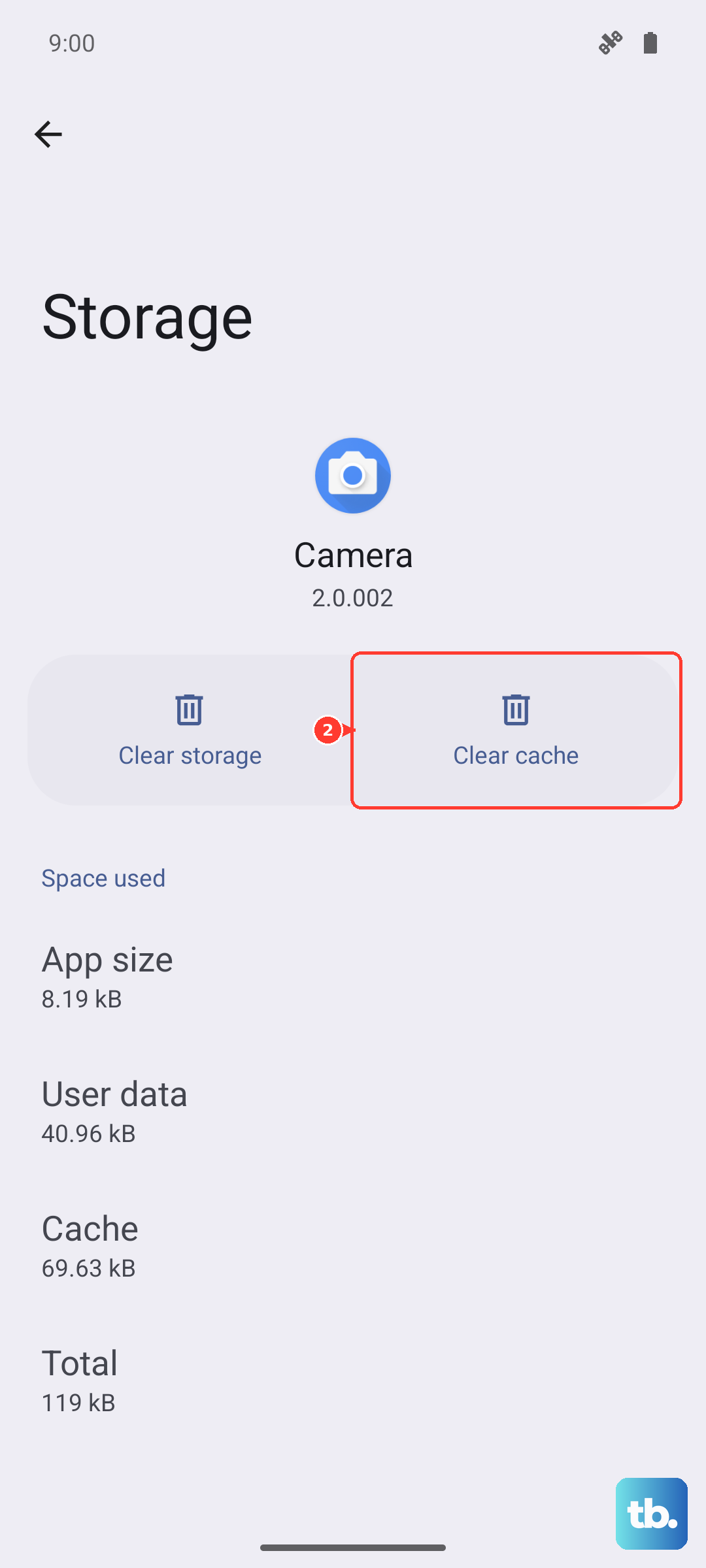
Corrupted cache files are a common culprit. Go to Settings > Apps > Google Maps (or whatever app you're using), tap Storage, then Clear Cache. If that doesn't help, tap Clear Data, but keep in mind this will reset the app's settings and saved places. You'll have to sign back in, but it frequently fixes stubborn GPS problems.
Test in Safe Mode
Safe mode temporarily disables all third-party apps, so you can tell if one of them is interfering with GPS. Press and hold the Side key until the power menu appears, then tap and hold Power off until you see the Safe mode prompt. Tap OK to restart in Safe mode. Open Maps and see if GPS works. If it does, a third-party app is the issue, start uninstalling recently added apps one by one. To exit Safe mode, just restart normally.
Watch Out for Physical Blockage
The Z Flip 7's GPS antenna can be slightly more sensitive to obstructions because of the foldable design. If you're inside a building, near tall structures, or in a basement, move to an open area with a clear view of the sky. Also try removing any thick or magnetic phone case, some cases contain metal that can block the GPS signal.
Clear the System Cache Partition
If none of the above worked, a deeper software reset can help. Turn off your Z Flip 7 completely. Press and hold the Volume Up and Side key together until the Samsung logo appears, then release. Use the volume buttons to highlight Wipe cache partition, press the Side key to select it, then confirm. After it finishes, select Reboot system now. This clears system-level cached data without deleting any of your personal files.
A Quick Way to Check Hardware vs. Software
Download a free GPS test app from the Play Store (like GPS Test). Open it and look at the Satellites screen. If you see zero satellites after standing outside for a minute, the GPS hardware might be faulty. If satellites appear but the location is still wonky, it's a software issue that one of the above steps should fix.