You set your Galaxy Z Flip6 down on its wireless charger before bed, expecting to wake up to a full battery, and instead you find the phone untouched or stuck at the same percentage. Maybe the charging pad's light never came on, or it pulsed for a second and then gave up. The good news is that the Z Flip6 (model SM-F741) genuinely supports wireless charging, so a dead pad does not mean a dead phone. Most wireless-charging failures on this foldable come down to a handful of fixable causes, such as the phone not being folded and centered, a case blocking the coils, a charger that is not Samsung-approved, or a software hiccup that needs a restart. Work through the fixes below in order, starting with the quickest and safest, and save the reset and support steps for last.
First, Confirm It Is Actually a Wireless Problem
Before you blame the wireless coil, make sure the issue is specific to wireless charging and not a general charging fault. The Z Flip6 supports wireless charging using Samsung's Qi-compatible Fast Wireless Charging, but if your phone also refuses to charge over a cable, you are looking at a broader battery or port problem rather than a wireless one.
Plug the phone in with its USB cable and a wall adapter. If it charges normally that way, the wireless side is the culprit and the rest of this guide applies.
If it will not charge by cable either, that is a different fault and you should focus on the wired connection, the adapter, and the port first.
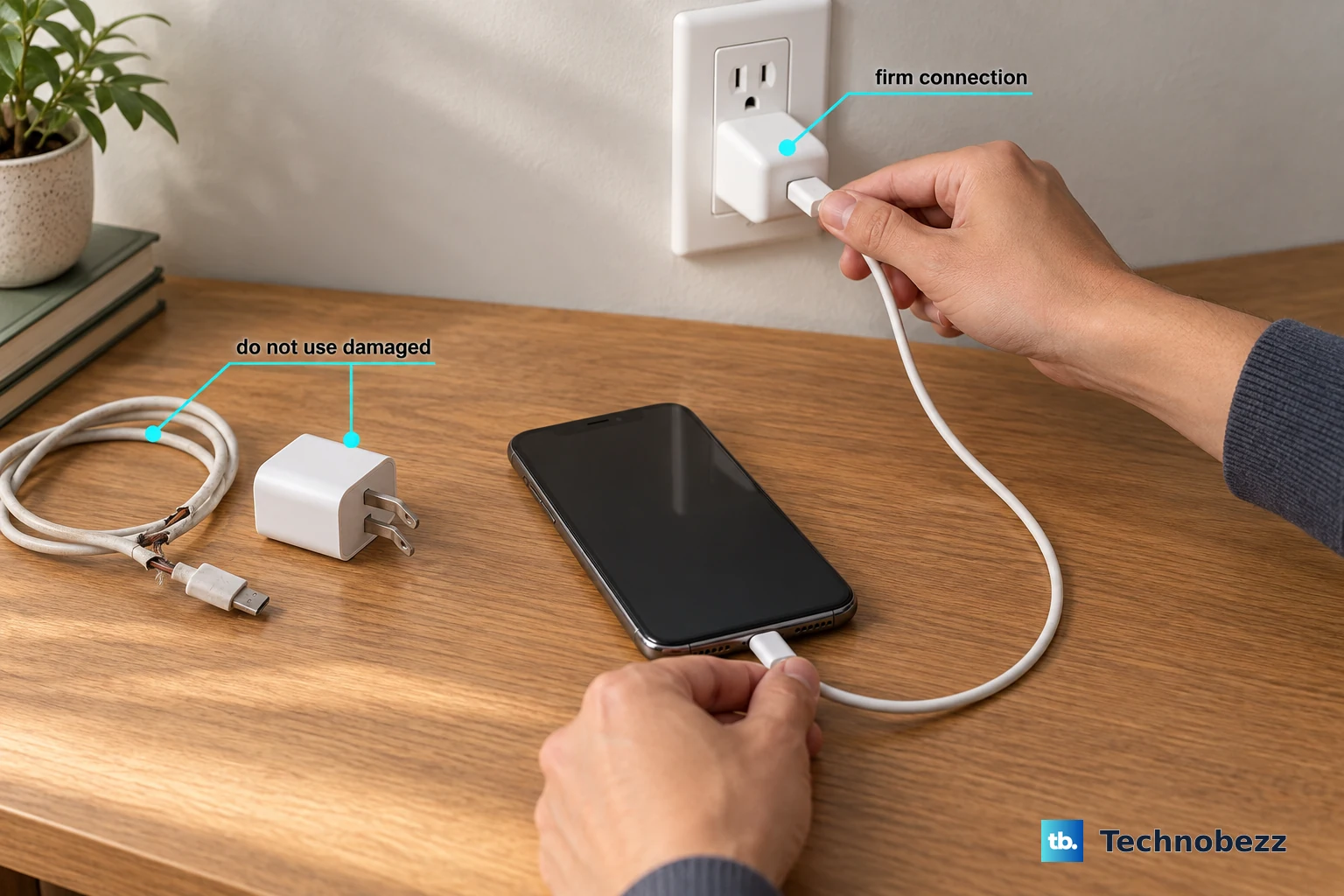
Next, confirm the charger itself has power. Make sure the wireless pad is plugged into a working outlet with its own power adapter and cable, and check that the pad's indicator light comes on.
If the indicator stays off or behaves abnormally, disconnect and reconnect the charger's cable and try a different outlet.
Fold the Phone and Center Its Back on the Pad
This single step fixes more Z Flip6 wireless-charging complaints than any other, because a foldable does not sit on a pad the way a slab phone does. The device must be fully closed and laid flat, never propped in a stand. Samsung's guidance is to fold the device and place the centre of the device's back on the centre of the wireless charger.
Misalignment is the most common reason charging never starts. The wireless charging coil sits in a specific spot, and its location varies by device, so a phone that is slightly off-center simply will not connect.
Close the Z Flip6 completely so the two halves are flat against each other.
Lay the folded phone down with the centre of its back on the centre of the charging pad.
If charging does not begin, nudge the phone a little in each direction until the pad's indicator confirms a connection, and re-center as needed.
Take Off Cases, Grips, and Magnetic Add-Ons
Anything between the phone and the pad weakens or blocks the wireless link, and a thick or metal case is a frequent offender. Samsung recommends removing any accessories and cover before using this feature, and it warns that any metal or magnetic materials placed between the device and the wireless charger may decrease charging efficiency or cause damage.
Remove the case, especially a thick one, along with pop-sockets, ring grips, card holders, and any magnetic accessory, then place the bare folded phone back on the pad.
If charging starts now, the accessory was the problem, and you may need a thinner case or one rated for wireless charging.
Clear Away Dust and Debris
Foreign material on either surface can break the wireless connection even when everything else is set up correctly. Inspect both the device and the charger for dust or other foreign materials, and clear away anything caught between the two.
Wipe the back of the phone and the top of the charging pad with a clean, dry cloth, then set the folded phone down again.
Pay attention to anything sticky or gritty that could be holding the phone a millimeter too far from the coil.
Switch to a Samsung-Approved Flat Pad
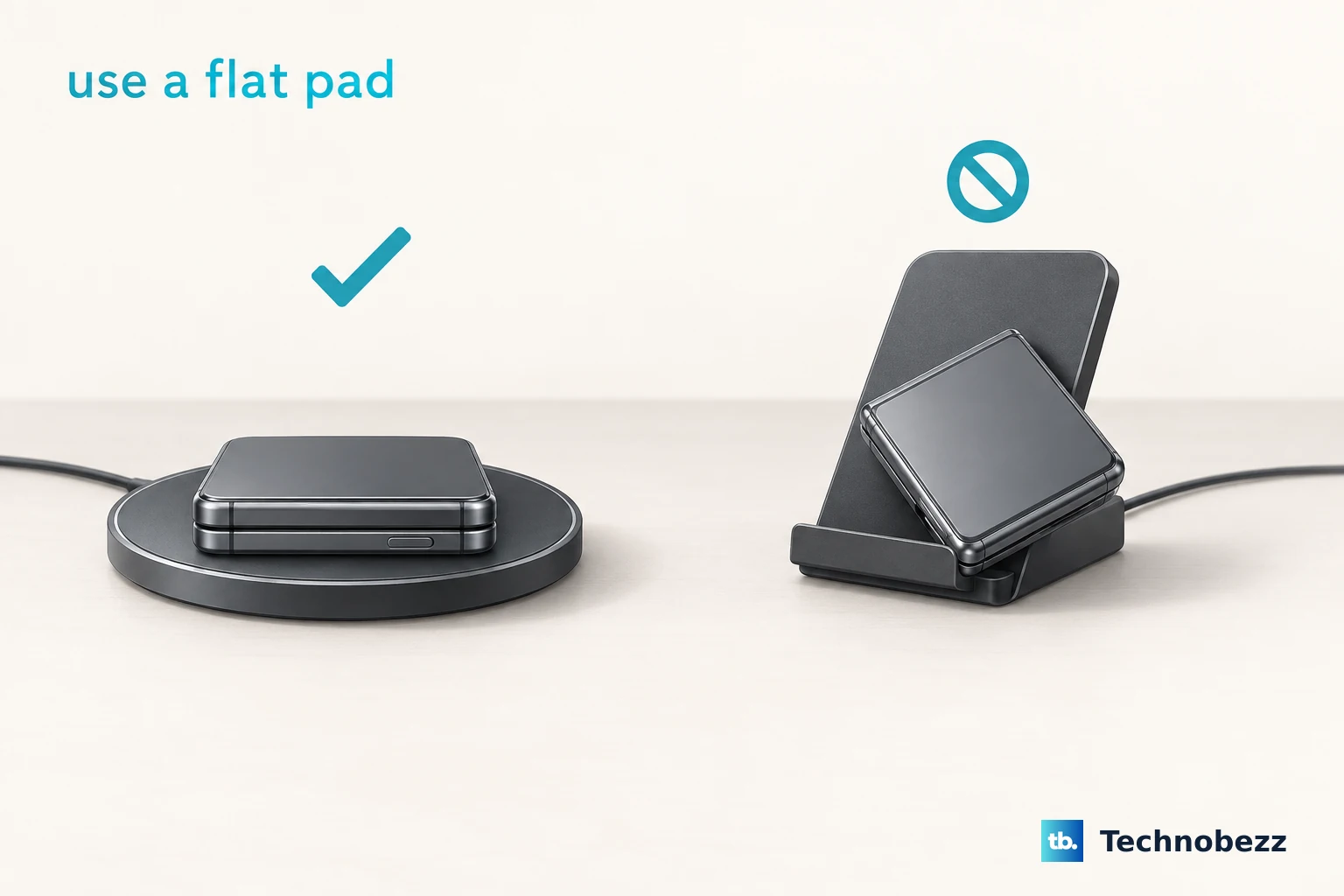
The charger you use matters as much as how you place the phone. Samsung's guidance is to use only Samsung-approved wireless chargers, warning that with other wireless chargers the battery may not charge properly. A pad that works fine for another phone may not deliver reliable power to the Z Flip6.
Avoid stand-type chargers in particular. Samsung warns that with a stand-type wireless charger, the Galaxy Z Flip may not securely affix to the charger or may not charge properly, which makes sense given the phone needs to lie folded and flat.
Switch to a flat, Samsung-approved pad paired with an adequate power adapter, and test it on a known-good outlet to rule out the wall socket as well.
Force Restart to Clear a Stuck Charging Service
If the hardware setup is correct and charging still will not start, the phone's software may have frozen a background service. A force restart clears that without touching your data. Samsung's force-restart sequence is to press and hold the Power button and the Volume down button simultaneously for more than 7 seconds; when the phone resets, you will feel it vibrate.
Press and hold the Power (Side) button and the Volume down button at the same time.
Keep holding for more than 7 seconds, until the phone turns off and the Samsung logo reappears.
You will feel the phone vibrate as it resets, so release the buttons once it begins to restart.
Samsung's U.S. guidance describes the same step as holding Volume down plus the Side button until the device turns off and turns back on, so either phrasing leads you to the same hard reboot.
Check Whether Battery Protection Is Capping the Charge
Sometimes wireless charging works but the phone deliberately stops short of 100 percent, which can look like a fault when it is actually a feature. The Protect Battery setting limits how full the battery is allowed to get in order to extend its lifespan.
If your Z Flip6 is charging on the pad but plateaus before reaching full, open Settings then Battery and turn off Protect Battery or Battery Protection, then charge again.
With the cap removed, the phone should top up to 100 percent as expected.
Install Any Pending Software Update
Charging glitches are sometimes fixed in firmware, so an outdated build can be the hidden cause. Keeping the Z Flip6 current is a low-risk step that may resolve a wireless-charging bug introduced by an earlier update.
Go to Settings then Software update then Download and install, and let the process finish.
Samsung notes that some carriers may require your device to be connected to Wi-Fi to check for and install updates, so connect to Wi-Fi first if the check stalls.
If the over-the-air path is unavailable, you can update the phone over USB using Smart Switch on a Windows PC or Mac, which can check for and install a software update for you.
Test in Safe Mode to Rule Out a Rogue App
A misbehaving third-party app can interfere with charging, and Safe Mode loads the phone with only its built-in software so you can tell. If wireless charging works in Safe Mode but not normally, an app you installed is the problem.
Press and hold the Power key until Power off appears.
Tap and hold the Power off icon until Safe mode shows.
Tap Safe mode to restart the phone with third-party apps disabled.
Place the folded phone on the pad while in Safe Mode.
If it charges normally, exit Safe Mode by pressing and holding Power and then tapping Restart, then uninstall the apps you added most recently until the problem stops returning.
Back Up, Factory Reset, and Then Reach Samsung
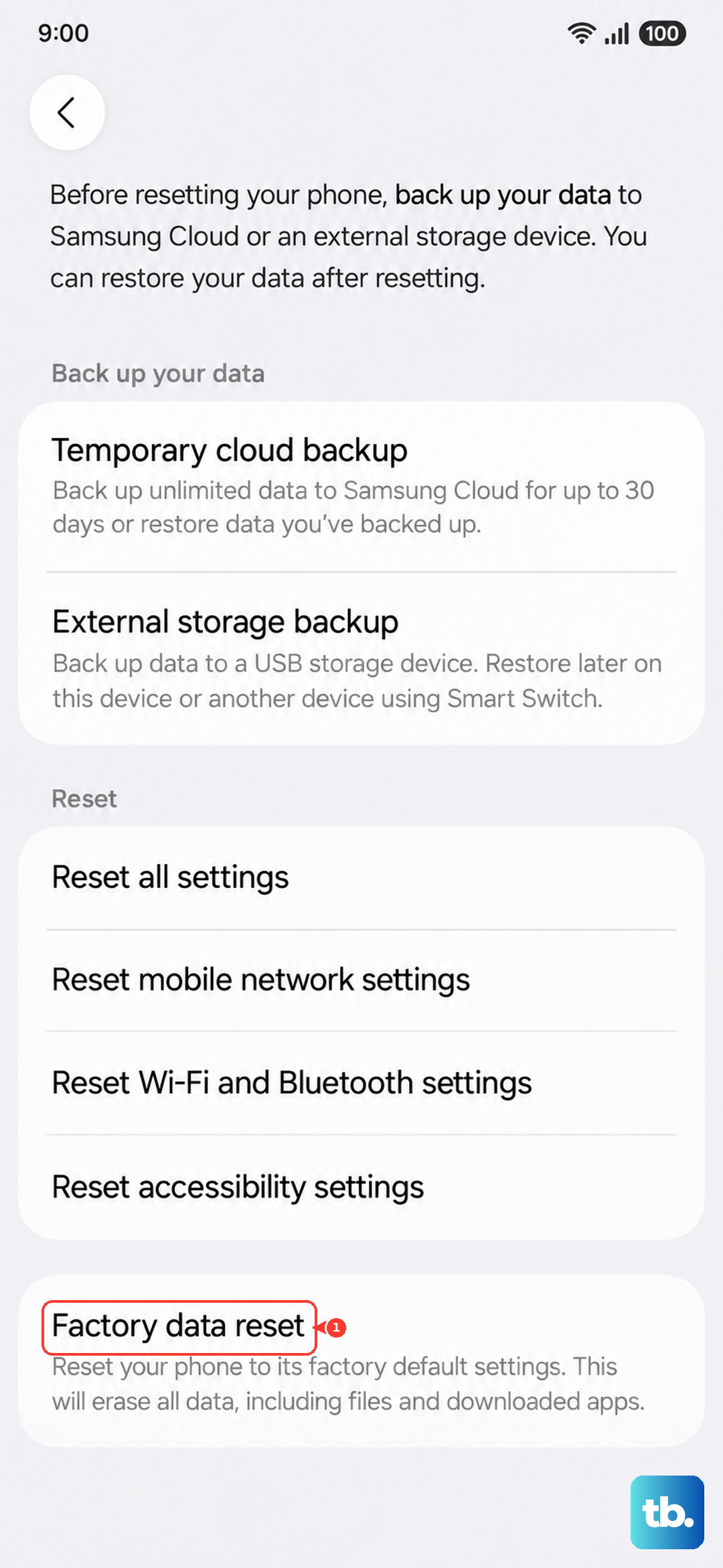
If none of the above works, a factory reset is the last software step before you treat the issue as hardware. This erases everything on the phone, so it is critical to back up first. Samsung warns that you should save any information you need prior to the factory reset because your personal information may not be recovered.
Once you have a current backup of your photos, messages, and accounts, perform the reset.
- 1.Open Settings then General management then Reset then Factory data reset.
- 2.Review the on-screen information, then tap Reset.
- 3.Tap Delete all, entering your lock screen or Samsung account credentials if prompted.
If wireless charging still fails after a clean reset, the fault is almost certainly hardware and needs professional attention. Contact an authorized Samsung service center or Samsung customer support to arrange an inspection and repair.
Frequently Asked Questions
Does the Galaxy Z Flip6 support wireless charging at all?
Yes. The Galaxy Z Flip6 (model SM-F741) supports wireless charging using Samsung's Qi-compatible Fast Wireless Charging. It also offers reverse wireless charging, called Wireless PowerShare, for topping up wearables and earbuds on the back of the phone.
Why does my Z Flip6 only charge sometimes on the pad?
Intermittent wireless charging is usually a positioning issue. The phone must be folded closed with the centre of its back on the centre of the pad, and the coil location is small, so even a slight shift can break the connection. Removing your case and clearing any dust between the surfaces also helps keep the link stable.
Can I use any charger or do I need a Samsung one?
Samsung advises using only Samsung-approved wireless chargers, warning that other chargers may not charge the battery properly. It also cautions against stand-type chargers for the Z Flip, since the phone may not affix securely or charge correctly, so a flat, Samsung-approved pad is the safest choice.
My phone wirelessly charges but stops before 100 percent. Is that broken?
Not necessarily. The Protect Battery feature intentionally caps the charge to extend battery lifespan. Open Settings then Battery and turn off Protect Battery or Battery Protection if you want the phone to charge all the way to full.
What should I do if wireless charging still fails after a factory reset?
A clean factory reset rules out software, so a continued failure points to hardware. Contact an authorized Samsung service center or Samsung customer support to have the device inspected and repaired.