You powered down your Galaxy Z Flip6, or it rebooted on its own, and now the Samsung logo just sits there. The screen never moves past it, no matter how long you wait, and the phone feels warm or completely unresponsive in your hand. A stuck logo usually means the phone started its boot sequence and stalled, which is frustrating but often fixable without losing anything.
The good news is that most logo freezes on the Z Flip6 come down to a low battery, a stalled boot cycle, a misbehaving app, or a corrupted cache, and Samsung publishes an official recovery path for each. The fixes below are ordered from the safest and easiest to the most drastic, so start at the top and only move down if the phone is still stuck. The destructive option (a factory reset) is saved for last, with the official data-loss warning attached.
Charge the phone first so a dead battery isn't the real problem
A drained or very low battery can leave the Z Flip6 frozen mid-boot, showing the logo without ever finishing startup. Before anything else, plug it in and give it time to take a charge.
Samsung's guidance is to make sure your battery is charged to at least 5 percent, and to charge for a minimum of 15 minutes if the phone is completely drained before you try again.
Use a Samsung-certified charger and the original USB-C cable for this. A PC USB port may not deliver enough power to revive a flat battery, and an incompatible charger can damage the phone, so a Samsung wall adapter is the safer choice.
While the phone is plugged in, inspect the charging port and cable for bent pins, corrosion, lint or other foreign objects, and any sign of liquid damage, since a fouled port can quietly block charging.
Force a restart with Volume down and the Side button
The Z Flip6 has no separate dedicated Power button; it uses a Side button instead, so a force restart combines that with Volume down. This clears a stalled boot cycle and does not erase any of your data.
Press and hold the Volume down and Side buttons at the same time.
Keep holding both buttons until the Samsung logo appears, which usually takes about 7 to 10 seconds.
Release the buttons and let the phone finish booting.
Samsung phrases this guidance in two ways. Its stuck-at-logo guidance says to hold for approximately 10 seconds, while its power-on guidance says to hold for more than 7 seconds and to release when the device vibrates, the screen turns off, and the Samsung logo appears.
Either way, the cue to watch for is the same, so hold until the logo shows, then let go.
Choose Normal Boot if a Maintenance mode screen shows up
After a force restart, the phone may occasionally land on a Maintenance mode screen rather than your home screen. Maintenance mode is a limited environment, so you want to skip past it to start the phone normally.
If that screen appears, use the volume buttons to navigate the options and select Normal Boot.
The phone will then start up the usual way instead of staying in the restricted maintenance environment.
Boot into Safe mode to rule out a downloaded app
If the Z Flip6 actually reaches the home screen but keeps freezing, crashing, or rebooting back toward the logo, a third-party app may be the culprit. Safe mode loads the phone with only its built-in software, which lets you test that theory quickly.
Open the Power menu.
Touch and hold Power off until the Safe mode icon is displayed.
Tap Safe mode to boot into it.
If the problem disappears in Safe mode, a downloaded app is causing the trouble.
Samsung's advice is to uninstall, one by one, any apps you downloaded just before your phone began having the issue.
When you are done, power the phone off and restart it normally to leave Safe mode behind.
Wipe the cache partition from Recovery mode
A corrupted system cache can stall the boot process, and clearing it is one of the safest deeper fixes because it leaves your personal data intact. Samsung confirms that clearing the system cache will not delete any files or settings.
Because the Z Flip6 has no Home or separate Power button, the recovery-mode entry uses Volume Up plus the Side button.
- 1.With the phone powered off, hold the Volume Up and Side buttons until the device vibrates and the Samsung logo appears, then release.
- 2.In the recovery menu, use the Volume keys to highlight Wipe cache partition.
- 3.Press the Power or Side button to select it.
- 4.Choose Yes to confirm.
- 5.Choose to reboot the device.
The phone will restart on its own once the cache is cleared.
If a boot glitch was caused by stale system data, this step often resolves it without any further action.
Install the latest software update from Settings
An outdated or buggy build can cause boot problems, and an update may carry the fix. If your Z Flip6 reaches the home screen even intermittently, install any pending update right away.
Swipe down from the top-right with two fingers and tap the Settings icon.
Tap Software update, which may be labeled System updates.
Tap Download and install. Depending on your carrier this may read Check for system updates or Check for software updates.
Follow the on-screen instructions to install.
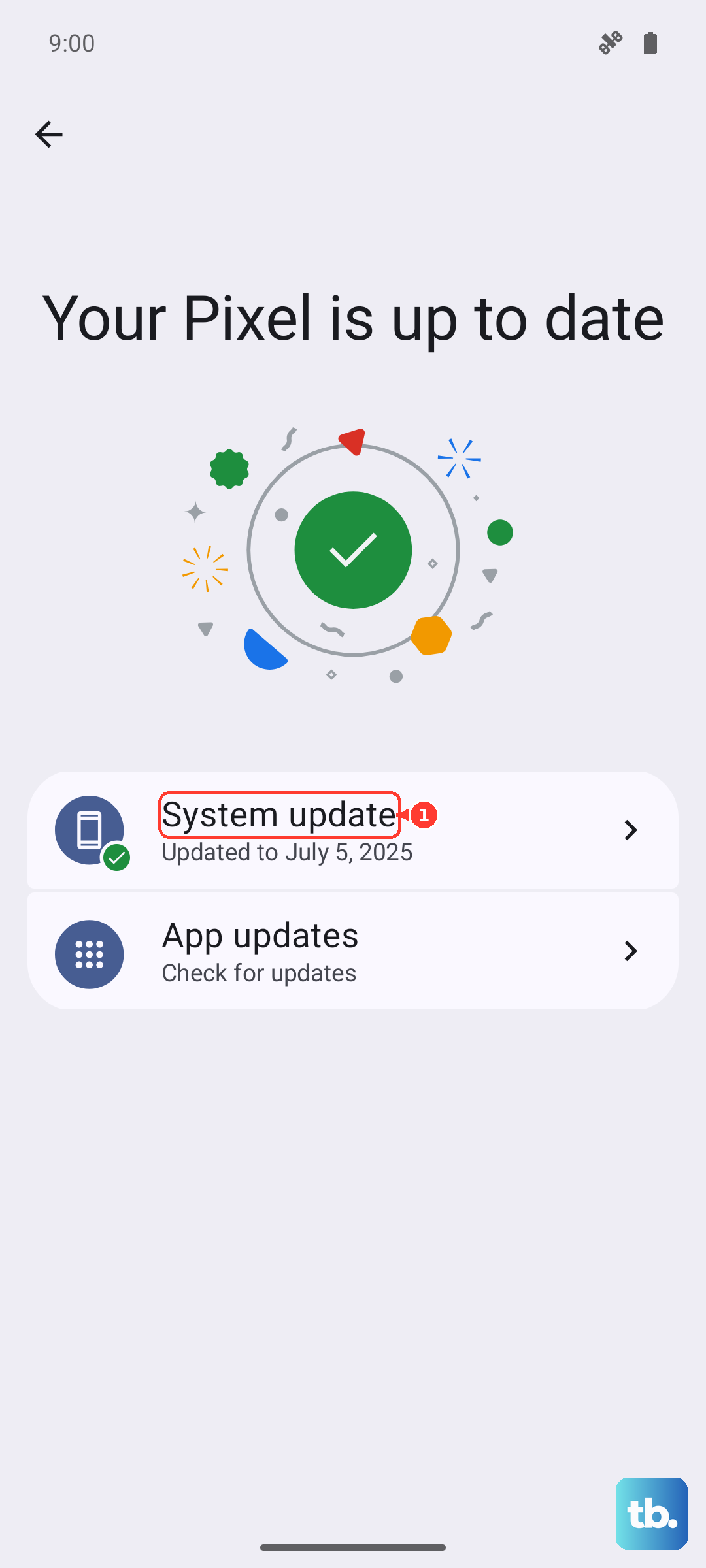
Keep the phone on Wi-Fi with enough battery throughout the process so the update can finish cleanly.
Updating to the latest available One UI build is worth doing even if you are not certain the firmware is the cause, since it rules out a known issue.
Update over a computer with Samsung Smart Switch
When the phone is too stuck to update itself, Samsung's official desktop tool can push the software over USB instead. Smart Switch runs on a PC or Mac and can detect the connected phone even when it will not boot far enough to reach Settings.
Connect the Z Flip6 to a PC or Mac with the included USB cable.
Open Smart Switch and let it detect the device.
If an update is available, select Update and follow the prompts.
One rule matters above all during this process, which is to not disconnect the USB cable or use your device until the update is complete.
Interrupting a firmware write can leave the phone in worse shape, so let it run all the way through.
Factory data reset as a last resort, then contact Samsung
If nothing above frees the phone, a factory reset can clear corrupted system data, but it erases everything on the device.
Back up first if you can reach the home screen at all, because, as Samsung warns, you should save any information you need prior to the factory reset because your personal information may not be recovered.
Open Settings, then go to General management.
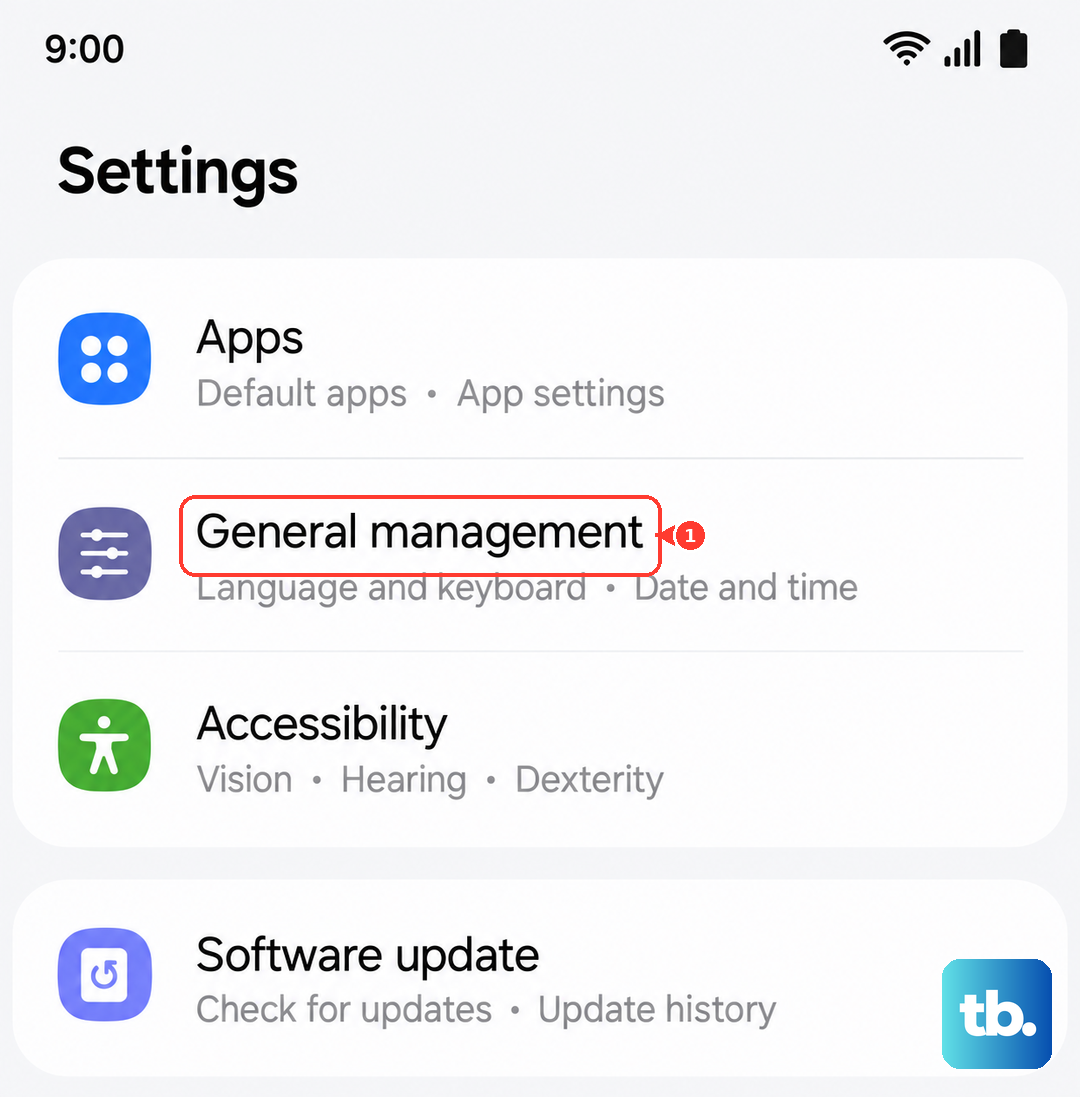
Tap Reset, then Factory data reset.
Review the information shown.
Swipe to and tap Reset.
Tap Delete all, then enter your security-lock credentials and Samsung account password if prompted.
If the phone still will not boot, or you cannot even reach the reset screen, it is time for support.
Contact Samsung Care or book a repair at an authorized service center.
A hardware fault is the most likely explanation when every software fix fails, and a technician can diagnose it properly.
Frequently Asked Questions
Will a force restart on my Galaxy Z Flip6 delete my data?
No. Holding Volume down and the Side button to force a restart simply ends a stalled boot cycle and does not erase any data. The same is true of wiping the cache partition, which Samsung confirms will not delete any files or settings. Only a factory data reset erases your content.
How long should I hold the buttons to force restart it?
Samsung's stuck-at-logo guidance says to hold Volume down and the Side button for approximately 10 seconds, while its power-on guidance describes the same action as holding for more than 7 seconds. In practice, keep both buttons held until the Samsung logo appears, then release.
What if a Maintenance mode screen appears after the restart?
That screen is a limited environment, not your normal startup. Use the volume buttons to navigate and select Normal Boot so the phone starts up the usual way instead of staying in maintenance mode.
My phone is stuck on the logo and will not reach Settings, so how do I update it?
Use Samsung's Smart Switch desktop app on a PC or Mac. Connect the phone with the included USB cable, let Smart Switch detect it, and if an update is available select Update and follow the prompts. Do not disconnect the cable or use the phone until the update is complete.
How much should the battery be charged before I try to power it on?
Samsung advises making sure the battery is charged to at least 5 percent, and if the phone is completely drained, charging it for a minimum of 15 minutes with a Samsung-certified charger before trying again.