You tap send on a text from your Galaxy Z Flip 6, the little progress bar crawls, and then nothing happens, or you get a stubborn red exclamation point next to your message. It is frustrating when a phone this capable suddenly cannot do the most basic thing it was built for. The good news is that the Z Flip 6 is a standard 5G smartphone with Nano-SIM and eSIM support, so it absolutely can send SMS and MMS through the Samsung Messages app; a stuck text is almost always a settings, network, or app problem rather than a missing feature. Work through the fixes below in order, starting with the quickest and safest, and you will usually get your messages flowing again well before the last resort.
Start With a Restart to Clear a Temporary Glitch
A simple power cycle resolves a surprising number of texting hiccups by clearing the temporary state that can stall outgoing messages.
Power the phone off and back on first, then try sending again before you change any settings.
If the screen is frozen or unresponsive, do a forced restart instead.
A forced restart does not erase any of your data, so it is safe to use whenever the phone is misbehaving.
Press and hold the Volume down button and the Side button (or Power button) simultaneously.
Keep holding until the device turns off and turns back on.
The screen goes black, then the Samsung logo appears.
To restart normally instead, press and hold the Volume down button and the Side button (or Power button) at the same time, tap Restart, then tap Restart again.
Confirm Your Signal, Airplane Mode, and Do Not Disturb
Texts that refuse to send are most often a coverage or carrier issue rather than a phone fault.
The first thing to check is that you actually have a cellular signal where you are standing, since message-sending problems are commonly tied to weak signal or no coverage.
Next, rule out two settings that quietly block outgoing or incoming messages.
Open Settings > Connections and confirm Flight (Airplane) mode is Off.
Then open Settings > Notifications > Do not disturb and confirm that is Off as well.
With both disabled and a usable signal, try your text again.
Send Over Wi-Fi When Cellular Coverage Is Poor
If you are in a basement, a thick-walled building, or a rural spot with one bar, turning on Wi-Fi Calling lets your texts and calls go out over your Wi-Fi connection instead of struggling on a weak cellular signal.
Your phone must be connected to Wi-Fi and have active service through a SIM card or eSIM for this to work.
Go to Settings > Connections > Wi-Fi Calling.
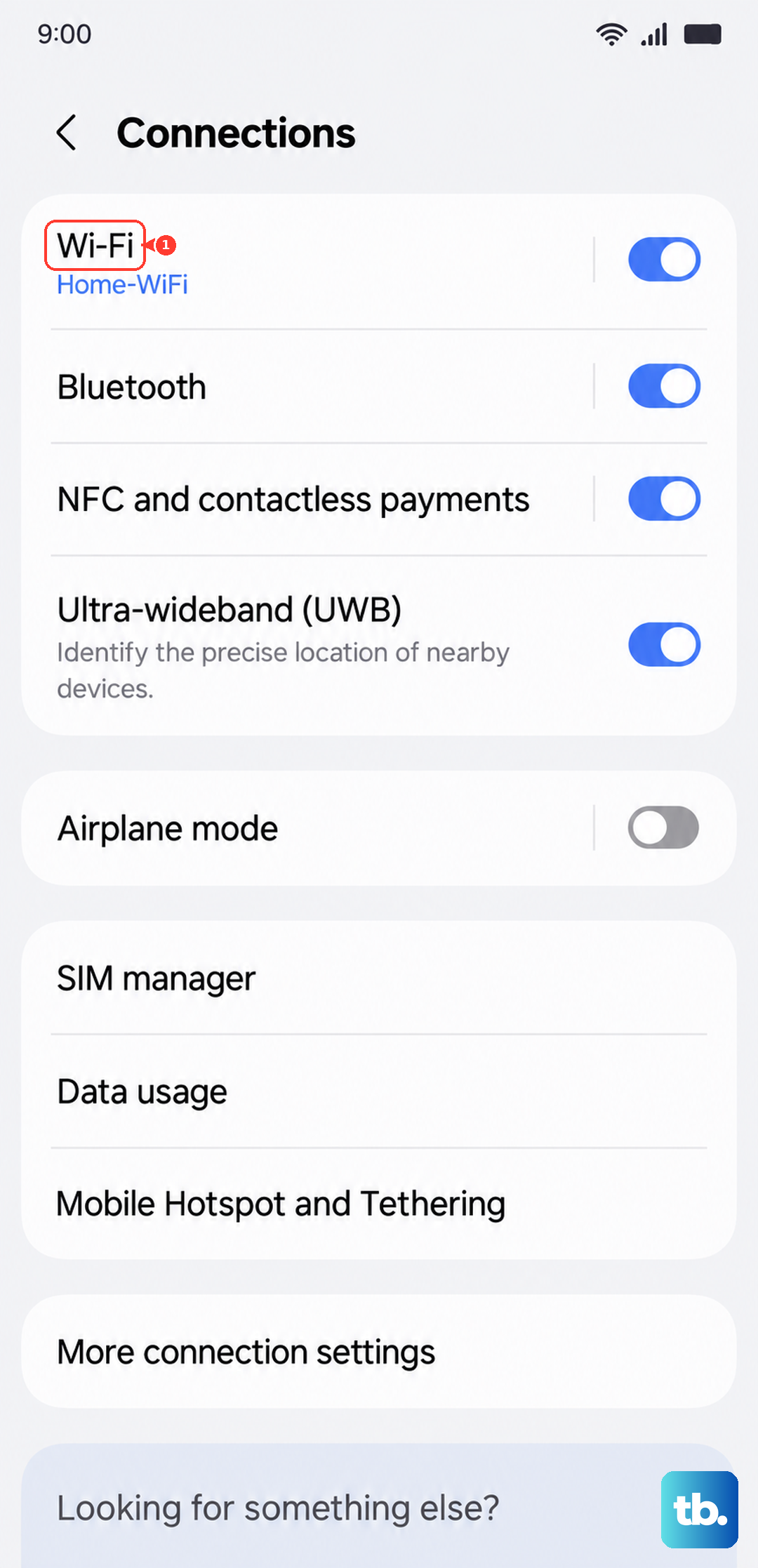
Tap the switch to turn it on.
Follow any on-screen prompts to finish setup.
If you do not see the Wi-Fi Calling option at all, your carrier or region may not support the feature, so move on to the next fix.
Check the SIM Card and Verify Your eSIM Is Active
A loose, dirty, or damaged SIM can interrupt texting even when calls seem fine.
Start by confirming with your service provider that your account is active.
Then make sure the SIM card is seated properly in the tray and shows no visible damage.
If you use an eSIM rather than a physical card, confirm that the eSIM profile is active on the device.
Reseating a loose or dirty SIM frequently restores texting on its own.
If you need your SIM tested or replaced, your carrier can handle that.
Deregister iMessage If You Switched From an iPhone
If you recently moved to the Z Flip 6 from an iPhone, your number may still be registered with Apple's iMessage service.
When that happens, messages from iPhone users can get stuck on Apple's servers and never arrive or send correctly on your new Android phone.
The fix is to deregister iMessage through Apple's official process, which removes your number from the iMessage system so texts route normally again.
Once your number is deregistered, send yourself a test message from an iPhone-using contact to confirm it comes through.
Clear the Messages App Cache and Stored Data
A corrupted app state inside Samsung Messages can stop texts from sending even when everything else is working.
Clearing the cache is the gentle first step and does not remove your conversations.
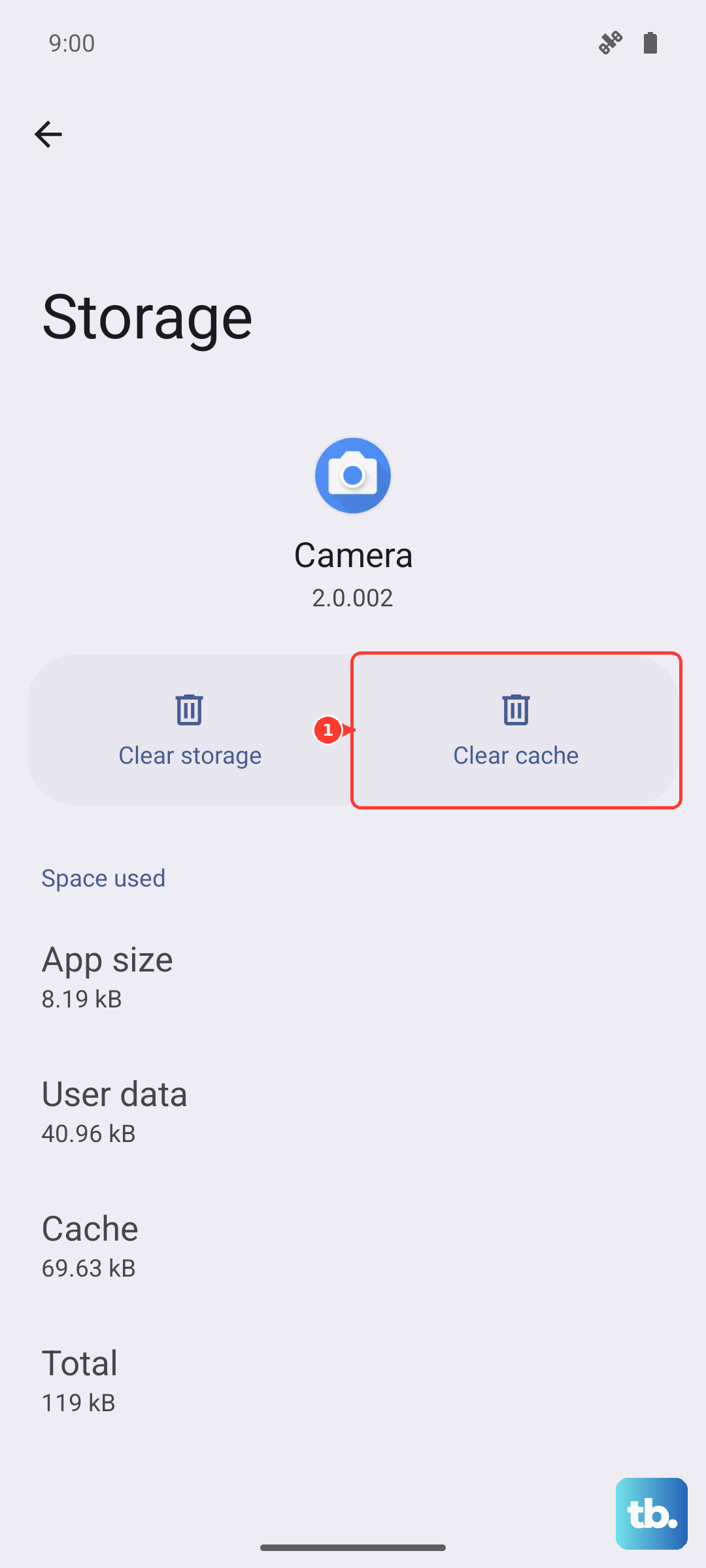
Go to Settings > Apps > Messages > Storage.
Tap Clear cache, then try sending a text.
If messages still will not send, tap Clear data > Delete.
Clearing data resets the app's stored data, but it does not wipe the messages held on your account or server in the same sweeping way a factory reset would.
This is a reliable cure for a messaging app that has gotten itself into a bad state.
Install Any Pending Software Update
Outdated firmware can introduce sending and receiving problems, and Samsung regularly ships fixes through One UI and Android updates.
Keeping the phone current often resolves messaging bugs without any further troubleshooting.
Make sure the phone is connected to the internet and charged to at least 50 percent.
Go to Settings > Software update > Download and install.
Install any available update, then restart and test sending a text.
Turn On Messages for the Cover Screen
This step applies specifically when you are trying to reply from the closed, folded Cover screen and the suggested replies do not work.
On the Z Flip 6, your messaging app has to be enabled for the Cover screen before it can offer those quick replies there.
Go to Settings > Advanced features > Labs > Apps allowed on cover screen.
Toggle on Messages, or whichever app is your default messaging app.
With that enabled, the suggested replies will work on the Cover screen so you can answer texts without flipping the phone open.
Change or Reset Your Default Messaging App
Sometimes messaging functionality breaks specifically after a software update, and switching your default texting app restores it.
Changing the default messaging app can bring texting back in this situation.
Set Samsung Messages (or Google Messages) as your default texting app, then send a test message to see whether it goes through.
If one app keeps failing, switching to the other is a fast way to confirm whether the problem follows the app or stays with the phone.
Back Up and Factory Reset as a Last Resort
If every other fix has failed, a factory reset returns the phone to its original software state and clears out whatever deep configuration problem is blocking your texts.
This is destructive, so back up your data first; Smart Switch is Samsung's official backup tool for this.
Samsung's warning is direct.
"Please save any information you need prior to the factory reset because your personal information may not be recovered."
- 1.Back up your data first, for example with Smart Switch.
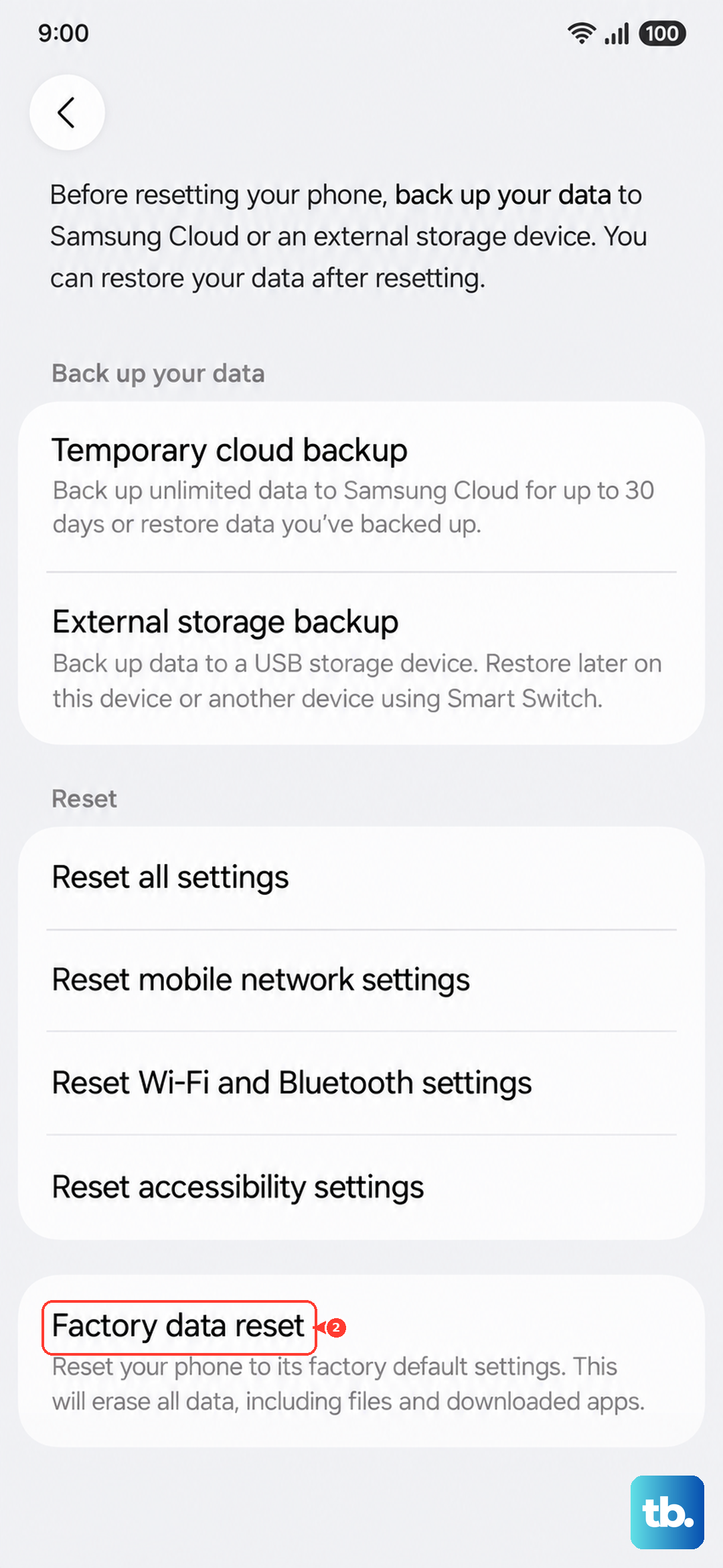
- 2.Go to Settings > General management > Reset > Factory data reset.
- 3.Tap Reset, then tap Delete all.
If texting still fails after the reset, the problem is almost certainly on the carrier side, since most send and receive issues are.
Contact your service provider, or reach Samsung Support for hardware service.
Frequently Asked Questions
Can the Galaxy Z Flip 6 send regular text messages?
Yes. The Galaxy Z Flip 6 is a standard cellular smartphone with Nano-SIM and eSIM support and full 5G and 4G LTE coverage, so it natively sends and receives SMS and MMS through the Samsung Messages app. If texts will not send, it is a configuration, network, or app issue, not a missing capability.
Will a forced restart delete my messages or other data?
No. A forced restart, done by pressing and holding the Volume down button and the Side button (or Power button) until the device turns off and turns back on, does not erase any of your data. It only clears temporary glitches.
Does clearing the Messages app data erase my conversations?
Clearing data resets the app's stored data, but it does not delete the messages held on your account or server in the same way a factory reset would. Start with Clear cache first, and only use Clear data if texts still will not send.
Why do my texts stop sending in areas with weak signal?
Message-sending problems are commonly tied to weak signal or no coverage. Turning on Wi-Fi Calling at Settings > Connections > Wi-Fi Calling lets your texts go out over Wi-Fi when cellular coverage is poor, as long as you are connected to Wi-Fi and have active service via a SIM card or eSIM.
What should I do if texting still fails after a factory reset?
If a factory reset does not fix it, the issue is most likely on the carrier side, since most send and receive problems are. Contact your service provider for SIM or account testing, or reach Samsung Support for hardware service.