You reach for the torch on your Samsung Galaxy Z Flip 6, swipe down, and tap the Flashlight tile, but the rear light stays dark. It can be frustrating when a basic feature refuses to fire, especially on a phone that handles everything else without complaint.
The good news is that the Z Flip 6 genuinely has a flashlight, because its rear camera system includes an LED flash and that same single LED doubles as your torch. Since the light and the camera flash share one piece of hardware, most flashlight problems trace back to a handful of fixable causes, and the fixes below move from the quickest, safest checks to the official last-resort steps.
Why the torch and the camera fight over one light
The Galaxy Z Flip 6 uses a single rear LED for both the camera flash and the flashlight. That detail explains a lot of flashlight not working moments, because if the Camera app is open and holding the flash, the torch has nothing left to light up.
It also explains why heat matters, since the LED draws power and warms the phone, so the device may limit or disable it to protect itself. Keep that shared LED idea in mind as you work through the steps.
The earliest fixes simply free up that LED or wake the system back into a normal state, and they take only seconds to try.
Close the Camera app so it releases the LED
Since the flashlight and the camera flash use the same rear LED, the torch will not turn on while the Camera app is holding the flash. Close the Camera app first, along with any QR or barcode scanner and any video app that might be using the flash.
Once those are closed, reopen Quick settings and tap the Flashlight icon again.
To confirm the flash itself is healthy, open the Camera app and set the flash to On using the lightning bolt icon at the top of the screen. Samsung describes this control simply as Flash, which enables or disables the flash or the automatic flash.
On newer One UI versions, that flash control may sit under the Quick controls four dots icon instead.
Turn on the flashlight from Quick settings and make sure it is not hidden
The flashlight tile can be tucked away on a second page of Quick settings, which makes it look missing when it is only out of view. Walk through the proper sequence so you know the tile is really being tapped.
Swipe down from the top right of the screen to open the Quick settings panel.
Tap the Flashlight icon to turn the light on or off. You may need to swipe to find the Flashlight icon if it is on another page of the panel.
To adjust how bright it is, tap and hold the Flashlight icon, turn the flashlight on by tapping the switch, then drag the slider to change the brightness level.
One detail trips people up here. The brightness slider stays grayed out and will not respond until the flashlight is actually turned on.
If the slider looks dead, switch the light on first, then adjust it.
Let the phone cool down if it is running hot
When the Galaxy Z Flip 6 gets too hot, it protects itself in ways that can knock out the flashlight. Because the flash and flashlight LED draws power and adds heat, the phone can limit or disable it during these protective states.
Stop using the phone, unplug it if it is charging, and remove a thick case so heat can escape.
Move out of direct sunlight and wait for the device to cool before trying the flashlight again.
Once the phone is back to a normal temperature, the flashlight should respond as usual.
Force restart a frozen or unresponsive phone
If the flashlight is stuck or the whole system feels frozen, a force restart clears memory and reboots the phone without deleting your personal data. This is safe to do and often revives a tile that has simply hung.
Press and hold the Volume down button and the Side button (or Power button) at the same time until the device turns off and turns back on.
The screen goes black, then the Samsung logo appears. Samsung UK guidance describes holding the buttons for more than 7 seconds, with the device vibrating as it resets, so keep holding even if nothing seems to happen right away.
If you prefer a gentler reboot, you can use the power menu instead.
Press and hold the Volume down button and the Side button (or Power button) at the same time, wait a few seconds for the power options to appear, tap Restart, and then tap Restart again.
Set up the double press Side button shortcut
If the Quick settings tile feels unreliable, the Side button gives you a second, faster way in. You can turn the flashlight on even when the screen is off by double pressing the Side button, and double pressing again turns it off.
To enable it, go to Settings, then Advanced features, then Side button, then Double press, then Flashlight.
The double press menu also offers other actions such as Camera, Magnifier, Voice Recorder, Samsung Notes, Samsung capture, Modes and Routines, and Apps, but choose Flashlight here so the shortcut controls your torch.
Install any pending software update
Keeping the phone current is one of Samsung's recommended steps when features misbehave or the device overheats, and an update can quietly fix a flashlight glitch. The Galaxy Z Flip 6 shipped with Android 14 and One UI 6.1.1 and can be upgraded to later versions, so it is worth checking for something newer.
Open Settings.
Swipe to and tap Software update (it may be labeled System updates).
Tap Download and install.
Follow the prompts to install the update, choosing Install now or Schedule install.
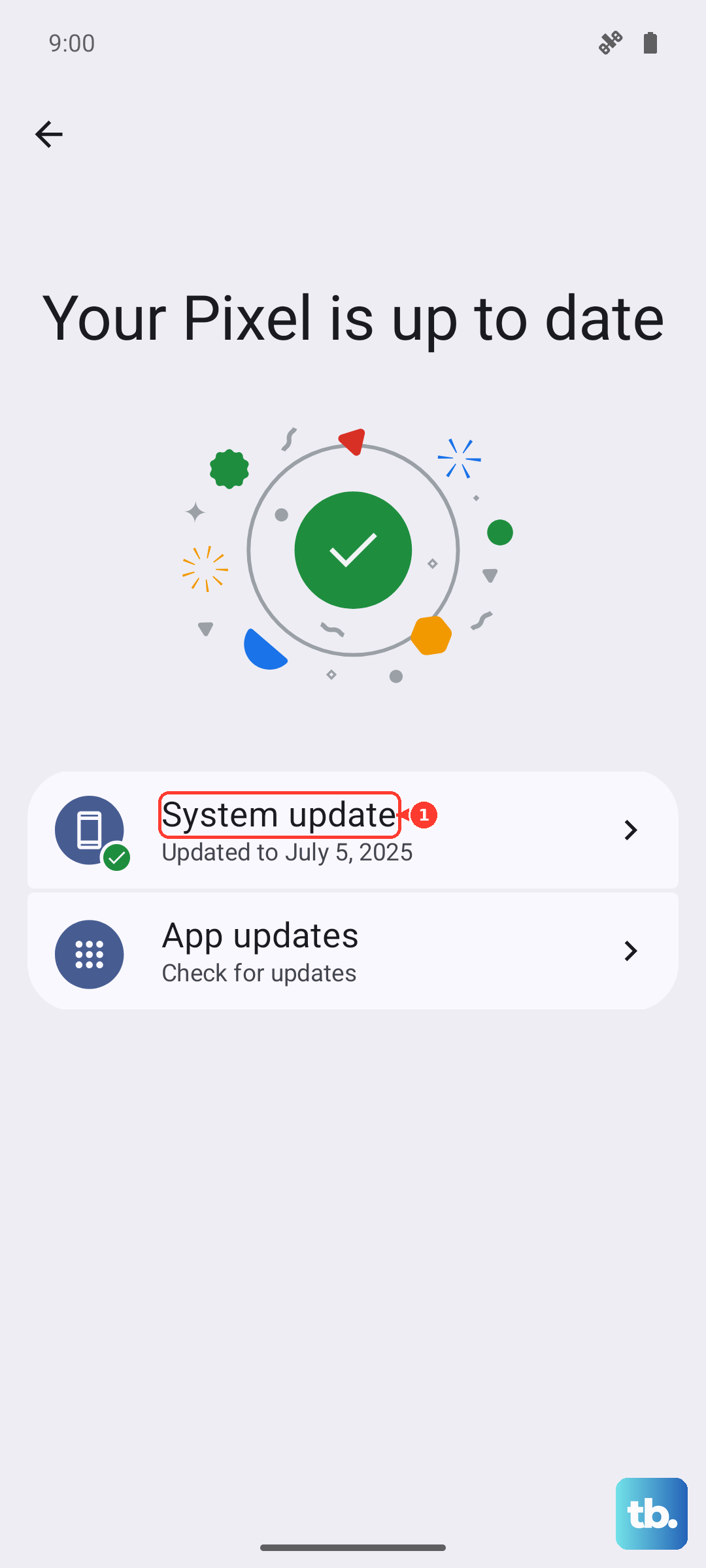
If you would rather update from a computer, Samsung Smart Switch on PC or Mac is an official alternative that updates and backs up the phone over USB.
Boot into Safe mode to rule out a third party app
A standalone flashlight or torch app, or some other third party app, can grab or block the shared flash so the built-in control cannot use it. Safe mode loads the phone without any third party apps, which lets you test whether one of them is the culprit.
Completely power off the phone.
Turn the device on, and when the Samsung logo appears, press and hold the Volume down button.
Keep holding until Safe mode appears in the lower left corner of the screen.
In Safe mode the phone runs no third party apps, so try the built-in flashlight now.
If it works here but not normally, a recently installed or updated app is likely interfering.
Remove those apps, then restart the phone to exit Safe mode and test again.
Back up your data, then factory reset as a last resort
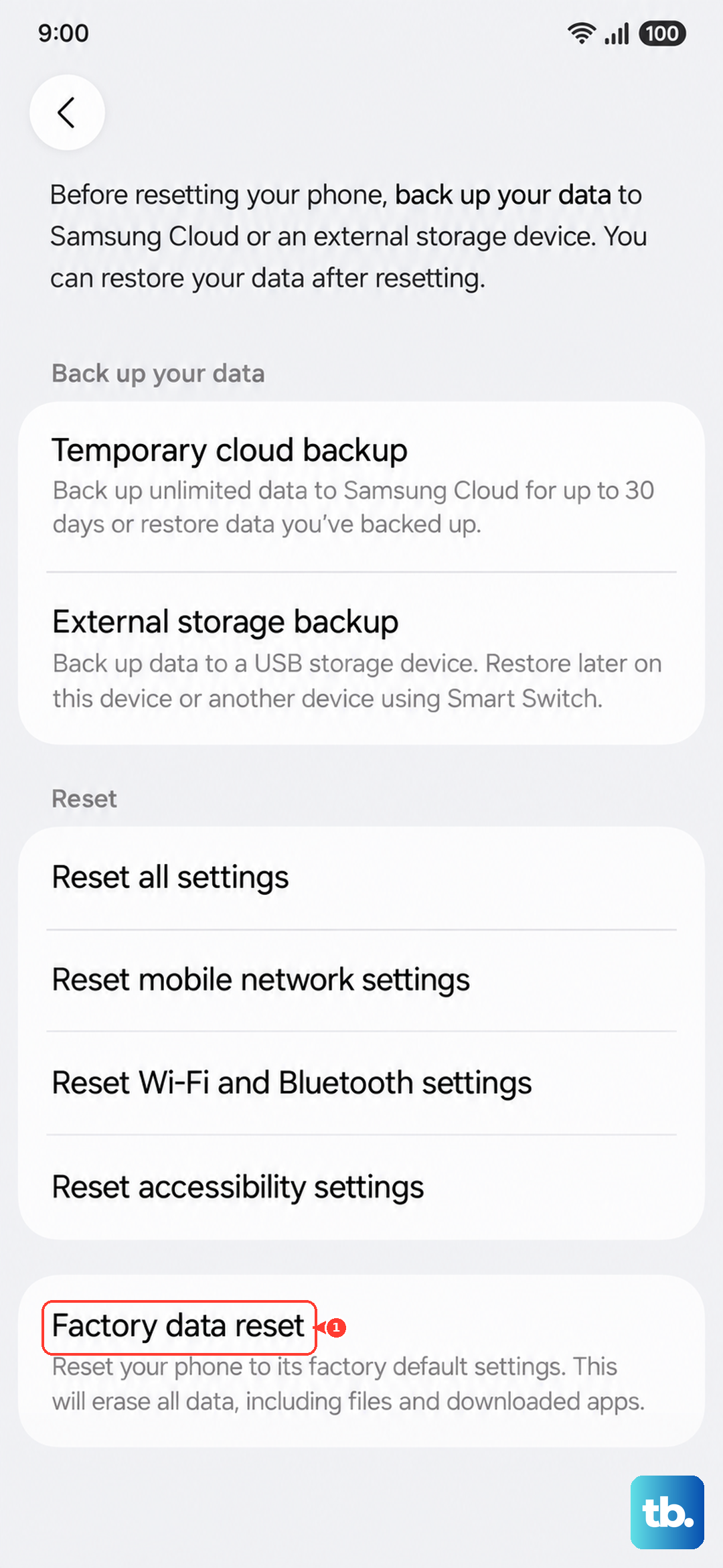
If none of the steps above bring the flashlight back, a factory reset wipes the phone to a clean state and can clear a stubborn software fault. This step erases your data, so treat it as a genuine last resort and back up everything first.
You may also need your Samsung account password to complete it.
Samsung warns that this feature will completely erase your personal information and data to make your phone or tablet a clean slate, and that data may not be recoverable, so save anything important before you begin. When you are ready, follow the official path.
- 1.Open Settings, then tap General management.
- 2.Swipe to and tap Reset, then tap Factory data reset.
- 3.Swipe to and tap Reset.
- 4.Tap Delete all.
Reach out to Samsung if the LED hardware has failed
If the flashlight still will not turn on after every step above, test the camera flash directly. Open the Camera app and set the flash to On.
If the flash also refuses to fire when forced on, the rear LED may have a hardware fault rather than a software one.
At that point, use Samsung's official support to request service or a repair.
A failed shared LED is something only a technician can replace, so there is no further on-device fix worth attempting.
Frequently Asked Questions
Does the Galaxy Z Flip 6 actually have a flashlight
Yes. The Galaxy Z Flip 6 rear camera system includes an LED flash, and that same single LED works as the flashlight or torch. Because they share one light, the torch is unavailable whenever the Camera app is using the flash.
Why is the flashlight brightness slider grayed out
The brightness slider does not function until the flashlight is actually turned on. Tap and hold the Flashlight icon in Quick settings, switch the light on, and then the slider will respond so you can adjust the brightness level.
How do I turn on the flashlight when the screen is off
Set up the Side button shortcut at Settings, then Advanced features, then Side button, then Double press, then Flashlight. After that, double pressing the Side button turns the flashlight on even with the screen off, and double pressing again turns it off.
Will a force restart delete my photos or apps
No. A force restart, done by holding the Volume down button and the Side button (or Power button) until the device turns off and back on, only clears memory and reboots the phone. It does not delete your personal data, unlike a factory reset.
The flashlight stopped working after my phone got hot, is it broken
Not necessarily. When the device overheats it may limit or disable the flash LED to protect itself. Stop using the phone, unplug it, remove a thick case, move out of direct sun, and try the flashlight again once it has cooled.