
When your Samsung Galaxy Tab S9 won't send pictures, it's usually a quick fix. The most common culprit is a simple setting or a temporary app glitch. I'd start by checking your mobile data or WiFi connection first, as that solves the issue more often than not.
Check Your Mobile Data and Network
If you're trying to send pictures using your cellular data, the first step is to make sure it's actually turned on. Go to Settings > Connections > Data usage and ensure the Mobile data switch is on.
For a stronger signal, try switching your network mode. Go to Settings > Connections > Mobile networks > Network mode. Switching between 5G/LTE/4G and 3G can sometimes clear up a shaky connection that's blocking your MMS.
Verify Your MMS and APN Settings
Your carrier's Access Point Name (APN) settings are essential for sending multimedia messages. If they're incorrect, pictures will fail to send. You can find and check these by going to Settings > Connections > Mobile networks > Access Point Names.
Also, make sure MMS is enabled in your messaging app. Open your Messages app, tap the three-dot menu, go to Settings, and look for an option like "Multimedia messages" or "Group conversation" to ensure it's turned on.
Restart Your Samsung Galaxy Tab S9
A simple restart can clear out temporary software bugs that might be hanging up your messaging app. Just press and hold the Volume Down button and the Side button (power button) together for about 10 seconds until you see the Samsung logo appear.
After it boots back up, try sending the picture again. This is one of the easiest and most effective first steps for any odd behavior on the Tab S9.
Force Stop and Clear the Cache for Your Messaging App
If the Messages app itself is acting up, force stopping it can help. Go to Settings > Apps, find and select your messaging app (like Samsung Messages or Google Messages), and tap Force stop.
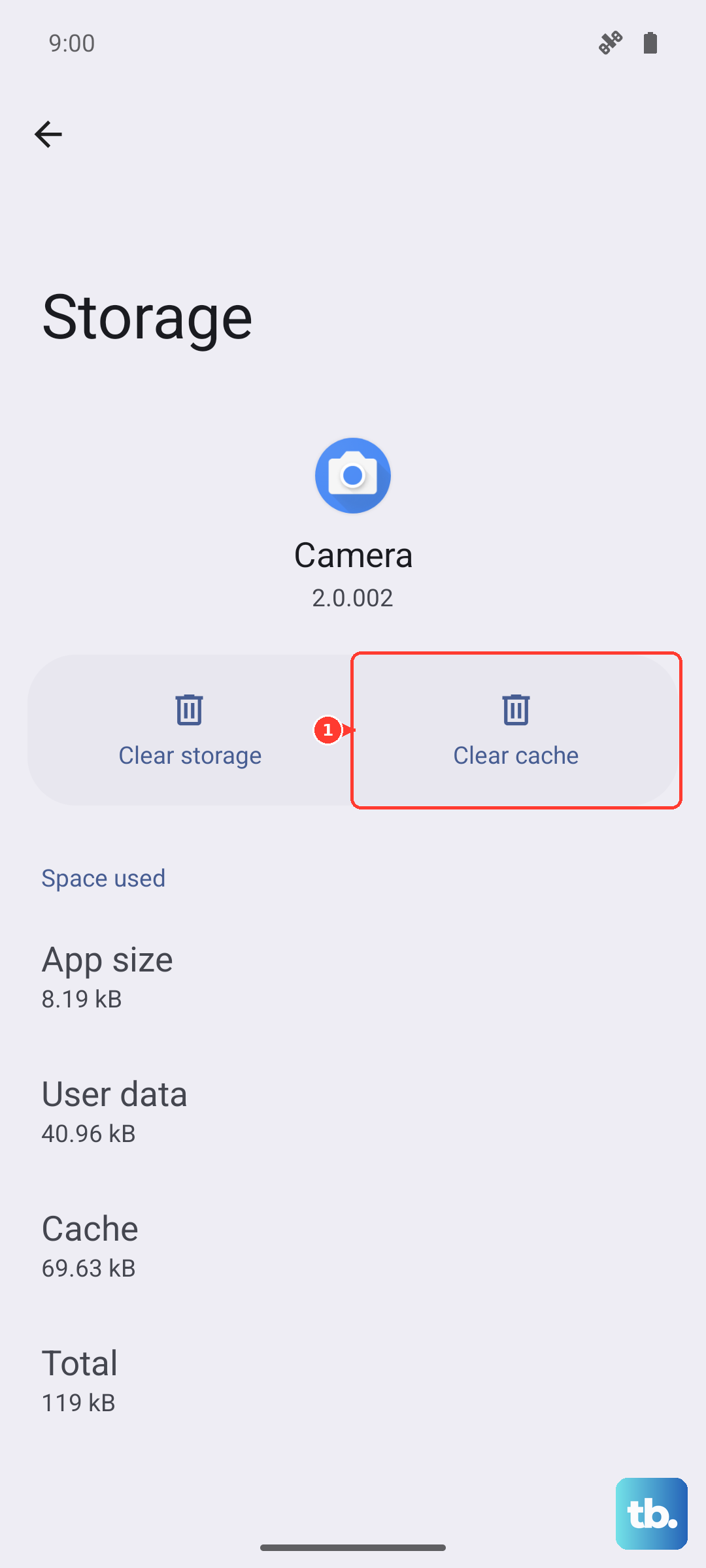
For a deeper clean, tap on Storage within the same app info screen and then tap Clear cache. This gets rid of temporary files without touching your actual messages or settings.
Check Your WiFi Connection
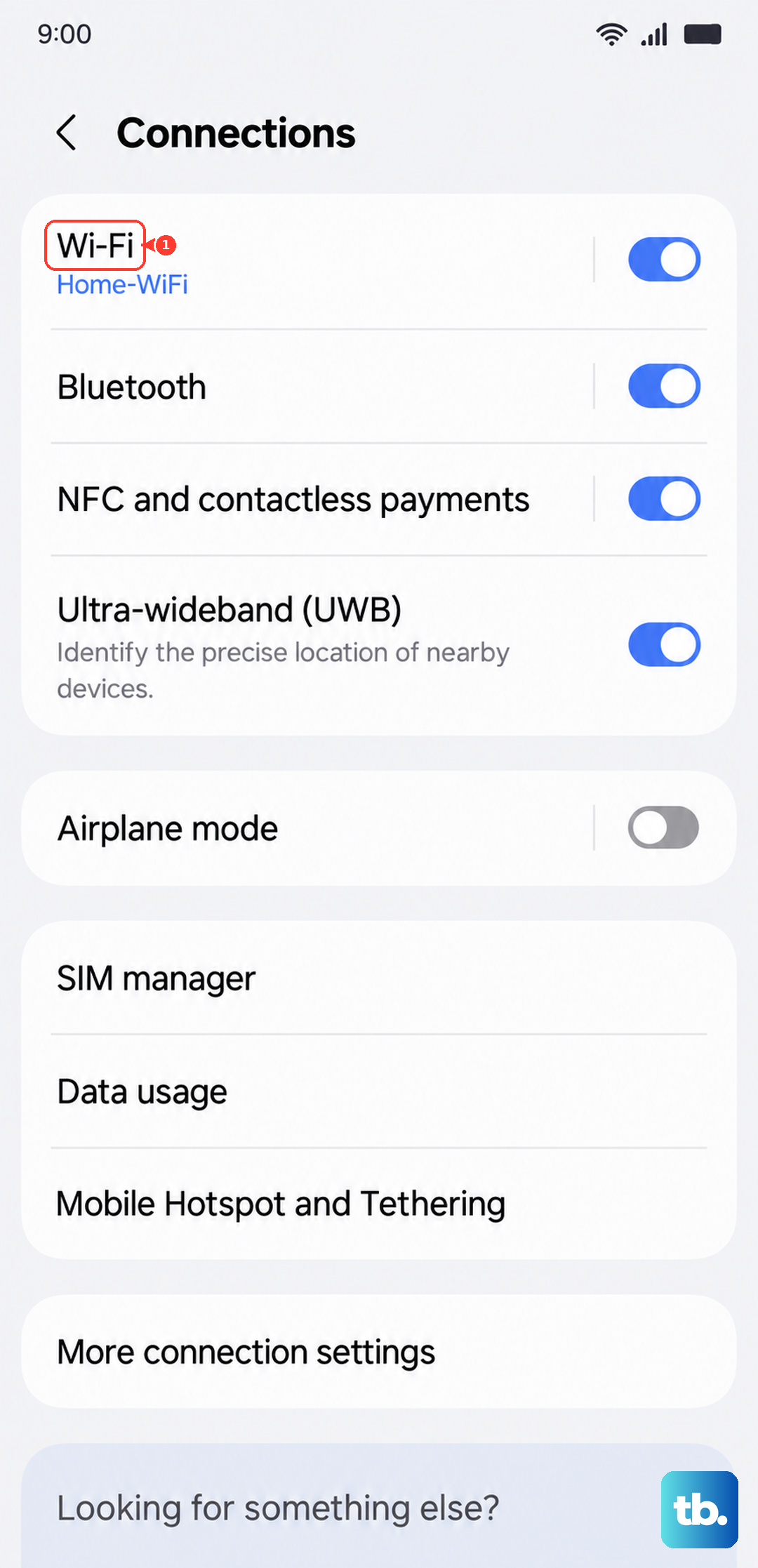
If you're on WiFi, some networks block the ports needed for MMS. Try turning WiFi off temporarily and send the picture using your mobile data instead. If it goes through, you'll know the WiFi network was the issue.
You can also try forgetting the WiFi network and reconnecting. Go to Settings > Connections > Wi-Fi, tap on the network name, and select Forget. Then, reconnect by entering the password again.
Disable Power Saving Modes
Power saving modes on your Tab S9, like Power saving or Adaptive battery, can restrict background data to save battery. This can prevent your messaging app from sending pictures. Go to Settings > Battery and device care > Battery and turn off any active power saving modes.
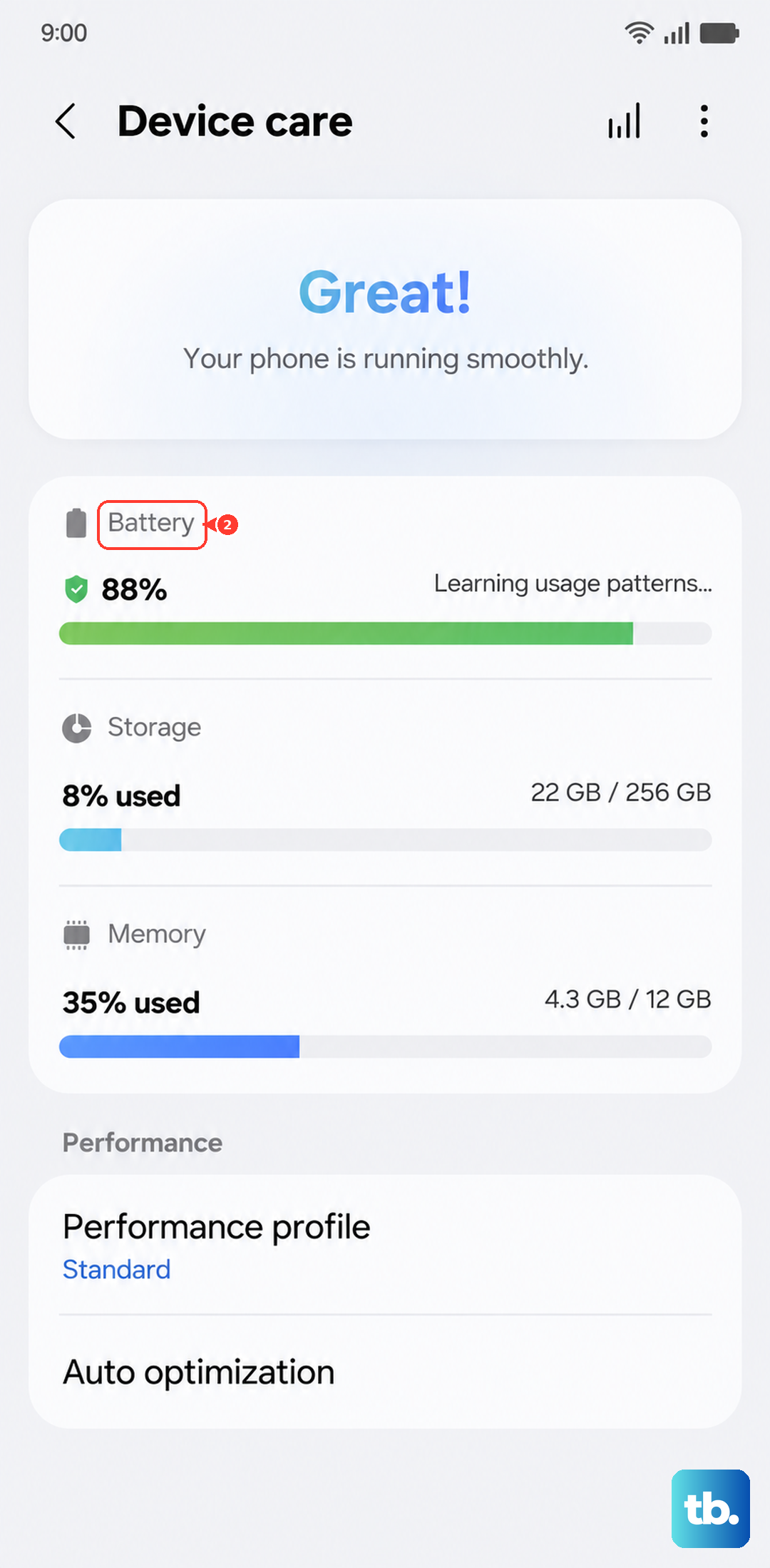
While you're there, you can also check if your messaging app is being put to sleep. Go to Battery > Background usage limits and make sure your messaging app isn't in the "Sleeping" or "Deep sleeping" lists.
Update Your Software and Apps
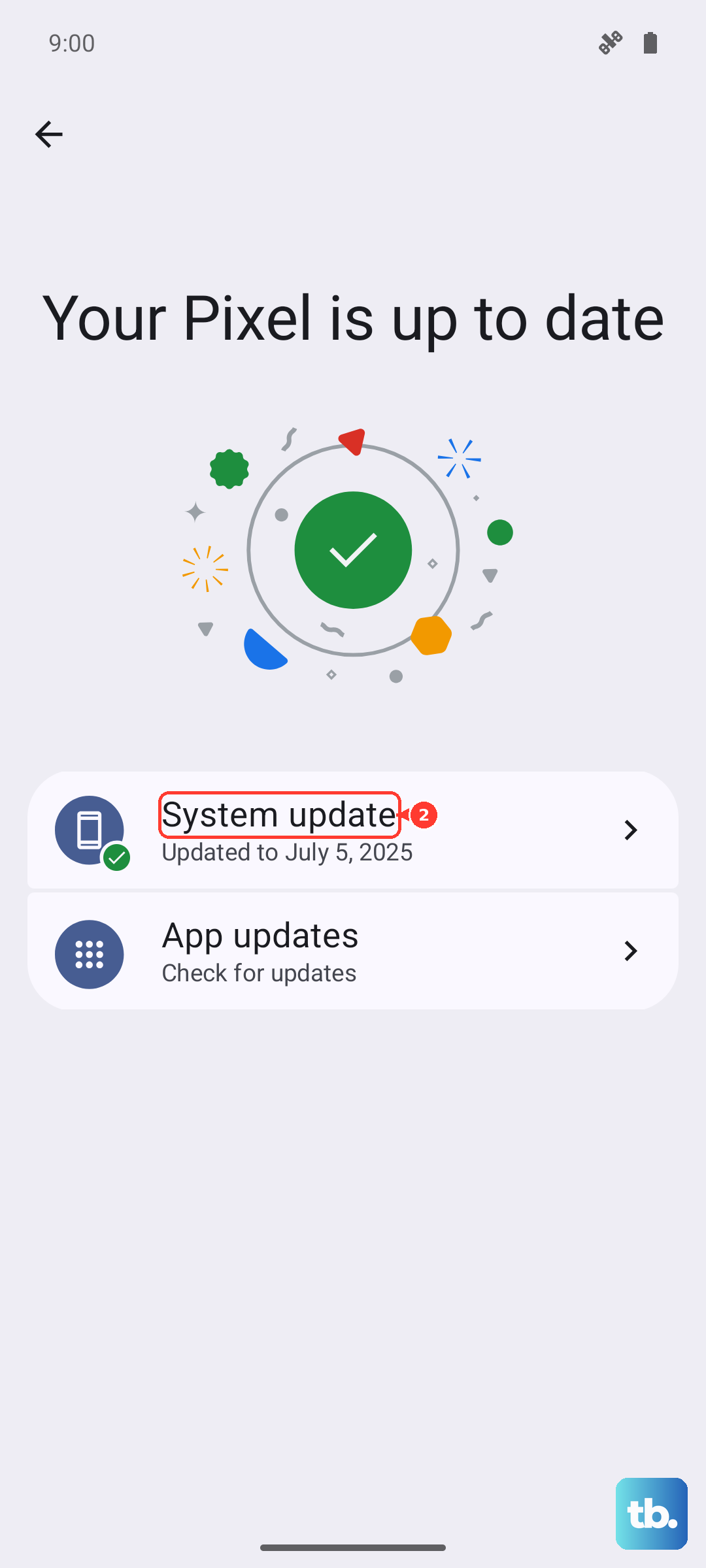
An outdated version of One UI or your messaging app can have bugs that affect MMS. Check for a system update by going to Settings > Software update > Download and install.
Next, open the Galaxy Store or Google Play Store and check for updates to your specific messaging app. Installing the latest version often resolves known sending issues.
Try a Different Messaging App
Sometimes the problem is isolated to one app. If you're using Samsung Messages, try downloading Google Messages from the Play Store and set it as your default. This can bypass any app-specific bugs.
To change the default, go to Settings > Apps > Choose default apps > Default messaging app. Select the new app you installed and give it a try.
Reset Your Network Settings
This will wipe all your network connections back to factory defaults, which can fix deeper configuration problems. Go to Settings > General management > Reset > Reset network settings.
Tap to reset and confirm. Be aware this will erase all saved Wi-Fi networks and passwords, Bluetooth pairings, and mobile data settings, so you'll need to set those up again.
Check the File Size and Format
Most carriers have a strict size limit for MMS pictures, often around 1MB. If your photo is a high-resolution shot from the Tab S9's great camera, it might be too large. Try sending a smaller, compressed version of the image.
You can use the Gallery app to edit and resize the photo before sending. Also, some less common file formats might not be supported by the recipient's carrier, so sticking with standard JPG files is your safest bet.