You reached for your Galaxy Tab S9 to install an update, save a downloaded file, or take a quick screenshot, and instead a "Storage full" or "Not enough space" warning stopped you. On a tablet that shipped with either 128GB or 256GB of internal storage, that space disappears faster than you would expect once high-resolution photos, 4K video, games, and app caches start to stack up. The good news is that One UI includes several built-in tools that show you what is eating your space and clear it safely, and because the Tab S9 (Wi-Fi model SM-X710 or 5G model SM-X716) has a microSD slot, you can expand its storage outright. Work through the fixes below in order, easiest and safest first, and stop as soon as you have freed up enough room.
Find out exactly where your gigabytes went
Before you delete anything, see which categories are actually using your space so you remove the right things. One UI breaks your storage down by type, which usually makes the culprit (often videos or app data) obvious at a glance.
Open Settings and tap Battery and device care (this is labeled Device care on some One UI versions).
Tap Storage to see your space broken down by category, including Images, Videos, Audio, Documents, and Apps.
Tap a category, select the files you no longer need, then tap Delete to confirm.
Reviewing this screen first means you delete with intent instead of guessing, and you can return to it after each step to watch your free space climb.
Let One UI tidy up in a single tap
The fastest cleanup is the built-in one. Quick optimization clears the clutter the tablet flags automatically, and the memory tool closes background apps that are holding on to resources.
Go to Settings > Battery and device care and tap Optimize now for a one-tap cleanup.
To free up memory, tap Settings > Battery and device care > Memory, then tap Clean now.
If you want certain apps left running, open Excluded apps and tap Add to protect them.
Optimize now is safe to run as often as you like, and the memory clean helps keep the tablet responsive while you work through the rest of these steps.
Clear app caches for a quick, low-risk win
Apps build up temporary files called caches over time, and these can quietly grow to several gigabytes. Clearing a cache removes only those temporary files; it does not touch your accounts, logins, or saved content.
Open Settings, then swipe to and tap Apps.
Select an app (browsers, social, and streaming apps usually hold the biggest caches).
Tap Storage, then tap Clear cache.
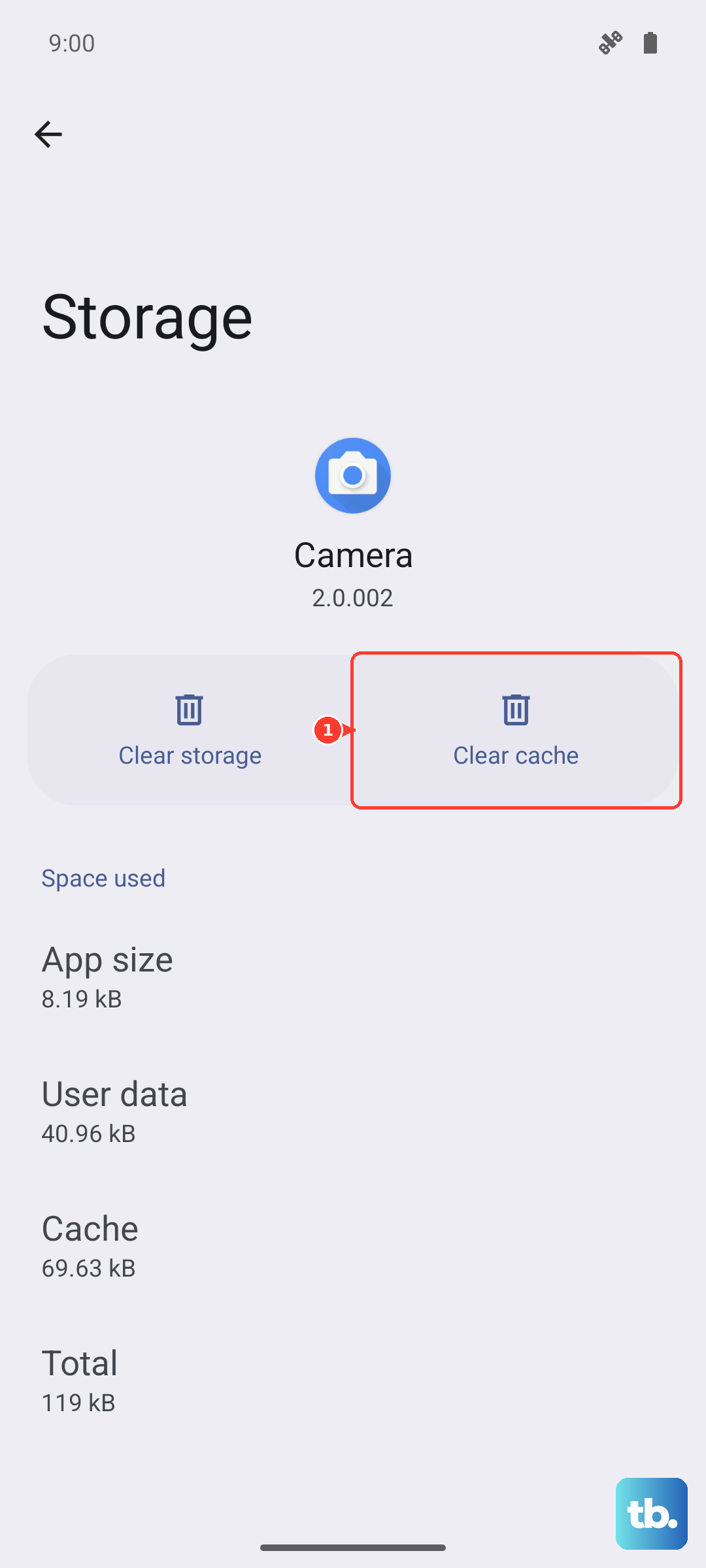
Avoid the neighboring Clear data option unless you truly want to reset the app, because One UI warns that "Clearing the data will reset the app to factory default settings. Any personal settings or data saved on the app will be removed."
Clear out downloads and empty the My Files Trash
Your Downloads folder collects installers, PDFs, and one-off files you rarely revisit, and they add up. The My Files app lets you clear them, but remember that deleting sends them to a holding area first.
Open the My Files app, found in the Samsung folder.
Choose a category such as Downloads, Images, or Videos.
Touch and hold the files you no longer need, tap Delete, then tap Move to Trash.
Deleted files stay in Trash for 30 days before they are permanently removed, so open the Trash in My Files and empty it to reclaim that space immediately rather than waiting a month.
Remove apps and games you no longer open
Large games and apps you have stopped using are often the single biggest drain on storage. Uninstalling them is quick and frees up significant space at once.
Touch and hold an app on the Home screen or in the Apps screen.
Tap Uninstall.
Confirm when the tablet asks you to.
If you are not sure which apps are the largest, the Storage screen from the first fix lists apps by the space they occupy, so you can target the heaviest ones.
Move photos and files to the cloud
Photos and videos are usually the heaviest category, and you do not need to keep every copy on the tablet itself. Back them up to the cloud, then delete the local copies to reclaim the room.
Open Settings > Accounts and backup, then tap Back up data to back up to Google Drive.
For Microsoft OneDrive, use Manage accounts to add or sign in to your account.
Once your files are safely backed up, delete the local copies from the tablet.
You can also move files straight to the cloud from My Files. Touch and hold the files, tap Move, then choose Google Drive or OneDrive and tap Move here.
Expand the Tab S9 with a microSD card
Unlike many tablets, the Galaxy Tab S9 has a microSD slot, and it accepts cards up to 1TB. This is the only way to physically expand the tablet's storage, and it lets you shift bulky media off the internal drive.
Insert a microSD card (up to 1TB) into the tablet's card slot.
Open My Files, then touch and hold the files you want to move.
Tap Move or Copy, tap SD card, then tap Move here.
Moving photo and video libraries to the card is an easy way to free large amounts of internal space while keeping everything accessible on the tablet.
Install the latest One UI update
Software updates can repair storage-handling bugs and tidy up system files, occasionally recovering space on their own. The Tab S9 series is receiving ongoing One UI updates, with One UI 8.x rolling out across the series in 2026, so it is worth confirming you are current.
Open Settings > Software update.
Tap Download and install, then tap Check for software updates (some models show System updates and Check for system updates).
Turn on Auto download over Wi-Fi so future updates arrive automatically.
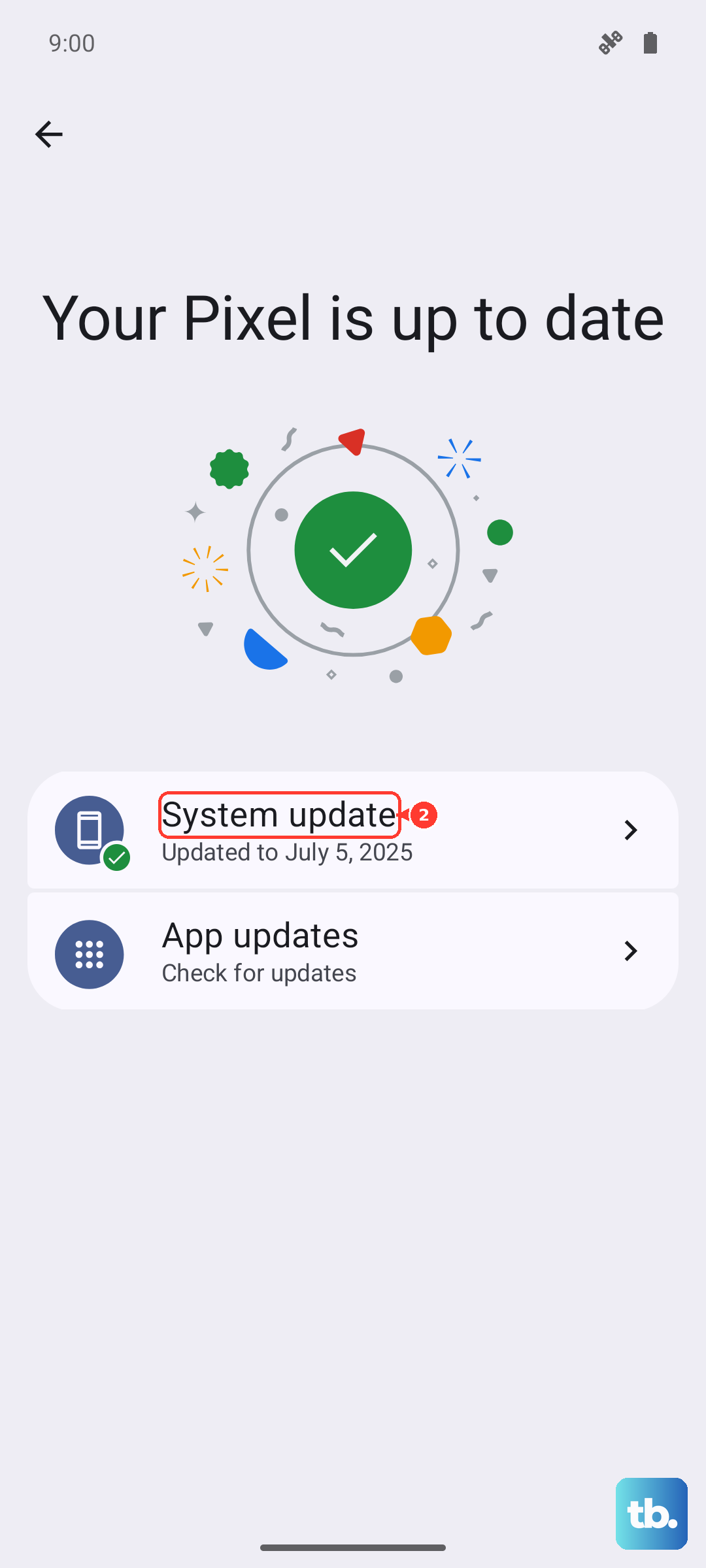
If an update is available, install it while the tablet is charged and connected to Wi-Fi, then return to the storage screen to see whether it freed any room.
Force restart if the tablet freezes during cleanup
If your Tab S9 freezes or stops responding while you are clearing space, you can force it to restart without losing any of your files. A force restart simply reboots the tablet and does not erase anything.
Press and hold the Volume down button and the Side button (or Power button) at the same time.
Keep holding until the device turns off and turns back on.
Release the buttons and let the tablet finish starting up.
This clears a temporary glitch that can make the tablet act as though it is out of space, and it is safe to use any time the screen stops responding. Once it is back, pick up where you left off.
Reset the tablet as a last resort
If storage problems persist after everything above, a factory data reset returns the tablet to its original state and clears out whatever is stuck. This erases all apps, settings, and personal files, so treat it as a final option and back up everything you care about first.
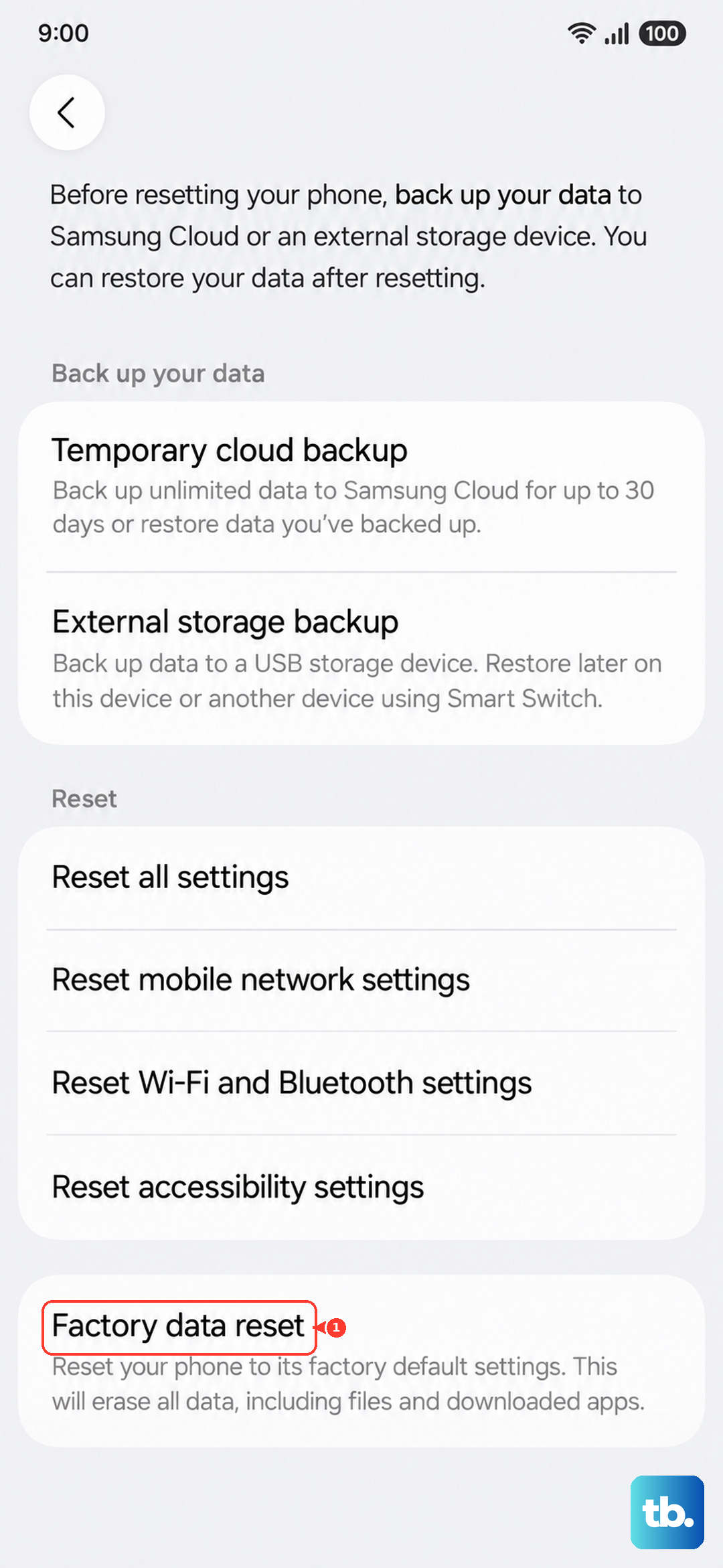
- 1.Open Settings > General management > Reset.
- 2.Tap Factory data reset and review the information shown.
- 3.Tap Reset, then tap Delete all.
Samsung is explicit about the stakes here. "Please save any information you need prior to the factory reset because your personal data may not be recovered." Confirm your backups are complete before you tap Delete all.
Frequently Asked Questions
Does clearing an app's cache delete my data or sign me out?
No. Clear cache only removes temporary files, so your logins, accounts, and saved content stay put. The option that resets an app is Clear data, which One UI warns will remove "any personal settings or data saved on the app," so use it only when you intend to reset that app.
How large a microSD card can the Galaxy Tab S9 use?
The Tab S9 supports a microSD card up to 1TB. After inserting the card, you can move files to it from the My Files app by touching and holding the files, tapping Move, choosing SD card, then tapping Move here.
Where do my deleted files go in My Files?
They are moved to Trash, where they remain for 30 days before being permanently deleted. To reclaim that space right away rather than waiting, open the Trash in My Files and empty it.
Will a factory reset fix a storage problem?
It clears the tablet completely and returns it to factory settings, which resolves stubborn issues, but it also erases all of your apps, settings, and files. Because Samsung cautions that "your personal data may not be recovered," only use it as a last resort after backing everything up.