
If you're trying to send a photo or video from your Samsung Galaxy Tab S9 and it's just stuck on "Sending," it's a common but fixable problem. The issue usually comes down to your data connection or a setting that needs a quick adjustment.
I'd start by checking your mobile data. Picture messages, or MMS, won't send over Wi-Fi alone. They need an active cellular data connection. Swipe down from the top of your screen and make sure the mobile data icon is turned on. If you have a weak signal, try moving to a different location.
Verify Your MMS Settings in Samsung Messages
Open the Samsung Messages app and tap the three-dot menu in the top right. Go to Settings and then select Multimedia messages. Here, you want to make sure "Auto download" is enabled. This allows the app to retrieve MMS automatically. Also, if you're traveling, toggle on "Roaming auto download."
Sometimes the app's temporary data gets corrupted. You can clear this cache without losing your conversations. Go to your tablet's Settings > Apps, then find and select Messages. Tap Storage and choose Clear cache.
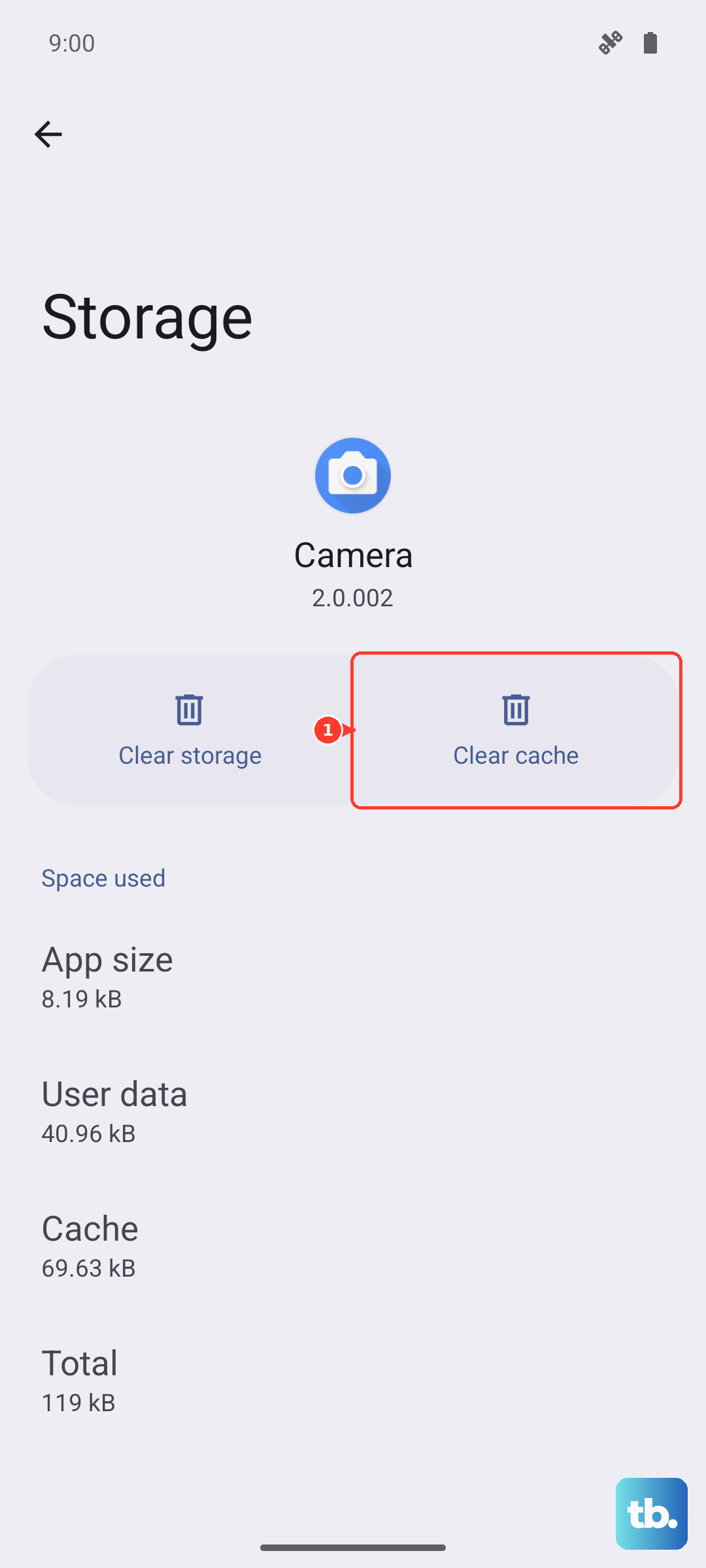
If the problem persists, you can take the more thorough step of clearing the app's data. This will erase your message history, so be sure you're okay with that. In the same Storage menu, tap Clear data and confirm. You'll need to set your default messaging app again afterward.
Check Your APN Configuration
Incorrect Access Point Name (APN) settings are a frequent culprit for MMS failures. These settings tell your tablet how to connect to your carrier's multimedia service. To check them, go to Settings > Connections > Mobile networks > Access Point Names.
You should see a list of APNs. Select the one that's currently active (it will have a filled-in dot next to it). The exact values here are specific to your carrier. If anything looks off or blank, the safest move is to contact your carrier's support. They can give you the correct settings to enter or may even push them to your device automatically.
Perform a Network Settings Reset
This is a more comprehensive step that can clear up deeper connectivity glitches affecting MMS. It will reset all network-related settings back to default. You'll lose saved Wi-Fi networks, paired Bluetooth devices, and any custom APN settings.
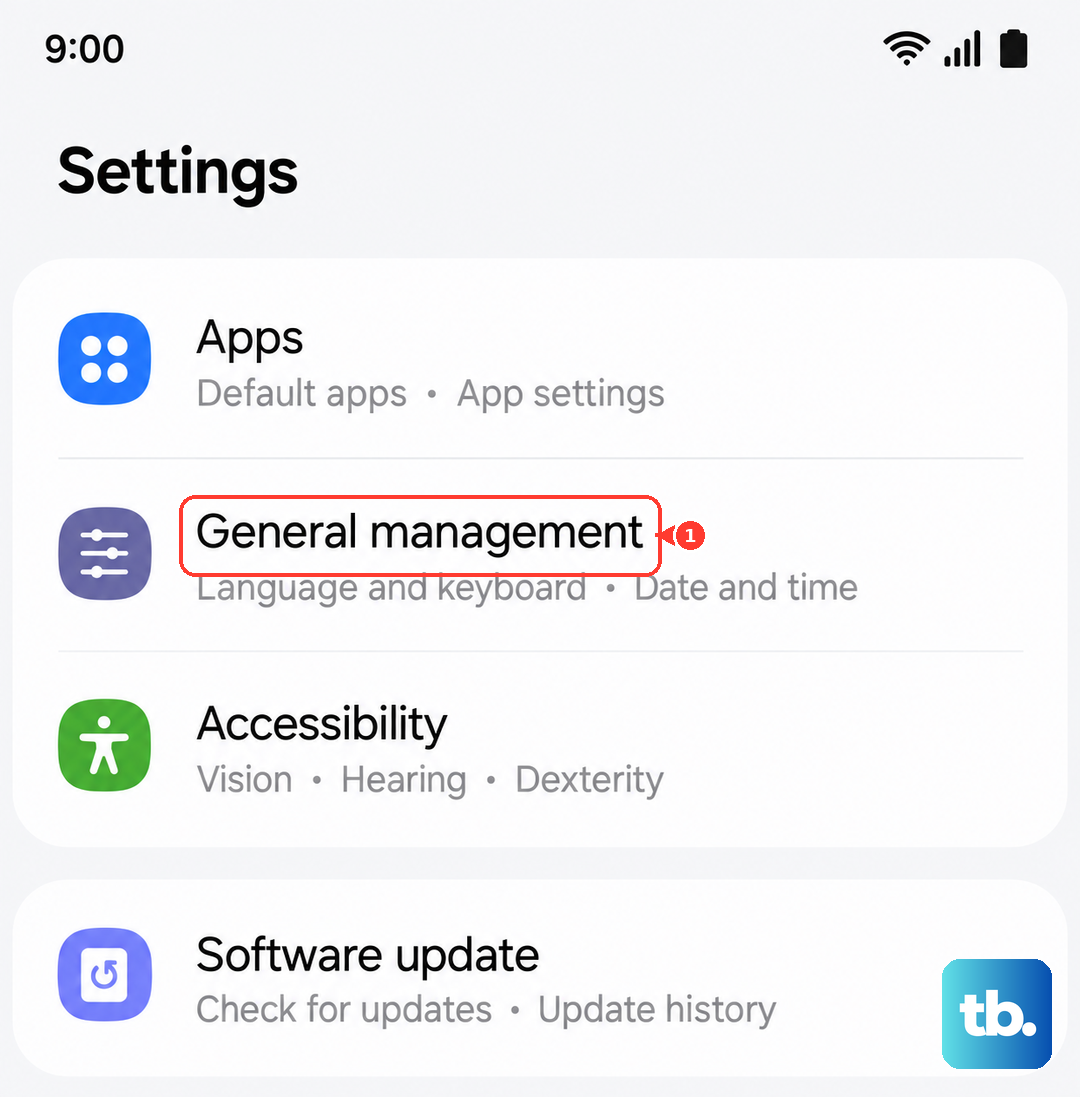
To do it, navigate to Settings > General management > Reset > Reset network settings. Tap to confirm and your tablet will restart. After it boots up, you'll need to reconnect to your Wi-Fi and re-pair Bluetooth accessories, but it often resolves stubborn messaging issues.
Update Your Tablet's Software
An outdated version of One UI or Android can have bugs that interfere with messaging services. It's always good to check for updates. Go to Settings > Software update > Download and install.
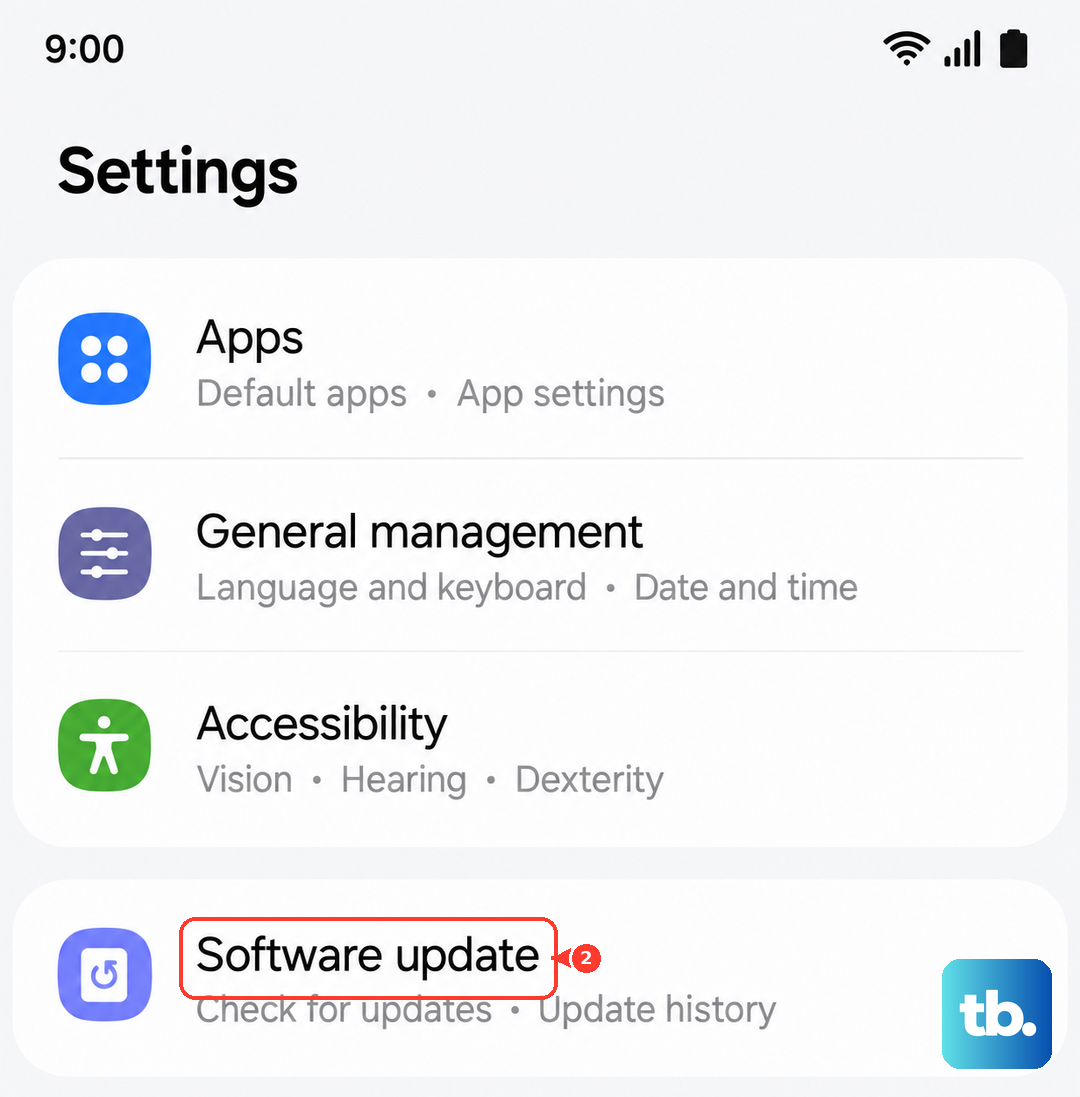
If an update is available, let it download and install. Your tablet will restart during this process. After it's back on, try sending a picture message again to see if the update fixed the compatibility issue.
Ensure You Have Enough Storage Space
Your Galaxy Tab S9 needs a bit of free space to process and send multimedia messages. If your internal storage is completely full, it can fail. Check your available space in Settings > Battery and device care > Storage.
Try to free up at least a few hundred megabytes if you're running low. You can delete old downloaded files, clear app caches, or offload some photos and videos to cloud storage or a microSD card.
Try Google Messages as an Alternative
If Samsung Messages continues to give you trouble, switching to another app can be a great workaround. Google Messages is a reliable alternative that's fully compatible with Android. Download it from the Play Store, open it, and set it as your default messaging app when prompted.
With Google Messages set as default, try sending your picture again. Many users find that this switch alone resolves persistent MMS sending problems on their devices.