You hit play on a video or a playlist on your Galaxy Tab S9, slip on your headphones, and nothing comes through, or the sound stubbornly keeps blasting from the tablet's speakers. It is a frustrating gap between a premium tablet and a quiet pair of headphones, and the good news is that most of the time it is a connection, settings, or software hiccup rather than a broken tablet. Because the Tab S9 routes wired audio through its USB-C port and everything else over Bluetooth, the fix almost always lives in one of those two paths. Work through the steps below in order, starting with the quickest and safest, and you will usually have audio back in your ears within a few minutes.
If you suspect one side has failed, an online headphone test settles it quickly. Play each channel on its own and you will know whether it is the headphones or the source.
Rule out a muted slider before anything else
Before you assume the worst, confirm the tablet is actually trying to send sound out. Open a music or video app, start playback, and watch the media volume. When media is muted, the speaker icon appears gray and crossed out, which is easy to miss if you glanced past it earlier.
Open a music or video app and play some audio.
Press a volume button to bring up the volume pop-up, then tap the three-dot menu on it to reveal the full set of sliders.
Find the media slider and make sure it is not set to mute (the speaker icon should not be gray and crossed out), then raise it.
This single check rules out a simple mute or a single-app volume problem, and it is a common reason a Tab S9 seems to have "no headphone sound" at all.
Re-seat the connection and clear the decks
A loose or partial connection behaves exactly like a dead pair of headphones, so reset the physical link first. Unplug your USB-C headphones or your USB-C to 3.5mm adapter and firmly re-seat it so it clicks fully into the port. While you are at it, take off anything that could be interfering with the connection.
Remove the headphones along with any connected accessories such as cases, charms, or skins that sit near the port. Once everything is off, restart your tablet, then plug the headphones back in and test again. Clearing the accessories and giving the tablet a fresh start often clears whatever was blocking the audio handoff.
Match the headphones to the ports the Tab S9 has
This is the step many owners overlook because they expect a headphone jack. The Galaxy Tab S9 has no 3.5mm headphone jack, so plain 3.5mm headphones cannot plug into it directly, and a poor adapter is a frequent cause of total silence. Use one of the three connection methods the tablet actually supports.
Plug USB-C wired headphones straight into the tablet's USB-C port.
Plug a USB-C to 3.5mm adapter into the device, then plug your headphones into the adapter.
Use wireless headphones such as Galaxy Buds over Bluetooth.
If you are using an adapter and getting nothing, the adapter itself is a likely culprit; a cheap or faulty adapter is a common reason for "no sound" through the USB-C port.
Bring Bluetooth headphones back into line
If you are listening wirelessly, distance and stray interference matter more than people expect. Keep the headphones within about 30 feet of the tablet and away from walls, routers, and other sources of interference that can break up or kill the audio. Then confirm the right output switches are actually on.
Go to Settings > Connections > Bluetooth.
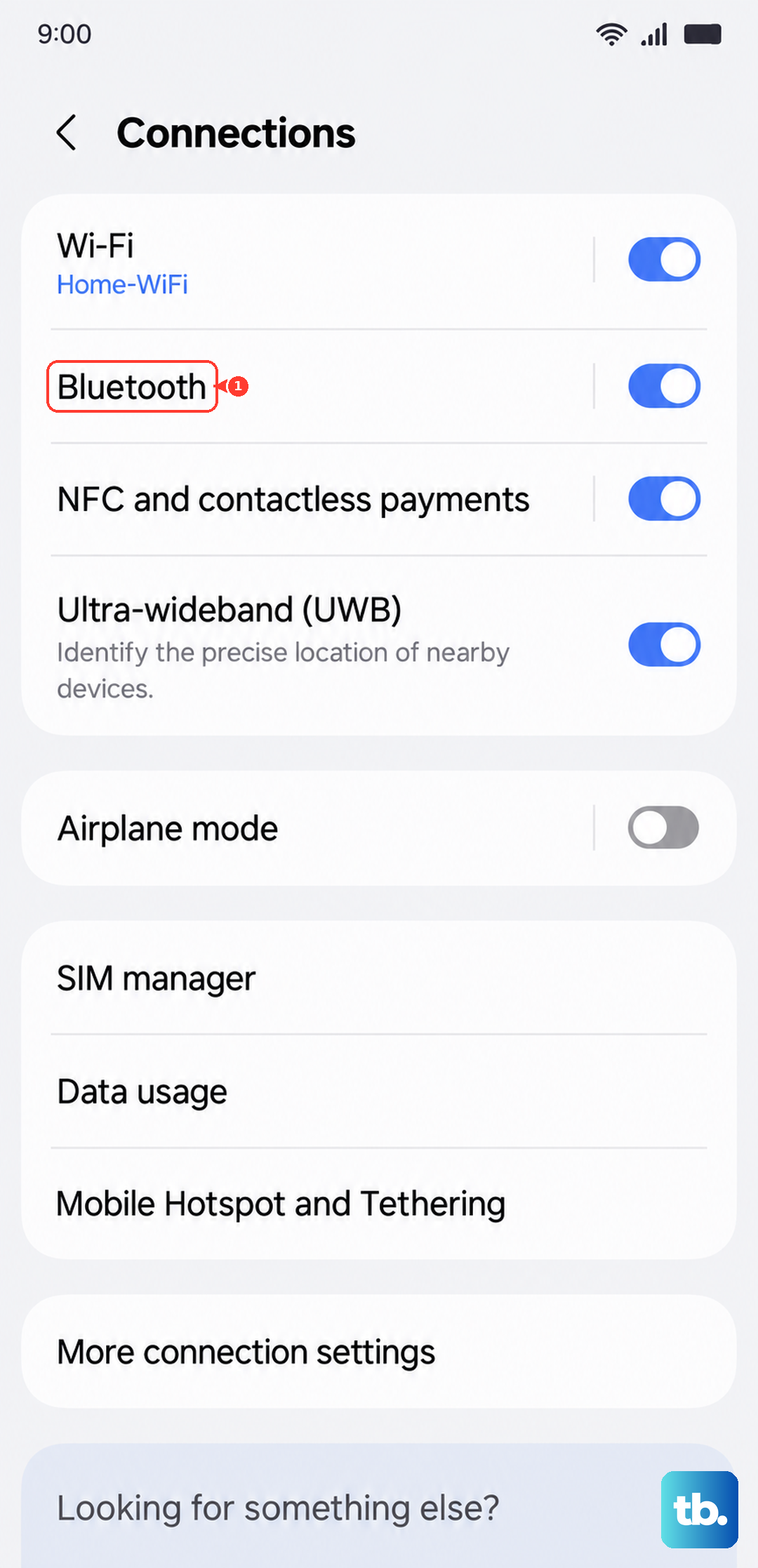
Tap the Settings icon next to the connected headphones.
Make sure the "Calls" and "Audio" output switches are turned on.
If the switches were already on and sound still will not route, remove (unpair) the headphones and pair them again from scratch. A fresh pairing rebuilds the connection profile and clears glitches that a simple reconnect cannot.
Look closely at the USB-C port and connector
For wired setups, a physical fault on either end will defeat every software fix. Inspect the headphone or adapter connector and make sure it is not bent or broken, and check the cable for damage or exposed wires along its length. A frayed cable or a tweaked connector can make contact intermittently or not at all.
Next, shine a flashlight into the tablet's USB-C port and look for lint, pocket debris, or bent pins blocking a clean connection. Built-up debris is one of the quieter reasons a wired connection fails, and clearing the port can restore solid contact without any further steps.
Swap the headphones to find the faulty part
A quick swap tells you exactly where the problem lives. Try another set of headphones, either USB-C or Bluetooth, on your Tab S9, and separately try your current headphones on another device. The result narrows the cause down immediately.
If a different pair works on the tablet, your original headphones are the problem. If your headphones fail on every device you try, the headphones themselves are faulty and no amount of tablet tweaking will help. Knowing which it is saves you from chasing settings that were never the issue.
Restart the tablet, or force it if it is frozen
A restart clears temporary audio and connection glitches that build up while the tablet has been running. For a normal restart, press and hold the Volume down button and the Side button (or Power button) at the same time, then tap Restart, and then tap Restart again.
If the tablet is frozen or completely unresponsive, perform a force restart instead. Press and hold the Volume down button and the Side button (or Power button) simultaneously until the device turns off and turns back on. This does not erase any of your data; it simply gives the system a clean power cycle.
Update One UI to squash audio and Bluetooth bugs
Audio routing and Bluetooth handling are exactly the kind of things Samsung fixes in software updates, so make sure your Tab S9 is current. The tablet is eligible for updates up to One UI 8.0 (Android 16), so there is a good chance a newer build is waiting for you.
Go to Settings > Software update (or System updates) > Download and install.
Tap Check for system updates.
If an update is available, install it by following the on-screen prompts.
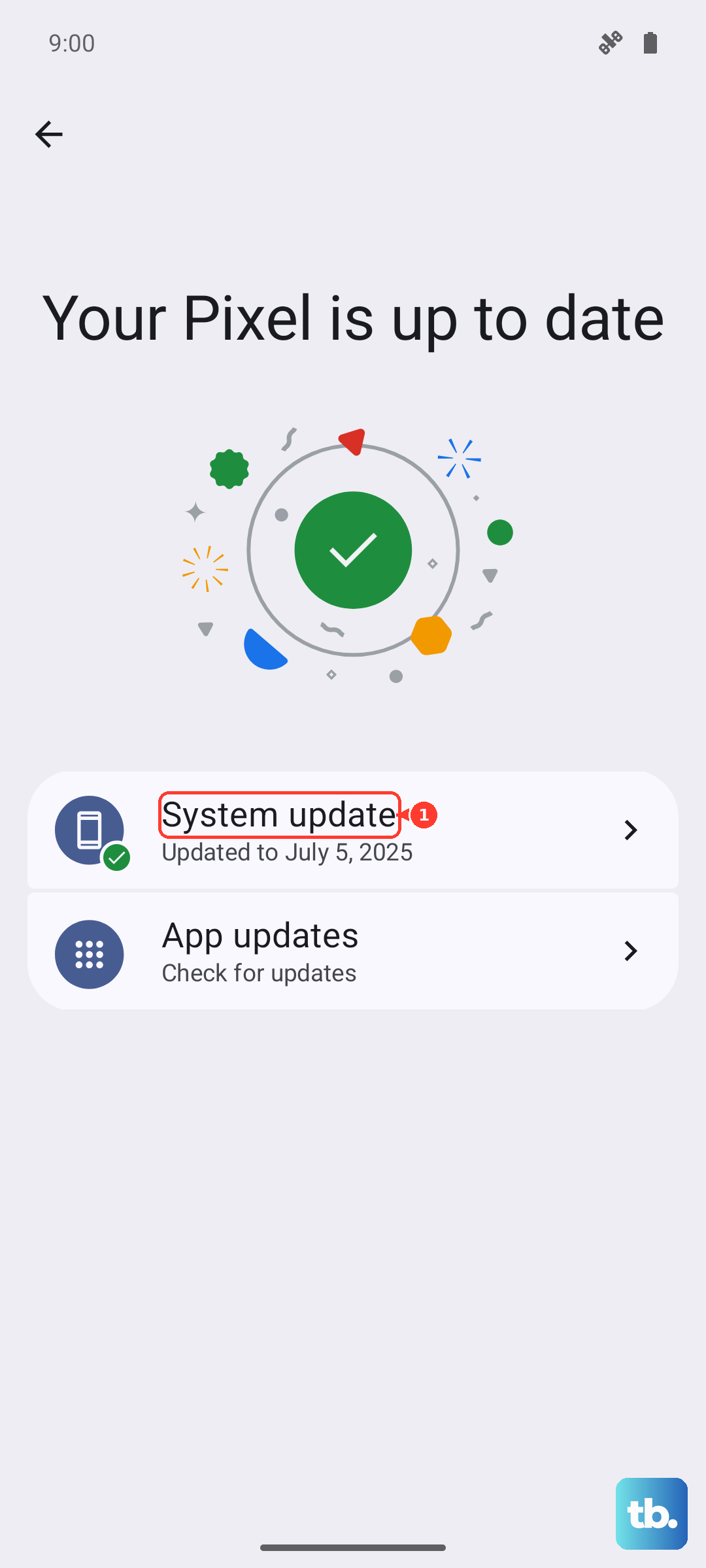
Let the tablet finish installing and restart, then test your headphones again to see whether the update resolved the fault.
Test in Safe mode to expose a misbehaving app
Sometimes a downloaded app grabs the audio output or interferes with Bluetooth, and Safe mode is the clean way to find out. Safe mode temporarily disables all third-party apps so you can hear whether the tablet's own audio works on its own.
Power the tablet off, then turn it on.
When the Samsung logo appears, press and hold the Volume down button until "Safe mode" appears in the bottom-left corner.
If headphone audio works in Safe mode, a downloaded app is the cause; uninstall recently added apps one at a time until the problem disappears. Restart the tablet normally to exit Safe mode when you are done.
Back up, then reset the Tab S9 to factory settings
If software is still standing in the way after everything above, a factory data reset is the last software-level option. Be aware this completely erases your personal information and data, so back up everything you care about first before you go any further.
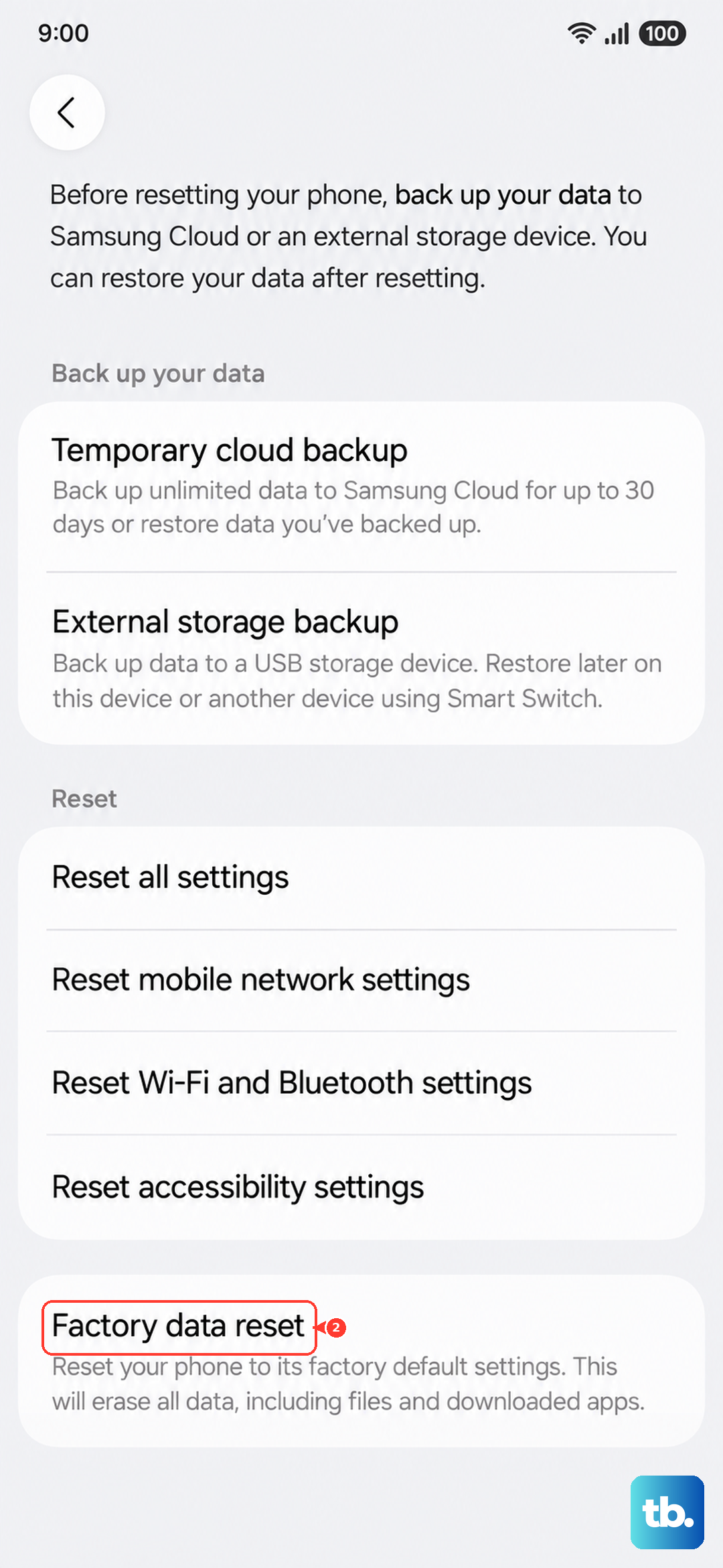
- 1.Once your backup is done, go to Settings > General management > Reset > Factory data reset.
- 2.Review the information shown on screen.
- 3.Swipe to and tap Reset, then tap Delete all.
The tablet erases its data and restarts to the initial setup screen. After you set it up again, connect your headphones early to confirm whether the reset cleared the fault before you reload all of your apps.
When it is the hardware and not the headphones
If audio still does not work after every step above, the problem may be a hardware fault such as a damaged USB-C port rather than anything you can fix at home. At that point, Samsung's guidance is to stop troubleshooting and get the tablet looked at by someone who can open and test it.
Visit a service center or contact Samsung Support for further assistance and repair. Bring the headphones and any adapter you use so the technician can reproduce the exact failure you are seeing.
Frequently Asked Questions
Does the Galaxy Tab S9 have a headphone jack?
No. The Galaxy Tab S9 does not have a 3.5mm headphone jack. For wired listening you can use USB-C headphones in the USB-C port, or plug a USB-C to 3.5mm adapter into the port and connect your headphones to the adapter; otherwise you can use wireless headphones such as Galaxy Buds over Bluetooth.
Why do my Bluetooth headphones connect but play no sound on the Tab S9?
This usually means the audio output switch is off for that device. Go to Settings > Connections > Bluetooth, tap the Settings icon next to the connected headphones, and make sure the "Calls" and "Audio" output switches are turned on. Keeping the headphones within about 30 feet and away from interference, or unpairing and pairing again, also helps.
My USB-C to 3.5mm adapter gives no sound. What is wrong?
A cheap or faulty adapter is a common cause of "no sound" through the USB-C port. Make sure the adapter is fully seated, check the connector and cable for damage, and try a different adapter or a set of USB-C headphones to confirm whether the adapter is the faulty part.
Will a factory data reset fix my headphone problem?
It can, but only if the cause is software, and it should be a last resort because it completely erases your personal information and data. Back up first, then go to Settings > General management > Reset > Factory data reset > Reset > Delete all. If the issue continues after a reset, it points to a hardware fault that needs a service center.
How do I restart a frozen Galaxy Tab S9?
Press and hold the Volume down button and the Side button (or Power button) simultaneously until the device turns off and turns back on. This force restart does not delete any of your data and often clears temporary audio or Bluetooth glitches.