You set your Galaxy Tab S9 down to charge, came back expecting a healthy top-up, and the battery icon has barely moved. Or worse, the percentage is climbing at a sleepy pace that feels nothing like the "Super Fast Charging" the tablet is supposed to deliver. The good news is that the Tab S9, S9+, and S9 Ultra all genuinely support up to 45W wired charging, so a slow or stalled charge is almost always something you can fix yourself rather than a dead battery. The fixes below are ordered from the quickest and safest to the more involved, so start at the top and stop as soon as your tablet charges normally again.
What 45W Super Fast Charging actually needs
Samsung's official pages confirm every Galaxy Tab S9 supports up to 45W wired Super Fast Charging, marketed as "45-Watt Fast Charging 2.0," but there are two details that catch a lot of owners out. First, the wall charger is sold separately and is not included in the box, and Samsung's guidance is to "use only Samsung approved chargers and cables." To actually reach 45W you need a Samsung-approved roughly 45W adapter together with a compatible 5A cable.
Second, the Tab S9 series does not support wireless charging or Wireless PowerShare, so a wired connection is your only option; there is no pad or reverse-charging step to try. Keep both points in mind as you work through the fixes, because the single most common reason "fast" charging looks slow is simply an older or lower-watt phone charger that cannot deliver the speed.
Match the tablet with a Samsung-approved 45W charger and cable
Because the adapter is not in the box, many owners reach for whatever phone charger is nearby, and a lower-watt brick physically cannot push 45W into the tablet. Use a genuine Samsung 45W adapter paired with a compatible 5A cable.
Then plug the cable into the adapter, the adapter into a working wall outlet, and finally the cable into the tablet.
Avoid third-party gear here. Samsung's guidance is to use only its approved chargers and cables, since another device's charger or a third-party one can keep the tablet from charging at full speed.
If you only have a slow charger on hand, the tablet will still charge, just not at fast speeds.
Confirm the Fast charging toggle is switched on
The Tab S9 has a setting that controls fast charging, and it can be turned off without you realizing it.
Open Settings > Battery > Charging settings. On some One UI versions the path is Settings > Device care > Battery > Charging settings.
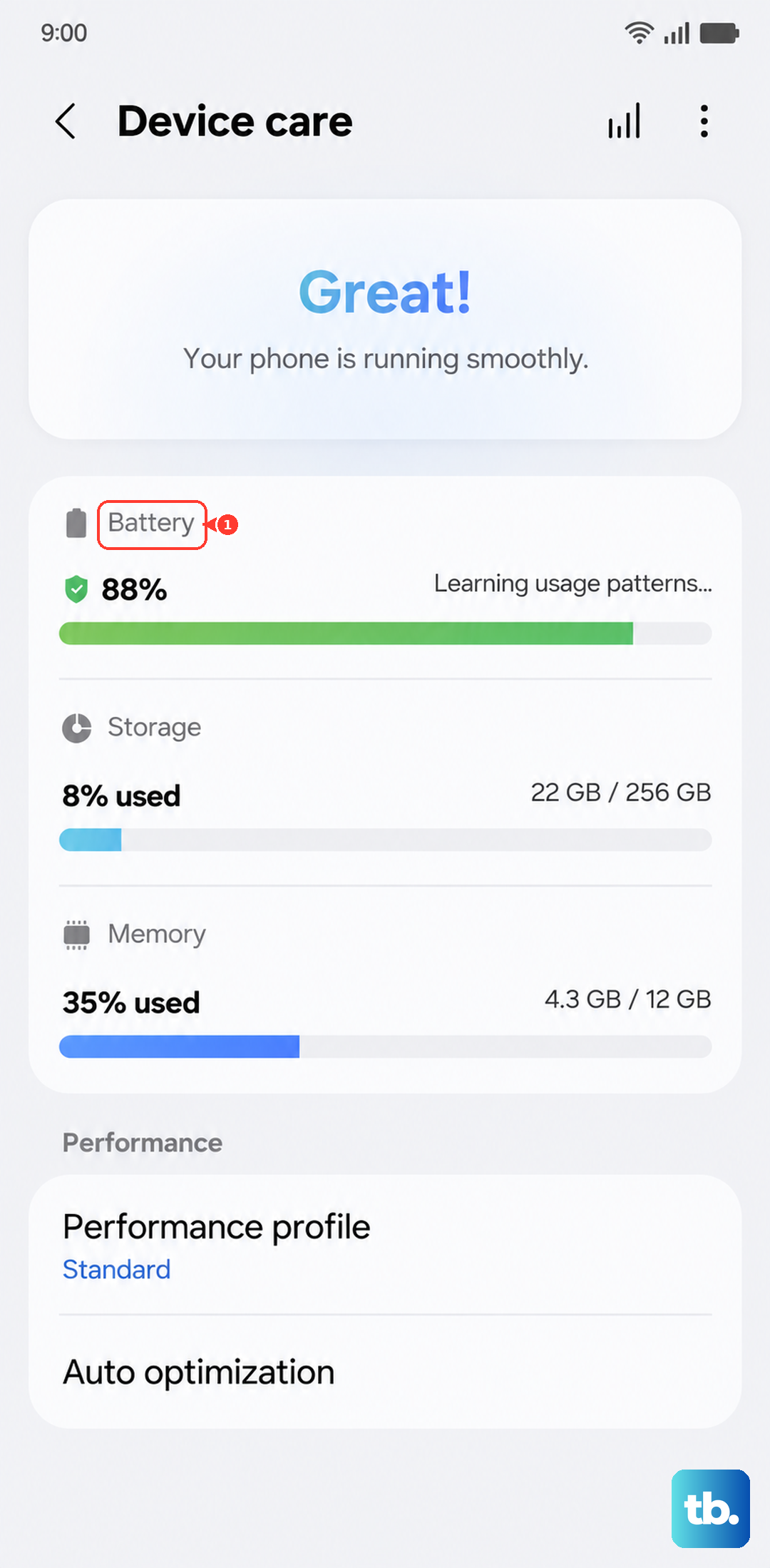
Make sure the "Fast charging" toggle is on.
One important catch: "You cannot enable or disable this feature while your device is charging." If the toggle looks stuck, unplug the tablet first, switch the setting, then reconnect the charger.
Let the tablet rest and stay cool while it powers up
As a safety measure, fast charging may not engage while you are actively using the device, and Samsung notes that charging speed varies based on environment and conditions, including temperature. If you are streaming, gaming, or running heavy apps with the screen on, the tablet may slow or pause fast charging to manage heat.
Set the tablet down with the screen off in a cool, well-ventilated spot and let it draw full power undisturbed. Coming back after a stretch of idle charging is often all it takes to see the faster rate kick in.
Look inside the USB-C port for lint and debris
Pocket lint and dust pack into the USB-C port over time and stop the cable from seating fully, which interrupts charging. Inspect and clear it carefully:
- 1.Turn the tablet off.
- 2.Shine a flashlight into the USB-C port and look for lint, dust, or debris near the metal terminals.
- 3.Gently blow into the charging port to remove the dust and debris.
- 4.Check the port and the cable connector for corrosion and bent pins.
When seated properly, the cable should sit firmly with very little mobility. If the port looks blocked or damaged, seek professional help rather than forcing anything inside.
Check the cable and adapter for hidden damage
A frayed cable or a cracked adapter can pass just enough current to charge slowly while never reaching fast speeds. Inspect the tablet, charger, and USB cable for physical damage such as cracks, exposed wires, wear, or bent prongs, and replace anything that looks compromised.
If you have a second genuine Samsung charger, test with it; swapping the cable and adapter is the fastest way to tell whether the accessory or the tablet is at fault. Stick to Samsung-approved gear for the test rather than a borrowed third-party charger.
Rule out a moisture warning
The Tab S9 will refuse to charge or show a moisture warning if it detects liquid around the port, which is a protective behavior, not a fault. If you see that warning or the tablet stopped charging after any contact with water, wipe the tablet with a soft and clean cloth or leave it in a well-ventilated area to dry before plugging it in again.
If the tablet has had any real liquid contact, treat ongoing charging issues as a possible hardware matter and lean toward professional inspection rather than repeated charging attempts.
Switch off Protect Battery if charging stalls near 80 percent
If your tablet charges fine but consistently stops at around 80 to 85 percent, that is almost certainly a deliberate setting rather than a problem. The Protect Battery feature will limit charging to 80% or the set level, preventing full charging.
Open Settings > Battery.
Turn off the "Protect Battery" or "Battery Protection" toggle. It appears gray when off.
With the limit removed, the tablet should charge all the way to 100 percent again.
Force restart a frozen tablet
A frozen or glitched system can stall charging even when the hardware is fine, and a forced reboot clears that without touching your files. Press and hold the Volume Down button and the Side (Power) button at the same time until the device turns off and turns back on. On Samsung's frozen-device guidance for the Galaxy Tab, hold both buttons for more than 7 seconds until the device reboots.
If the tablet stayed off during a failed charge attempt, disconnect it from the charger first, then press and hold the Power button for 15 to 20 seconds to bring it back on. A force restart does not erase any of your data.
Install the latest software update
Some charging quirks are addressed in firmware, so an up-to-date system can quietly resolve the issue. Make sure you are connected to Wi-Fi with enough battery, then update on-device.
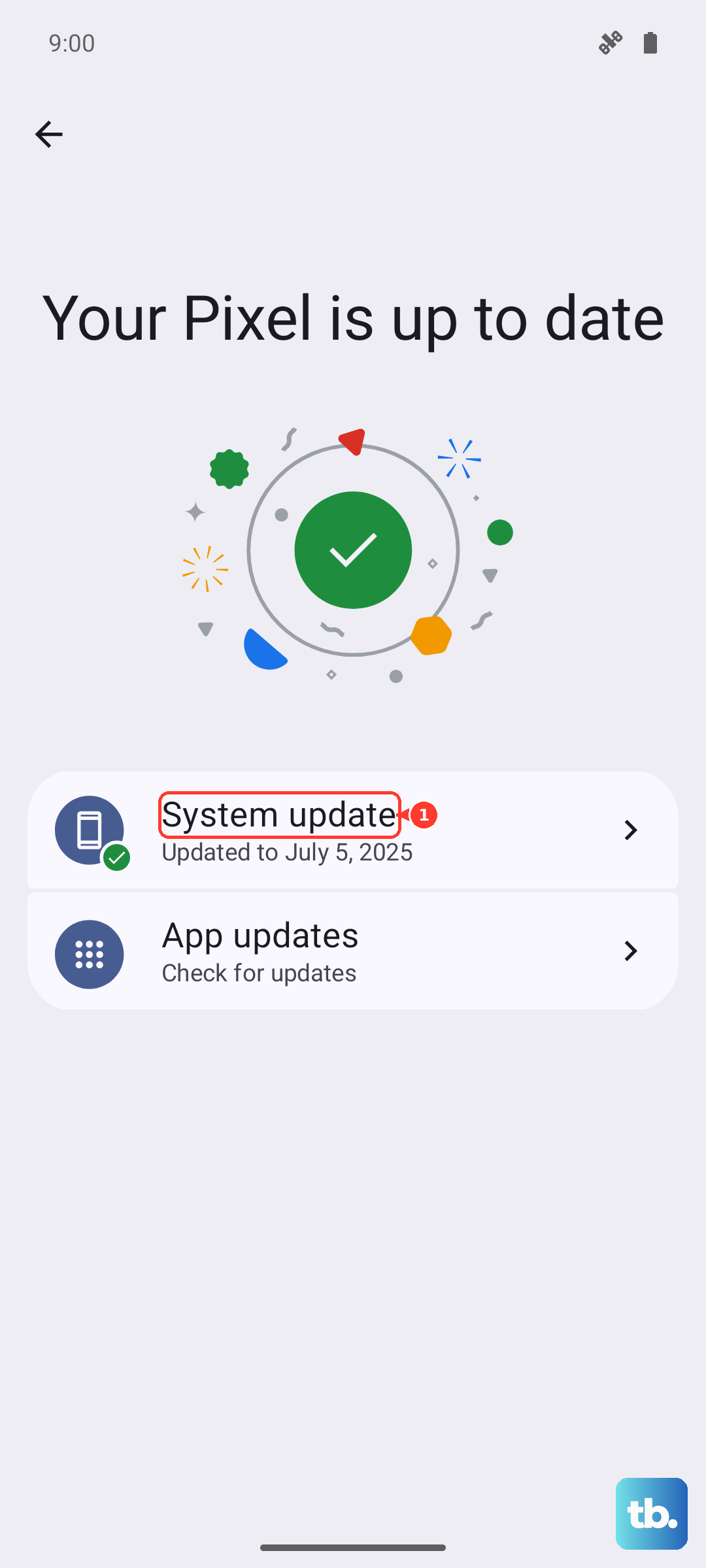
Open Settings > Software update > Download and install.
Tap Download and install, Check for system updates, or Check for software updates, depending on your carrier.
Follow the on-screen instructions to install.
If you would rather update from a computer, connect the tablet over USB and open Samsung Smart Switch, the free official desktop tool for Windows and Mac; when an update is available it will prompt you, and you should not disconnect until it finishes. Smart Switch is also the right tool for backing up before the next step.
Back up and factory reset as a last resort
If none of the software steps help, a factory reset clears deep configuration problems, but it erases the tablet, so treat it as a final option. Back up your data first, then reset from Settings > General management > Reset > Factory data reset > Reset.
This permanently deletes personal data, customized settings, apps downloaded from the Play Store, messages, contacts, and photos; apps can be re-downloaded after you sign back into your Google Account. Because of Factory Reset Protection, you must know your Google account credentials to set the tablet up again afterward, so confirm those before you start.
When to bring in Samsung Support
If the tablet still will not fast charge after the software steps, the problem may be the port, the battery, or the charger hardware rather than anything in the menus. Samsung advises seeking help from an authorized Samsung Service Center, which can inspect the port and internal components properly.
Reach out sooner if you spot physical damage, corrosion, or signs of liquid contact, or if there is no charging response at all after the tablet has spent an extended period on the charger. Those signs point to hardware that a self-fix cannot safely address.
Frequently Asked Questions
Does the Galaxy Tab S9 come with a charger in the box?
No. The wall charger is sold separately and is not included, and Samsung's guidance is to use only Samsung approved chargers and cables. To actually reach 45W you need a Samsung-approved roughly 45W adapter plus a compatible 5A cable.
Can I charge the Tab S9 wirelessly if the port acts up?
No. The Tab S9 series does not support wireless charging or Wireless PowerShare, so wired charging is the only option. If the port is the problem, the fix is cleaning, swapping the cable, or a service center inspection.
Why does my Tab S9 stop charging at 80 percent?
That is the Protect Battery feature, which limits charging to 80% or the level you set to preserve long-term battery health. Turn it off in Settings > Battery by switching off the "Protect Battery" or "Battery Protection" toggle, which appears gray when off.
Will a force restart delete my files?
No. Holding Volume Down and the Side (Power) button to reboot does not erase any data; it only restarts the system. Only a factory data reset deletes your personal data, and that is a separate, optional last resort.
How long should I let it charge before assuming a hardware fault?
If there is still no charging response after an extended time on the charger, treat it as a possible hardware fault and contact an authorized service center, especially if you also see damage, corrosion, or signs of liquid contact.