You line up a photo on your Galaxy Tab S9, tap the shutter, and the result comes back soft, hazy, or stuck hunting for focus on the preview screen. Blurry shots on a tablet this capable are almost always fixable at home, because the cause is usually a smudged lens, a too-close subject, a stray setting, or a temporary software hiccup rather than a broken camera.
The base Tab S9 carries a single 13MP Wide-angle rear camera and a 12MP Ultra-wide front camera, and both respond well to a short, ordered checklist. Work through the fixes below from the top, since the easiest and safest ones clear up the majority of focus problems before you ever touch a reset.
Start with a clean lens and an unobstructed view
The most common reason a photo looks soft is a thin film of fingerprints, dust, or skin oil sitting on the glass. Wipe both the rear and front camera lenses with a soft, dry, lint-free (microfiber) cloth until they look clear.
Even a light smudge scatters light enough to rob your shots of detail.
Next, check what is around the lens. A case, cover, or accessory that overlaps the edges of the camera lens can prevent the camera from focusing and add blur to every frame.
Make sure your cover and accessories do not cover the edges of the lens, so reseat or remove anything sitting too close before you shoot again.
Steady hands, good light, and the right distance
Camera shake and poor lighting produce the kind of fuzziness people often mistake for a hardware fault. Hold the tablet as still as possible and make sure your subject is well lit; indirect light works best, and you should avoid letting light shine straight into the lens.
A tablet is large and easy to wobble, so brace your elbows or rest it against something stable for slower shots.
Distance matters just as much as steadiness, because each lens has a minimum focusing range. The standard Wide rear lens (the 13MP camera on the base Tab S9) focuses when the subject is at least 12 inches away, while the Ultra Wide front lens needs the subject at least 4 inches away.
If close-up shots look blurry, simply move back and reframe so the camera has room to lock focus.
Touch the screen to focus and switch off Tracking auto-focus
Your camera should focus on a subject when you touch it on the screen, so tap directly on what you want sharp before you press the shutter. This is the quickest way to redirect focus when the camera keeps settling on the wrong part of the frame.
If focus keeps locking onto one person or object, Tracking auto-focus may be holding on; when it is on, the camera locks to that person or item for about 3 seconds.
To turn it off, open the Camera app, tap the Settings icon at the top left corner, then tap the switch next to Tracking auto-focus to turn it off. With tracking disabled, each tap on the screen sets a fresh focus point.
Send the camera back to its factory defaults
A changed setting can quietly soften your images without any obvious symptom. Restoring the camera to its defaults clears those adjustments in one step and is completely safe for your saved photos.
This is worth doing before any deeper troubleshooting.
Launch the Camera app.
Tap the Settings icon at the top left corner.
Swipe to and tap Reset settings.
Tap Reset to confirm.
Flush the Camera app's temporary files
The Camera app stores temporary files that can become corrupted and lead to focus or preview problems. Clearing the cache removes those temporary files without touching your photos or your preferences.
By contrast, Clear data would reset the app to defaults, so stick with Clear cache here.
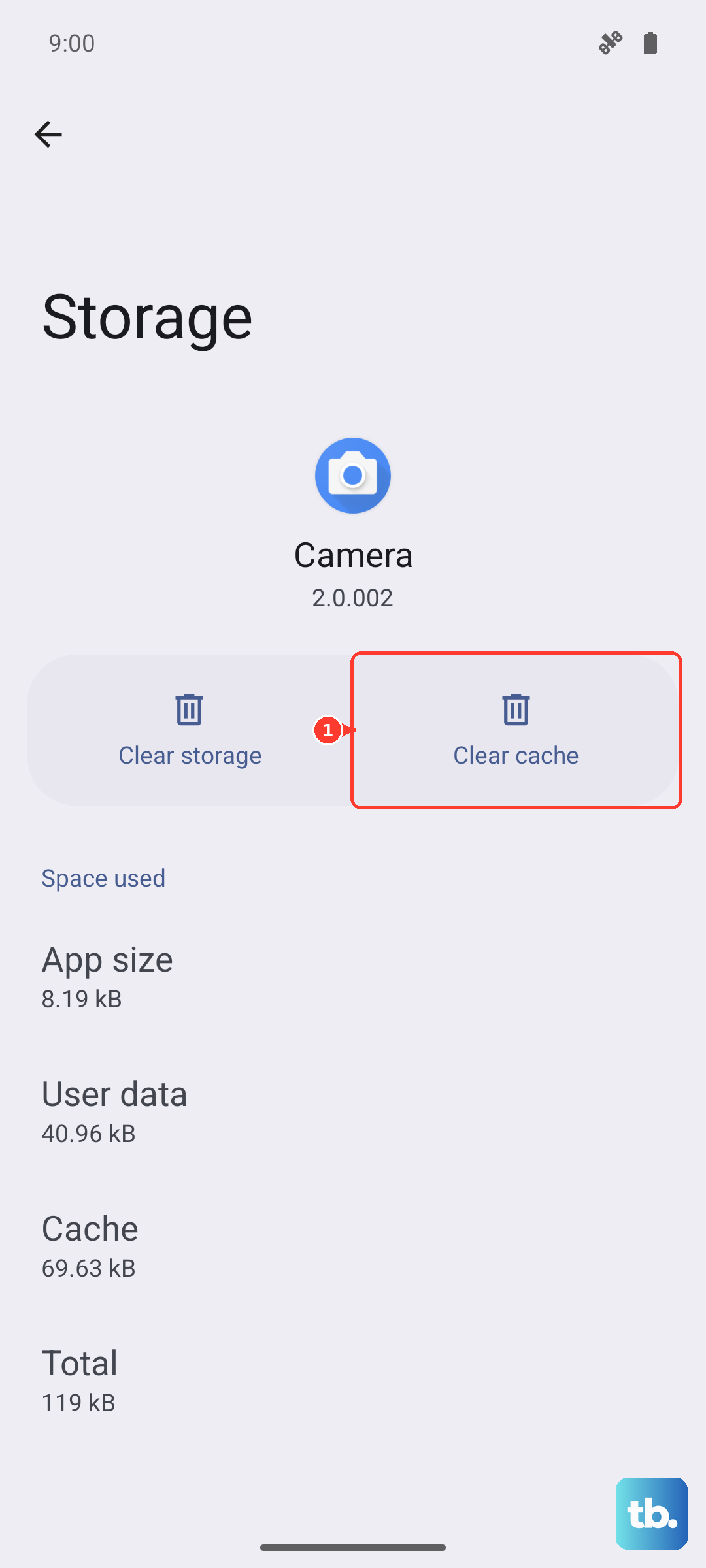
Open Settings and go to Apps.
Select Camera.
Tap Storage.
Tap Clear cache.
Restart the tablet to clear a momentary glitch
A simple restart resolves many short-lived software glitches that can interfere with the camera. Press and hold the Volume down button and the Side button at the same time, tap Restart, then tap Restart again.
Give the tablet a moment to come back up and test the camera once more.
If the tablet is frozen and will not respond, you can force a restart instead. Press and hold the Volume down button and the Side button at the same time until the device turns off and turns back on.
This does not erase any of your data; it only powers the tablet down and brings it back.
Install the latest One UI update
Software updates regularly include camera fixes and stability improvements, so an out-of-date system can be the hidden cause of blur. The Tab S9 series is eligible for newer One UI versions, and keeping it current is one of the safest steps you can take.
Charge the tablet to a safe level and connect to Wi-Fi before you begin.
Open Settings and go to Software update.
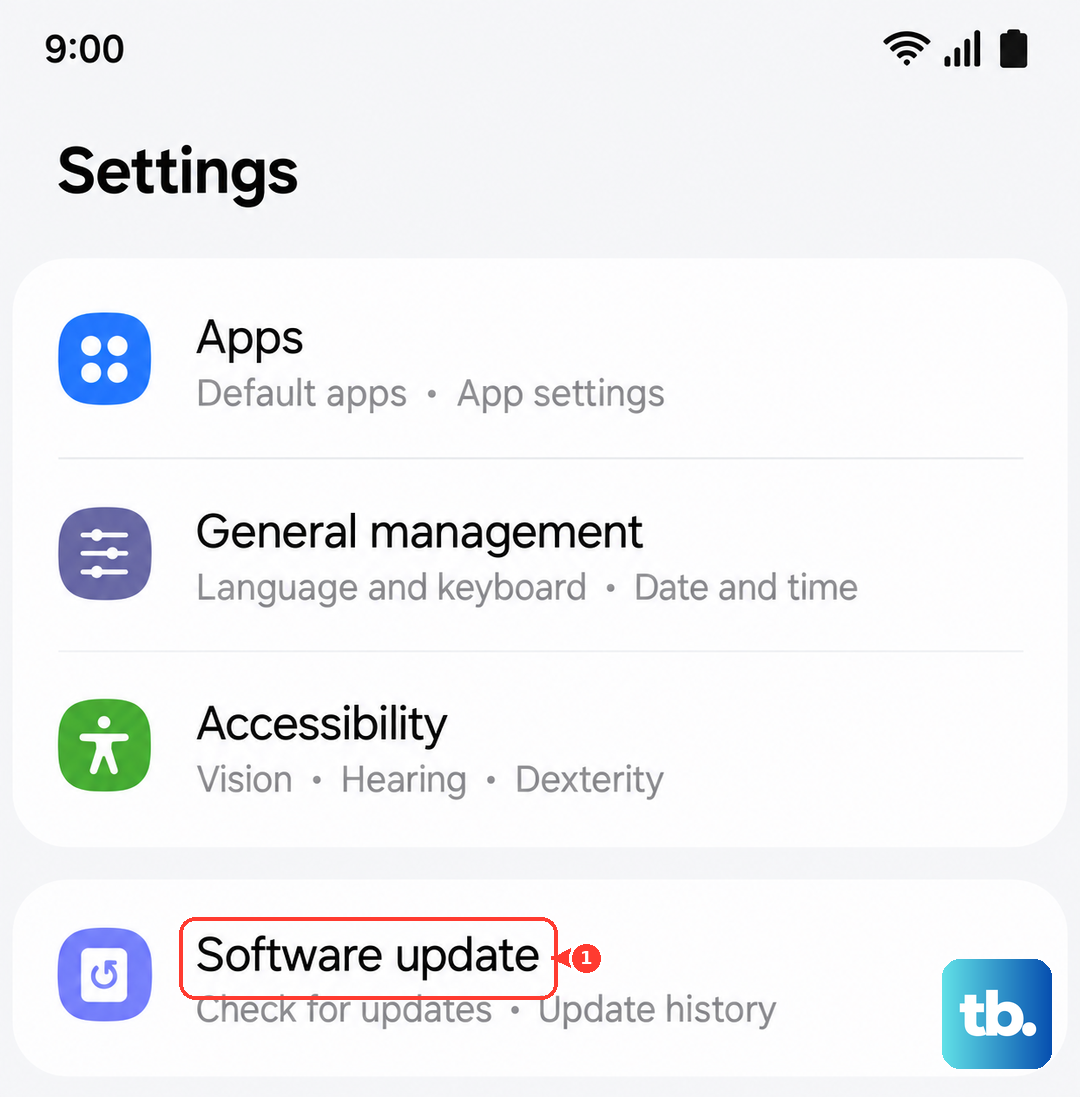
Tap Download and install.
Tap Install now and follow the prompts.
Let the tablet finish installing and restart on its own, then open the Camera app and check whether the focus has improved.
Use Safe mode to expose a misbehaving app
A downloaded app can interfere with the camera, and Safe mode is the way to find out. Safe mode loads only the original built-in software, so if the camera is sharp there, a third-party app is the culprit.
Here is how to enter it.
Swipe down from the top of the screen to open the Quick panel.
Tap the Power icon.
Touch and hold the Power off icon.
Tap Safe mode when it appears.
Test the camera while in Safe mode. If your photos are crisp, uninstall recently added apps one at a time to find the offender, then restart the tablet normally to exit Safe mode.
The last resort, a backup, a reset, and a call to support
If nothing above has helped, a factory data reset returns the tablet to its original state and clears any deep software problem. This step erases everything on the tablet, so back up your photos, accounts, and files first.
Samsung warns, "Please save any information you need prior to the factory reset because your personal information may not be recovered."
- 1.Open Settings and go to General management.
- 2.Tap Reset.
- 3.Tap Factory data reset.
- 4.Review the information, then tap Reset.
- 5.Tap Delete all.
Set the tablet up again and test the camera before reinstalling your apps. If blur still persists after a full reset, the lens or other hardware may need service, so contact Samsung Support for next steps.
Frequently Asked Questions
Why are my close-up photos on the Tab S9 always blurry?
You are most likely shooting inside the lens's minimum focusing distance. The rear Wide lens needs the subject at least 12 inches away, and the front Ultra Wide lens needs at least 4 inches, so move back and reframe and the shot should snap into focus.
Does clearing the Camera cache delete my photos?
No. Clearing the cache only removes temporary files for the Camera app and leaves your photos and settings intact. Clear data is the option that would reset the app to its defaults, so use Clear cache for this fix.
How do I stop the camera from focusing on the wrong subject?
Tap directly on the screen where you want the camera to focus before you take the shot. If it keeps locking onto one person or object, open the Camera app, tap the Settings icon at the top left, and turn off Tracking auto-focus.
Will a factory reset fix a blurry camera?
It can fix blur caused by a deep software problem, but it erases everything on the tablet, so back up your data first. If photos are still blurry after the reset, the issue is likely hardware, and you should contact Samsung Support.
Can a case or cover cause blurry photos?
Yes. A case, cover, or accessory that overlaps the edges of the camera lens can block focusing and cause blur. Reseat or remove anything sitting too close to the lens, then test the camera again.