
When your Samsung Galaxy Tab S9 won't install apps, it can stop your productivity in its tracks. You might see a download that never starts, an app stuck on "Pending," or an error message you can't decipher. The good news is that this is almost always a software hiccup that you can fix yourself.
Let's go through the most reliable ways to get your tablet downloading apps again, starting with the quickest checks.
Check Your Internet Connection First
This sounds obvious, but it's the most common culprit. The Galaxy Tab S9 needs a stable connection to talk to the Google Play servers. Pull down the notification shade twice to open the Quick Panel and make sure your Wi-Fi or mobile data icon is active and strong.
If you're on Wi-Fi, try toggling it off and back on. Some networks, especially public or corporate ones, can block the ports the Play Store uses. As a test, try switching to mobile data temporarily to see if the download starts.
Restart Your Galaxy Tab S9
A simple restart clears out temporary glitches in the system and app caches that can stall downloads. If apps were installing fine yesterday but not today, this often fixes it.
Just press and hold the Side button and Volume Down button together for about ten seconds until you see the Samsung logo. The tablet will reboot, and you can try the download again immediately after.
Clear the Google Play Store Cache and Data
The Play Store app stores temporary data to run faster, but this cache can become corrupted. Clearing it forces the app to fetch fresh data from Google.
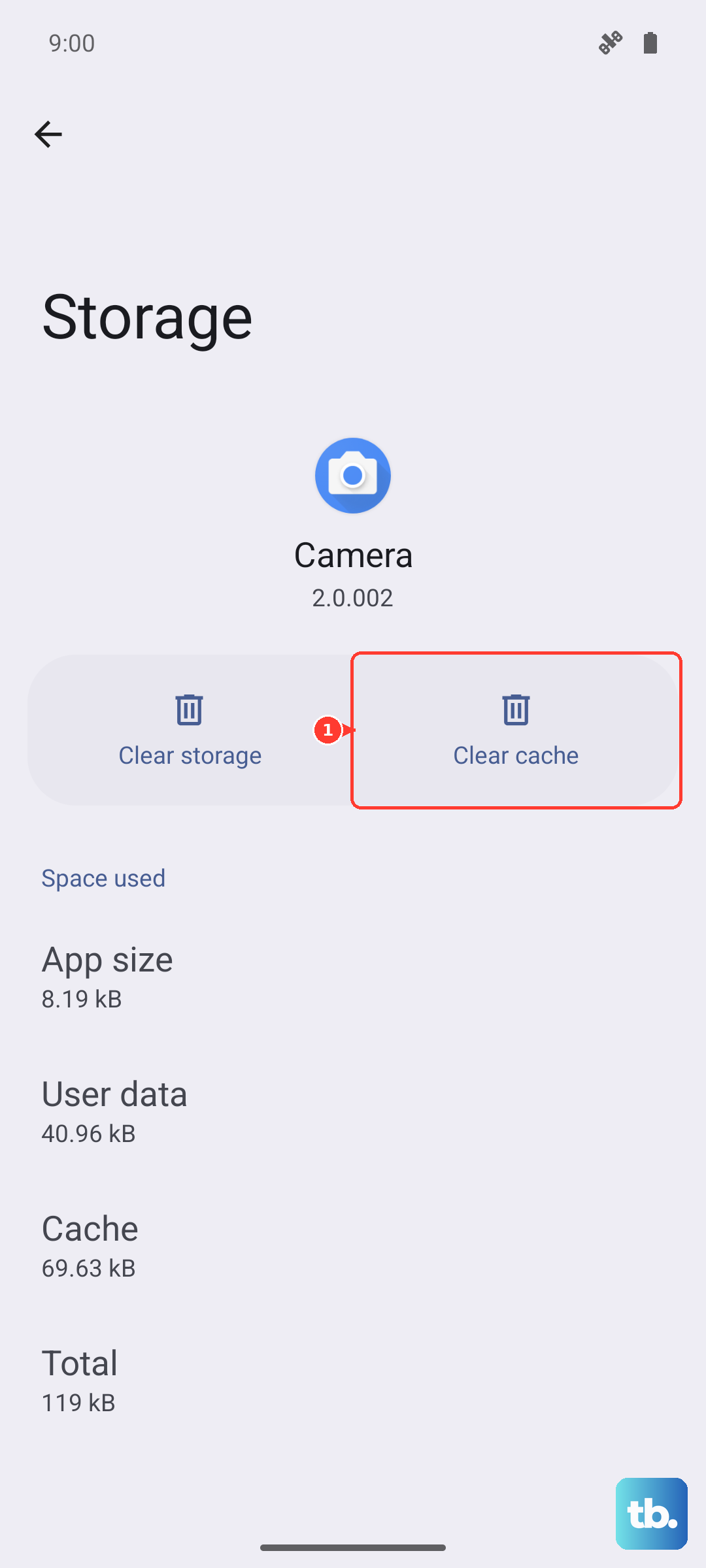
Go to Settings > Apps, then find and tap on Google Play Store. Tap Storage, then hit Clear Cache. Try your download again. If it still fails, go back and tap Clear Data this time. Don't worry, this won't delete your apps or account, just the app's local settings.
Clear Google Play Services Data
Google Play Services is the background engine that handles downloads, updates, and security for all Google apps. If it gets confused, your downloads can stall.
Head back to Settings > Apps. You might need to tap the three-dot menu and select Show system apps to find it. Tap Google Play Services, then Storage. Here, tap Manage Storage and then Clear All Data. This is a deeper reset than just the cache and often kicks downloads back into gear.
Verify Your Date and Time Settings
Google's servers use your device's time to authenticate downloads. If your tablet's clock is off by days or months, the servers won't trust it.
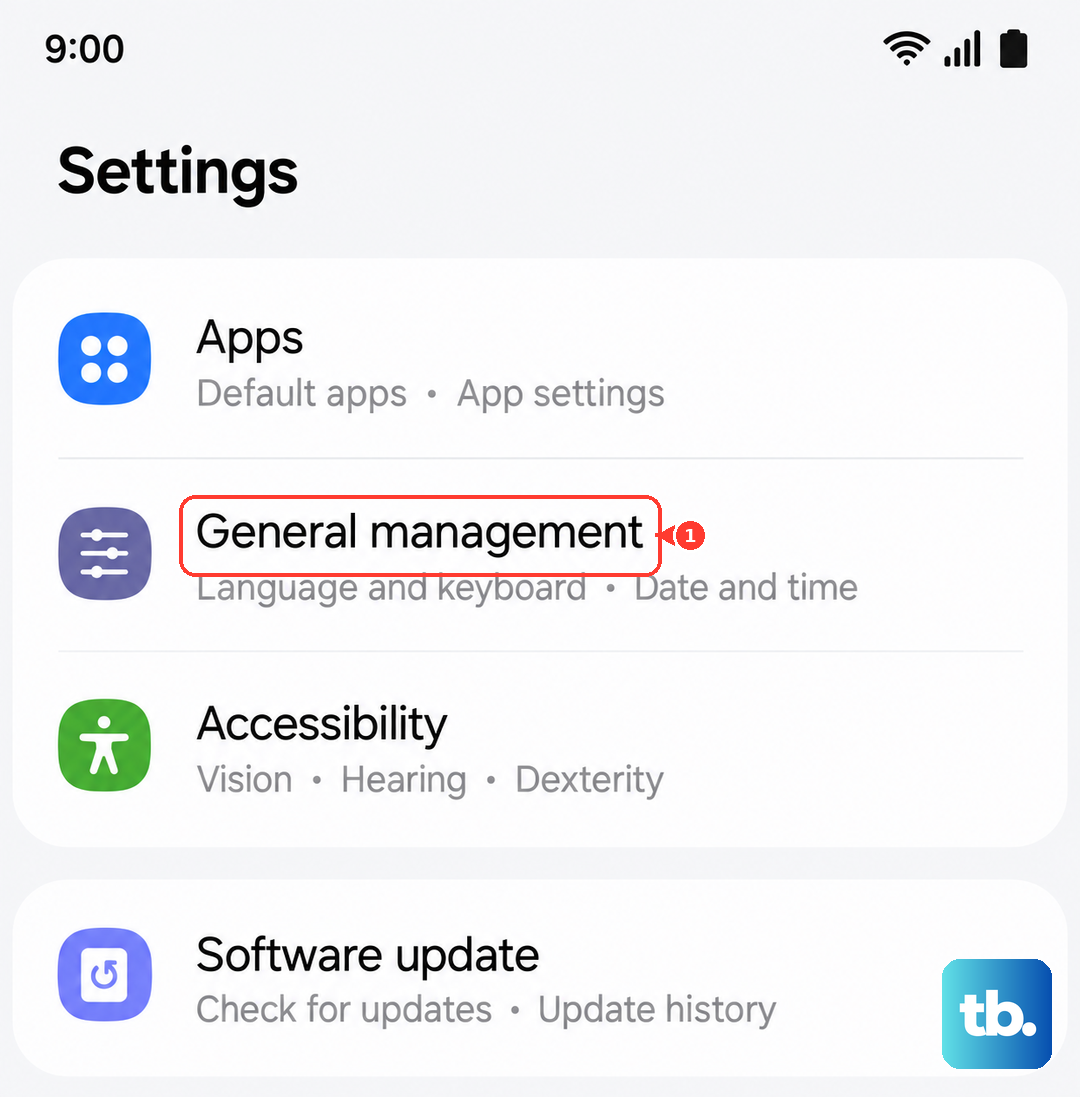
Open Settings > General Management > Date and time. Make sure Automatic date and time is switched on. If it's already on and you're having issues, try turning it off, manually setting the correct date and time, and then turning automatic back on.
Check for Software Updates
An outdated version of One UI or the Android security patch can have bugs that affect app installation. Samsung regularly releases updates that fix these kinds of issues.
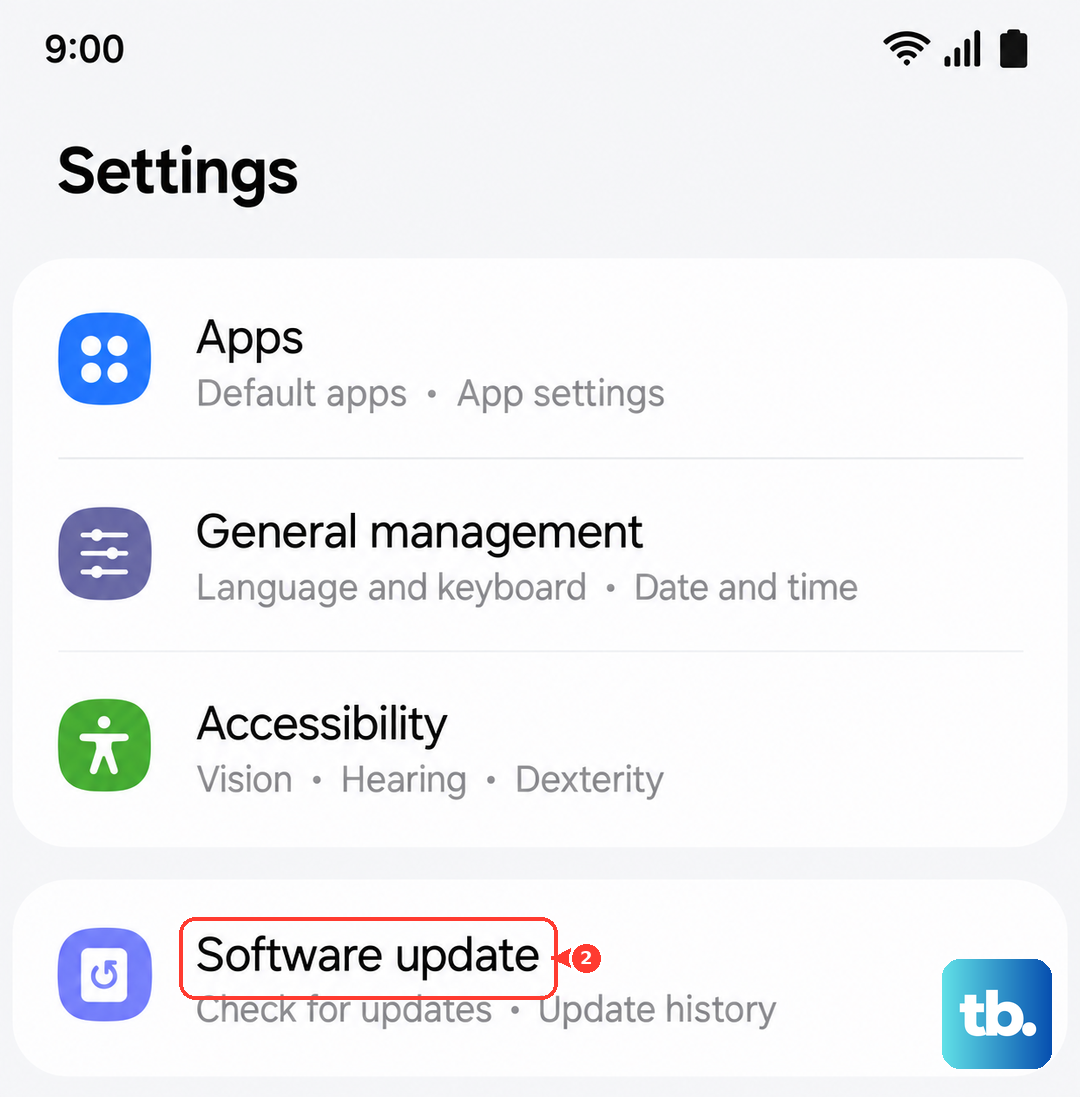
Go to Settings > Software update and tap Download and install. If an update is available, install it. Your tablet will restart, and you should try your download again once it's back up.
Free Up Storage Space on Your Tablet
The Galaxy Tab S9 comes with generous storage, but if you're near capacity, there may not be enough room for new apps or their temporary installation files. You'll usually see an "Insufficient storage" error.
Go to Settings > Battery and device care > Storage. This gives you a clear breakdown. You can tap on categories like "Images" or "Apps" to clean up. Uninstalling a single large, unused app or moving some videos to cloud storage often frees up the needed space.
Remove and Re-add Your Google Account
This refreshes the connection between your tablet and Google's servers. It's a bit more involved but resolves many persistent sync and download problems.
First, go to Settings > Accounts and backup > Manage accounts. Select your Google account and tap Remove account. Confirm, then go back and tap Add account to sign back in. You'll need your password. This process doesn't delete your data from Google's servers.
Check Download Manager (System App)
The Download Manager is a hidden system app that handles all downloads, not just from the Play Store. If it's disabled or stuck, nothing will download.
In Settings > Apps, tap the three-dot menu and select Show system apps. Search for "Download Manager." If the button says "Enable," tap it. If it's already enabled, tap on it, go to Storage, and tap Clear Cache and Clear Data.
Reset All App Preferences
This is a safe, broader reset that doesn't delete any personal data. It restores all app permissions, default apps, and background restrictions to their factory settings. If you accidentally denied a critical permission to a system app, this can fix it.
Navigate to Settings > Apps, tap the three-dot menu, and select Reset app preferences. Confirm. You'll need to re-grant permissions to your apps as you use them again, but downloads often work immediately after.
Address Specific Play Store Error Codes
Sometimes you get a numeric error. For error DF-BPA-09 (often related to purchase processing), you need to clear data for Google Services Framework. Find it in Settings > Apps (show system apps), tap it, go to Storage, and hit Clear Data.
For generic errors like Error 491 or Error 963, the combination of clearing Google Play Store cache/data and then restarting your tablet is usually the most effective fix. I've found that Error 963 in particular is often linked to a corrupted app cache.