
You bought the Galaxy Tab S11 Ultra for its massive screen and incredible speed, not to miss phone calls. When someone says they called but you never heard a thing, it throws off your whole workflow. Let's run through the fixes that usually get the sound back.
Check Your Sound Mode First
This is the easiest thing to overlook. Swipe down twice from the top-right corner of the screen to expand the Quick Panel. Look for the icon that says Sound, Vibrate, or Mute. If it's on Vibrate or Mute, tap it once to switch back to Sound mode.
On Android 16, this button is usually right next to the Wi-Fi and Bluetooth toggles. It's so easy to accidentally bump it in your bag or pocket.
Turn Off Do Not Disturb and Modes
Samsung's Modes and Routines feature is powerful, but it can also silently cut you off without you realizing. Swipe down and check if the Do Not Disturb icon (a minus sign in a circle) or the Modes icon is highlighted. Tap them to deactivate.
Go to Settings > Modes and Routines to see if any routines are set to automatically enable Do Not Disturb. You might have one scheduling Quiet Mode for bedtime that stays on past your alarm.
Crank Up the Ringer Volume
You'd be surprised how often the ringer slider gets turned down by accident. Press the Volume Up button and tap the arrow on the slider that appears. This expands the full volume control panel.
Make sure the Ringtone slider is at the level you want. You can also find this in Settings > Sounds and Vibration > Volume.
Try a Different Ringtone
A corrupted custom ringtone file can cause the audio system to output nothing at all when a call comes in. Go to Settings > Sounds and Vibration > Ringtone and pick one of the stock Samsung tones. Test a call to see if that brings the sound back.
Disconnect Bluetooth Audio Devices
Your Tab S11 Ultra might be perfectly paired with your Galaxy Buds or a Bluetooth speaker, routing the call audio there while you stare at a silent screen. Swipe down to the Quick Panel and tap the Bluetooth icon to turn it off completely.
If you want to stay connected to a device for other reasons, go to Settings > Connections > Bluetooth, tap the gear icon next to the connected device, and uncheck "Call audio." This forces the call to ring through the tablet's speakers.
Review Your Blocked Numbers List
It's possible your teen accidentally added your boss to the block list while playing with the S Pen. Open the Phone app, tap the three-dot menu in the top right, and select Settings. Tap Blocked numbers to see every number on the list.
If you find a number you actually want to hear from, tap the minus icon next to it to unblock them immediately.
Make Sure Call Forwarding Isn't On
Call forwarding redirects incoming calls to another number before your tablet even has a chance to ring. Go to Settings > Connections > SIM Card Manager. Tap your active SIM and select Call Forwarding.
Make sure "Always forward" is set to off. If it shows another number listed there, tap it and choose "Disable" or "Turn off."
Turn Off the Block Unknown Numbers Feature
Samsung includes a setting that automatically silences calls from numbers not saved in your contacts. Open the Phone app, tap the three-dot menu, and go to Settings. Look for Block unknown numbers or Block unknown callers.
If the toggle is switched on, tap it to turn it off. That's usually the culprit if you're missing calls from delivery drivers or new clients.
Force Restart the Tablet
A temporary software glitch in Android 16 can cause the call audio process to freeze up completely. The fastest way to clear it is a force restart. Press and hold the Power button and Volume Down button simultaneously for 10-15 seconds until the device restarts.
You'll feel a vibration and see the Samsung logo pop back up. This doesn't delete any of your files or data, it just gives the system a hard reset.
Update to the Latest Software
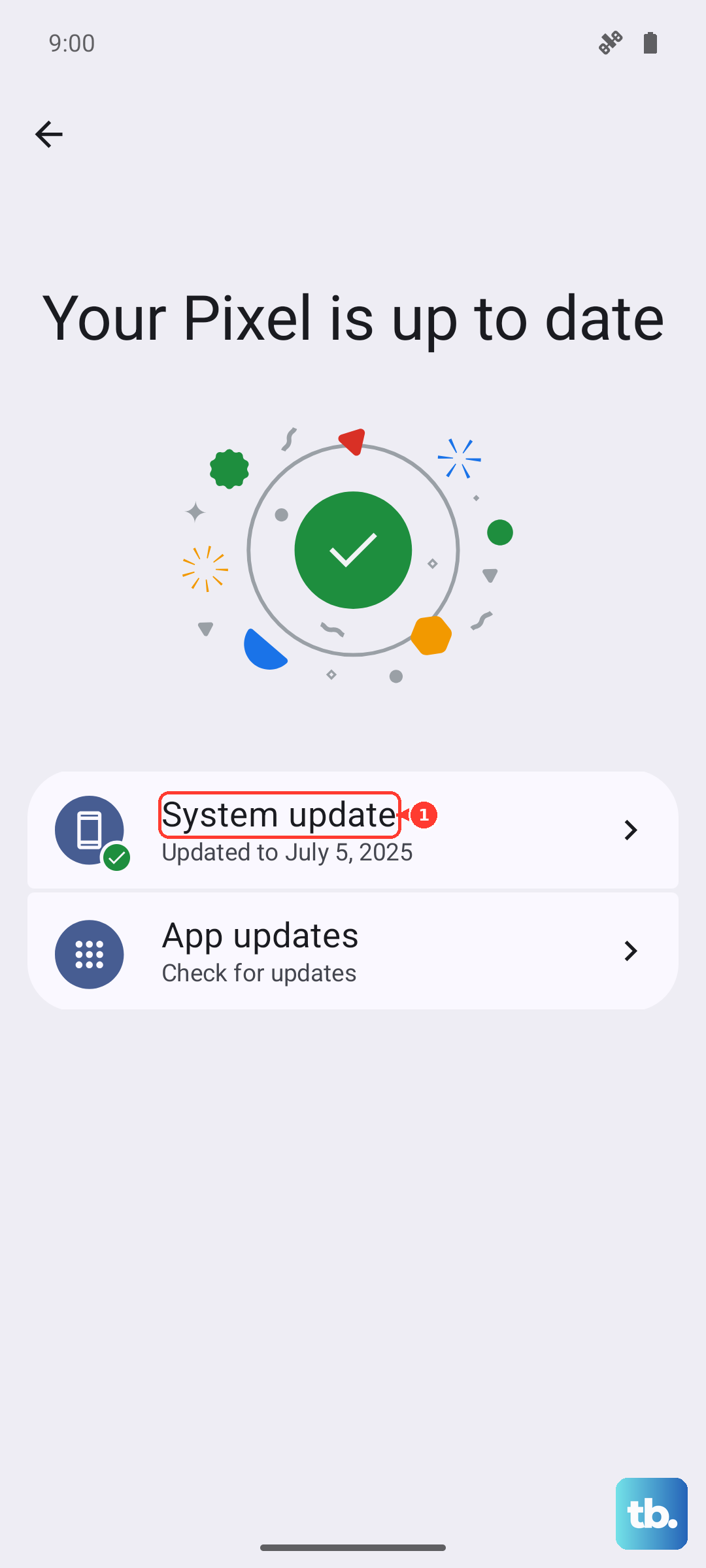
Bug fixes for call and audio issues are often baked into system updates. Go to Settings > Software Update and tap Download and install. If an update is available, install it while connected to Wi-Fi and with at least 50% battery.
Clear App Cache or Reset App Preferences
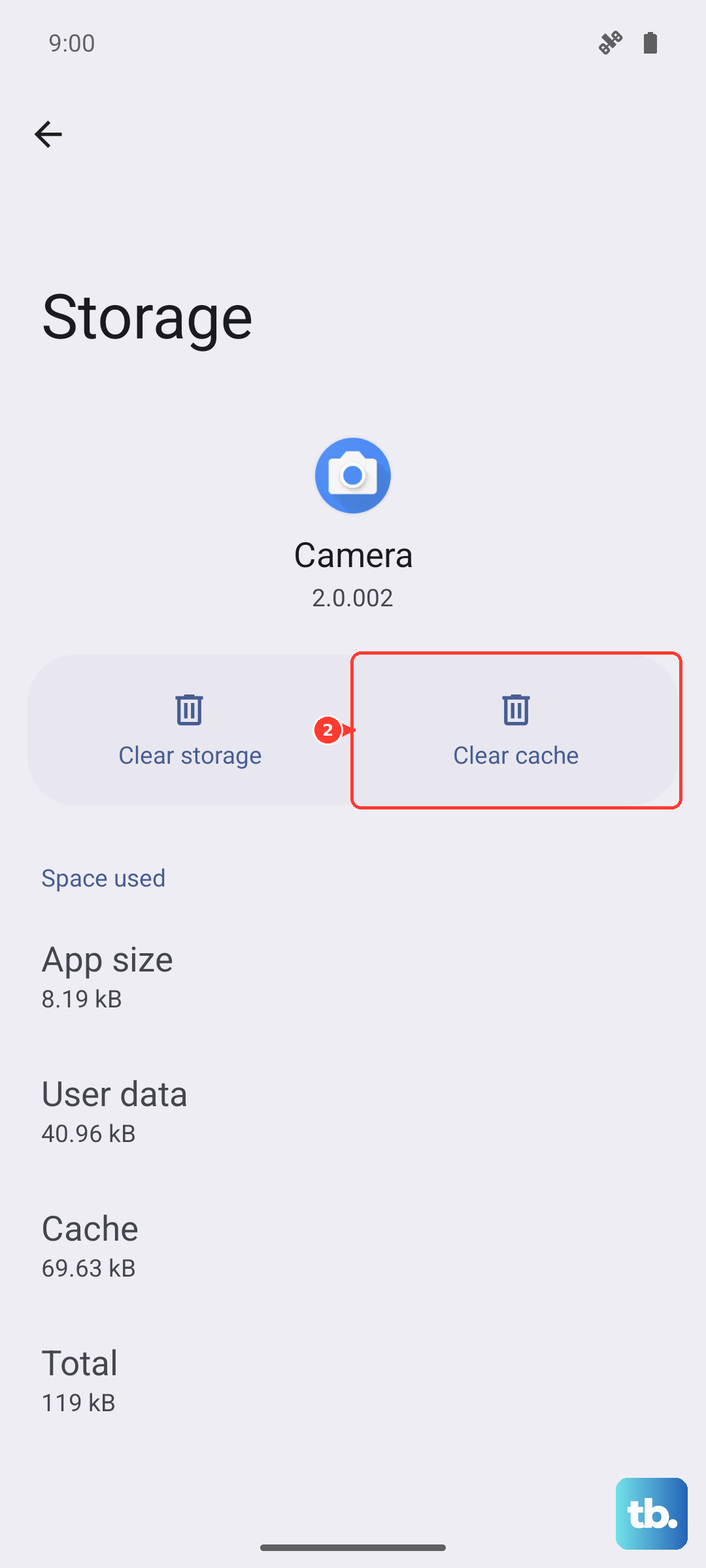
If the Phone app itself is buggy, you can clear its cache without affecting your contacts or call log. Go to Settings > Apps > tap the three-dot menu and select Show system apps. Find Phone and tap Storage, then tap Clear cache.
If you're having similar issues with voip apps like WhatsApp or Google Voice, do the same for those specific apps. You can also go to Settings > General Management > Reset > Reset app preferences to restore all default app permissions without deleting any app data.
Reset All Settings
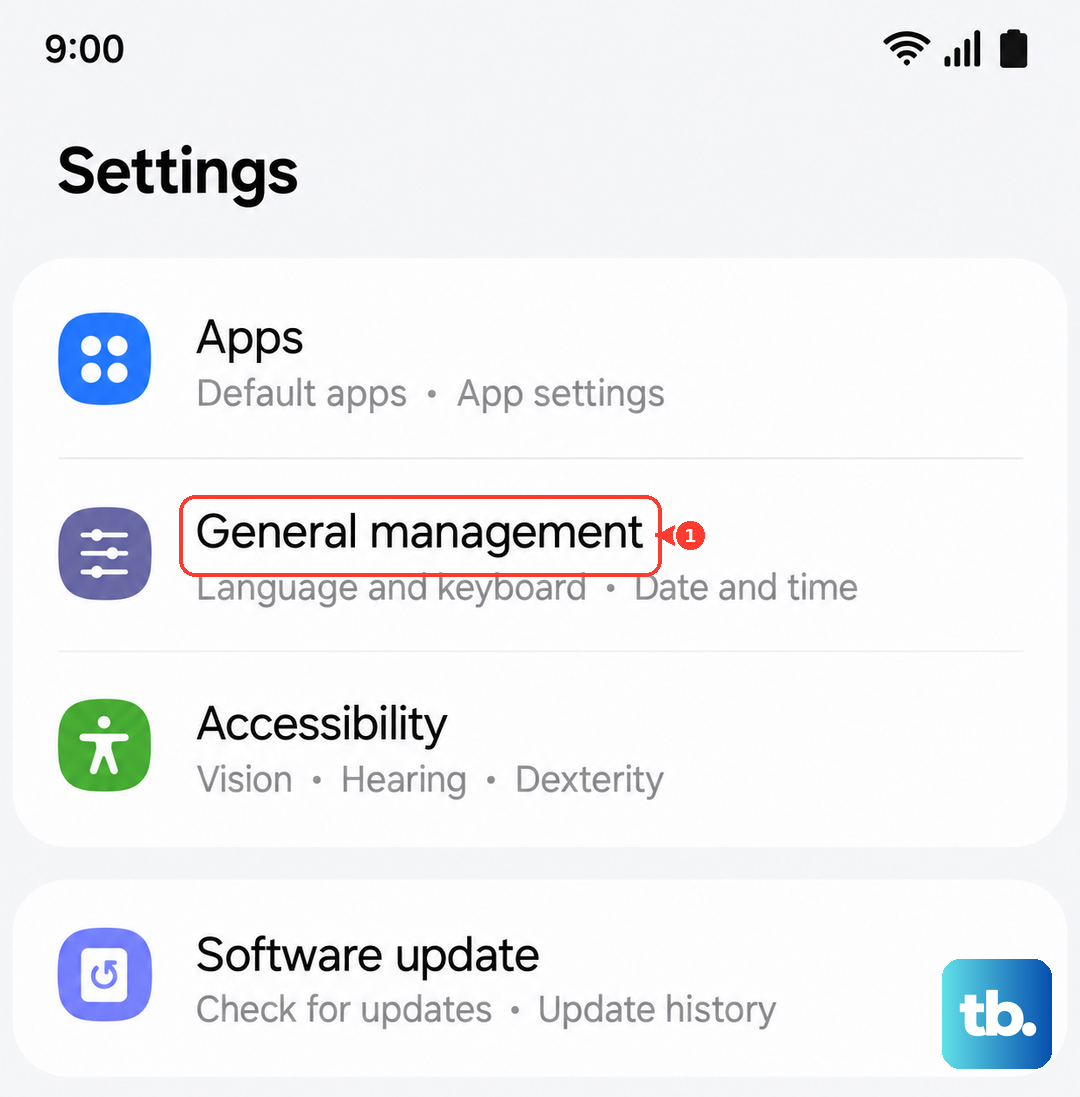
This is a great middle ground before doing a full factory reset. It wipes all your customized settings (Wi-Fi passwords, wallpapers, lock screen) but keeps your photos, docs, and app data intact. Go to Settings > General Management > Reset > Reset all settings.
Enter your PIN or password and confirm. You'll have to reconnect to your Wi-Fi networks afterward, but it often scrubs out the audio bug.
Factory Data Reset as a Last Resort
If you've tried everything else and calls are still silent, a factory reset will clear up whatever deep system conflict is happening. Back up your data to the cloud or a computer first, because this erases everything on the internal storage.
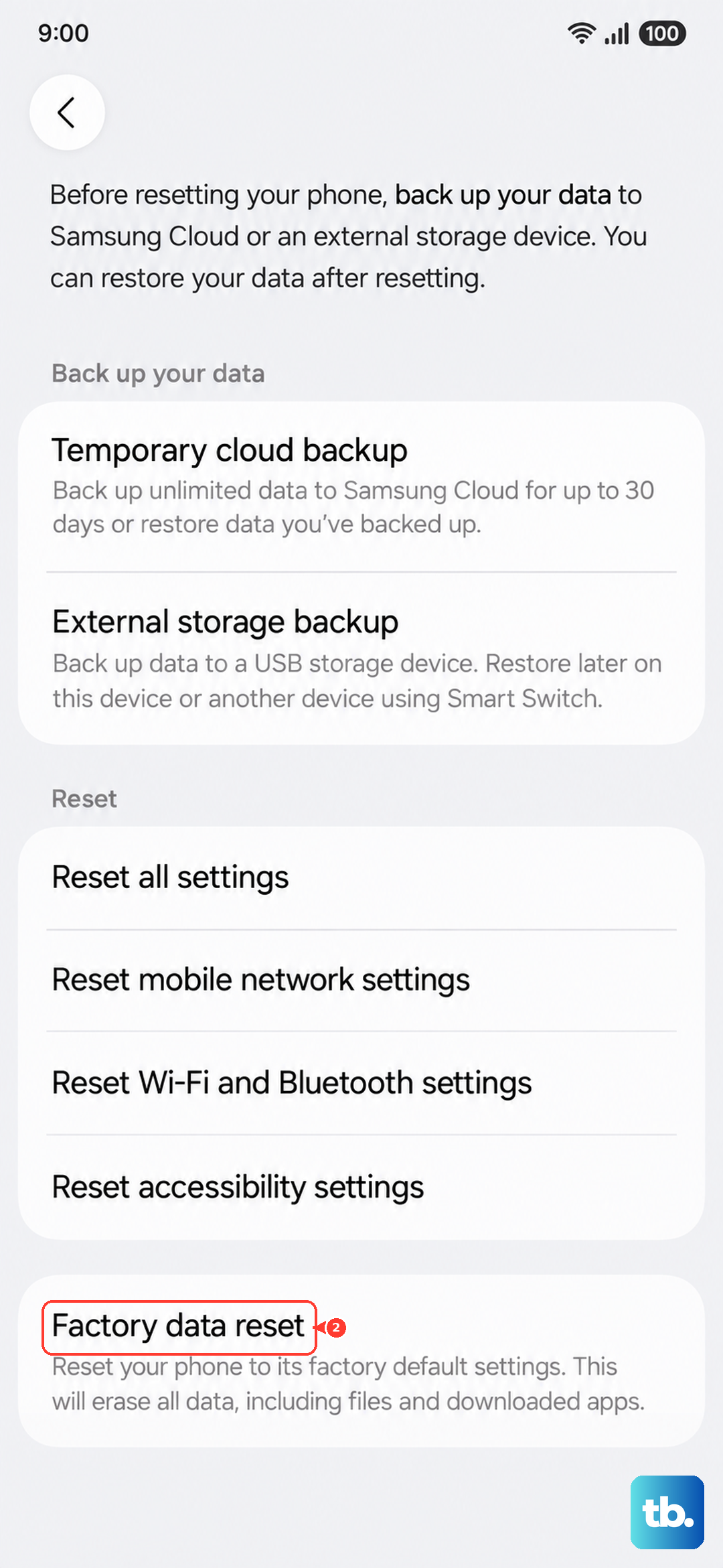
Go to Settings > General Management > Reset > Factory data reset. Tap Reset and follow the prompts. Set the tablet up as a new device and test the ringer before restoring your backup.
Use Smart Switch for a Fresh Firmware Install
Sometimes the normal reset doesn't cut it if the software partition is corrupt. Samsung Smart Switch on a PC or Mac can perform an emergency firmware recovery and initialize your Tab S11 Ultra with a fresh copy of Android 16 and One UI.
Download Smart Switch on your computer, connect your tablet via USB C, and use the "Emergency Software Recovery" option under the hamburger menu. This installs a completely clean system image, which almost always fixes persistent audio issues.