Nothing kills productivity faster than grabbing your Samsung Galaxy Tab S11 Ultra only to see "No SIM card detected" staring back at you. This tablet runs on Android 16, and while it's a powerhouse, SIM detection issues can still pop up. Let's walk through the fixes that actually work.
I'd start with the force restart, since it's quick and clears out temporary glitches without losing anything. Press and hold the Power button and Volume Down button simultaneously for 10-15 seconds until the device restarts. That's it. No data lost, no settings changed.
Quick Toggle Checks
Swipe down from the top of your screen to open Quick Settings and tap Airplane Mode. Wait about 10 seconds, then tap it again to turn it off. This forces the tablet to re-register on the network, and it often solves the issue right there.
Also check that the SIM card is actually enabled. Head to Settings > Connections > SIM card manager and make sure the toggle for your SIM is switched on. It sounds obvious, but it's easy to accidentally flip it off.
Pull the Physical SIM and Inspect It
Power down the Tab S11 Ultra completely. Use the SIM ejector tool that came with the box (or a paperclip in a pinch) to pop the tray out. Look at the gold contacts on the SIM card itself. If you see any grime, fingerprints, or corrosion, gently wipe them with a dry microfiber cloth. Even a tiny bit of dust can break the connection.
Check the tray, too. If it's bent or cracked, the SIM won't sit flush. While you're at it, take a peek inside the slot with a flashlight. Debris can get lodged in there. Reinsert the SIM carefully, making sure it's aligned properly, and boot the tablet back up.
If you have another phone handy, pop the SIM into it. If it works there, the problem is with the Tab S11 Ultra. If it doesn't, you're looking at a bad SIM and need a replacement from your carrier.
Update the Software
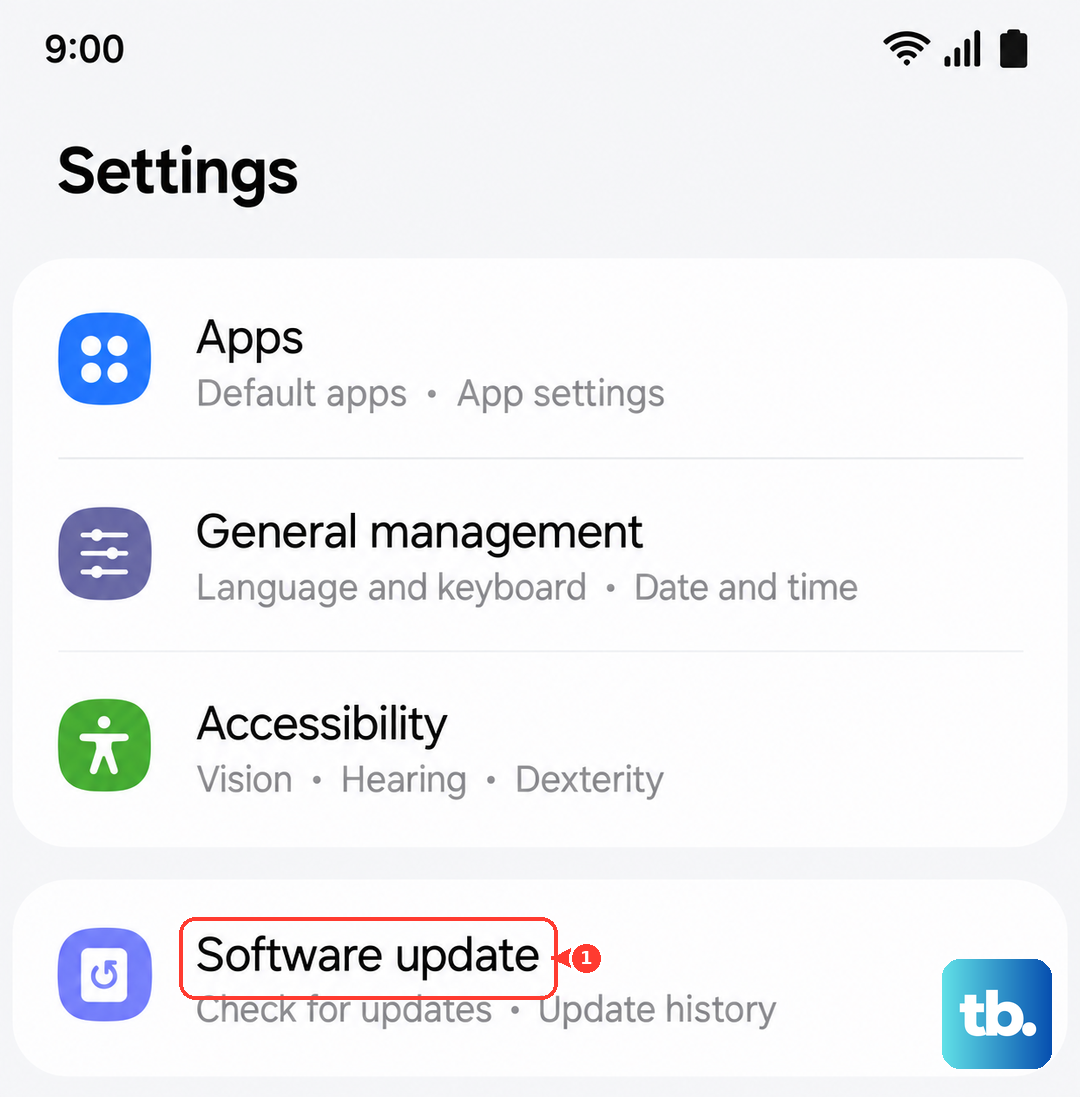
Android 16 is still getting squashes and optimizations. SIM detection bugs sometimes get patched in minor updates. Go to Settings > Software update and tap Download and install. If there's anything waiting, install it and restart. This costs you nothing and rules out a software-level conflict.
Reset Network Settings
This one clears out all your Wi-Fi networks, Bluetooth pairings, and mobile network configurations, but it won't touch your photos, apps, or accounts. So you'll need to re-enter Wi-Fi passwords afterward, but it's worth it if the SIM is still not detected.
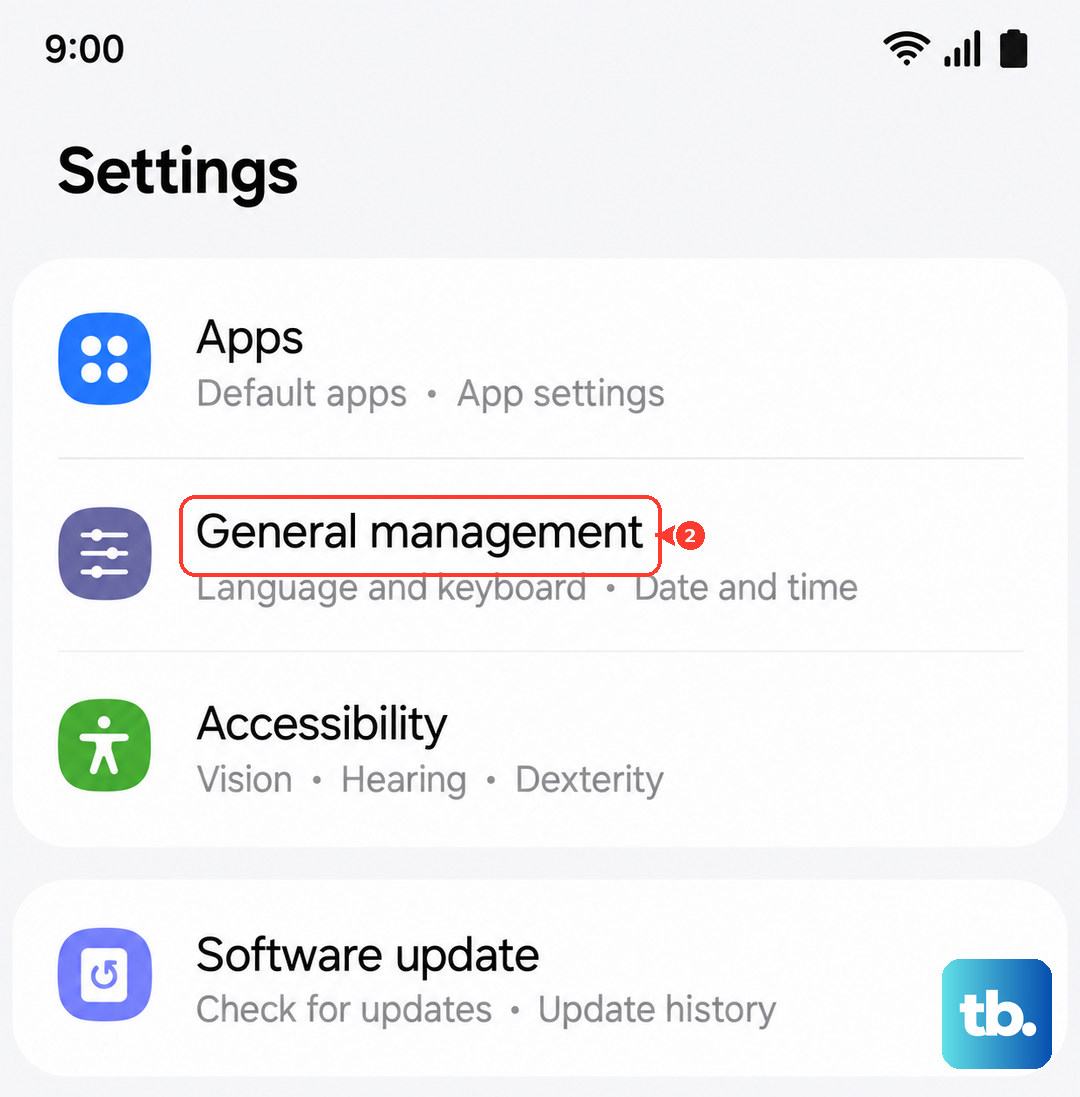
Go to Settings > General management > Reset > Reset network settings. Confirm, and wait for the tablet to restart.
Clear SIM-Related App Cache
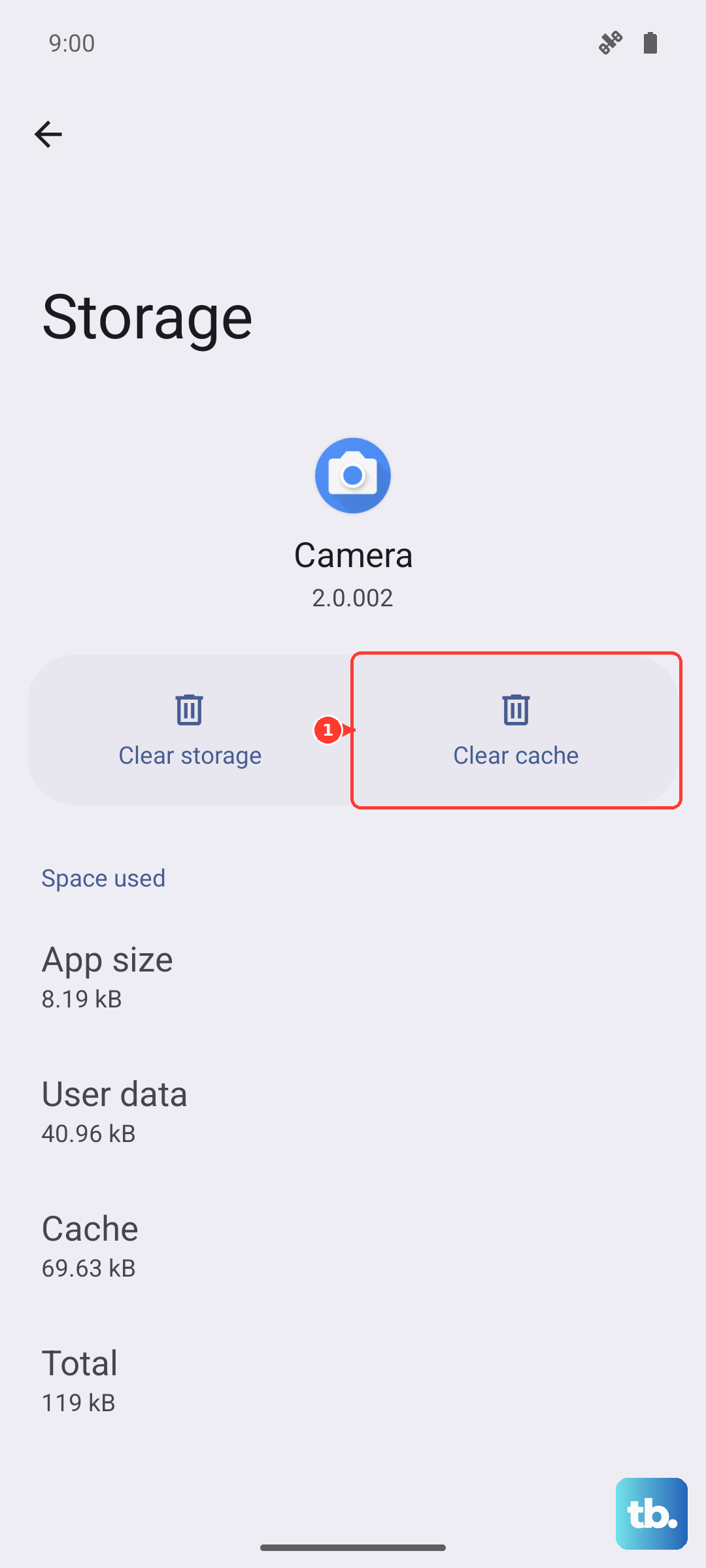
Hidden system apps can get clogged up and cause recognition failures. Open Settings > Apps, tap the three-dot menu in the corner, and select Show system apps. Search for SIM Card manager, tap it, then go to Storage and hit Clear Cache. Do the same for SIM Toolkit or SIM Application Toolkit. Restart after you're done.
Switch the Network Mode Manually
Sometimes the tablet gets stuck trying to latch onto a network type it can't reach. Open Settings > Connections > Mobile networks > Network mode. Choose 4G/3G/2G (auto connect) or 5G/4G/3G/2G (auto connect), depending on your carrier. This forces the Tab S11 Ultra to search all available bands.
Reset APN Settings
Incorrect Access Point Name data can prevent the tablet from connecting at all. Go to Settings > Connections > Mobile networks > Access Point Names. Tap the three-dot menu and select Reset to default. If your carrier provided custom APN info, enter it manually after the reset.
Try Manual Network Selection
Automatic selection doesn't always work. Head to Settings > Connections > Mobile networks > Network operators. Tap Search Now, wait for the list to populate, then pick your carrier. If it connects, you're set. If it throws an error, that points to a deeper issue with the SIM or slot.
If You Have an eSIM Option
The Tab S11 Ultra supports eSIM alongside the physical SIM slot. If the physical SIM keeps failing and your carrier offers eSIM, consider converting. This completely bypasses the hardware SIM reader, so a bad slot won't be a problem anymore.
Factory Reset as a Last Resort
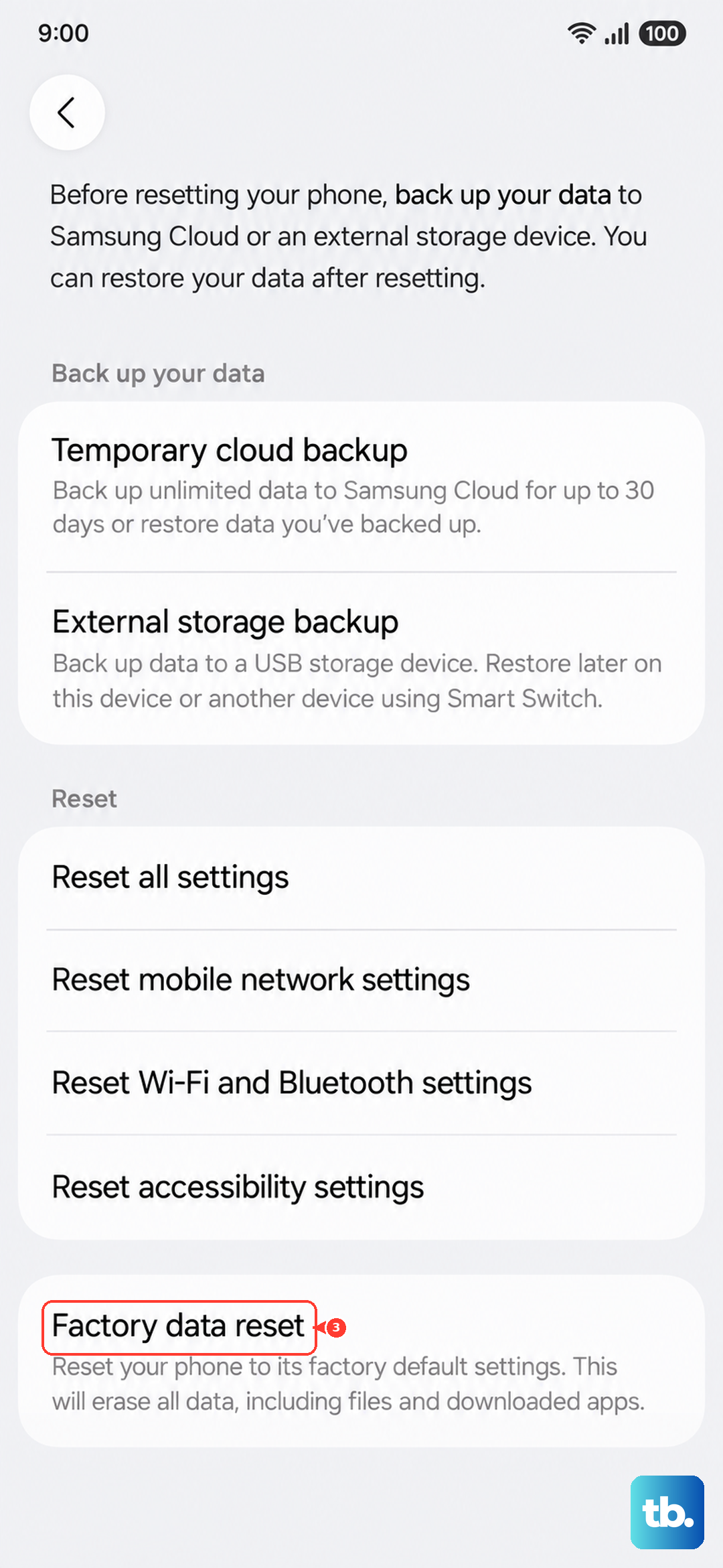
This wipes everything, so back up your files, photos, and app data before proceeding. Go to Settings > General management > Reset > Factory data reset. After the tablet reboots, set it up fresh and check if the SIM is detected. If it's still not reading, the hardware is likely the culprit.