
You plug in your USB-C headphones or connect your wireless earbuds, but the Samsung Galaxy Tab S11 Ultra keeps playing audio through its speakers. Or maybe the tablet doesn't recognize the headphones at all. This is a known pain point, but it's usually fixable with a few targeted steps.
It helps to confirm what actually works before changing settings. Run a left and right audio test, note which channels and frequencies play correctly, and match the result against the steps below.
Start With a Force Restart
Before diving into settings, restart the tablet. Hold down the Power and Volume Down buttons together for about 10 seconds until the screen goes black and the Samsung logo appears. This clears out temporary glitches that can block headphone detection.
Clean the USB-C Port Thoroughly
The Tab S11 Ultra relies entirely on its USB-C port for wired audio. If there's lint or pocket debris inside, your headphones or DAC dongle won't make a solid connection. Use a wooden toothpick or a plastic dental pick to gently scoop out any compacted dirt. A dirty port is one of the most common reasons wired audio stops working.
If you've been using a thick case, check that the headphone plug is actually clicking all the way in. Some cases block the port slightly.
Re-Pair Your Bluetooth Headphones
Open Settings > Connections > Bluetooth. Tap the gear icon next to your headphones and select Unpair (or Forget). Put your headphones back into pairing mode and reconnect them from scratch. A corrupted Bluetooth profile is a frequent culprit with wireless earbuds and headsets.
Check Where the Audio Is Actually Going
Pull down the notification panel twice to open Quick Settings. Tap the Media Output button (it usually shows the current device name). Make sure your headphones or earbuds are selected instead of the Tab's internal speakers. Sometimes the tablet gets confused and routes audio to the wrong output.
Disable Absolute Bluetooth Volume
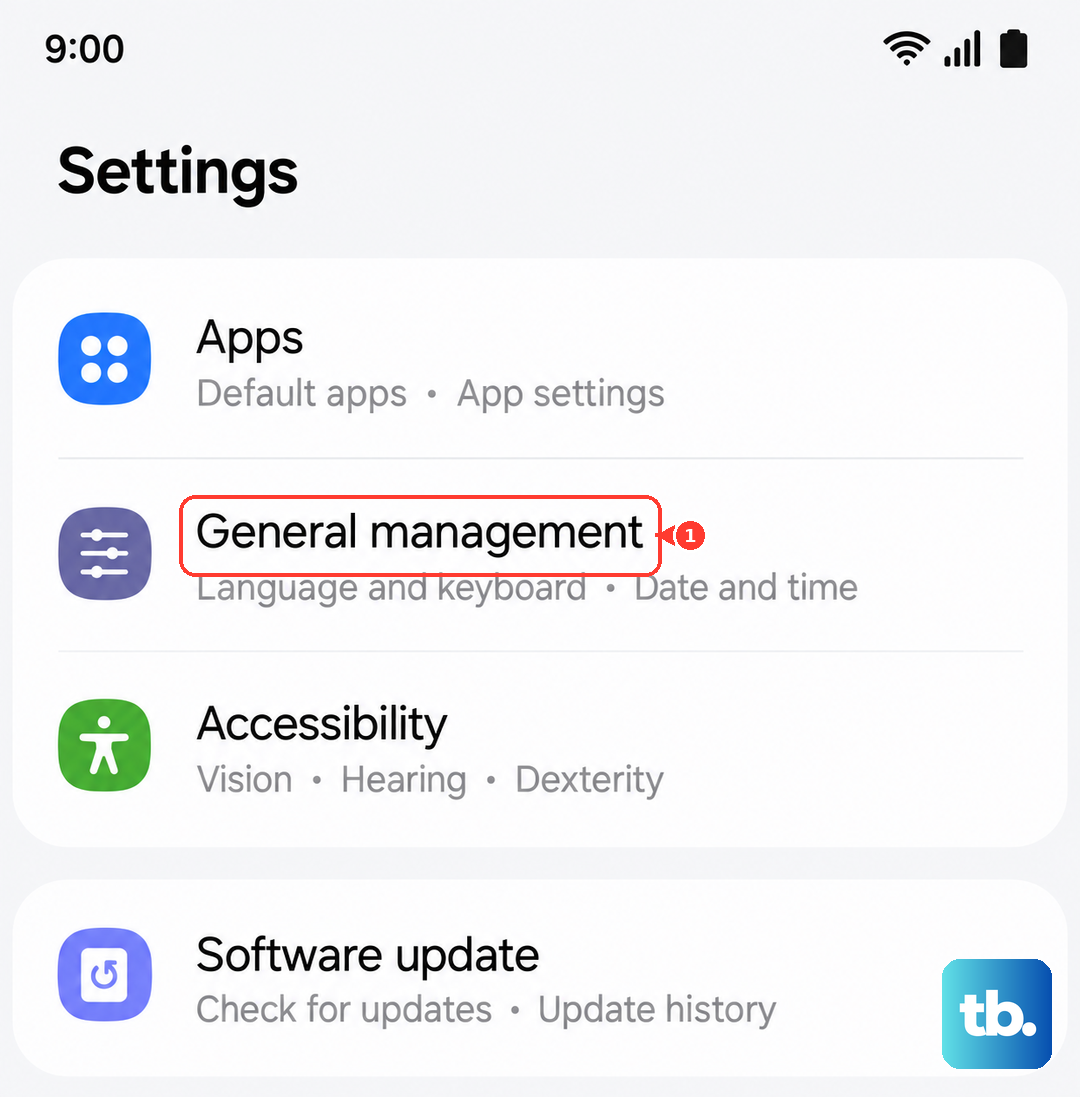
Go to Settings > General Management > About Tablet > Software Information and tap Build Number seven times to unlock Developer Options. Go back to Settings > Developer Options and scroll down to Disable Absolute Volume. Toggle it on. This prevents your headphones from overriding the tablet's volume control, which often fixes distorted or silent audio.
Update the Software
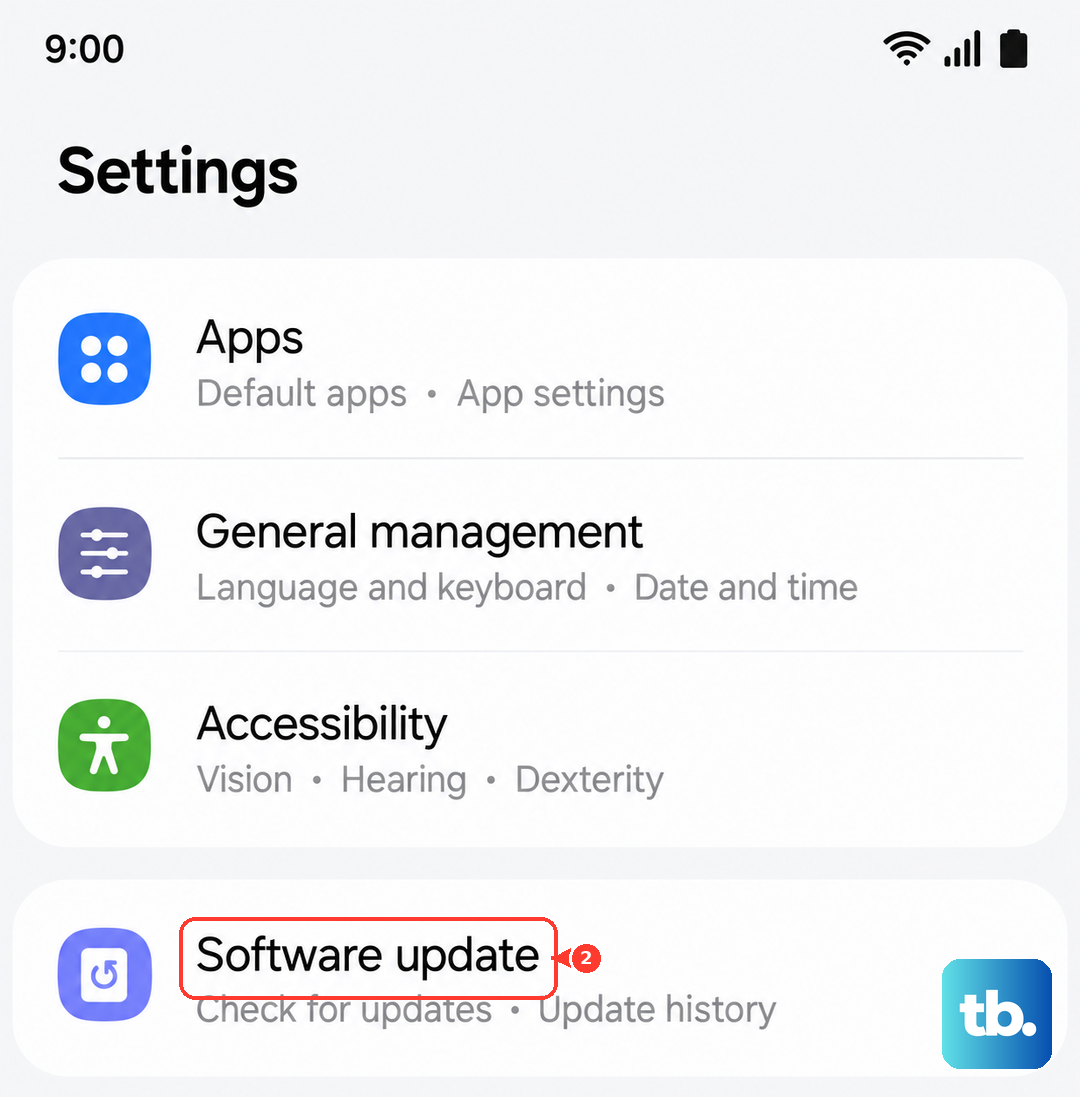
Go to Settings > Software Update > Download and Install. Samsung regularly pushes patches for Bluetooth connectivity and USB audio. If your headphones use a proprietary codec like Samsung Seamless Codec or LDAC, keeping the firmware current is essential for compatibility.
Reset All Settings
If none of the above works, head to Settings > General Management > Reset > Reset All Settings. This clears out network, Bluetooth, and sound preferences without deleting your photos or apps. You'll have to re-pair your Bluetooth devices and reconfigure any custom sound settings, but it often resolves persistent audio routing issues.